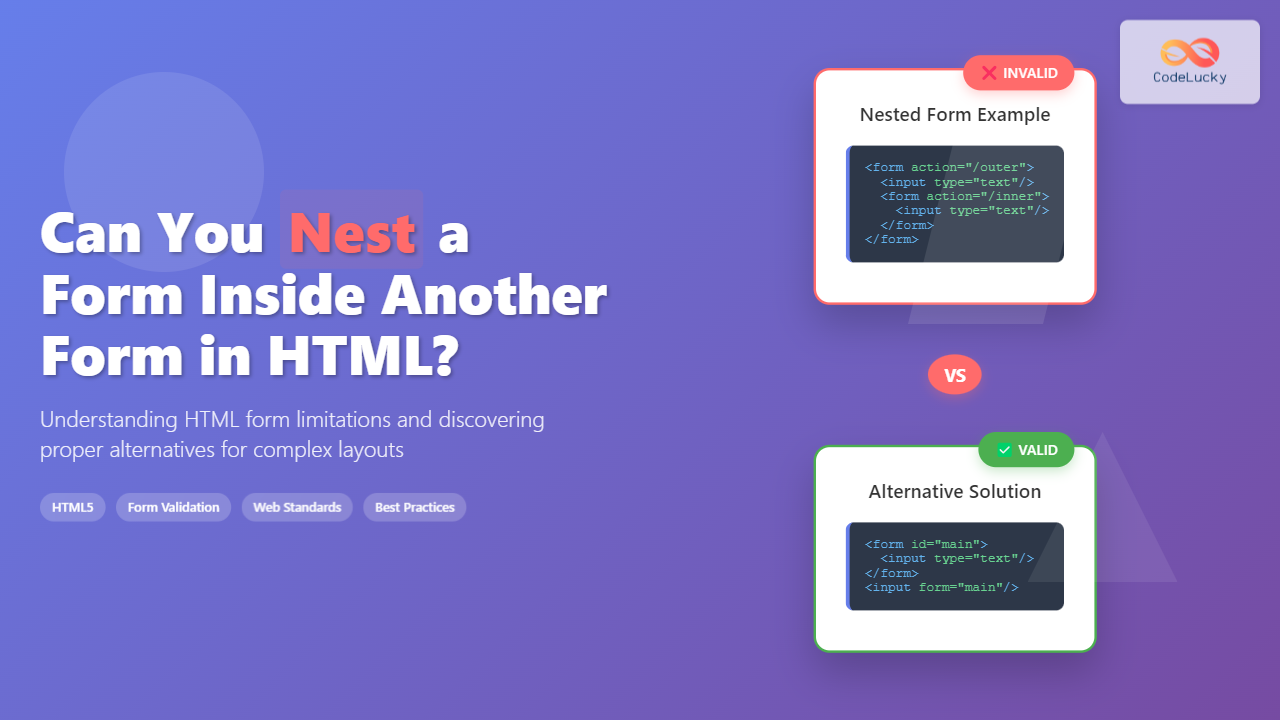
Form nesting is one of the most common questions among web developers working with HTML. The short answer is no, you cannot nest a form inside another form in HTML. This limitation is strictly enforced by HTML specifications, and attempting to do so will result in invalid HTML that can cause unpredictable behavior across different browsers.
Why Form Nesting Is Not Allowed in HTML
The HTML specification explicitly prohibits nesting <form> elements. According to the W3C HTML5 specification, the content model for a form element states that it cannot contain other form elements as descendants. This restriction exists for several important reasons:
- Form submission ambiguity: When a submit button is pressed, browsers wouldn’t know which form should be submitted
- Data collection confusion: It would be unclear which form should collect data from nested input fields
- Browser parsing issues: Different browsers might handle nested forms differently, leading to inconsistent behavior
- Accessibility concerns: Screen readers and other assistive technologies rely on proper form structure

What Happens When You Try to Nest Forms
When browsers encounter nested forms in your HTML, they typically handle the situation by:
- Ignoring the nested form: The inner
<form>tag is treated as if it doesn’t exist - Moving nested elements: Input elements inside the nested form may be moved to the parent form
- Creating parsing errors: HTML validators will flag this as invalid markup
Example of Invalid Nested Forms
<!-- ❌ INVALID: Don't do this -->
<form id="outerForm" action="/submit-outer" method="post">
    <label for="outerInput">Outer Form Input:</label>
    <input type="text" id="outerInput" name="outerField">

    <!-- This nested form is INVALID -->
    <form id="innerForm" action="/submit-inner" method="post">
        <label for="innerInput">Inner Form Input:</label>
        <input type="text" id="innerInput" name="innerField">
        <button type="submit">Submit Inner</button>
    </form>

    <button type="submit">Submit Outer</button>
</form>
Alternative Solutions for Complex Form Layouts
While you can’t nest forms directly, there are several legitimate approaches to achieve complex form functionality:
1. Using Multiple Separate Forms
The most straightforward approach is to use separate forms that don’t overlap:
<!-- ✅ VALID: Separate forms -->
<div class="form-container">
    <form id="loginForm" action="/login" method="post">
        <h3>Login</h3>
        <label for="username">Username:</label>
        <input type="text" id="username" name="username" required>

        <label for="password">Password:</label>
        <input type="password" id="password" name="password" required>

        <button type="submit">Login</button>
    </form>

    <form id="registerForm" action="/register" method="post">
        <h3>Register</h3>
        <label for="newUsername">Username:</label>
        <input type="text" id="newUsername" name="username" required>

        <label for="email">Email:</label>
        <input type="email" id="email" name="email" required>

        <button type="submit">Register</button>
    </form>
</div>
2. Using the Form Attribute
HTML5 introduced the form attribute, which allows input elements to be associated with a form even if they’re not nested inside it:
<!-- ✅ VALID: Using form attribute -->
<form id="mainForm" action="/submit" method="post">
    <label for="mainInput">Main Input:</label>
    <input type="text" id="mainInput" name="mainField">
</form>

<div class="separate-section">
    <label for="remoteInput">Remote Input:</label>
    <input type="text" id="remoteInput" name="remoteField" form="mainForm">

    <button type="submit" form="mainForm">Submit All</button>
</div>
3. JavaScript-Based Form Management
For more complex scenarios, you can use JavaScript to manage multiple form sections:
<!-- HTML Structure -->
<div id="multiStepForm">
    <div class="form-step active" data-step="1">
        <h3>Step 1: Personal Information</h3>
        <label for="firstName">First Name:</label>
        <input type="text" id="firstName" name="firstName" required>

        <label for="lastName">Last Name:</label>
        <input type="text" id="lastName" name="lastName" required>

        <button type="button" onclick="nextStep()">Next</button>
    </div>

    <div class="form-step" data-step="2">
        <h3>Step 2: Contact Information</h3>
        <label for="email">Email:</label>
        <input type="email" id="email" name="email" required>

        <label for="phone">Phone:</label>
        <input type="tel" id="phone" name="phone">

        <button type="button" onclick="prevStep()">Previous</button>
        <button type="button" onclick="submitForm()">Submit</button>
    </div>
</div>

<form id="hiddenForm" action="/submit" method="post" style="display: none;"></form>
function nextStep() {
const currentStep = document.querySelector('.form-step.active');
const nextStep = currentStep.nextElementSibling;
if (nextStep) {
currentStep.classList.remove('active');
nextStep.classList.add('active');
}
}
function prevStep() {
const currentStep = document.querySelector('.form-step.active');
const prevStep = currentStep.previousElementSibling;
if (prevStep) {
currentStep.classList.remove('active');
prevStep.classList.add('active');
}
}
function submitForm() {
const form = document.getElementById('hiddenForm');
const allInputs = document.querySelectorAll('#multiStepForm input');
// Copy all input values to hidden form
allInputs.forEach(input => {
const hiddenInput = document.createElement('input');
hiddenInput.type = 'hidden';
hiddenInput.name = input.name;
hiddenInput.value = input.value;
form.appendChild(hiddenInput);
});
form.submit();
}4. Using Fieldsets for Logical Grouping
When you need to group related form elements visually, use <fieldset> elements instead of nested forms:
<form action="/submit" method="post">
    <fieldset>
        <legend>Personal Information</legend>
        <label for="fullName">Full Name:</label>
        <input type="text" id="fullName" name="fullName" required>

        <label for="birthDate">Birth Date:</label>
        <input type="date" id="birthDate" name="birthDate">
    </fieldset>

    <fieldset>
        <legend>Contact Information</legend>
        <label for="emailAddress">Email:</label>
        <input type="email" id="emailAddress" name="email" required>

        <label for="phoneNumber">Phone:</label>
        <input type="tel" id="phoneNumber" name="phone">
    </fieldset>

    <button type="submit">Submit Information</button>
</form>
Common Use Cases and Solutions
Modal Forms Within Pages
When you need modal dialogs with forms inside pages that already contain forms:
<!-- Main page form -->
<form id="pageForm" action="/page-submit" method="post">
    <input type="text" name="pageData" placeholder="Page data">
    <button type="submit">Submit Page</button>
</form>

<!-- Modal with separate form -->
<div id="modal" class="modal">
    <div class="modal-content">
        <form id="modalForm" action="/modal-submit" method="post">
            <input type="text" name="modalData" placeholder="Modal data">
            <button type="submit">Submit Modal</button>
            <button type="button" onclick="closeModal()">Cancel</button>
        </form>
    </div>
</div>
Dynamic Form Sections
For forms that need to add or remove sections dynamically:
<form id="dynamicForm" action="/submit" method="post">
    <div id="contactList">
        <div class="contact-item">
            <input type="text" name="contacts[0][name]" placeholder="Contact Name">
            <input type="email" name="contacts[0][email]" placeholder="Contact Email">
            <button type="button" onclick="removeContact(this)">Remove</button>
        </div>
    </div>

    <button type="button" onclick="addContact()">Add Contact</button>
    <button type="submit">Submit All Contacts</button>
</form>

<script>
let contactIndex = 1;

function addContact() {
    const contactList = document.getElementById('contactList');
    const newContact = document.createElement('div');
    newContact.className = 'contact-item';
    newContact.innerHTML = `
        <input type="text" name="contacts[${contactIndex}][name]" placeholder="Contact Name">
        <input type="email" name="contacts[${contactIndex}][email]" placeholder="Contact Email">
        <button type="button" onclick="removeContact(this)">Remove</button>
    `;
    contactList.appendChild(newContact);
    contactIndex++;
}

function removeContact(button) {
    button.parentElement.remove();
}
</script>
Best Practices for Complex Forms
1. Semantic Structure
- Use
<fieldset>and<legend>for logical grouping - Implement proper labeling with
<label>elements - Use appropriate input types for better user experience
2. Accessibility Considerations
<form action="/submit" method="post">
    <fieldset>
        <legend>Required Information</legend>

        <label for="requiredField">Required Field: <span aria-label="required">*</span></label>
        <input type="text" id="requiredField" name="requiredField"
               required aria-describedby="requiredField-error">
        <div id="requiredField-error" class="error-message" role="alert"></div>
    </fieldset>

    <button type="submit" aria-describedby="submit-help">Submit Form</button>
    <div id="submit-help">This will submit all the information above</div>
</form>
3. Progressive Enhancement
Design forms to work without JavaScript, then enhance with interactive features:

Validation and Error Handling
When working with complex form structures, proper validation becomes crucial:
<form id="validatedForm" action="/submit" method="post" novalidate>
    <div class="form-group">
        <label for="emailInput">Email Address:</label>
        <input type="email" id="emailInput" name="email" required
               pattern="[^@\s]+@[^@\s]+\.[^@\s]+"
               data-error="Please enter a valid email address">
        <span class="error-message"></span>
    </div>

    <div class="form-group">
        <label for="phoneInput">Phone Number:</label>
        <input type="tel" id="phoneInput" name="phone"
               pattern="[\+]?[0-9\s\-\(\)]+"
               data-error="Please enter a valid phone number">
        <span class="error-message"></span>
    </div>

    <button type="submit">Submit</button>
</form>

<script>
document.getElementById('validatedForm').addEventListener('submit', function(e) {
    e.preventDefault();

    const inputs = this.querySelectorAll('input[required], input[pattern]');
    let isValid = true;

    inputs.forEach(input => {
        const errorSpan = input.parentElement.querySelector('.error-message');

        if (!input.checkValidity()) {
            errorSpan.textContent = input.dataset.error || 'Invalid input';
            input.classList.add('invalid');
            isValid = false;
        } else {
            errorSpan.textContent = '';
            input.classList.remove('invalid');
        }
    });

    if (isValid) {
        // Submit form or perform AJAX request
        console.log('Form is valid, submitting...');
        this.submit();
    }
});
</script>
Modern Alternatives: Web Components
For truly complex form scenarios, consider using Web Components to create reusable form elements:
<!-- Custom form component -->
<multi-section-form action="/submit" method="post">
    <form-section title="Personal Information">
        <input type="text" name="firstName" placeholder="First Name" required>
        <input type="text" name="lastName" placeholder="Last Name" required>
    </form-section>

    <form-section title="Contact Information">
        <input type="email" name="email" placeholder="Email" required>
        <input type="tel" name="phone" placeholder="Phone">
    </form-section>
</multi-section-form>
Performance Considerations
When implementing complex form solutions:
- Minimize DOM manipulation: Batch updates to avoid layout thrashing
- Use event delegation: Attach listeners to parent elements rather than individual inputs
- Debounce validation: Don’t validate on every keystroke for complex fields
- Lazy load form sections: Load additional form parts only when needed

Understanding the limitations of HTML form nesting is crucial for building robust web applications. While you cannot directly nest forms, the alternatives provided above offer flexible solutions for complex form requirements. Choose the approach that best fits your specific use case, always prioritizing accessibility, user experience, and maintainable code structure.
Remember that modern web development often involves progressive enhancement – start with a working HTML form and enhance it with CSS and JavaScript to provide the best possible user experience across all browsers and devices.