
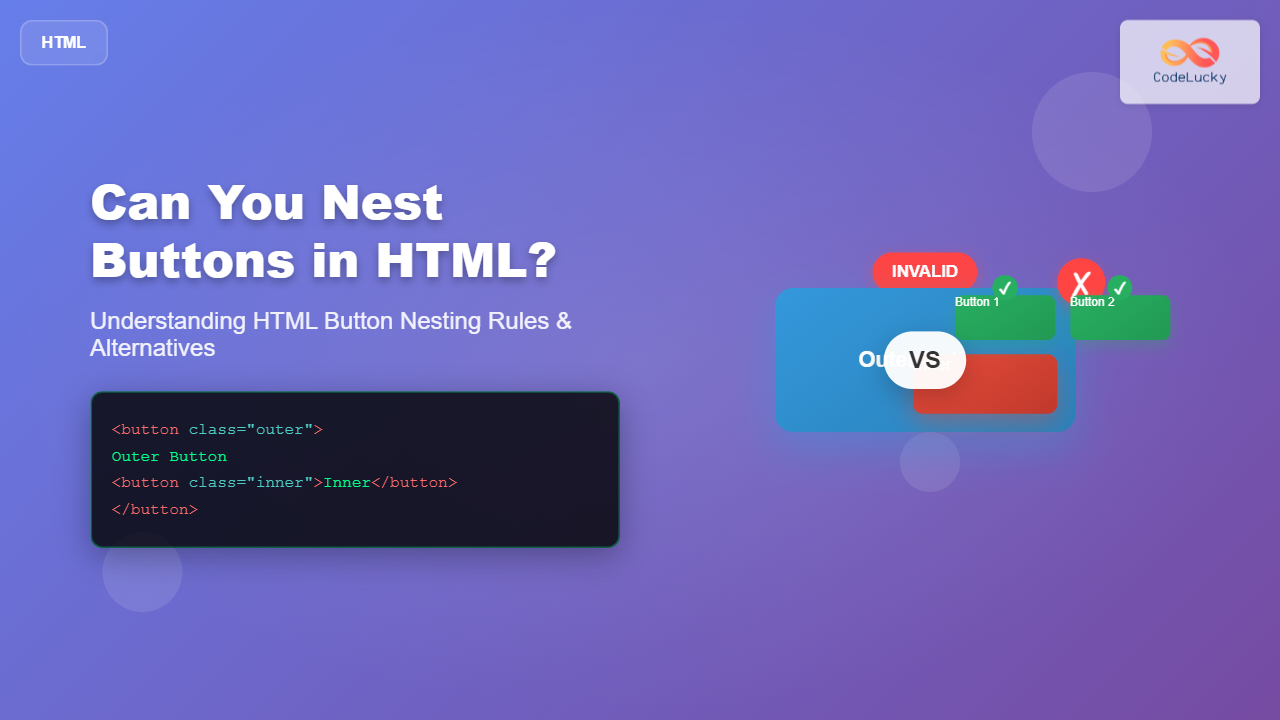
One of the most common questions developers ask when building interactive web interfaces is whether you can nest a button inside another button in HTML. The short answer is no – HTML standards explicitly prohibit nesting button elements. However, there are several effective alternatives and workarounds that can achieve similar functionality while maintaining valid, accessible code.
Why Button Nesting is Invalid in HTML
According to the HTML5 specification, button elements cannot contain other interactive content, including other buttons. This restriction exists for several important reasons:
- Accessibility concerns: Screen readers and assistive technologies become confused when encountering nested interactive elements
- User experience issues: Users cannot determine which button will be activated when clicking
- Event handling conflicts: JavaScript event bubbling becomes unpredictable with nested buttons
- HTML validation errors: Nested buttons fail HTML validation and may cause rendering issues

What Happens When You Try to Nest Buttons
Let’s examine what occurs when you attempt to nest buttons in HTML:
<!-- INVALID HTML - DO NOT USE -->
<button class="outer-button">
  Outer Button
  <button class="inner-button">Inner Button</button>
</button>
This code will result in:
- HTML validation errors
- Inconsistent browser behavior
- Accessibility violations
- Unpredictable click event handling
Valid Alternative Approaches
1. Using Div Elements with Button Styling
The most straightforward alternative is to use div elements with button-like styling and JavaScript event handlers:
<div class="button-container">
  <div class="outer-button" onclick="handleOuterClick()" role="button" tabindex="0">
    Outer Action
    <div class="inner-button" onclick="handleInnerClick(event)" role="button" tabindex="0">
      Inner Action
    </div>
  </div>
</div>

<style>
.outer-button {
  background-color: #007bff;
  color: white;
  padding: 15px 20px;
  border: none;
  border-radius: 5px;
  cursor: pointer;
  position: relative;
}

.inner-button {
  background-color: #28a745;
  color: white;
  padding: 8px 12px;
  border-radius: 3px;
  margin-top: 10px;
  cursor: pointer;
}

.outer-button:focus,
.inner-button:focus {
  outline: 2px solid #ffc107;
}
</style>

<script>
function handleOuterClick() {
  alert('Outer button clicked!');
}

function handleInnerClick(event) {
  event.stopPropagation(); // Prevent outer button from triggering
  alert('Inner button clicked!');
}
</script>
2. Adjacent Button Layout
Instead of nesting, place buttons adjacent to each other within a container:
<div class="button-group">
  <button class="primary-button" onclick="primaryAction()">
    Primary Action
  </button>
  <button class="secondary-button" onclick="secondaryAction()">
    Secondary Action
  </button>
</div>

<style>
.button-group {
  display: flex;
  gap: 10px;
  align-items: center;
}

.primary-button {
  background-color: #007bff;
  color: white;
  padding: 12px 24px;
  border: none;
  border-radius: 5px;
  cursor: pointer;
  font-size: 16px;
}

.secondary-button {
  background-color: #6c757d;
  color: white;
  padding: 8px 16px;
  border: none;
  border-radius: 3px;
  cursor: pointer;
  font-size: 14px;
}
</style>
3. Dropdown Button Pattern
For complex interactions, implement a dropdown button pattern:
<div class="dropdown-container">
  <button class="dropdown-toggle" onclick="toggleDropdown()">
    Main Action ▼
  </button>
  <div class="dropdown-menu" id="dropdownMenu">
    <button class="dropdown-item" onclick="action1()">Action 1</button>
    <button class="dropdown-item" onclick="action2()">Action 2</button>
    <button class="dropdown-item" onclick="action3()">Action 3</button>
  </div>
</div>

<style>
.dropdown-container {
  position: relative;
  display: inline-block;
}

.dropdown-toggle {
  background-color: #007bff;
  color: white;
  padding: 12px 20px;
  border: none;
  border-radius: 5px;
  cursor: pointer;
}

.dropdown-menu {
  display: none;
  position: absolute;
  top: 100%;
  left: 0;
  background-color: white;
  border: 1px solid #ccc;
  border-radius: 5px;
  box-shadow: 0 2px 10px rgba(0,0,0,0.1);
  z-index: 1000;
}

.dropdown-menu.show {
  display: block;
}

.dropdown-item {
  display: block;
  width: 100%;
  padding: 10px 15px;
  border: none;
  background-color: transparent;
  text-align: left;
  cursor: pointer;
}

.dropdown-item:hover {
  background-color: #f8f9fa;
}
</style>

<script>
function toggleDropdown() {
  const menu = document.getElementById('dropdownMenu');
  menu.classList.toggle('show');
}

function action1() {
  alert('Action 1 executed');
  document.getElementById('dropdownMenu').classList.remove('show');
}

function action2() {
  alert('Action 2 executed');
  document.getElementById('dropdownMenu').classList.remove('show');
}

function action3() {
  alert('Action 3 executed');
  document.getElementById('dropdownMenu').classList.remove('show');
}

// Close dropdown when clicking outside
document.addEventListener('click', function(event) {
  const container = document.querySelector('.dropdown-container');
  if (!container.contains(event.target)) {
    document.getElementById('dropdownMenu').classList.remove('show');
  }
});
</script>
Accessibility Best Practices
When creating button-like interfaces without actual button nesting, ensure accessibility compliance:
ARIA Attributes
<div
  role="button"
  tabindex="0"
  aria-label="Custom button with additional actions"
  onclick="customAction()"
  onkeydown="handleKeyPress(event)"
>
  Custom Button Content
</div>

<script>
function handleKeyPress(event) {
  // Activate on Enter or Space key
  if (event.key === 'Enter' || event.key === ' ') {
    event.preventDefault();
    customAction();
  }
}

function customAction() {
  console.log('Custom action executed');
}
</script>
Keyboard Navigation Support
- Ensure all interactive elements are keyboard accessible
- Implement proper tab order using
tabindex - Handle Enter and Space key events for custom buttons
- Provide clear focus indicators

Modern CSS Solutions
CSS Grid Layout for Complex Button Arrangements
<div class="button-grid">
  <button class="grid-button main">Main Action</button>
  <button class="grid-button secondary">Edit</button>
  <button class="grid-button secondary">Delete</button>
  <button class="grid-button tertiary">More</button>
</div>

<style>
.button-grid {
  display: grid;
  grid-template-columns: 2fr 1fr 1fr 1fr;
  gap: 8px;
  max-width: 400px;
}

.grid-button {
  padding: 10px 15px;
  border: none;
  border-radius: 4px;
  cursor: pointer;
  font-weight: 500;
  transition: all 0.2s ease;
}

.grid-button.main {
  background-color: #007bff;
  color: white;
  font-size: 16px;
}

.grid-button.secondary {
  background-color: #6c757d;
  color: white;
  font-size: 14px;
}

.grid-button.tertiary {
  background-color: #e9ecef;
  color: #495057;
  font-size: 12px;
}

.grid-button:hover {
  transform: translateY(-1px);
  box-shadow: 0 2px 4px rgba(0,0,0,0.1);
}
</style>
Flexbox for Responsive Button Groups
<div class="flex-button-container">
  <button class="flex-button primary">
    <span class="button-icon">🚀</span>
    Launch
  </button>
  <div class="button-separator"></div>
  <button class="flex-button secondary">
    <span class="button-icon">⚙️</span>
    Settings
  </button>
</div>

<style>
.flex-button-container {
  display: flex;
  align-items: stretch;
  border-radius: 8px;
  overflow: hidden;
  box-shadow: 0 2px 8px rgba(0,0,0,0.1);
}

.flex-button {
  flex: 1;
  padding: 15px 20px;
  border: none;
  cursor: pointer;
  display: flex;
  align-items: center;
  justify-content: center;
  gap: 8px;
  font-size: 16px;
  transition: background-color 0.2s ease;
}

.flex-button.primary {
  background-color: #28a745;
  color: white;
}

.flex-button.secondary {
  background-color: #f8f9fa;
  color: #495057;
}

.flex-button:hover.primary {
  background-color: #218838;
}

.flex-button:hover.secondary {
  background-color: #e9ecef;
}

.button-separator {
  width: 1px;
  background-color: #dee2e6;
}

.button-icon {
  font-size: 18px;
}
</style>
JavaScript Event Management
Proper event handling is crucial when working with complex button interactions:
<div class="interactive-panel">
  <div class="panel-header" onclick="togglePanel()">
    <span>Expandable Panel</span>
    <button class="close-button" onclick="closePanel(event)">×</button>
  </div>
  <div class="panel-content" id="panelContent">
    <p>Panel content here...</p>
    <button onclick="saveContent()">Save</button>
    <button onclick="cancelEdit()">Cancel</button>
  </div>
</div>

<script>
function togglePanel() {
  const content = document.getElementById('panelContent');
  const isVisible = content.style.display !== 'none';
  content.style.display = isVisible ? 'none' : 'block';
}

function closePanel(event) {
  // Prevent the panel toggle when close button is clicked
  event.stopPropagation();
  document.getElementById('panelContent').style.display = 'none';
}

function saveContent() {
  alert('Content saved!');
}

function cancelEdit() {
  alert('Edit cancelled!');
}
</script>
Performance Considerations
When implementing complex button interactions, consider these performance optimization strategies:
- Event delegation: Use a single event listener on a parent container instead of multiple listeners
- CSS transitions: Prefer CSS transitions over JavaScript animations for better performance
- Debouncing: Implement debouncing for rapid-fire click events
- Lazy loading: Load complex interactions only when needed
<script>
// Event delegation example
document.querySelector('.button-container').addEventListener('click', function(event) {
  const button = event.target.closest('[data-action]');
  if (button) {
    const action = button.getAttribute('data-action');
    handleButtonAction(action, button);
  }
});

// Debounced click handler
function debounce(func, wait) {
  let timeout;
  return function executedFunction(...args) {
    const later = () => {
      clearTimeout(timeout);
      func(...args);
    };
    clearTimeout(timeout);
    timeout = setTimeout(later, wait);
  };
}

const debouncedSave = debounce(function() {
  console.log('Saving data...');
}, 300);
</script>
Common Mistakes to Avoid
When creating alternative button structures, avoid these common pitfalls:
- Missing accessibility attributes: Always include proper ARIA labels and roles
- Inconsistent focus management: Ensure keyboard navigation works as expected
- Poor semantic structure: Use appropriate HTML elements for their intended purpose
- Inadequate event handling: Properly manage event bubbling and propagation
- Styling inconsistencies: Maintain consistent visual feedback across all interactive elements

Conclusion
While HTML doesn’t allow nesting buttons directly, there are numerous effective alternatives that provide the same functionality while maintaining valid, accessible code. The key is to choose the right approach based on your specific use case:
- Use div elements with ARIA attributes for simple nested interactions
- Implement adjacent button layouts for clear, separated actions
- Create dropdown patterns for complex multi-action interfaces
- Leverage modern CSS layouts for responsive, flexible button arrangements
Remember to always prioritize accessibility, semantic HTML structure, and user experience when designing interactive interfaces. By following these guidelines and examples, you can create sophisticated button interactions that work reliably across all devices and assistive technologies.





