Introduction to PowerShell Service and Process Management
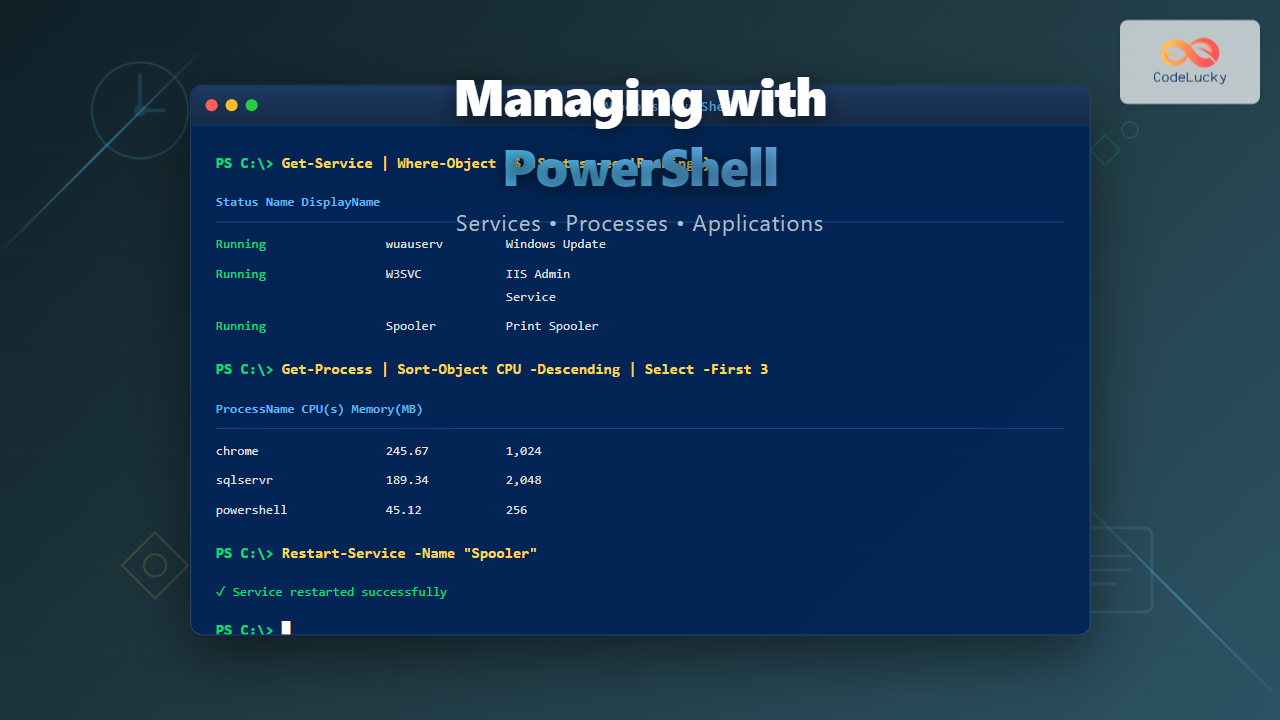
PowerShell provides powerful cmdlets for managing Windows services, processes, and applications, enabling system administrators to automate routine tasks, monitor system health, and troubleshoot issues efficiently. This comprehensive guide covers everything from basic service operations to advanced process management techniques.
Whether you’re managing a single workstation or hundreds of servers, understanding these PowerShell capabilities is essential for modern Windows administration.
Managing Windows Services
Understanding Windows Services
Windows services are long-running background applications that start automatically at system boot and operate without user interaction. They’re crucial for system functionality, running everything from network services to database engines.

Getting Service Information
The Get-Service cmdlet retrieves service objects from local or remote computers. It provides detailed information about service status, startup type, and dependencies.
Listing All Services
# Get all services
Get-Service

# Output shows:
# Status   Name               DisplayName
# ------   ----               -----------
# Running  AdobeARMservice    Adobe Acrobat Update Service
# Stopped  ALG                Application Layer Gateway Service
# Running  AppIDSvc           Application Identity
Filtering Services by Status
# Get only running services
Get-Service | Where-Object {$_.Status -eq 'Running'}

# Get stopped services
Get-Service | Where-Object {$_.Status -eq 'Stopped'}

# Count services by status
Get-Service | Group-Object Status | Select-Object Name, Count

# Output:
# Name     Count
# ----     -----
# Running    145
# Stopped    189
Searching for Specific Services
# Find services with specific names (wildcards supported)
Get-Service -Name *network*

# Get specific service details
Get-Service -Name wuauserv | Format-List *

# Output includes:
# Name                : wuauserv
# RequiredServices    : {rpcss}
# CanPauseAndContinue : False
# CanShutdown         : True
# CanStop             : True
# DisplayName         : Windows Update
# DependentServices   : {}
# ServicesDependedOn  : {rpcss}
# ServiceHandle       :
# Status              : Running
# ServiceType         : Win32ShareProcess
# StartType           : Manual
Starting and Stopping Services
Service management requires appropriate permissions. Always run PowerShell as Administrator when managing services.
Basic Service Control
# Start a service
Start-Service -Name Spooler

# Stop a service
Stop-Service -Name Spooler

# Restart a service
Restart-Service -Name Spooler

# Start service with confirmation
Start-Service -Name W3SVC -Confirm

# Force stop a service (even if dependent services exist)
Stop-Service -Name MSSQLSERVER -Force
Managing Multiple Services
# Stop multiple services
Stop-Service -Name Spooler, W3SVC

# Stop all services matching pattern
Get-Service -Name *sql* | Stop-Service -WhatIf

# Start services based on display name
Get-Service | Where-Object {$_.DisplayName -like '*Windows Update*'} | Start-Service
Configuring Service Startup Types
Use Set-Service to modify service configurations including startup type and description.
# Set service to automatic startup
Set-Service -Name Spooler -StartupType Automatic

# Set service to manual startup
Set-Service -Name wuauserv -StartupType Manual

# Disable a service
Set-Service -Name TabletInputService -StartupType Disabled

# Change service display name and description
Set-Service -Name MyService `
    -DisplayName "My Custom Service" `
    -Description "This service handles custom operations"

# Valid StartupType values:
# - Automatic: Starts at boot
# - AutomaticDelayedStart: Starts after boot completes
# - Manual: Starts only when requested
# - Disabled: Cannot be started
Working with Service Dependencies
# View services that depend on a specific service
Get-Service -Name RPCSS | Select-Object -ExpandProperty DependentServices

# View services that a specific service depends on
Get-Service -Name wuauserv | Select-Object -ExpandProperty ServicesDependedOn

# Get complete dependency tree
$service = Get-Service -Name W3SVC
Write-Host "Dependencies for $($service.DisplayName):"
$service.ServicesDependedOn | ForEach-Object {
    Write-Host "  - $($_.DisplayName) ($($_.Status))"
}

Managing Services on Remote Computers
# Get services from remote computer
Get-Service -ComputerName Server01 -Name Spooler

# Start service on remote computer (requires WinRM)
Invoke-Command -ComputerName Server01 -ScriptBlock {
    Start-Service -Name Spooler
}

# Manage services on multiple computers
$computers = "Server01", "Server02", "Server03"
Invoke-Command -ComputerName $computers -ScriptBlock {
    Get-Service -Name W3SVC | Select-Object MachineName, Name, Status
}
Creating Custom Service Management Functions
# Function to safely restart a service
function Restart-ServiceSafely {
    param(
        [string]$ServiceName,
        [int]$TimeoutSeconds = 30
    )

    $service = Get-Service -Name $ServiceName -ErrorAction SilentlyContinue

    if (-not $service) {
        Write-Error "Service '$ServiceName' not found"
        return
    }

    if ($service.Status -eq 'Running') {
        Write-Host "Stopping $ServiceName..."
        Stop-Service -Name $ServiceName -Force
        $service.WaitForStatus('Stopped', [TimeSpan]::FromSeconds($TimeoutSeconds))
    }

    Write-Host "Starting $ServiceName..."
    Start-Service -Name $ServiceName
    $service.WaitForStatus('Running', [TimeSpan]::FromSeconds($TimeoutSeconds))

    Write-Host "$ServiceName restarted successfully" -ForegroundColor Green
}

# Usage
Restart-ServiceSafely -ServiceName "Spooler"
Managing Windows Processes
Understanding Process Management
Processes represent running applications and services. PowerShell provides cmdlets to view, manage, and analyze process information including CPU usage, memory consumption, and process relationships.
Viewing Running Processes
# Get all running processes
Get-Process

# Output shows:
# Handles  NPM(K)    PM(K)      WS(K)     CPU(s)     Id  SI ProcessName
# -------  ------    -----      -----     ------     --  -- -----------
#     459      29    13472      24856       0.45   1234   1 chrome
#     234      18     8932      16384       2.13   5678   1 powershell
#     891      45    89234     124567      15.67   9012   0 sqlservr

# Get processes sorted by CPU usage
Get-Process | Sort-Object CPU -Descending | Select-Object -First 10

# Get processes sorted by memory usage
Get-Process | Sort-Object WS -Descending | Select-Object -First 10 `
    ProcessName, @{Name="Memory(MB)";Expression={[math]::Round($_.WS/1MB,2)}}
Getting Detailed Process Information
# Get specific process by name
Get-Process -Name chrome

# Get process by ID
Get-Process -Id 1234

# Get detailed information
Get-Process -Name powershell | Format-List *

# Output includes:
# Name                       : powershell
# Id                         : 5678
# PriorityClass              : Normal
# HandleCount                : 234
# WorkingSet                 : 16384000
# PagedMemorySize            : 8932000
# PrivateMemorySize          : 8932000
# VirtualMemorySize          : 2203486322688
# TotalProcessorTime         : 00:00:02.1300000
# BasePriority               : 8
# Path                       : C:\Windows\System32\WindowsPowerShell\v1.0\powershell.exe
# Company                    : Microsoft Corporation
# StartTime                  : 10/22/2025 2:30:15 PM
Monitoring Resource Usage
# Get top 5 memory-consuming processes
Get-Process | Sort-Object WS -Descending | Select-Object -First 5 `
    ProcessName,
    @{Name="Memory(MB)";Expression={[math]::Round($_.WS/1MB,2)}},
    @{Name="CPU(s)";Expression={$_.CPU}}

# Continuous monitoring (update every 2 seconds)
while ($true) {
    Clear-Host
    Get-Process | Sort-Object CPU -Descending | Select-Object -First 10 `
        ProcessName,
        @{Name="CPU%";Expression={[math]::Round($_.CPU,2)}},
        @{Name="Memory(MB)";Expression={[math]::Round($_.WS/1MB,2)}}
    Start-Sleep -Seconds 2
}
Starting and Stopping Processes
# Start a new process
Start-Process notepad.exe

# Start process with arguments
Start-Process chrome.exe -ArgumentList "https://codelucky.com"

# Start process and wait for it to complete
Start-Process calc.exe -Wait

# Start process as administrator
Start-Process powershell.exe -Verb RunAs

# Start process with specific working directory
Start-Process python.exe -ArgumentList "script.py" -WorkingDirectory "C:\Projects"

# Stop a process by name
Stop-Process -Name notepad

# Stop process by ID
Stop-Process -Id 1234

# Force stop process
Stop-Process -Name chrome -Force

# Stop all instances of a process
Get-Process -Name chrome | Stop-Process -Force
Process Relationships and Parent-Child

# Get parent process information (requires WMI)
$processId = 5678
$process = Get-WmiObject Win32_Process -Filter "ProcessId=$processId"
$parentProcess = Get-Process -Id $process.ParentProcessId -ErrorAction SilentlyContinue

Write-Host "Process: $($process.Name) (ID: $processId)"
if ($parentProcess) {
    Write-Host "Parent: $($parentProcess.Name) (ID: $($parentProcess.Id))"
}

# Function to get process tree
function Get-ProcessTree {
    param([int]$ProcessId)

    $process = Get-Process -Id $ProcessId -ErrorAction SilentlyContinue
    if (-not $process) { return }

    $wmiProcess = Get-WmiObject Win32_Process -Filter "ProcessId=$ProcessId"

    [PSCustomObject]@{
        Name = $process.Name
        Id = $process.Id
        ParentId = $wmiProcess.ParentProcessId
        Path = $process.Path
    }
}
Advanced Process Management
# Wait for a process to complete
$process = Start-Process notepad.exe -PassThru
$process.WaitForExit()
Write-Host "Process exited with code: $($process.ExitCode)"

# Set process priority
$process = Get-Process -Name chrome | Select-Object -First 1
$process.PriorityClass = "High"  # Options: Idle, BelowNormal, Normal, AboveNormal, High, RealTime

# Get process modules (DLLs loaded)
Get-Process -Name powershell | Select-Object -ExpandProperty Modules | Select-Object ModuleName, FileName

# Get process threads
Get-Process -Name powershell | Select-Object -ExpandProperty Threads | Measure-Object
Managing Applications
Working with Installed Applications
# Get installed applications (x64)
Get-ItemProperty HKLM:\Software\Microsoft\Windows\CurrentVersion\Uninstall\* |
    Select-Object DisplayName, DisplayVersion, Publisher, InstallDate |
    Where-Object {$_.DisplayName -ne $null} |
    Sort-Object DisplayName

# Get installed applications (x86 on x64 systems)
Get-ItemProperty HKLM:\Software\Wow6432Node\Microsoft\Windows\CurrentVersion\Uninstall\* |
    Select-Object DisplayName, DisplayVersion, Publisher, InstallDate |
    Where-Object {$_.DisplayName -ne $null} |
    Sort-Object DisplayName

# Combine and get all installed applications
function Get-InstalledApplications {
    $apps = @()

    $apps += Get-ItemProperty HKLM:\Software\Microsoft\Windows\CurrentVersion\Uninstall\* -ErrorAction SilentlyContinue
    $apps += Get-ItemProperty HKLM:\Software\Wow6432Node\Microsoft\Windows\CurrentVersion\Uninstall\* -ErrorAction SilentlyContinue

    $apps | Where-Object {$_.DisplayName} |
        Select-Object DisplayName, DisplayVersion, Publisher, InstallDate -Unique |
        Sort-Object DisplayName
}

# Usage
Get-InstalledApplications | Out-GridView
Managing Windows Store Apps
# Get all AppX packages (Windows Store apps)
Get-AppxPackage | Select-Object Name, Version, PackageFullName

# Get specific app
Get-AppxPackage -Name *calculator*

# Remove an AppX package
Get-AppxPackage -Name "Microsoft.WindowsCalculator" | Remove-AppxPackage

# Get provisioned packages (installed for new users)
Get-AppxProvisionedPackage -Online | Select-Object DisplayName, PackageName

# Remove provisioned package
Get-AppxProvisionedPackage -Online |
    Where-Object {$_.DisplayName -like "*Xbox*"} |
    Remove-AppxProvisionedPackage -Online
Automation and Monitoring Scripts
Service Health Monitoring Script
# Monitor critical services
$criticalServices = @("wuauserv", "W3SVC", "MSSQLSERVER", "Spooler")

function Test-ServiceHealth {
    param([string[]]$Services)

    $results = @()

    foreach ($serviceName in $Services) {
        $service = Get-Service -Name $serviceName -ErrorAction SilentlyContinue

        if ($service) {
            $results += [PSCustomObject]@{
                ServiceName = $service.Name
                DisplayName = $service.DisplayName
                Status = $service.Status
                StartType = $service.StartType
                IsHealthy = ($service.Status -eq 'Running' -and $service.StartType -ne 'Disabled')
            }
        } else {
            $results += [PSCustomObject]@{
                ServiceName = $serviceName
                DisplayName = "Not Found"
                Status = "N/A"
                StartType = "N/A"
                IsHealthy = $false
            }
        }
    }

    return $results
}

# Run health check
$healthCheck = Test-ServiceHealth -Services $criticalServices
$healthCheck | Format-Table -AutoSize

# Restart unhealthy services
$healthCheck | Where-Object {-not $_.IsHealthy -and $_.Status -ne 'N/A'} | ForEach-Object {
    Write-Host "Restarting $($_.DisplayName)..." -ForegroundColor Yellow
    Start-Service -Name $_.ServiceName
}
Process Resource Alert Script
# Alert when process exceeds thresholds
function Watch-ProcessResources {
    param(
        [int]$MemoryThresholdMB = 1000,
        [double]$CpuThresholdPercent = 80,
        [int]$CheckIntervalSeconds = 5
    )

    while ($true) {
        $processes = Get-Process | Where-Object {
            ($_.WS / 1MB) -gt $MemoryThresholdMB -or $_.CPU -gt $CpuThresholdPercent
        }

        foreach ($proc in $processes) {
            $memoryMB = [math]::Round($proc.WS / 1MB, 2)

            Write-Host "⚠️ Alert: $($proc.ProcessName) (PID: $($proc.Id))" -ForegroundColor Red
            Write-Host "  Memory: $memoryMB MB" -ForegroundColor Yellow
            Write-Host "  CPU: $($proc.CPU) seconds" -ForegroundColor Yellow
            Write-Host ""
        }

        Start-Sleep -Seconds $CheckIntervalSeconds
    }
}

# Usage
Watch-ProcessResources -MemoryThresholdMB 500 -CpuThresholdPercent 50
Automated Service Recovery Script
# Automatically restart failed services
function Enable-ServiceAutoRecover {
    param(
        [string[]]$ServiceNames,
        [int]$CheckIntervalMinutes = 5,
        [int]$MaxRestartAttempts = 3
    )

    $restartCounts = @{}

    while ($true) {
        foreach ($serviceName in $ServiceNames) {
            $service = Get-Service -Name $serviceName -ErrorAction SilentlyContinue

            if ($service -and $service.Status -ne 'Running' -and $service.StartType -ne 'Disabled') {
                if (-not $restartCounts.ContainsKey($serviceName)) {
                    $restartCounts[$serviceName] = 0
                }

                if ($restartCounts[$serviceName] -lt $MaxRestartAttempts) {
                    Write-Host "$(Get-Date) - Restarting $($service.DisplayName)..." -ForegroundColor Yellow

                    try {
                        Start-Service -Name $serviceName
                        $restartCounts[$serviceName]++
                        Write-Host "Service restarted successfully (Attempt $($restartCounts[$serviceName]))" -ForegroundColor Green
                    }
                    catch {
                        Write-Host "Failed to restart service: $_" -ForegroundColor Red
                    }
                } else {
                    Write-Host "$(Get-Date) - Max restart attempts reached for $serviceName" -ForegroundColor Red
                }
            }
            elseif ($service -and $service.Status -eq 'Running') {
                # Reset counter when service is running
                $restartCounts[$serviceName] = 0
            }
        }

        Start-Sleep -Seconds ($CheckIntervalMinutes * 60)
    }
}

# Usage
Enable-ServiceAutoRecover -ServiceNames @("Spooler", "W3SVC") -CheckIntervalMinutes 2
Performance Optimization Techniques
Identifying Resource-Heavy Processes
# Comprehensive resource analysis
function Get-ResourceIntensiveProcesses {
    param(
        [int]$TopCount = 10
    )

    $processes = Get-Process | Where-Object {$_.CPU -gt 0}

    # CPU-intensive processes
    Write-Host "`nTop $TopCount CPU-Intensive Processes:" -ForegroundColor Cyan
    $processes | Sort-Object CPU -Descending | Select-Object -First $TopCount `
        ProcessName,
        @{Name="CPU(s)";Expression={[math]::Round($_.CPU,2)}},
        @{Name="Memory(MB)";Expression={[math]::Round($_.WS/1MB,2)}},
        Id | Format-Table -AutoSize

    # Memory-intensive processes
    Write-Host "`nTop $TopCount Memory-Intensive Processes:" -ForegroundColor Cyan
    $processes | Sort-Object WS -Descending | Select-Object -First $TopCount `
        ProcessName,
        @{Name="Memory(MB)";Expression={[math]::Round($_.WS/1MB,2)}},
        @{Name="CPU(s)";Expression={[math]::Round($_.CPU,2)}},
        Id | Format-Table -AutoSize

    # Handle count (potential resource leaks)
    Write-Host "`nTop $TopCount Processes by Handle Count:" -ForegroundColor Cyan
    $processes | Sort-Object HandleCount -Descending | Select-Object -First $TopCount `
        ProcessName,
        HandleCount,
        @{Name="Memory(MB)";Expression={[math]::Round($_.WS/1MB,2)}},
        Id | Format-Table -AutoSize
}

# Usage
Get-ResourceIntensiveProcesses

Bulk Service Management
# Manage multiple services efficiently
function Set-ServiceConfiguration {
    param(
        [string[]]$ServiceNames,
        [ValidateSet('Automatic','Manual','Disabled')]
        [string]$StartupType,
        [ValidateSet('Start','Stop','Restart')]
        [string]$Action
    )

    foreach ($serviceName in $ServiceNames) {
        $service = Get-Service -Name $serviceName -ErrorAction SilentlyContinue

        if (-not $service) {
            Write-Host "Service '$serviceName' not found" -ForegroundColor Red
            continue
        }

        # Set startup type
        if ($StartupType) {
            Write-Host "Setting $serviceName to $StartupType..."
            Set-Service -Name $serviceName -StartupType $StartupType
        }

        # Perform action
        switch ($Action) {
            'Start' {
                if ($service.Status -ne 'Running') {
                    Write-Host "Starting $serviceName..."
                    Start-Service -Name $serviceName
                }
            }
            'Stop' {
                if ($service.Status -ne 'Stopped') {
                    Write-Host "Stopping $serviceName..."
                    Stop-Service -Name $serviceName -Force
                }
            }
            'Restart' {
                Write-Host "Restarting $serviceName..."
                Restart-Service -Name $serviceName -Force
            }
        }
    }
}

# Example: Disable and stop multiple services
Set-ServiceConfiguration -ServiceNames @("TabletInputService", "Fax") `
    -StartupType Disabled -Action Stop
Remote Management
Managing Services and Processes Remotely
# Enable PowerShell remoting (run once on remote computer)
# Enable-PSRemoting -Force

# Remote service management
Invoke-Command -ComputerName Server01 -ScriptBlock {
    Get-Service | Where-Object {$_.Status -eq 'Running'} | Select-Object Name, DisplayName
}

# Remote process management
Invoke-Command -ComputerName Server01, Server02 -ScriptBlock {
    Get-Process | Sort-Object WS -Descending | Select-Object -First 5 `
        ProcessName,
        @{Name="Memory(MB)";Expression={[math]::Round($_.WS/1MB,2)}},
        @{Name="Computer";Expression={$env:COMPUTERNAME}}
}

# Remote service restart with credentials
$cred = Get-Credential
Invoke-Command -ComputerName Server01 -Credential $cred -ScriptBlock {
    Restart-Service -Name W3SVC
}

# Parallel remote execution
$computers = "Server01", "Server02", "Server03"
$services = "Spooler", "W3SVC"

$results = Invoke-Command -ComputerName $computers -ScriptBlock {
    param($svc)
    $svc | ForEach-Object {
        Get-Service -Name $_ | Select-Object MachineName, Name, Status, StartType
    }
} -ArgumentList (,$services)

$results | Format-Table -AutoSize
Creating Remote Management Sessions
# Create persistent session
$session = New-PSSession -ComputerName Server01

# Use session for multiple commands
Invoke-Command -Session $session -ScriptBlock {
    $services = Get-Service | Where-Object {$_.Status -eq 'Running'}
    $processes = Get-Process | Sort-Object CPU -Descending | Select-Object -First 10

    [PSCustomObject]@{
        TotalServices = $services.Count
        TotalProcesses = (Get-Process).Count
        TopProcess = $processes[0].ProcessName
    }
}

# Import remote session
Import-PSSession -Session $session -Module ServerManager

# Close session
Remove-PSSession -Session $session
Best Practices and Tips
Error Handling
# Robust error handling for service management
function Start-ServiceSafely {
    param([string]$ServiceName)

    try {
        $service = Get-Service -Name $ServiceName -ErrorAction Stop

        if ($service.Status -eq 'Running') {
            Write-Host "$ServiceName is already running" -ForegroundColor Green
            return
        }

        Write-Host "Starting $ServiceName..." -ForegroundColor Yellow
        Start-Service -Name $ServiceName -ErrorAction Stop

        # Wait and verify
        Start-Sleep -Seconds 2
        $service.Refresh()

        if ($service.Status -eq 'Running') {
            Write-Host "$ServiceName started successfully" -ForegroundColor Green
        } else {
            Write-Warning "$ServiceName did not start properly. Status: $($service.Status)"
        }
    }
    catch [Microsoft.PowerShell.Commands.ServiceCommandException] {
        Write-Error "Service error: $_"
    }
    catch {
        Write-Error "Unexpected error: $_"
    }
}
Logging and Auditing
# Comprehensive logging function
function Write-ServiceLog {
    param(
        [string]$Message,
        [ValidateSet('Info','Warning','Error')]
        [string]$Level = 'Info',
        [string]$LogPath = "C:\Logs\ServiceManagement.log"
    )

    $timestamp = Get-Date -Format "yyyy-MM-dd HH:mm:ss"
    $logMessage = "$timestamp [$Level] $Message"

    # Ensure log directory exists
    $logDir = Split-Path $LogPath -Parent
    if (-not (Test-Path $logDir)) {
        New-Item -ItemType Directory -Path $logDir -Force | Out-Null
    }

    # Write to log file
    Add-Content -Path $LogPath -Value $logMessage

    # Also write to console with color
    $color = switch ($Level) {
        'Info' { 'White' }
        'Warning' { 'Yellow' }
        'Error' { 'Red' }
    }
    Write-Host $logMessage -ForegroundColor $color
}

# Usage in scripts
Write-ServiceLog -Message "Starting service management script" -Level Info
Write-ServiceLog -Message "Service 'Spooler' restarted successfully" -Level Info
Write-ServiceLog -Message "Failed to start service 'InvalidService'" -Level Error
Performance Considerations
# Efficient bulk operations
# BAD: Multiple individual queries
foreach ($serviceName in $serviceList) {
    Get-Service -Name $serviceName
}

# GOOD: Single query with filtering
Get-Service | Where-Object {$_.Name -in $serviceList}

# Use -Filter instead of Where-Object when possible with WMI
# BAD:
Get-WmiObject Win32_Process | Where-Object {$_.Name -eq "chrome.exe"}

# GOOD:
Get-WmiObject Win32_Process -Filter "Name='chrome.exe'"

# Limit property retrieval
# BAD: Retrieving all properties
Get-Process | Format-Table *

# GOOD: Select only needed properties
Get-Process | Select-Object Name, Id, CPU, WS
Troubleshooting Common Issues
Service Won’t Start
# Diagnose service startup failures
function Test-ServiceStartup {
    param([string]$ServiceName)

    $service = Get-Service -Name $ServiceName -ErrorAction SilentlyContinue

    if (-not $service) {
        Write-Host "Service not found" -ForegroundColor Red
        return
    }

    Write-Host "Service: $($service.DisplayName)" -ForegroundColor Cyan
    Write-Host "Status: $($service.Status)" -ForegroundColor Yellow
    Write-Host "Start Type: $($service.StartType)" -ForegroundColor Yellow

    # Check if disabled
    if ($service.StartType -eq 'Disabled') {
        Write-Host "⚠️ Service is disabled" -ForegroundColor Red
        return
    }

    # Check dependencies
    $dependencies = $service.ServicesDependedOn
    if ($dependencies) {
        Write-Host "`nDependencies:" -ForegroundColor Cyan
        foreach ($dep in $dependencies) {
            $status = if ($dep.Status -eq 'Running') { '✓' } else { '✗' }
            Write-Host "  $status $($dep.DisplayName): $($dep.Status)"
        }
    }

    # Check Event Log for errors
    Write-Host "`nRecent Event Log Errors:" -ForegroundColor Cyan
    Get-EventLog -LogName System -Source "Service Control Manager" -Newest 10 |
        Where-Object {$_.Message -like "*$ServiceName*"} |
        Select-Object TimeGenerated, EntryType, Message |
        Format-List
}

# Usage
Test-ServiceStartup -ServiceName "MSSQLSERVER"
Process Won’t Terminate
# Force terminate stubborn processes
function Stop-ProcessForced {
    param(
        [string]$ProcessName,
        [int]$MaxAttempts = 3
    )

    for ($i = 1; $i -le $MaxAttempts; $i++) {
        $processes = Get-Process -Name $ProcessName -ErrorAction SilentlyContinue

        if (-not $processes) {
            Write-Host "No processes found with name '$ProcessName'" -ForegroundColor Green
            return
        }

        Write-Host "Attempt $i of $MaxAttempts..." -ForegroundColor Yellow

        try {
            $processes | Stop-Process -Force -ErrorAction Stop
            Start-Sleep -Seconds 2

            # Verify termination
            $remaining = Get-Process -Name $ProcessName -ErrorAction SilentlyContinue
            if (-not $remaining) {
                Write-Host "Successfully terminated all instances" -ForegroundColor Green
                return
            }
        }
        catch {
            Write-Warning "Attempt $i failed: $_"
        }
    }

    Write-Host "Failed to terminate after $MaxAttempts attempts" -ForegroundColor Red
}
Real-World Automation Examples
Application Deployment Automation
# Stop services before deployment, start after
function Deploy-Application {
    param(
        [string[]]$ServicesToStop,
        [string]$DeploymentPath,
        [scriptblock]$DeploymentScript
    )

    Write-Host "Starting deployment process..." -ForegroundColor Cyan

    # Step 1: Stop services
    Write-Host "`nStopping services..." -ForegroundColor Yellow
    foreach ($service in $ServicesToStop) {
        $svc = Get-Service -Name $service -ErrorAction SilentlyContinue
        if ($svc -and $svc.Status -eq 'Running') {
            Write-Host "  Stopping $service..."
            Stop-Service -Name $service -Force
        }
    }

    # Step 2: Wait for processes to end
    Start-Sleep -Seconds 5

    # Step 3: Execute deployment
    Write-Host "`nExecuting deployment..." -ForegroundColor Yellow
    try {
        & $DeploymentScript
        Write-Host "Deployment completed successfully" -ForegroundColor Green
    }
    catch {
        Write-Error "Deployment failed: $_"
        return
    }

    # Step 4: Restart services
    Write-Host "`nRestarting services..." -ForegroundColor Yellow
    foreach ($service in $ServicesToStop) {
        Write-Host "  Starting $service..."
        Start-Service -Name $service
    }

    Write-Host "`nDeployment process completed" -ForegroundColor Green
}

# Usage
Deploy-Application -ServicesToStop @("W3SVC", "MSSQLSERVER") -DeploymentPath "C:\Deploy" -DeploymentScript {
    # Your deployment commands here
    Copy-Item "C:\Deploy\*" "C:\Program Files\MyApp" -Recurse -Force
}
Scheduled Maintenance Script
# Comprehensive maintenance script
function Start-SystemMaintenance {
    $logPath = "C:\Logs\Maintenance_$(Get-Date -Format 'yyyyMMdd_HHmmss').log"

    function Write-Log($msg) {
        $entry = "$(Get-Date -Format 'yyyy-MM-dd HH:mm:ss') - $msg"
        Add-Content -Path $logPath -Value $entry
        Write-Host $entry
    }

    Write-Log "=== Starting System Maintenance ==="

    # 1. Stop unnecessary services
    Write-Log "Stopping non-essential services..."
    $servicesToStop = @("Superfetch", "WSearch")
    foreach ($svc in $servicesToStop) {
        $service = Get-Service -Name $svc -ErrorAction SilentlyContinue
        if ($service -and $service.Status -eq 'Running') {
            Stop-Service -Name $svc -Force
            Write-Log "  Stopped: $svc"
        }
    }

    # 2. Clean up memory-intensive processes
    Write-Log "Checking for resource-intensive processes..."
    $heavyProcesses = Get-Process | Where-Object {($_.WS / 1GB) -gt 2}
    foreach ($proc in $heavyProcesses) {
        Write-Log "  Warning: $($proc.ProcessName) using $([math]::Round($proc.WS/1GB,2)) GB"
    }

    # 3. Clear temp files
    Write-Log "Cleaning temporary files..."
    $tempPaths = @($env:TEMP, "C:\Windows\Temp")
    foreach ($path in $tempPaths) {
        $files = Get-ChildItem -Path $path -Recurse -Force -ErrorAction SilentlyContinue
        $count = $files.Count
        Write-Log "  Found $count items in $path"
    }

    # 4. Restart essential services
    Write-Log "Restarting services..."
    foreach ($svc in $servicesToStop) {
        Start-Service -Name $svc -ErrorAction SilentlyContinue
        Write-Log "  Started: $svc"
    }

    Write-Log "=== Maintenance Completed ==="
}

# Schedule this to run daily
# Start-SystemMaintenance
Conclusion
PowerShell provides comprehensive capabilities for managing Windows services, processes, and applications. From basic operations like starting and stopping services to advanced automation scenarios involving remote management and monitoring, these cmdlets form the foundation of modern Windows system administration.
Key takeaways from this guide:
- Use
Get-Service,Start-Service,Stop-Service, andSet-Servicefor complete service lifecycle management - Leverage
Get-ProcessandStop-Processfor process monitoring and control - Implement error handling and logging for production scripts
- Automate repetitive tasks with custom functions and scheduled scripts
- Monitor dependencies and resource usage to prevent system issues
- Use remote management capabilities for enterprise-scale administration
Master these techniques to build robust automation scripts that improve system reliability, reduce manual intervention, and provide proactive monitoring of critical Windows infrastructure components.