
PowerShell has evolved from a Windows-only automation tool to a robust cross-platform scripting language. Managing PowerShell modules across different operating systems requires understanding platform-specific nuances, repository configurations, and compatibility considerations. This comprehensive guide covers everything you need to master PowerShell module management on Windows, macOS, and Linux.
Understanding PowerShell Module Architecture
PowerShell modules are packages containing cmdlets, functions, variables, and other resources. The module system works consistently across platforms, but paths, permissions, and some behaviors differ between operating systems.

Module Paths Across Platforms
Each platform stores PowerShell modules in different default locations. Understanding these paths is crucial for troubleshooting and manual module management.
Windows:
# Check module paths
$env:PSModulePath -split ';'

# Typical output:
# C:\Users\YourName\Documents\PowerShell\Modules
# C:\Program Files\PowerShell\Modules
# C:\Program Files\PowerShell\7\Modules
# C:\Windows\System32\WindowsPowerShell\v1.0\Modules
macOS and Linux:
# Check module paths
$env:PSModulePath -split ':'

# Typical output (Linux):
# /home/username/.local/share/powershell/Modules
# /usr/local/share/powershell/Modules
# /opt/microsoft/powershell/7/Modules

# Typical output (macOS):
# /Users/username/.local/share/powershell/Modules
# /usr/local/share/powershell/Modules
# /usr/local/microsoft/powershell/7/Modules
Installing PowerShell and PowerShellGet
Before managing modules, ensure you have PowerShell Core (PowerShell 7+) and PowerShellGet installed on each platform.
Windows Installation
# Install via winget
winget install Microsoft.PowerShell

# Or download MSI from GitHub releases
# Verify installation
$PSVersionTable

# Output:
# Name                           Value
# ----                           -----
# PSVersion                      7.4.0
# PSEdition                      Core
# OS                             Microsoft Windows 10.0.22621
macOS Installation
# Using Homebrew
brew install --cask powershell

# Launch PowerShell
pwsh

# Verify
$PSVersionTable
Linux Installation
# Ubuntu/Debian
sudo apt-get update
sudo apt-get install -y wget apt-transport-https software-properties-common
wget -q "https://packages.microsoft.com/config/ubuntu/$(lsb_release -rs)/packages-microsoft-prod.deb"
sudo dpkg -i packages-microsoft-prod.deb
sudo apt-get update
sudo apt-get install -y powershell

# RHEL/CentOS/Fedora - use dnf or yum
# Launch PowerShell
pwsh
Working with PowerShell Gallery
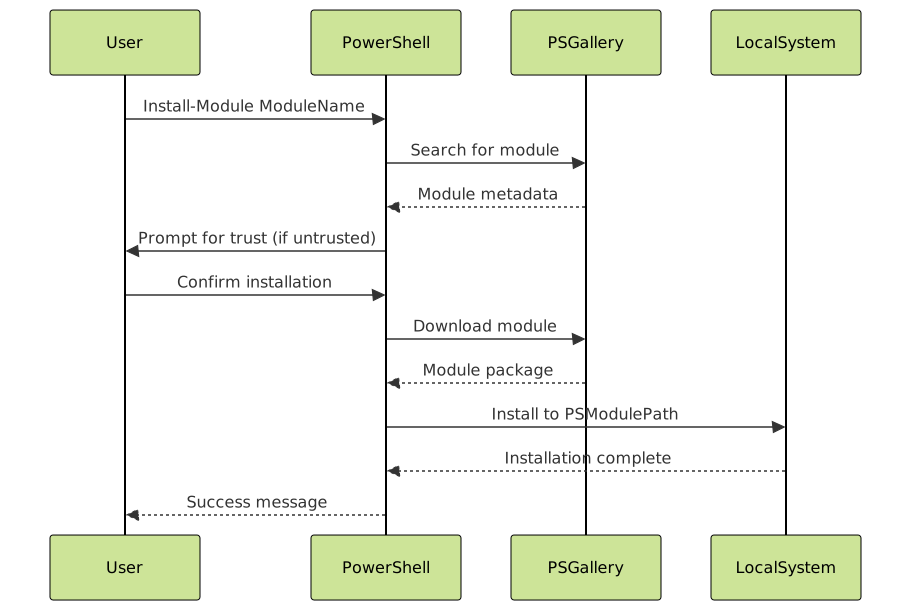
PowerShell Gallery is the primary repository for PowerShell modules. All platforms access it identically, but initial trust configuration may be required.
Trusting PowerShell Gallery
# Check repository status
Get-PSRepository

# Output:
# Name                      InstallationPolicy   SourceLocation
# ----                      ------------------   --------------
# PSGallery                 Untrusted            https://www.powershellgallery.com/api/v2

# Set as trusted (run on all platforms)
Set-PSRepository -Name PSGallery -InstallationPolicy Trusted

# Verify change
Get-PSRepository PSGallery | Select-Object Name, InstallationPolicy

# Output:
# Name      InstallationPolicy
# ----      ------------------
# PSGallery Trusted
Installing Modules Across Platforms
Module installation works identically across platforms, but scope differences and permission requirements vary.
User vs System Scope
# Install for current user (no admin rights needed)
Install-Module -Name Az -Scope CurrentUser

# Install system-wide (requires admin/sudo)
# Windows: Run PowerShell as Administrator
# Linux/macOS: Run with sudo pwsh
Install-Module -Name Az -Scope AllUsers

# Check where module was installed
Get-Module -Name Az -ListAvailable | Select-Object Name, Path

# Output (CurrentUser on Linux):
# Name Path
# ---- ----
# Az   /home/username/.local/share/powershell/Modules/Az/11.0.0/Az.psm1
Installing Specific Versions
# Install specific version
Install-Module -Name Pester -RequiredVersion 5.5.0 -Scope CurrentUser

# Install minimum version
Install-Module -Name PSReadLine -MinimumVersion 2.2.0 -Scope CurrentUser

# Allow prerelease versions
Install-Module -Name Az.Accounts -AllowPrerelease -Scope CurrentUser

# Verify installed versions
Get-InstalledModule -Name Pester -AllVersions

# Output:
# Version    Name     Repository
# -------    ----     ----------
# 5.5.0      Pester   PSGallery
Cross-Platform Compatibility Considerations
Not all modules work on all platforms. Some depend on Windows-specific APIs or libraries unavailable on Unix-based systems.

Checking Module Compatibility
# Find cross-platform modules
Find-Module -Tag 'Linux', 'MacOS' | Select-Object Name, Description

# Check module metadata before installing
Find-Module -Name SqlServer | Select-Object Name, Description, Tags

# Test module compatibility after installation
$module = Get-Module -Name Az.Accounts -ListAvailable
$module.CompatiblePSEditions

# Output:
# Core
# Desktop

# Check if current platform supported
if ($PSVersionTable.PSEdition -in $module.CompatiblePSEditions) {
    Write-Host "Module is compatible" -ForegroundColor Green
}
Common Platform-Specific Modules
# Windows-only modules (typically won't work on Linux/macOS)
# - ActiveDirectory
# - GroupPolicy
# - Storage
# - Hyper-V

# Cross-platform modules (work on all platforms)
# - Az (Azure)
# - Pester (Testing)
# - PSReadLine (Command line editing)
# - PowerShellGet (Module management)

# Example: Detect platform and load appropriate module
if ($IsWindows) {
    Import-Module ActiveDirectory
    Write-Host "Windows-specific AD module loaded"
} elseif ($IsLinux) {
    # Use cross-platform alternative
    Install-Module -Name PSWSMan -Scope CurrentUser
    Write-Host "Linux alternative loaded"
} elseif ($IsMacOS) {
    Write-Host "macOS environment detected"
}
Managing Module Updates
Keeping modules updated ensures access to bug fixes, new features, and security patches. Update strategies differ based on your requirements.
Updating Individual Modules
# Check for available updates
Get-InstalledModule | ForEach-Object {
    $latest = Find-Module -Name $_.Name -ErrorAction SilentlyContinue
    if ($latest.Version -gt $_.Version) {
        [PSCustomObject]@{
            Name = $_.Name
            InstalledVersion = $_.Version
            LatestVersion = $latest.Version
        }
    }
}

# Update specific module
Update-Module -Name Az -Scope CurrentUser

# Update all modules (use with caution)
Get-InstalledModule | Update-Module -Scope CurrentUser

# Verify update
Get-InstalledModule -Name Az | Select-Object Name, Version

# Output:
# Name Version
# ---- -------
# Az   11.1.0
Managing Multiple Versions
# List all installed versions
Get-InstalledModule -Name Pester -AllVersions

# Output:
# Version    Name     Repository
# -------    ----     ----------
# 5.5.0      Pester   PSGallery
# 5.4.1      Pester   PSGallery
# 5.3.0      Pester   PSGallery

# Import specific version
Import-Module -Name Pester -RequiredVersion 5.4.1

# Remove old versions
Get-InstalledModule -Name Pester -AllVersions |
    Where-Object Version -lt '5.5.0' |
    Uninstall-Module -Force

# Verify cleanup
Get-InstalledModule -Name Pester -AllVersions
Creating Custom Module Repositories
Organizations often need private repositories for internal modules. PowerShell supports custom repositories on all platforms.
File-Based Repository (Cross-Platform)
# Create repository directory
# Windows
$repoPath = "C:\PSRepository"

# Linux/macOS
$repoPath = "$HOME/PSRepository"

New-Item -Path $repoPath -ItemType Directory -Force

# Register repository
Register-PSRepository -Name "CompanyRepo" -SourceLocation $repoPath -InstallationPolicy Trusted

# Verify registration
Get-PSRepository

# Output:
# Name         InstallationPolicy   SourceLocation
# ----         ------------------   --------------
# PSGallery    Trusted              https://www.powershellgallery.com/api/v2
# CompanyRepo  Trusted              /home/user/PSRepository

# Publish module to custom repository
Publish-Module -Path ./MyModule -Repository CompanyRepo

# Install from custom repository
Install-Module -Name MyModule -Repository CompanyRepo -Scope CurrentUser
NuGet-Based Repository
# Register NuGet-based repository (works on all platforms)
Register-PSRepository -Name "InternalNuGet" `
    -SourceLocation "https://nuget.company.com/api/v2" `
    -PublishLocation "https://nuget.company.com/api/v2/package" `
    -InstallationPolicy Trusted

# Set credentials (if required)
$cred = Get-Credential
Register-PSRepository -Name "SecureRepo" `
    -SourceLocation "https://secure.company.com/feed" `
    -Credential $cred

# Find modules in custom repository
Find-Module -Repository InternalNuGet
Handling Permission Issues
Permission challenges vary significantly across platforms. Understanding these differences prevents installation failures.
Windows Permissions
# Check if running as administrator
$isAdmin = ([Security.Principal.WindowsPrincipal] [Security.Principal.WindowsIdentity]::GetCurrent()).IsInRole([Security.Principal.WindowsBuiltInRole]::Administrator)

if (-not $isAdmin) {
    Write-Warning "Not running as Administrator. Using CurrentUser scope."
    Install-Module -Name Az -Scope CurrentUser
} else {
    Install-Module -Name Az -Scope AllUsers
}

# Fix module path permissions (if needed)
$modulePath = "$env:ProgramFiles\PowerShell\Modules"
icacls $modulePath /grant "Users:(OI)(CI)RX" /T
Linux/macOS Permissions
# Check if running as root
if [ "$EUID" -ne 0 ]; then
    echo "Not running as root. Install to user scope."
    pwsh -Command "Install-Module -Name Az -Scope CurrentUser"
else
    pwsh -Command "Install-Module -Name Az -Scope AllUsers"
fi

# Fix permissions on module directory (Linux)
sudo chmod -R 755 /usr/local/share/powershell/Modules
sudo chown -R root:root /usr/local/share/powershell/Modules

# macOS specific
sudo chmod -R 755 /usr/local/microsoft/powershell/7/Modules
Automating Module Management
Automation ensures consistent module environments across teams and systems.

Module Requirements File
# Create requirements.psd1
@{
    Modules = @(
        @{ Name = 'Az'; Version = '11.0.0' }
        @{ Name = 'Pester'; Version = '5.5.0' }
        @{ Name = 'PSReadLine'; MinimumVersion = '2.2.0' }
        @{ Name = 'PowerShellGet'; MinimumVersion = '2.2.5' }
    )
}

# Install script (Install-RequiredModules.ps1)
param(
    [string]$RequirementsFile = './requirements.psd1',
    [string]$Scope = 'CurrentUser'
)

$requirements = Import-PowerShellDataFile -Path $RequirementsFile

foreach ($moduleSpec in $requirements.Modules) {
    $moduleName = $moduleSpec.Name
    $installed = Get-InstalledModule -Name $moduleName -ErrorAction SilentlyContinue

    if (-not $installed) {
        Write-Host "Installing $moduleName..." -ForegroundColor Yellow
        Install-Module @moduleSpec -Scope $Scope -Force
    } elseif ($moduleSpec.Version -and $installed.Version -ne $moduleSpec.Version) {
        Write-Host "Updating $moduleName to version $($moduleSpec.Version)..." -ForegroundColor Yellow
        Update-Module -Name $moduleName -RequiredVersion $moduleSpec.Version -Force
    } else {
        Write-Host "$moduleName already installed (v$($installed.Version))" -ForegroundColor Green
    }
}

Write-Host "`nAll required modules installed!" -ForegroundColor Green
Cross-Platform Module Sync Script
# Export module list from one machine
Get-InstalledModule |
    Select-Object Name, Version, Repository |
    Export-Clixml -Path modules-backup.xml

# Import on another machine (any platform)
$modules = Import-Clixml -Path modules-backup.xml

foreach ($module in $modules) {
    $params = @{
        Name = $module.Name
        RequiredVersion = $module.Version
        Scope = 'CurrentUser'
        Force = $true
    }

    try {
        Install-Module @params
        Write-Host "✓ Installed $($module.Name) v$($module.Version)" -ForegroundColor Green
    } catch {
        Write-Warning "Failed to install $($module.Name): $_"
    }
}
Troubleshooting Common Issues
Module Not Found After Installation
# Refresh module cache
$env:PSModulePath = [System.Environment]::GetEnvironmentVariable('PSModulePath', 'Machine')

# Manually add to path (session-specific)
$env:PSModulePath += [System.IO.Path]::PathSeparator + "$HOME/.local/share/powershell/Modules"

# Check if module directory exists
Get-Module -Name ModuleName -ListAvailable

# Force reimport
Import-Module -Name ModuleName -Force -Verbose
SSL/TLS Certificate Issues
# Linux/macOS may have certificate issues
# Temporary workaround (not recommended for production)
[System.Net.ServicePointManager]::SecurityProtocol = [System.Net.SecurityProtocolType]::Tls12

# Better solution: Install ca-certificates
# Ubuntu/Debian
# sudo apt-get install ca-certificates

# Update PowerShellGet to latest
Install-Module -Name PowerShellGet -Force -AllowClobber -Scope CurrentUser
Module Version Conflicts
# Remove all versions of conflicting module
Get-InstalledModule -Name ConflictingModule -AllVersions | Uninstall-Module -Force

# Clean install
Install-Module -Name ConflictingModule -Force -Scope CurrentUser

# Check for dependency conflicts
Find-Module -Name MyModule -IncludeDependencies | Select-Object Name, Version

# Output shows dependency tree:
# Name              Version
# ----              -------
# MyModule          1.0.0
# DependencyA       2.1.0
# DependencyB       3.0.1
Best Practices for Cross-Platform Module Management
Following these practices ensures smooth module management across all platforms:
Version Control and Documentation
- Always specify module versions in automation scripts to ensure reproducibility
- Maintain a requirements file in version control alongside your scripts
- Document platform-specific dependencies and limitations
- Use semantic versioning when creating custom modules
Testing and Validation
# Create module validation script
function Test-ModuleEnvironment {
    param([string[]]$RequiredModules)

    $results = @()

    foreach ($moduleName in $RequiredModules) {
        $module = Get-Module -Name $moduleName -ListAvailable

        $result = [PSCustomObject]@{
            Module = $moduleName
            Installed = $null -ne $module
            Version = $module.Version
            Compatible = $PSVersionTable.PSEdition -in $module.CompatiblePSEditions
            Platform = if ($IsWindows) { 'Windows' }
                      elseif ($IsLinux) { 'Linux' }
                      else { 'macOS' }
        }

        $results += $result
    }

    return $results
}

# Usage
$requiredModules = @('Az', 'Pester', 'PSReadLine')
$validation = Test-ModuleEnvironment -RequiredModules $requiredModules
$validation | Format-Table -AutoSize

# Output:
# Module     Installed Version Compatible Platform
# ------     --------- ------- ---------- --------
# Az         True      11.0.0  True       Linux
# Pester     True      5.5.0   True       Linux
# PSReadLine True      2.2.6   True       Linux
Security Considerations
- Only install modules from trusted repositories
- Review module code before installation when possible, especially for system-wide installations
- Use digital signatures to verify module authenticity
- Regularly update modules to receive security patches
- Avoid running PowerShell with elevated privileges unless necessary
# Check module signature
Get-AuthenticodeSignature -FilePath (Get-Module -Name Az -ListAvailable).Path

# Verify publisher
$signature = Get-AuthenticodeSignature -FilePath "C:\Path\To\Module.psm1"
if ($signature.Status -eq 'Valid') {
    Write-Host "Module signature is valid" -ForegroundColor Green
    Write-Host "Publisher: $($signature.SignerCertificate.Subject)"
} else {
    Write-Warning "Module signature is invalid or missing"
}
Optimizing Module Performance
Large module collections can slow PowerShell startup. Optimize performance with these techniques:
# Check module load times
Measure-Command { Import-Module Az }

# Output:
# TotalMilliseconds : 2847.3621

# Load only required submodules
Import-Module Az.Accounts, Az.Compute

# Use autoloading instead of explicit imports
# PowerShell automatically loads modules when you use their cmdlets

# Disable autoloading if needed for testing
$PSModuleAutoLoadingPreference = 'None'

# Create profile for frequently used modules
# Edit profile: code $PROFILE
# Add: Import-Module Pester, PSReadLine

# Clean up unused modules from memory
Get-Module | Where-Object { $_.Name -like 'Az.*' } | Remove-Module
Conclusion
Managing PowerShell modules across Windows, macOS, and Linux requires understanding platform differences while leveraging the consistent PowerShell module system. By following the practices and techniques outlined in this guide, you can create reliable, cross-platform automation solutions that work seamlessly regardless of the underlying operating system.
Key takeaways include using CurrentUser scope for non-administrative installations, testing module compatibility before deployment, maintaining version-controlled requirements files, and implementing proper security practices. Whether you’re working on a single platform or managing a heterogeneous environment, these strategies ensure your PowerShell modules remain organized, up-to-date, and accessible.
As PowerShell continues to evolve as a truly cross-platform tool, mastering module management becomes increasingly important for DevOps engineers, system administrators, and automation specialists working in diverse environments.





