
Managing Microsoft 365 and Azure AD through PowerShell provides administrators with powerful automation capabilities, bulk operations, and advanced configuration options beyond what’s available in the web portal. This comprehensive guide covers authentication, user management, licensing, group operations, and security configurations using modern PowerShell modules.
Prerequisites and Module Installation
Before managing Microsoft 365 and Azure AD, you need to install the required PowerShell modules. Microsoft has transitioned to the Microsoft Graph PowerShell SDK as the primary management tool, replacing older modules like MSOnline and AzureAD.
Installing Microsoft Graph PowerShell
# Install Microsoft Graph PowerShell SDK
Install-Module Microsoft.Graph -Scope CurrentUser -Force

# Install specific sub-modules if needed
Install-Module Microsoft.Graph.Users -Scope CurrentUser
Install-Module Microsoft.Graph.Groups -Scope CurrentUser
Install-Module Microsoft.Graph.Identity.DirectoryManagement -Scope CurrentUser

# Verify installation
Get-InstalledModule Microsoft.Graph
Output:
Version    Name                                Repository           Description
-------    ----                                ----------           -----------
2.10.0     Microsoft.Graph                     PSGallery            Microsoft Graph PowerShell module
Installing Exchange Online Management
# Install Exchange Online Management module
Install-Module ExchangeOnlineManagement -Scope CurrentUser -Force

# Verify installation
Get-Module ExchangeOnlineManagement -ListAvailable

Authentication and Connection
Modern authentication methods use OAuth 2.0 and support both interactive and non-interactive scenarios for automation.
Interactive Authentication with Microsoft Graph
# Connect to Microsoft Graph with required scopes
Connect-MgGraph -Scopes "User.ReadWrite.All", "Group.ReadWrite.All", "Directory.ReadWrite.All"

# View current connection context
Get-MgContext

# List available permissions
Get-MgContext | Select-Object -ExpandProperty Scopes
Output:
ClientId               : 14d82eec-204b-4c2f-b7e8-296a70dab67e
TenantId               : a1b2c3d4-e5f6-7890-abcd-ef1234567890
Scopes                 : {Directory.ReadWrite.All, Group.ReadWrite.All, User.ReadWrite.All}
AuthType               : Delegated
CertificateThumbprint  :
Connecting to Exchange Online
# Connect to Exchange Online
Connect-ExchangeOnline -UserPrincipalName [email protected]

# Verify connection
Get-OrganizationConfig | Select-Object Name, Identity
App-Only Authentication for Automation
# Connect using certificate-based authentication
$TenantId = "a1b2c3d4-e5f6-7890-abcd-ef1234567890"
$ClientId = "your-app-client-id"
$CertThumbprint = "ABC123DEF456GHI789JKL012MNO345PQR678STU"

Connect-MgGraph -ClientId $ClientId -TenantId $TenantId -CertificateThumbprint $CertThumbprint

# Alternative: Using client secret (less secure)
$ClientSecret = ConvertTo-SecureString "your-secret" -AsPlainText -Force
$Credential = New-Object System.Management.Automation.PSCredential($ClientId, $ClientSecret)
Connect-MgGraph -ClientSecretCredential $Credential -TenantId $TenantId
User Management Operations
Creating New Users
# Create a single user
$PasswordProfile = @{
    Password = "TempPassword123!"
    ForceChangePasswordNextSignIn = $true
}

$NewUser = New-MgUser -DisplayName "John Smith" `
    -UserPrincipalName "[email protected]" `
    -MailNickname "john.smith" `
    -AccountEnabled `
    -PasswordProfile $PasswordProfile `
    -UsageLocation "US" `
    -JobTitle "Sales Manager" `
    -Department "Sales"

# Display created user
$NewUser | Select-Object DisplayName, UserPrincipalName, Id
Output:
DisplayName  UserPrincipalName           Id
-----------  -----------------           --
John Smith   [email protected]      a1b2c3d4-e5f6-7890-1234-567890abcdef
Bulk User Creation from CSV
# Sample CSV structure:
# DisplayName,UserPrincipalName,JobTitle,Department,UsageLocation
# Jane Doe,[email protected],Marketing Manager,Marketing,US
# Bob Johnson,[email protected],Developer,IT,US

$Users = Import-Csv "C:\Users\NewUsers.csv"

foreach ($User in $Users) {
    $PasswordProfile = @{
        Password = "Welcome@" + (Get-Random -Minimum 1000 -Maximum 9999)
        ForceChangePasswordNextSignIn = $true
    }

    try {
        New-MgUser -DisplayName $User.DisplayName `
            -UserPrincipalName $User.UserPrincipalName `
            -MailNickname ($User.UserPrincipalName -split '@')[0] `
            -AccountEnabled `
            -PasswordProfile $PasswordProfile `
            -UsageLocation $User.UsageLocation `
            -JobTitle $User.JobTitle `
            -Department $User.Department

        Write-Host "Created: $($User.DisplayName)" -ForegroundColor Green
    }
    catch {
        Write-Host "Failed: $($User.DisplayName) - $($_.Exception.Message)" -ForegroundColor Red
    }
}
Retrieving and Filtering Users
# Get all users
Get-MgUser -All | Select-Object DisplayName, UserPrincipalName, JobTitle

# Filter users by department
Get-MgUser -Filter "department eq 'Sales'" -All |
    Select-Object DisplayName, Department, JobTitle

# Get users with specific properties
Get-MgUser -All -Property DisplayName, UserPrincipalName, AssignedLicenses, Department |
    Select-Object DisplayName, UserPrincipalName, Department,
        @{Name="LicenseCount"; Expression={$_.AssignedLicenses.Count}}

# Search users by display name
Get-MgUser -Filter "startsWith(displayName, 'John')" -All
Output:
DisplayName     Department    JobTitle           LicenseCount
-----------     ----------    --------           ------------
John Smith      Sales         Sales Manager      2
John Doe        IT            Developer          1
Jane Johnson    Marketing     Marketing Lead     2
Updating User Properties
# Update single user property
Update-MgUser -UserId "[email protected]" -JobTitle "Senior Sales Manager"

# Update multiple properties
$UserParams = @{
    JobTitle = "Director of Sales"
    Department = "Sales"
    OfficeLocation = "Building A, Floor 3"
    MobilePhone = "+1-555-0123"
}

Update-MgUser -UserId "[email protected]" -BodyParameter $UserParams

# Verify update
Get-MgUser -UserId "[email protected]" |
    Select-Object DisplayName, JobTitle, Department, OfficeLocation
Disabling and Deleting Users
# Disable user account
Update-MgUser -UserId "[email protected]" -AccountEnabled:$false

# Re-enable user account
Update-MgUser -UserId "[email protected]" -AccountEnabled:$true

# Delete user (soft delete)
Remove-MgUser -UserId "[email protected]"

# List deleted users
Get-MgDirectoryDeletedItem -DirectoryObjectId microsoft.graph.user

# Restore deleted user
Restore-MgDirectoryDeletedItem -DirectoryObjectId "user-id-here"

# Permanently delete user
Remove-MgDirectoryDeletedItem -DirectoryObjectId "user-id-here"
License Management
Viewing Available Licenses
# Get all subscribed SKUs
Get-MgSubscribedSku | Select-Object SkuPartNumber, ConsumedUnits,
    @{Name="TotalLicenses"; Expression={$_.PrepaidUnits.Enabled}},
    @{Name="Available"; Expression={$_.PrepaidUnits.Enabled - $_.ConsumedUnits}}

# Get friendly license names
Get-MgSubscribedSku | ForEach-Object {
    [PSCustomObject]@{
        LicenseName = $_.SkuPartNumber
        TotalLicenses = $_.PrepaidUnits.Enabled
        Assigned = $_.ConsumedUnits
        Available = $_.PrepaidUnits.Enabled - $_.ConsumedUnits
        SkuId = $_.SkuId
    }
}
Output:
LicenseName              TotalLicenses    Assigned    Available    SkuId
-----------              -------------    --------    ---------    -----
ENTERPRISEPACK           500              342         158          6fd2c87f-b296-42f0-b197-1e91e994b900
POWER_BI_PRO             100              67          33           f8a1db68-be16-40ed-86d5-cb42ce701560
TEAMS_EXPLORATORY        1000             234         766          710779e8-3d4a-4c88-adb9-386c958d1fdf
Assigning Licenses to Users
# Get the SKU ID for the license you want to assign
$SkuId = (Get-MgSubscribedSku | Where-Object {$_.SkuPartNumber -eq "ENTERPRISEPACK"}).SkuId

# Assign license to a user
$License = @{
    AddLicenses = @(
        @{
            SkuId = $SkuId
        }
    )
    RemoveLicenses = @()
}

Set-MgUserLicense -UserId "[email protected]" -BodyParameter $License

# Verify license assignment
Get-MgUserLicenseDetail -UserId "[email protected]" |
    Select-Object SkuPartNumber, SkuId
Bulk License Assignment
# Assign licenses to multiple users from a list
$UserList = @(
    "[email protected]",
    "[email protected]",
    "[email protected]"
)

$SkuId = (Get-MgSubscribedSku | Where-Object {$_.SkuPartNumber -eq "ENTERPRISEPACK"}).SkuId

foreach ($User in $UserList) {
    try {
        # Ensure user has usage location set
        $MgUser = Get-MgUser -UserId $User
        if (-not $MgUser.UsageLocation) {
            Update-MgUser -UserId $User -UsageLocation "US"
        }

        # Assign license
        $License = @{
            AddLicenses = @(@{SkuId = $SkuId})
            RemoveLicenses = @()
        }

        Set-MgUserLicense -UserId $User -BodyParameter $License
        Write-Host "License assigned to: $User" -ForegroundColor Green
    }
    catch {
        Write-Host "Failed for $User : $($_.Exception.Message)" -ForegroundColor Red
    }
}
Removing Licenses
# Remove specific license from user
$SkuId = (Get-MgSubscribedSku | Where-Object {$_.SkuPartNumber -eq "ENTERPRISEPACK"}).SkuId

$License = @{
    AddLicenses = @()
    RemoveLicenses = @($SkuId)
}

Set-MgUserLicense -UserId "[email protected]" -BodyParameter $License

# Remove all licenses from a user
$UserLicenses = Get-MgUserLicenseDetail -UserId "[email protected]"
$RemoveLicenses = $UserLicenses.SkuId

$License = @{
    AddLicenses = @()
    RemoveLicenses = $RemoveLicenses
}

Set-MgUserLicense -UserId "[email protected]" -BodyParameter $License

Group Management
Creating Groups
# Create Microsoft 365 Group
$Group = New-MgGroup -DisplayName "Sales Team" `
    -MailNickname "sales-team" `
    -MailEnabled `
    -SecurityEnabled:$false `
    -GroupTypes @("Unified") `
    -Description "Sales department collaboration group"

# Create Security Group
$SecurityGroup = New-MgGroup -DisplayName "IT Administrators" `
    -MailNickname "it-admins" `
    -MailEnabled:$false `
    -SecurityEnabled `
    -Description "IT administrative access group"

# Create Dynamic Group
$DynamicGroup = New-MgGroup -DisplayName "Sales Department Users" `
    -MailNickname "sales-dept" `
    -MailEnabled:$false `
    -SecurityEnabled `
    -GroupTypes @("DynamicMembership") `
    -MembershipRule "(user.department -eq ""Sales"")" `
    -MembershipRuleProcessingState "On" `
    -Description "Dynamic group for all sales department users"

$Group | Select-Object DisplayName, Id, GroupTypes
Output:
DisplayName    Id                                      GroupTypes
-----------    --                                      ----------
Sales Team     b1c2d3e4-f5a6-7890-bcde-f12345678901   {Unified}
Managing Group Membership
# Add member to group
$UserId = (Get-MgUser -Filter "userPrincipalName eq '[email protected]'").Id
$GroupId = (Get-MgGroup -Filter "displayName eq 'Sales Team'").Id

New-MgGroupMember -GroupId $GroupId -DirectoryObjectId $UserId

# Add multiple members
$UserEmails = @(
    "[email protected]",
    "[email protected]",
    "[email protected]"
)

foreach ($Email in $UserEmails) {
    $UserId = (Get-MgUser -Filter "userPrincipalName eq '$Email'").Id
    New-MgGroupMember -GroupId $GroupId -DirectoryObjectId $UserId
    Write-Host "Added: $Email" -ForegroundColor Green
}

# List group members
Get-MgGroupMember -GroupId $GroupId | ForEach-Object {
    Get-MgUser -UserId $_.Id | Select-Object DisplayName, UserPrincipalName, JobTitle
}

# Remove member from group
Remove-MgGroupMemberByRef -GroupId $GroupId -DirectoryObjectId $UserId
Managing Group Owners
# Add owner to group
$OwnerId = (Get-MgUser -Filter "userPrincipalName eq '[email protected]'").Id
New-MgGroupOwner -GroupId $GroupId -DirectoryObjectId $OwnerId

# List group owners
Get-MgGroupOwner -GroupId $GroupId | ForEach-Object {
    Get-MgUser -UserId $_.Id | Select-Object DisplayName, UserPrincipalName
}

# Remove owner
Remove-MgGroupOwnerByRef -GroupId $GroupId -DirectoryObjectId $OwnerId
Querying Groups
# Get all groups
Get-MgGroup -All | Select-Object DisplayName, GroupTypes, Mail

# Filter security groups
Get-MgGroup -Filter "securityEnabled eq true" -All |
    Select-Object DisplayName, Description

# Filter Microsoft 365 groups
Get-MgGroup -Filter "groupTypes/any(c:c eq 'Unified')" -All |
    Select-Object DisplayName, Mail

# Get group with member count
Get-MgGroup -All | ForEach-Object {
    $MemberCount = (Get-MgGroupMember -GroupId $_.Id).Count
    [PSCustomObject]@{
        DisplayName = $_.DisplayName
        GroupType = if ($_.GroupTypes -contains "Unified") {"Microsoft 365"} else {"Security"}
        MemberCount = $MemberCount
    }
}
Output:
DisplayName              GroupType        MemberCount
-----------              ---------        -----------
Sales Team               Microsoft 365    12
IT Administrators        Security         5
Marketing Group          Microsoft 365    23
Finance Department       Security         8
Exchange Online Management
Managing Mailboxes
# Get all mailboxes
Get-Mailbox -ResultSize Unlimited |
    Select-Object DisplayName, PrimarySmtpAddress, RecipientTypeDetails

# Get mailbox statistics
Get-MailboxStatistics -Identity "[email protected]" |
    Select-Object DisplayName, ItemCount, TotalItemSize, LastLogonTime

# Get mailbox size for all users
Get-Mailbox -ResultSize Unlimited | ForEach-Object {
    $Stats = Get-MailboxStatistics -Identity $_.PrimarySmtpAddress
    [PSCustomObject]@{
        DisplayName = $_.DisplayName
        Email = $_.PrimarySmtpAddress
        ItemCount = $Stats.ItemCount
        SizeGB = [math]::Round(($Stats.TotalItemSize.ToString() -replace '.*\(|bytes\)').Replace(',','') / 1GB, 2)
    }
} | Sort-Object SizeGB -Descending
Output:
DisplayName    Email                        ItemCount    SizeGB
-----------    -----                        ---------    ------
John Smith     [email protected]       2547         4.23
Jane Doe       [email protected]         1823         3.45
Bob Johnson    [email protected]      1204         2.87
Mailbox Permissions
# Grant Full Access permission
Add-MailboxPermission -Identity "[email protected]" `
    -User "[email protected]" `
    -AccessRights FullAccess `
    -InheritanceType All

# Grant Send As permission
Add-RecipientPermission -Identity "[email protected]" `
    -Trustee "[email protected]" `
    -AccessRights SendAs `
    -Confirm:$false

# Grant Send on Behalf permission
Set-Mailbox -Identity "[email protected]" `
    -GrantSendOnBehalfTo @{Add="[email protected]"}

# List mailbox permissions
Get-MailboxPermission -Identity "[email protected]" |
    Where-Object {$_.IsInherited -eq $false -and $_.User -notlike "NT AUTHORITY\SELF"} |
    Select-Object User, AccessRights

# Remove permissions
Remove-MailboxPermission -Identity "[email protected]" `
    -User "[email protected]" `
    -AccessRights FullAccess `
    -Confirm:$false
Managing Distribution Groups
# Create distribution group
New-DistributionGroup -Name "Sales Announcements" `
    -PrimarySmtpAddress "[email protected]" `
    -Type Distribution

# Add members to distribution group
Add-DistributionGroupMember -Identity "[email protected]" `
    -Member "[email protected]"

# Get distribution group members
Get-DistributionGroupMember -Identity "[email protected]" |
    Select-Object DisplayName, PrimarySmtpAddress

# Set distribution group properties
Set-DistributionGroup -Identity "[email protected]" `
    -RequireSenderAuthenticationEnabled $false `
    -HiddenFromAddressListsEnabled $false

# Remove member
Remove-DistributionGroupMember -Identity "[email protected]" `
    -Member "[email protected]" `
    -Confirm:$false
Mail Flow Rules
# Create transport rule to add disclaimer
New-TransportRule -Name "Company Email Disclaimer" `
    -ApplyHtmlDisclaimerText "CONFIDENTIAL: This email and any attachments are confidential." `
    -ApplyHtmlDisclaimerLocation Append `
    -ApplyHtmlDisclaimerFallbackAction Wrap

# Create rule to block external forwarding
New-TransportRule -Name "Block External Auto-Forward" `
    -MessageTypeMatches AutoForward `
    -SentToScope NotInOrganization `
    -RejectMessageEnhancedStatusCode "5.7.1" `
    -RejectMessageReasonText "External forwarding is not allowed"

# List all transport rules
Get-TransportRule | Select-Object Name, State, Priority

# Disable a rule
Disable-TransportRule -Identity "Block External Auto-Forward"

# Remove a rule
Remove-TransportRule -Identity "Block External Auto-Forward" -Confirm:$false

Security and Compliance Operations
Audit Log Search
# Search audit logs for specific activities
$StartDate = (Get-Date).AddDays(-7)
$EndDate = Get-Date

Search-UnifiedAuditLog -StartDate $StartDate -EndDate $EndDate `
    -Operations "UserLoggedIn" `
    -ResultSize 100 |
    Select-Object CreationDate, UserIds, Operations, AuditData

# Search for file access events
Search-UnifiedAuditLog -StartDate $StartDate -EndDate $EndDate `
    -Operations "FileAccessed", "FileDownloaded" `
    -ResultSize 100 |
    Select-Object CreationDate, UserIds, Operations

# Export audit results
$AuditResults = Search-UnifiedAuditLog -StartDate $StartDate -EndDate $EndDate `
    -ResultSize 5000

$AuditResults | Export-Csv "C:\Audit\AuditLog.csv" -NoTypeInformation
Multi-Factor Authentication Status
# Note: MFA is now primarily managed through Conditional Access
# Get users' authentication methods
Get-MgUserAuthenticationMethod -UserId "[email protected]"

# Get MFA registration details for all users
Get-MgUser -All -Property Id, DisplayName, UserPrincipalName | ForEach-Object {
    $Methods = Get-MgUserAuthenticationMethod -UserId $_.Id
    [PSCustomObject]@{
        DisplayName = $_.DisplayName
        UserPrincipalName = $_.UserPrincipalName
        MFAMethods = ($Methods.AdditionalProperties.'@odata.type' -replace '#microsoft.graph.', '') -join ', '
        MethodCount = $Methods.Count
    }
}
Conditional Access Policies
# List all conditional access policies
Get-MgIdentityConditionalAccessPolicy |
    Select-Object DisplayName, State, CreatedDateTime

# Get detailed policy information
$Policy = Get-MgIdentityConditionalAccessPolicy -ConditionalAccessPolicyId "policy-id"
$Policy | Select-Object DisplayName, State,
    @{Name="IncludeUsers"; Expression={$_.Conditions.Users.IncludeUsers}},
    @{Name="IncludeApplications"; Expression={$_.Conditions.Applications.IncludeApplications}},
    @{Name="GrantControls"; Expression={$_.GrantControls.BuiltInControls}}

# Create a conditional access policy (example - requires specific permissions)
$Conditions = @{
    Users = @{
        IncludeUsers = @("All")
        ExcludeUsers = @()
    }
    Applications = @{
        IncludeApplications = @("All")
    }
    Locations = @{
        IncludeLocations = @("All")
        ExcludeLocations = @("AllTrusted")
    }
}

$GrantControls = @{
    Operator = "OR"
    BuiltInControls = @("mfa")
}

$PolicyParams = @{
    DisplayName = "Require MFA for all users"
    State = "enabledForReportingButNotEnforced"
    Conditions = $Conditions
    GrantControls = $GrantControls
}

# New-MgIdentityConditionalAccessPolicy -BodyParameter $PolicyParams
Reporting and Analytics
User Sign-in Activity Report
# Get sign-in logs (requires Azure AD Premium)
$SignIns = Get-MgAuditLogSignIn -Top 100

$SignIns | Select-Object UserDisplayName, UserPrincipalName,
    AppDisplayName, CreatedDateTime,
    @{Name="Status"; Expression={$_.Status.ErrorCode}},
    @{Name="Location"; Expression={$_.Location.City + ", " + $_.Location.CountryOrRegion}}

# Get failed sign-ins
Get-MgAuditLogSignIn -Filter "status/errorCode ne 0" -Top 50 |
    Select-Object UserPrincipalName, CreatedDateTime,
        @{Name="Error"; Expression={$_.Status.FailureReason}},
        @{Name="Location"; Expression={$_.Location.City}}
License Usage Report
# Generate comprehensive license report
$LicenseReport = Get-MgSubscribedSku | ForEach-Object {
    [PSCustomObject]@{
        License = $_.SkuPartNumber
        TotalLicenses = $_.PrepaidUnits.Enabled
        Assigned = $_.ConsumedUnits
        Available = $_.PrepaidUnits.Enabled - $_.ConsumedUnits
        PercentUsed = [math]::Round(($_.ConsumedUnits / $_.PrepaidUnits.Enabled) * 100, 2)
    }
}

$LicenseReport | Format-Table -AutoSize

# Export to CSV
$LicenseReport | Export-Csv "C:\Reports\LicenseUsage.csv" -NoTypeInformation
Output:
License              TotalLicenses    Assigned    Available    PercentUsed
-------              -------------    --------    ---------    -----------
ENTERPRISEPACK       500              342         158          68.40
POWER_BI_PRO         100              67          33           67.00
TEAMS_EXPLORATORY    1000             234         766          23.40
Inactive Users Report
# Find users who haven't signed in for 90+ days
$InactiveDays = 90
$InactiveDate = (Get-Date).AddDays(-$InactiveDays)

$InactiveUsers = Get-MgUser -All -Property Id, DisplayName, UserPrincipalName, SignInActivity |
    Where-Object {
        $_.SignInActivity.LastSignInDateTime -lt $InactiveDate -or
        $null -eq $_.SignInActivity.LastSignInDateTime
    } |
    Select-Object DisplayName, UserPrincipalName,
        @{Name="LastSignIn"; Expression={$_.SignInActivity.LastSignInDateTime}},
        @{Name="DaysInactive"; Expression={
            if ($_.SignInActivity.LastSignInDateTime) {
                ((Get-Date) - $_.SignInActivity.LastSignInDateTime).Days
            } else {
                "Never"
            }
        }}

$InactiveUsers | Format-Table -AutoSize

# Export report
$InactiveUsers | Export-Csv "C:\Reports\InactiveUsers.csv" -NoTypeInformation
Automation Best Practices
Creating Reusable Functions
# Function to create standardized users
function New-StandardUser {
    param(
        [Parameter(Mandatory)]
        [string]$DisplayName,

        [Parameter(Mandatory)]
        [string]$FirstName,

        [Parameter(Mandatory)]
        [string]$LastName,

        [Parameter(Mandatory)]
        [string]$Department,

        [string]$JobTitle,

        [string]$UsageLocation = "US"
    )

    $UserPrincipalName = "$($FirstName.ToLower()).$($LastName.ToLower())@contoso.com"

    $PasswordProfile = @{
        Password = "Welcome@" + (Get-Random -Minimum 10000 -Maximum 99999)
        ForceChangePasswordNextSignIn = $true
    }

    try {
        $User = New-MgUser -DisplayName $DisplayName `
            -GivenName $FirstName `
            -Surname $LastName `
            -UserPrincipalName $UserPrincipalName `
            -MailNickname "$FirstName.$LastName" `
            -AccountEnabled `
            -PasswordProfile $PasswordProfile `
            -UsageLocation $UsageLocation `
            -JobTitle $JobTitle `
            -Department $Department

        Write-Host "✓ Created user: $DisplayName ($UserPrincipalName)" -ForegroundColor Green
        return $User
    }
    catch {
        Write-Host "✗ Failed to create $DisplayName : $($_.Exception.Message)" -ForegroundColor Red
        return $null
    }
}

# Usage example
New-StandardUser -DisplayName "Sarah Connor" -FirstName "Sarah" -LastName "Connor" `
    -Department "IT" -JobTitle "Systems Administrator"
Error Handling and Logging
# Function with comprehensive error handling
function Set-BulkUserLicense {
    param(
        [Parameter(Mandatory)]
        [string[]]$UserPrincipalNames,

        [Parameter(Mandatory)]
        [string]$SkuPartNumber,

        [string]$LogPath = "C:\Logs\LicenseAssignment.log"
    )

    # Initialize logging
    $LogDate = Get-Date -Format "yyyy-MM-dd HH:mm:ss"
    "$LogDate - Starting bulk license assignment" | Out-File $LogPath -Append

    # Get SKU ID
    $Sku = Get-MgSubscribedSku | Where-Object {$_.SkuPartNumber -eq $SkuPartNumber}

    if (-not $Sku) {
        $ErrorMsg = "SKU $SkuPartNumber not found"
        "$LogDate - ERROR: $ErrorMsg" | Out-File $LogPath -Append
        Write-Error $ErrorMsg
        return
    }

    $Results = @{
        Success = @()
        Failed = @()
    }

    foreach ($UPN in $UserPrincipalNames) {
        try {
            # Check usage location
            $User = Get-MgUser -UserId $UPN -Property Id, UsageLocation

            if (-not $User.UsageLocation) {
                Update-MgUser -UserId $UPN -UsageLocation "US"
                "$LogDate - Set usage location for $UPN" | Out-File $LogPath -Append
            }

            # Assign license
            $License = @{
                AddLicenses = @(@{SkuId = $Sku.SkuId})
                RemoveLicenses = @()
            }

            Set-MgUserLicense -UserId $UPN -BodyParameter $License

            $Results.Success += $UPN
            "$LogDate - SUCCESS: $UPN" | Out-File $LogPath -Append
            Write-Host "✓ Licensed: $UPN" -ForegroundColor Green
        }
        catch {
            $Results.Failed += [PSCustomObject]@{
                User = $UPN
                Error = $_.Exception.Message
            }
            "$LogDate - FAILED: $UPN - $($_.Exception.Message)" | Out-File $LogPath -Append
            Write-Host "✗ Failed: $UPN" -ForegroundColor Red
        }
    }

    # Summary
    $Summary = @"

========== SUMMARY ==========
Total Users: $($UserPrincipalNames.Count)
Successful: $($Results.Success.Count)
Failed: $($Results.Failed.Count)
============================
"@

    $Summary | Out-File $LogPath -Append
    Write-Host $Summary

    return $Results
}

# Usage
$Users = @("[email protected]", "[email protected]", "[email protected]")
$Result = Set-BulkUserLicense -UserPrincipalNames $Users -SkuPartNumber "ENTERPRISEPACK"
Scheduled Task Automation
# Script to run as scheduled task
# Save as: C:\Scripts\DailyUserReport.ps1

# Connect with certificate-based authentication
$TenantId = "your-tenant-id"
$ClientId = "your-client-id"
$CertThumbprint = "your-cert-thumbprint"

Connect-MgGraph -ClientId $ClientId -TenantId $TenantId -CertificateThumbprint $CertThumbprint

# Generate report
$ReportDate = Get-Date -Format "yyyy-MM-dd"
$ReportPath = "C:\Reports\UserReport_$ReportDate.csv"

Get-MgUser -All -Property DisplayName, UserPrincipalName, Department, JobTitle, AccountEnabled |
    Select-Object DisplayName, UserPrincipalName, Department, JobTitle, AccountEnabled |
    Export-Csv $ReportPath -NoTypeInformation

# Disconnect
Disconnect-MgGraph

# Create scheduled task (run as administrator)
$Action = New-ScheduledTaskAction -Execute "PowerShell.exe" `
    -Argument "-ExecutionPolicy Bypass -File C:\Scripts\DailyUserReport.ps1"

$Trigger = New-ScheduledTaskTrigger -Daily -At "6:00AM"

$Principal = New-ScheduledTaskPrincipal -UserId "SYSTEM" -LogonType ServiceAccount

Register-ScheduledTask -TaskName "Daily User Report" `
    -Action $Action `
    -Trigger $Trigger `
    -Principal $Principal `
    -Description "Generates daily user report"
Advanced Scenarios
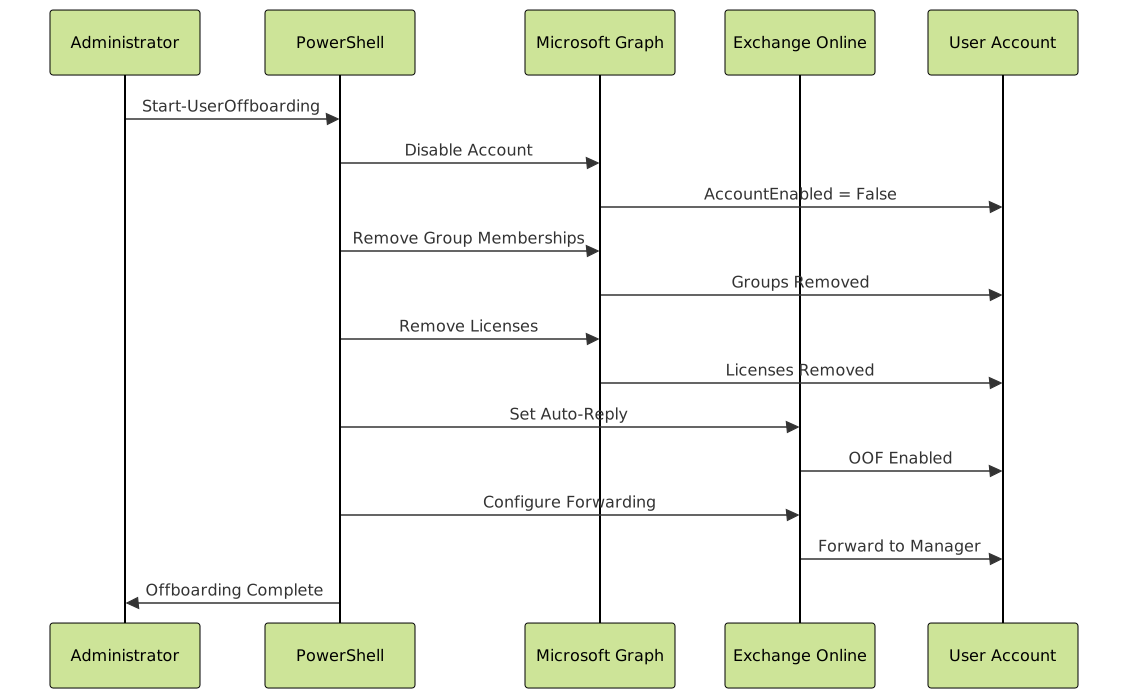
Automated Offboarding Process
# Complete user offboarding function
function Start-UserOffboarding {
    param(
        [Parameter(Mandatory)]
        [string]$UserPrincipalName,

        [Parameter(Mandatory)]
        [string]$ManagerEmail,

        [switch]$ConvertToSharedMailbox
    )

    Write-Host "`n=== Starting offboarding for $UserPrincipalName ===" -ForegroundColor Cyan

    # 1. Disable account
    Write-Host "1. Disabling user account..." -ForegroundColor Yellow
    Update-MgUser -UserId $UserPrincipalName -AccountEnabled:$false
    Write-Host "   ✓ Account disabled" -ForegroundColor Green

    # 2. Remove from all groups
    Write-Host "2. Removing from all groups..." -ForegroundColor Yellow
    $User = Get-MgUser -UserId $UserPrincipalName
    $Groups = Get-MgUserMemberOf -UserId $User.Id

    foreach ($Group in $Groups) {
        Remove-MgGroupMemberByRef -GroupId $Group.Id -DirectoryObjectId $User.Id
    }
    Write-Host "   ✓ Removed from $($Groups.Count) groups" -ForegroundColor Green

    # 3. Remove licenses
    Write-Host "3. Removing licenses..." -ForegroundColor Yellow
    $UserLicenses = Get-MgUserLicenseDetail -UserId $User.Id

    if ($UserLicenses) {
        $License = @{
            AddLicenses = @()
            RemoveLicenses = $UserLicenses.SkuId
        }
        Set-MgUserLicense -UserId $User.Id -BodyParameter $License
        Write-Host "   ✓ Removed $($UserLicenses.Count) licenses" -ForegroundColor Green
    }

    # 4. Set out of office message
    Write-Host "4. Setting automatic reply..." -ForegroundColor Yellow
    $AutoReply = @"
I am no longer with the company. Please contact $ManagerEmail for assistance.
"@

    Set-MailboxAutoReplyConfiguration -Identity $UserPrincipalName `
        -AutoReplyState Enabled `
        -InternalMessage $AutoReply `
        -ExternalMessage $AutoReply
    Write-Host "   ✓ Auto-reply configured" -ForegroundColor Green

    # 5. Forward email to manager
    Write-Host "5. Setting email forwarding..." -ForegroundColor Yellow
    Set-Mailbox -Identity $UserPrincipalName `
        -ForwardingAddress $ManagerEmail `
        -DeliverToMailboxAndForward $true
    Write-Host "   ✓ Email forwarding to $ManagerEmail" -ForegroundColor Green

    # 6. Convert to shared mailbox (optional)
    if ($ConvertToSharedMailbox) {
        Write-Host "6. Converting to shared mailbox..." -ForegroundColor Yellow
        Set-Mailbox -Identity $UserPrincipalName -Type Shared
        Write-Host "   ✓ Converted to shared mailbox" -ForegroundColor Green
    }

    Write-Host "`n=== Offboarding completed ===" -ForegroundColor Cyan
}

# Usage
Start-UserOffboarding -UserPrincipalName "[email protected]" `
    -ManagerEmail "[email protected]" `
    -ConvertToSharedMailbox
Guest User Management
# Invite external guest user
$Invitation = New-MgInvitation -InvitedUserEmailAddress "[email protected]" `
    -InvitedUserDisplayName "External Partner" `
    -InviteRedirectUrl "https://myapps.microsoft.com" `
    -SendInvitationMessage

# List all guest users
Get-MgUser -Filter "userType eq 'Guest'" -All |
    Select-Object DisplayName, Mail, CreatedDateTime

# Find guests who haven't accepted invitation
Get-MgUser -Filter "userType eq 'Guest'" -All |
    Where-Object {$_.ExternalUserState -eq "PendingAcceptance"} |
    Select-Object DisplayName, Mail,
        @{Name="InvitedOn"; Expression={$_.CreatedDateTime}},
        @{Name="DaysSinceInvite"; Expression={((Get-Date) - $_.CreatedDateTime).Days}}

# Remove inactive guest users
$InactiveGuests = Get-MgUser -Filter "userType eq 'Guest'" -All |
    Where-Object {
        $_.SignInActivity.LastSignInDateTime -lt (Get-Date).AddDays(-90)
    }

foreach ($Guest in $InactiveGuests) {
    Remove-MgUser -UserId $Guest.Id
    Write-Host "Removed inactive guest: $($Guest.DisplayName)" -ForegroundColor Yellow
}
Troubleshooting Common Issues
Connection Issues
# Check current Graph connection
$Context = Get-MgContext
if ($null -eq $Context) {
    Write-Host "Not connected to Microsoft Graph" -ForegroundColor Red
    Connect-MgGraph -Scopes "User.ReadWrite.All"
} else {
    Write-Host "Connected as: $($Context.Account)" -ForegroundColor Green
    Write-Host "Scopes: $($Context.Scopes -join ', ')"
}

# Test Exchange Online connection
try {
    Get-OrganizationConfig -ErrorAction Stop | Out-Null
    Write-Host "Exchange Online connected" -ForegroundColor Green
}
catch {
    Write-Host "Not connected to Exchange Online" -ForegroundColor Red
    Connect-ExchangeOnline
}

# Reconnect with additional scopes
Disconnect-MgGraph
Connect-MgGraph -Scopes "User.ReadWrite.All", "Group.ReadWrite.All",
    "Directory.ReadWrite.All", "RoleManagement.ReadWrite.Directory"
Permission Errors
# Check if you have required permissions
$RequiredScopes = @(
    "User.ReadWrite.All",
    "Group.ReadWrite.All",
    "Directory.ReadWrite.All"
)

$CurrentScopes = (Get-MgContext).Scopes

$MissingScopes = $RequiredScopes | Where-Object {$_ -notin $CurrentScopes}

if ($MissingScopes) {
    Write-Host "Missing permissions:" -ForegroundColor Red
    $MissingScopes | ForEach-Object { Write-Host "  - $_" -ForegroundColor Yellow }
    Write-Host "`nReconnect with: Connect-MgGraph -Scopes '$($RequiredScopes -join "', '")'" -ForegroundColor Cyan
}
else {
    Write-Host "All required permissions present" -ForegroundColor Green
}
Rate Limiting and Throttling
# Function to handle rate limiting with retry logic
function Invoke-GraphWithRetry {
    param(
        [scriptblock]$ScriptBlock,
        [int]$MaxRetries = 3,
        [int]$RetryDelay = 5
    )

    $Attempt = 0

    while ($Attempt -lt $MaxRetries) {
        try {
            $Attempt++
            return & $ScriptBlock
        }
        catch {
            if ($_.Exception.Message -like "*429*" -or $_.Exception.Message -like "*throttl*") {
                if ($Attempt -lt $MaxRetries) {
                    Write-Host "Rate limited. Waiting $RetryDelay seconds (Attempt $Attempt/$MaxRetries)..." -ForegroundColor Yellow
                    Start-Sleep -Seconds $RetryDelay
                    $RetryDelay *= 2  # Exponential backoff
                }
                else {
                    throw "Max retries reached. $_"
                }
            }
            else {
                throw
            }
        }
    }
}

# Usage example
$Users = Invoke-GraphWithRetry -ScriptBlock {
    Get-MgUser -All
}
Performance Optimization
Batch Processing
# Process users in batches for better performance
function Process-UsersInBatches {
    param(
        [Parameter(Mandatory)]
        [array]$UserList,

        [int]$BatchSize = 100,

        [scriptblock]$ProcessScript
    )

    $TotalUsers = $UserList.Count
    $ProcessedCount = 0

    for ($i = 0; $i -lt $TotalUsers; $i += $BatchSize) {
        $Batch = $UserList[$i..[Math]::Min($i + $BatchSize - 1, $TotalUsers - 1)]

        Write-Host "Processing batch $([Math]::Floor($i / $BatchSize) + 1)..." -ForegroundColor Cyan

        foreach ($User in $Batch) {
            & $ProcessScript -User $User
            $ProcessedCount++
        }

        Write-Progress -Activity "Processing Users" `
            -Status "$ProcessedCount of $TotalUsers processed" `
            -PercentComplete (($ProcessedCount / $TotalUsers) * 100)

        Start-Sleep -Milliseconds 100  # Brief pause between batches
    }

    Write-Progress -Activity "Processing Users" -Completed
}

# Example usage: Update job titles
$AllUsers = Get-MgUser -All -Property Id, DisplayName
Process-UsersInBatches -UserList $AllUsers -BatchSize 50 -ProcessScript {
    param($User)
    # Your processing logic here
}
Managing Microsoft 365 and Azure AD with PowerShell provides enterprise administrators with powerful automation capabilities. By mastering these cmdlets and techniques, you can streamline user provisioning, enforce security policies, generate comprehensive reports, and maintain consistent configurations across your organization. The examples provided serve as building blocks for creating robust administrative workflows tailored to your specific requirements.





