
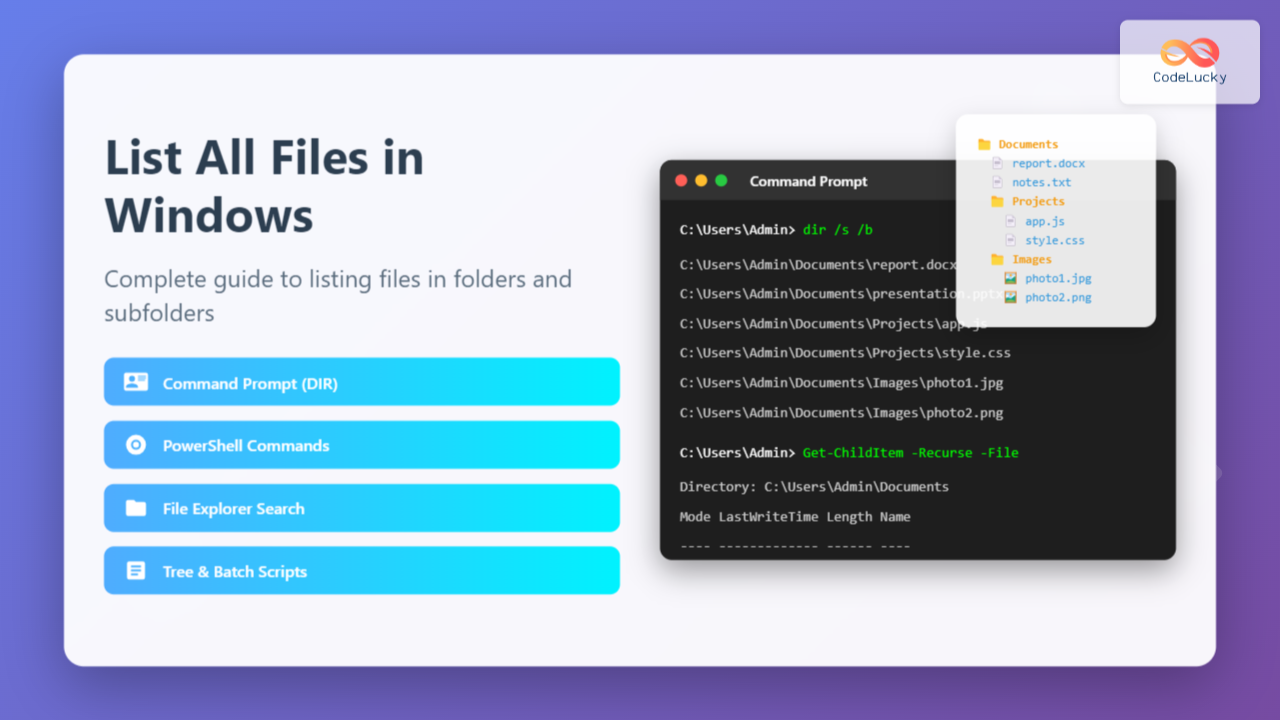
Managing files across multiple folders and subfolders is a common task for Windows users, whether you’re organizing personal documents, analyzing project structures, or performing system administration. This comprehensive guide covers various methods to list all files in a folder and its subfolders, from simple GUI approaches to powerful command-line techniques.
Understanding Windows File Structure
Before diving into listing methods, it’s essential to understand how Windows organizes files in a hierarchical structure. Each folder can contain files and additional subfolders, creating a tree-like organization.

Method 1: Using Command Prompt (CMD)
The Command Prompt offers several powerful commands for listing files recursively through folder structures.
Basic DIR Command
The most fundamental approach uses the dir command with the /s parameter to search subdirectories:
dir /sExample Output:
C:\Users\YourName\Documents>dir /s

 Directory of C:\Users\YourName\Documents

08/29/2025  07:15 PM    <DIR>          .
08/29/2025  07:15 PM    <DIR>          ..
08/29/2025  07:10 PM             1,234 report.docx
08/29/2025  07:12 PM             5,678 presentation.pptx
               2 File(s)          6,912 bytes

 Directory of C:\Users\YourName\Documents\Projects

08/29/2025  07:13 PM    <DIR>          .
08/29/2025  07:13 PM    <DIR>          ..
08/29/2025  07:14 PM             2,345 project1.txt
               1 File(s)          2,345 bytes
Enhanced DIR Commands
For more specific results, combine multiple parameters:
List Only Files (No Directories)
dir /s /b /a-dList Specific File Types
dir *.txt /s /bInclude File Attributes and Timestamps
dir /s /q /t:cParameter Explanations:
/s– Include subdirectories/b– Bare format (filenames only)/a-d– Show files only, exclude directories/q– Display file owner information/t:c– Sort by creation time
Saving Output to File
To save the file list for later use:
dir /s /b > filelist.txtMethod 2: Using PowerShell
PowerShell provides more advanced and flexible options for file listing with better formatting and filtering capabilities.
Get-ChildItem Command
The primary PowerShell cmdlet for listing files:
Get-ChildItem -RecurseList Files Only
Get-ChildItem -Recurse -FileList Directories Only
Get-ChildItem -Recurse -DirectoryAdvanced PowerShell Examples
Filter by File Extension
Get-ChildItem -Recurse -Include "*.pdf", "*.docx"Exclude Certain Files
Get-ChildItem -Recurse -Exclude "*.tmp", "*.log"Format Output as Table
Get-ChildItem -Recurse -File | Format-Table Name, Length, LastWriteTimeExample Output:
Name                Length LastWriteTime
----                ------ -------------
report.docx           1234 8/29/2025 7:10:15 PM
presentation.pptx     5678 8/29/2025 7:12:30 PM
project1.txt          2345 8/29/2025 7:14:45 PM
Export to CSV
Create a comprehensive file inventory:
Get-ChildItem -Recurse -File | Select-Object Name, FullName, Length, CreationTime, LastWriteTime | Export-Csv -Path "file_inventory.csv" -NoTypeInformation
Method 3: Using Windows File Explorer
For users who prefer graphical interfaces, File Explorer offers built-in search capabilities.
File Explorer Search Method
- Open the folder you want to search
- Click in the search box (top-right corner)
- Type
*.*to search for all files - Press Enter
Advanced Search Techniques
Search by File Type
type:document– All document files*.pdf– Only PDF filessize:>1MB– Files larger than 1MB
Date-based Searches
datemodified:today– Files modified todaydatecreated:this week– Files created this week
Method 4: Using Tree Command
The tree command provides a visual representation of the folder structure:
tree /fExample Output:
C:\USERS\USERNAME\DOCUMENTS
├───Projects
│   ├───WebDev
│   │       index.html
│   │       style.css
│   │       script.js
│   └───Python
│           main.py
│           requirements.txt
├───Images
│       photo1.jpg
│       photo2.png
└───Reports
        annual_report.pdf
        quarterly_summary.xlsx
Tree Command Parameters
/f– Display filenames/a– Use ASCII characters instead of extended characters

Method 5: Using FORFILES Command
The forfiles command offers advanced filtering and processing capabilities:
Basic FORFILES Syntax
forfiles /s /m *.* /c "cmd /c echo @path"Practical Examples
List Files Modified in Last 7 Days
forfiles /s /m *.* /d -7 /c "cmd /c echo @path - @fdate"List Large Files (>10MB)
forfiles /s /m *.* /c "cmd /c if @fsize gtr 10485760 echo @path - @fsize bytes"Method 6: Creating Batch Scripts
Automate file listing tasks with custom batch files:
Simple File Listing Script
@echo off
echo Generating file list for %1
echo Date: %date% Time: %time%
echo.
dir "%1" /s /b /a-d > "%1\filelist_%date:~-4,4%%date:~-10,2%%date:~-7,2%.txt"
echo File list saved to filelist_%date:~-4,4%%date:~-10,2%%date:~-7,2%.txt
Enhanced Batch Script with Categories
@echo off
setlocal enabledelayedexpansion
set "folder=%1"
if "%folder%"=="" set "folder=%cd%"

echo === COMPLETE FILE INVENTORY ===
echo Folder: %folder%
echo Generated: %date% %time%
echo.

echo === DOCUMENT FILES ===
dir "%folder%\*.doc*" "%folder%\*.pdf" "%folder%\*.txt" /s /b 2>nul

echo.
echo === IMAGE FILES ===
dir "%folder%\*.jpg" "%folder%\*.png" "%folder%\*.gif" /s /b 2>nul

echo.
echo === EXECUTABLE FILES ===
dir "%folder%\*.exe" "%folder%\*.msi" /s /b 2>nul
Method 7: Third-Party Tools
Several third-party applications enhance file listing capabilities:
Popular Tools
- Everything – Lightning-fast file search
- Directory List & Print – Professional file listing
- TreeSize – File size analysis with listing
- WinDirStat – Visual directory statistics
Comparison of Methods
| Method | Speed | Customization | Output Format | Best For |
|---|---|---|---|---|
| Command Prompt (DIR) | Fast | Limited | Text | Quick listings |
| PowerShell | Fast | Excellent | Multiple | Advanced filtering |
| File Explorer | Moderate | Basic | Visual | Casual users |
| Tree Command | Fast | Limited | Visual Tree | Structure visualization |
| Batch Scripts | Fast | High | Custom | Automation |
Troubleshooting Common Issues
Access Denied Errors
Run Command Prompt or PowerShell as Administrator to access protected directories:
- Right-click Command Prompt/PowerShell
- Select “Run as administrator”
- Confirm UAC prompt
Path Too Long Errors
For paths exceeding 260 characters, use PowerShell with the -LiteralPath parameter or enable long path support in Windows.
Memory Issues with Large Directories
For directories with millions of files:
- Use
dir /s /binstead of PowerShell for better memory efficiency - Process subdirectories separately
- Use third-party tools designed for large datasets

Best Practices and Tips
Performance Optimization
- Use specific file patterns instead of
*.*when possible - Exclude system directories to improve speed
- Consider using SSD storage for faster directory traversal
Data Management
- Save file listings with timestamps for version control
- Use CSV format for easy import into spreadsheet applications
- Implement regular automated listings for change tracking
Security Considerations
- Be cautious with file listings containing sensitive paths
- Consider excluding personal directories from automated scripts
- Use appropriate permissions when sharing file inventories
Advanced Use Cases
System Administration
Create comprehensive system audits:
Get-ChildItem C:\ -Recurse -File | Where-Object {$_.Length -gt 1GB} | Sort-Object Length -Descending | Format-Table Name, Length, FullNameProject Management
Generate project file inventories with metadata:
Get-ChildItem -Recurse -File | Select-Object Name, DirectoryName, Length, @{Name='SizeMB';Expression={[math]::Round($_.Length/1MB,2)}}, LastWriteTime | Export-Csv project_files.csvBackup Verification
Compare file listings between source and backup locations:
# Generate source listing
Get-ChildItem "C:\Source" -Recurse -File | Select FullName, Length | Export-Csv source_files.csv

# Generate backup listing
Get-ChildItem "D:\Backup" -Recurse -File | Select FullName, Length | Export-Csv backup_files.csv
Conclusion
Listing files in folders and subfolders is a fundamental Windows administration skill with multiple approaches available. Command Prompt’s dir command offers quick results, while PowerShell provides advanced filtering and formatting capabilities. File Explorer serves casual users well, and batch scripts enable automation for repetitive tasks.
Choose the method that best fits your specific needs: simple GUI searches for occasional use, command-line tools for power users, or automated scripts for regular file management tasks. Understanding these various approaches ensures you can efficiently manage and inventory files across any Windows system, regardless of complexity or scale.
Remember to consider security implications, performance requirements, and output format needs when selecting your preferred file listing method. With these comprehensive techniques, you’ll have complete control over file discovery and organization in your Windows environment.





