
WordPress powers over 40% of all websites on the internet, making it the most popular content management system (CMS) available today. Whether you’re a beginner launching your first blog or an experienced developer setting up a client site, choosing the right installation method is crucial for your project’s success.
This comprehensive guide will walk you through both one-click installation and manual installation methods, helping you understand when to use each approach and how to execute them flawlessly.
Understanding WordPress Installation Methods
Before diving into the specifics, let’s understand what each installation method entails and when you might choose one over the other.

One-Click Installation Overview
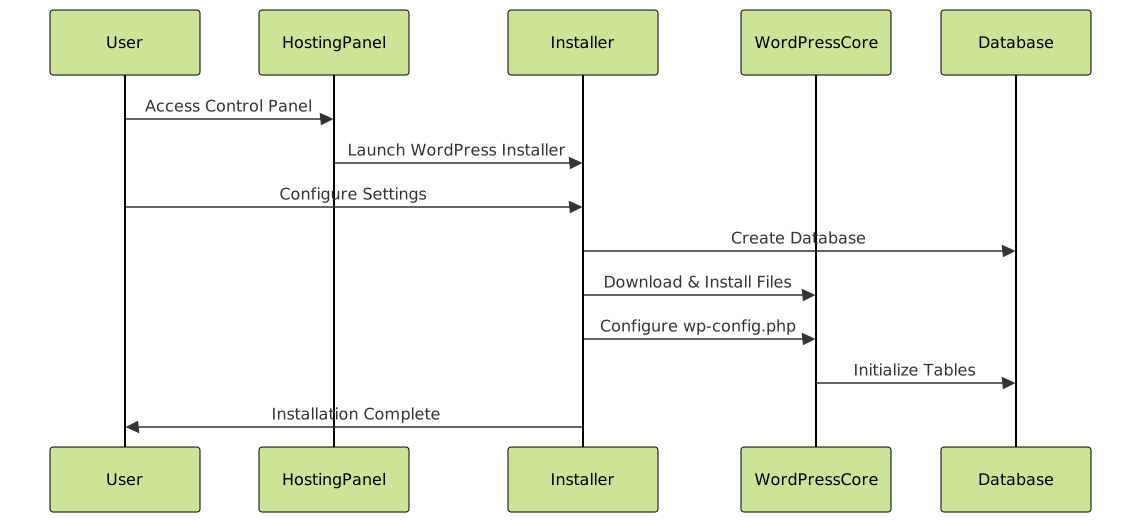
One-click installation, also known as auto-installation, is a simplified process offered by most web hosting providers. This method automatically handles the technical aspects of WordPress setup, including:
- Database creation and configuration
- File downloads and uploads
- Initial WordPress configuration
- Basic security settings
Manual Installation Overview
Manual installation involves downloading WordPress files directly from WordPress.org and setting up everything yourself. This method provides complete control over:
- Server configuration
- Database settings
- File permissions
- Custom installations
One-Click WordPress Installation
Most hosting providers offer one-click WordPress installation through tools like Softaculous, Fantastico, or their custom installers. Here’s how to use this method effectively.
Prerequisites for One-Click Installation
Before starting, ensure you have:
- Active web hosting account with WordPress support
- Domain name configured
- Access to your hosting control panel (cPanel, Plesk, or custom)
- Basic site information (title, admin credentials)
Step-by-Step One-Click Installation Process
Step 1: Access Your Hosting Control Panel
Log into your hosting account and navigate to the control panel. Look for sections labeled:
- “Auto Installers”
- “One-Click Apps”
- “Softaculous Apps Installer”
- “WordPress Installer”
Step 2: Select WordPress Installation
Click on the WordPress icon or link. You’ll typically see options like:
WordPress
Latest Version: 6.3.1
Requirements: PHP 7.4+, MySQL 5.7+
Install Now | Demo | Ratings
Step 3: Configure Installation Settings
Fill out the installation form with the following information:
| Setting | Description | Example |
|---|---|---|
| Choose Protocol | HTTP or HTTPS selection | https:// |
| Choose Domain | Your website domain | yoursite.com |
| In Directory | Subdirectory (leave blank for root) | (empty) or /blog |
| Site Name | Your website title | My Awesome Blog |
| Site Description | Brief site description | A blog about web development |
| Admin Username | Your login username | admin (avoid for security) |
| Admin Password | Strong password | Auto-generated recommended |
| Admin Email | Your email address | [email protected] |
Step 4: Advanced Options (Optional)
Many installers offer advanced options:
- Auto Upgrade: Enable automatic WordPress updates
- Backup Location: Set automatic backup directory
- Database Name: Custom database name (usually auto-generated)
- Disable Update Notifications: Reduce email notifications
Step 5: Complete Installation
Click “Install” and wait for the process to complete. You’ll see a progress indicator:
Installing WordPress...
✓ Creating Database
✓ Downloading WordPress Files
✓ Configuring Settings
✓ Setting Up Admin Account
Installation Complete!
Post-Installation Steps for One-Click Method
After successful installation:
- Save Login Details: Note down your admin URL, username, and password
- Access Admin Area: Visit yoursite.com/wp-admin
- Update Settings: Configure basic WordPress settings
- Install SSL Certificate: Ensure HTTPS is properly configured
- Choose Theme: Select and customize your site appearance
Manual WordPress Installation
Manual installation gives you complete control over the WordPress setup process. This method is preferred by developers and users who need custom configurations.
Prerequisites for Manual Installation
Before starting manual installation, ensure you have:
- Web server with PHP 7.4+ and MySQL 5.7+ support
- FTP client (FileZilla, WinSCP) or file manager access
- Text editor for configuration files
- Database management access (phpMyAdmin, cPanel, etc.)
- Basic understanding of file permissions and server configurations
Step-by-Step Manual Installation Process
Step 1: Download WordPress
Visit WordPress.org and download the latest version:
WordPress 6.3.1
Download .zip (22.2 MB)
Download .tar.gz (19.8 MB)
Extract the downloaded file to reveal the wordpress folder containing all core files.
Step 2: Create Database
Access your hosting control panel or phpMyAdmin and create a new database:
Database Name: wp_yoursite
Username: wp_user
Password: strong_password_here
Privileges: ALL PRIVILEGES
Step 3: Configure wp-config.php
In the WordPress folder, locate wp-config-sample.php and rename it to wp-config.php. Edit the file with your database information:
// ** MySQL settings ** //
define( 'DB_NAME', 'wp_yoursite' );
define( 'DB_USER', 'wp_user' );
define( 'DB_PASSWORD', 'your_password_here' );
define( 'DB_HOST', 'localhost' );
define( 'DB_CHARSET', 'utf8mb4' );
define( 'DB_COLLATE', '' );

// Security Keys (generate at https://api.wordpress.org/secret-key/1.1/salt/)
define( 'AUTH_KEY',         'your-unique-phrase-here' );
define( 'SECURE_AUTH_KEY',  'your-unique-phrase-here' );
define( 'LOGGED_IN_KEY',    'your-unique-phrase-here' );
define( 'NONCE_KEY',        'your-unique-phrase-here' );
// ... additional keys

$table_prefix = 'wp_';
define( 'WP_DEBUG', false );
Step 4: Upload Files
Using your FTP client or file manager, upload all WordPress files to your web server:
- Root domain installation: Upload to
/public_html/ - Subdirectory installation: Upload to
/public_html/blog/
Ensure proper file permissions:
| File Type | Permission | Description |
|---|---|---|
| Directories | 755 or 750 | Folders and subdirectories |
| Files | 644 or 640 | PHP, HTML, CSS files |
| wp-config.php | 644 | Configuration file |
| .htaccess | 644 | Server configuration |
Step 5: Run Installation Script
Navigate to your domain in a web browser. WordPress will automatically detect the installation and redirect you to the setup wizard:
Welcome to WordPress!
Before getting started, I need some information about your database.
You should have this information from your web host.

Database Name: [Already configured]
Username: [Already configured]
Password: [Already configured]
Database Host: [Already configured]
Table Prefix: [Already configured]

✓ All database connection details are correct!
Step 6: Complete WordPress Setup
Fill out the final installation form:
- Site Title: Your website name
- Username: Admin login (avoid ‘admin’ for security)
- Password: Strong password (WordPress will generate one)
- Your Email: Admin email address
- Search Engine Visibility: Choose whether to discourage search engines

Advanced Manual Installation Options
Multisite Configuration
For multisite installations, add these lines to wp-config.php:
/* Multisite */
define( 'WP_ALLOW_MULTISITE', true );
define( 'MULTISITE', true );
define( 'SUBDOMAIN_INSTALL', false );
define( 'DOMAIN_CURRENT_SITE', 'yoursite.com' );
define( 'PATH_CURRENT_SITE', '/' );
define( 'SITE_ID_CURRENT_SITE', 1 );
define( 'BLOG_ID_CURRENT_SITE', 1 );
Custom File Permissions Script
Create a script to set proper file permissions automatically:
#!/bin/bash
# Set proper WordPress file permissions
find /path/to/wordpress/ -type d -exec chmod 755 {} \;
find /path/to/wordpress/ -type f -exec chmod 644 {} \;
chmod 600 wp-config.php
Comparison: One-Click vs Manual Installation
Understanding the differences between these methods helps you choose the right approach for your specific needs.

Detailed Comparison Table
| Aspect | One-Click Installation | Manual Installation |
|---|---|---|
| Setup Time | 2-5 minutes | 15-30 minutes |
| Technical Skills Required | Minimal (basic form filling) | Intermediate (FTP, database, file editing) |
| Customization Level | Limited to installer options | Complete control over all settings |
| Database Configuration | Automatic | Manual setup required |
| File Permissions | Set automatically | Manual configuration needed |
| Security Keys | Auto-generated | Manual generation recommended |
| Multisite Support | Usually not available | Full multisite configuration |
| Custom wp-config.php | Standard configuration | Complete customization |
| Troubleshooting | Limited options | Full diagnostic capabilities |
| Learning Value | Minimal | High (understand WordPress structure) |
When to Choose Each Method
Choose One-Click Installation When:
- You’re a beginner with limited technical experience
- Quick setup is your priority
- Standard configuration meets your needs
- Your hosting provider offers reliable auto-installers
- You’re creating simple blogs or basic websites
- Time constraints prevent detailed setup
Choose Manual Installation When:
- You need custom configurations not available in auto-installers
- Setting up multisite installations
- Working with development or staging environments
- Your hosting provider doesn’t offer one-click installers
- You want to learn WordPress architecture
- Installing on local servers or custom environments
- Maximum security control is required
- Creating custom deployment workflows
Common Installation Issues and Solutions
One-Click Installation Problems
Database Connection Errors
Error establishing a database connection
Solutions:
- Verify database credentials in hosting control panel
- Check if database server is running
- Contact hosting provider for server-side issues
- Retry installation with different database name
Installation Timeout
Installation timed out or failed to complete
Solutions:
- Clear browser cache and retry
- Use different browser or incognito mode
- Check server resource limits with hosting provider
- Try manual installation as alternative
Manual Installation Problems
File Permission Errors
Sorry, but I can't write the wp-config.php file.
Solutions:
- Set directory permissions to 755
- Set file permissions to 644
- Ensure web server user has write access
- Create wp-config.php manually if needed
White Screen of Death
Blank white page with no content displayed.
Solutions:
- Enable WordPress debugging in wp-config.php
- Check error logs for specific error messages
- Verify all files uploaded correctly
- Increase PHP memory limit
- Deactivate plugins temporarily
Post-Installation Security Best Practices
Regardless of your installation method, implementing security measures is crucial:
Immediate Security Steps
- Change Default Admin Username: Never use ‘admin’ as username
- Use Strong Passwords: Minimum 12 characters with mixed case, numbers, symbols
- Update WordPress: Keep core, themes, and plugins updated
- Remove Unused Themes/Plugins: Delete unnecessary files
- Install Security Plugin: Consider Wordfence, Sucuri, or similar
Advanced Security Configuration
Add these lines to wp-config.php for enhanced security:
// Disable file editing in WordPress admin
define( 'DISALLOW_FILE_EDIT', true );

// Force SSL for admin and login
define( 'FORCE_SSL_ADMIN', true );

// Limit login attempts
define( 'WP_FAIL2BAN_LOG_SECURITY', true );

// Hide WordPress version
define( 'WP_DEBUG', false );
Performance Optimization After Installation
Essential Performance Steps
- Install Caching Plugin: WP Rocket, W3 Total Cache, or WP Super Cache
- Optimize Images: Use WebP format and compression plugins
- Enable GZIP Compression: Reduce file transfer sizes
- Use Content Delivery Network (CDN): Cloudflare or similar services
- Choose Lightweight Theme: Avoid bloated themes with unnecessary features
Database Optimization
For manual installations, consider these database optimizations:
// Increase WordPress memory limit
ini_set( 'memory_limit', '256M' );

// Optimize database tables regularly
define( 'WP_ALLOW_REPAIR', true );

// Enable object caching
define( 'WP_CACHE', true );
Conclusion
Both one-click and manual WordPress installation methods have their place in modern web development. One-click installation excels for beginners and quick deployments, while manual installation provides the control and customization needed for complex projects.
Your choice should depend on your technical expertise, project requirements, and long-term goals. Beginners should start with one-click installation to get familiar with WordPress, then gradually move to manual installation as their skills develop.
Remember that regardless of your chosen method, the real work begins after installation. Focus on creating quality content, implementing proper security measures, and optimizing your site’s performance to build a successful WordPress website.
Whether you choose the simplicity of one-click installation or the control of manual setup, WordPress remains one of the most flexible and powerful platforms for building websites of any size and complexity.





