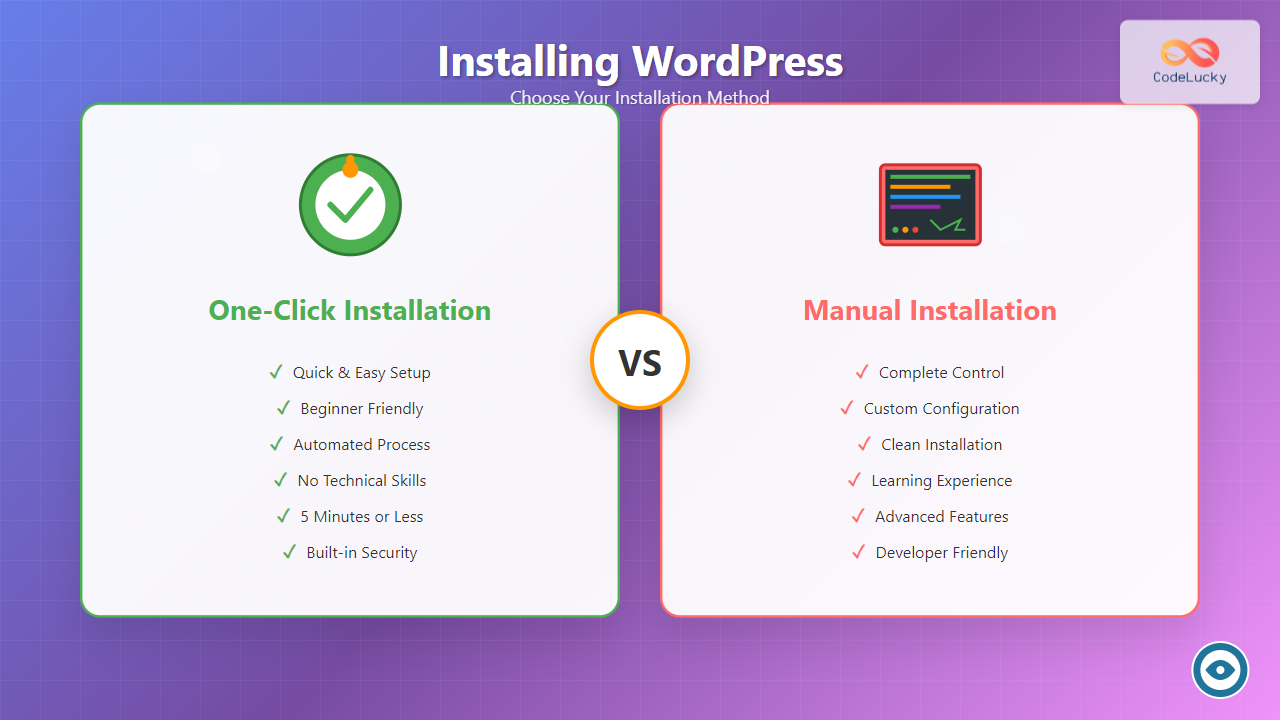
WordPress powers over 43% of all websites on the internet, making it the most popular content management system (CMS) available today. When setting up a WordPress site, you’ll encounter two primary installation methods: one-click installation and manual installation. Each approach has distinct advantages and is suited for different scenarios and skill levels.
This comprehensive guide will walk you through both installation methods, helping you choose the right approach for your specific needs while providing detailed step-by-step instructions for each process.
Understanding WordPress Installation Methods

Before diving into the installation process, it’s crucial to understand what each method entails and when to use them.
What is One-Click WordPress Installation?
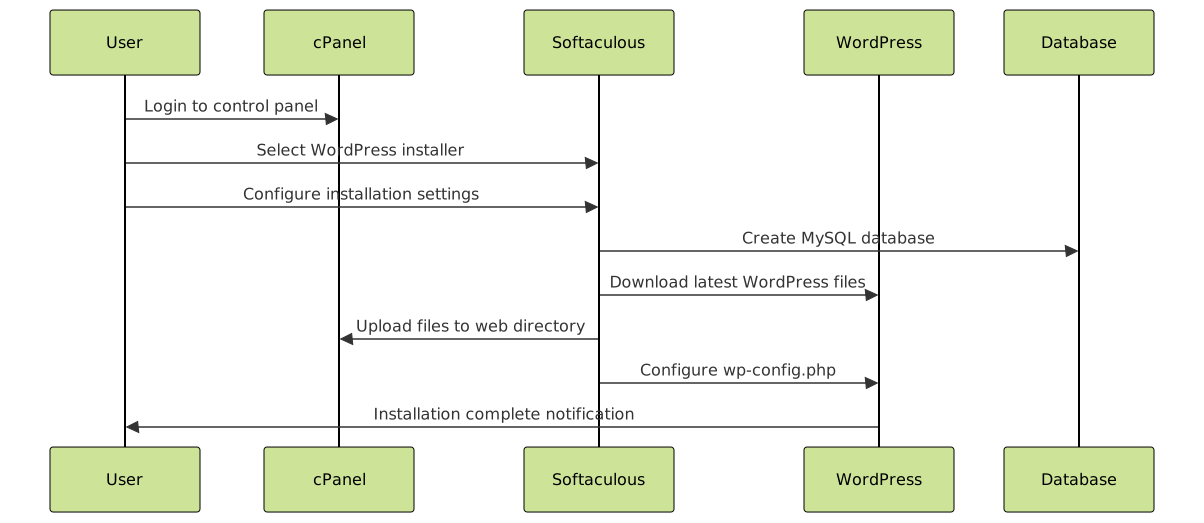
One-click WordPress installation is an automated process provided by most web hosting companies through their control panels. This method uses pre-configured scripts like Softaculous, Fantastico, or proprietary tools to install WordPress with minimal user intervention.
What is Manual WordPress Installation?
Manual WordPress installation involves downloading WordPress files directly from WordPress.org and manually uploading them to your web server. This method requires creating a database, configuring files, and setting up the installation through a web browser.
One-Click WordPress Installation
One-click installation is the most popular method among beginners due to its simplicity and speed. Most hosting providers offer this feature through their control panels.
Advantages of One-Click Installation
- Speed and Convenience: Complete installation in under 5 minutes
- No Technical Knowledge Required: Perfect for beginners
- Automatic Database Creation: No manual database setup needed
- Pre-configured Settings: Optimal configurations applied automatically
- Integrated with Hosting Environment: Seamless compatibility with your hosting setup
- Built-in Security: Basic security measures applied during installation
Disadvantages of One-Click Installation
- Limited Customization: Fewer options for advanced configurations
- Dependency on Host: Relies on hosting provider’s tools and updates
- Potential Bloatware: May include unnecessary plugins or themes
- Less Control: Limited insight into the installation process
Step-by-Step One-Click Installation Guide
Here’s how to install WordPress using the one-click method with popular hosting control panels:
Using cPanel with Softaculous
- Log into your hosting control panel (cPanel, Plesk, or custom panel)
- Locate the WordPress installer – Look for “Softaculous,” “Auto Installer,” or “WordPress” in the software section
- Click on WordPress from the available applications
- Choose Installation Domain:
- Select your domain from the dropdown
- Leave the directory field blank for root installation
- Or enter a subdirectory name (e.g., “blog”) for subfolder installation
- Configure Site Settings:
- Site Name: Enter your website’s title
- Site Description: Brief description of your site
- Admin Username: Choose a secure username (avoid “admin”)
- Admin Password: Create a strong password
- Admin Email: Your administrative email address
- Select Plugins and Themes (optional):
- Choose from pre-selected plugins
- Select a starter theme if available
- Advanced Options (optional):
- Database name prefix
- Automatic updates settings
- Backup and restore options
- Click “Install” and wait for the process to complete (usually 1-3 minutes)
Post-Installation Steps for One-Click Method
- Access Your WordPress Dashboard:
- Visit
yoursite.com/wp-admin - Log in using the credentials you created
- Visit
- Update WordPress:
- Check for available updates in Dashboard → Updates
- Update core, themes, and plugins as needed
- Configure Basic Settings:
- Settings → General: Update site title and tagline
- Settings → Permalinks: Choose SEO-friendly URL structure
- Settings → Discussion: Configure comment settings
Manual WordPress Installation
Manual installation gives you complete control over the WordPress setup process and is preferred by developers and advanced users who need specific configurations.
Advantages of Manual Installation
- Complete Control: Full customization of installation parameters
- Clean Installation: No unwanted plugins or themes
- Learning Experience: Better understanding of WordPress structure
- Troubleshooting Skills: Develops technical problem-solving abilities
- Custom Configurations: Advanced database and security settings
- Version Control: Choose specific WordPress versions if needed
Disadvantages of Manual Installation
- Technical Complexity: Requires basic technical knowledge
- Time-Consuming: Takes 15-30 minutes for complete setup
- Potential for Errors: Higher risk of configuration mistakes
- Manual Updates: No automatic maintenance features
Prerequisites for Manual Installation
Before starting manual installation, ensure you have:
- Web Hosting Account: With PHP 7.4+ and MySQL 5.7+ support
- FTP Client: FileZilla, WinSCP, or built-in cPanel File Manager
- Text Editor: Notepad++, Sublime Text, or VS Code
- Database Access: cPanel, phpMyAdmin, or hosting panel access
Step-by-Step Manual Installation Guide
Phase 1: Download and Prepare WordPress Files
- Download WordPress:
- Visit
wordpress.org/download - Download the latest WordPress zip file
- Extract the files to your computer
- Visit
- Review File Structure:
wordpress/
├── wp-admin/
├── wp-content/
├── wp-includes/
├── index.php
├── wp-config-sample.php
└── ... (other core files)
Phase 2: Create MySQL Database
- Access Database Management:
- Log into cPanel or your hosting control panel
- Find “MySQL Databases” or “phpMyAdmin”
- Create New Database:
- Database name:
yoursite_wp(follow naming conventions) - Character set:
utf8mb4_unicode_ci
- Database name:
- Create Database User:
- Username:
yoursite_wpuser - Password: Generate a strong password
- Grant all privileges to the database
- Username:
- Record Database Details:
- Database name
- Username
- Password
- Database host (usually ‘localhost’)
Phase 3: Configure WordPress
- Rename Configuration File:
- Locate
wp-config-sample.php - Rename it to
wp-config.php
- Locate
- Edit Database Settings:
// Database configuration define( 'DB_NAME', 'yoursite_wp' ); define( 'DB_USER', 'yoursite_wpuser' ); define( 'DB_PASSWORD', 'your_secure_password' ); define( 'DB_HOST', 'localhost' ); define( 'DB_CHARSET', 'utf8mb4' ); define( 'DB_COLLATE', '' ); - Generate Security Keys:
- Visit
api.wordpress.org/secret-key/1.1/salt/ - Copy the generated keys
- Replace the placeholder keys in wp-config.php
- Visit
- Add Security Enhancements:
// Security improvements
define( 'WP_DEBUG', false );
define( 'DISALLOW_FILE_EDIT', true );
define( 'WP_POST_REVISIONS', 3 );
define( 'AUTOSAVE_INTERVAL', 300 );

Phase 4: Upload Files to Server
- Connect via FTP:
- Open your FTP client
- Enter your hosting credentials
- Connect to your server
- Navigate to Web Directory:
- Usually
public_html/orwww/ - For subdirectory installation:
public_html/subdirectory/
- Usually
- Upload WordPress Files:
- Select all files from the WordPress folder
- Upload to your web directory
- Ensure file permissions are set correctly (644 for files, 755 for directories)
Phase 5: Run WordPress Installation
- Access Installation Script:
- Open your web browser
- Navigate to
yoursite.com/wp-admin/install.php
- Complete Installation Form:
- Site Title: Your website’s name
- Username: Admin username (avoid ‘admin’)
- Password: Strong administrative password
- Email: Your email address
- Search Engine Visibility: Choose appropriate setting
- Finish Installation:
- Click “Install WordPress”
- Wait for confirmation message
- Log in to your new WordPress dashboard
Comparing Installation Methods

| Feature | One-Click Installation | Manual Installation |
|---|---|---|
| Setup Time | 2-5 minutes | 15-30 minutes |
| Technical Skill Required | Beginner | Intermediate to Advanced |
| Customization Level | Basic | Complete |
| Control Over Process | Limited | Full |
| Pre-installed Content | Often includes themes/plugins | Clean installation |
| Error Troubleshooting | Dependent on host support | Self-managed |
| Learning Value | Minimal | High |
| Suitable For | Beginners, quick projects | Developers, custom requirements |
When to Choose Each Method
Choose One-Click Installation When:
- You’re new to WordPress and web development
- You need a website up and running quickly
- You’re comfortable with standard configurations
- Your hosting provider offers reliable one-click tools
- You prefer automated maintenance and updates
- You’re creating a simple blog or business website
Choose Manual Installation When:
- You need specific custom configurations
- You want to learn how WordPress works internally
- You’re developing a complex or enterprise website
- You need to install an older or specific WordPress version
- Your hosting provider doesn’t offer reliable one-click options
- You want complete control over security settings
- You’re migrating from another platform with specific requirements
Troubleshooting Common Installation Issues
One-Click Installation Problems
- Installation Fails:
- Check available disk space
- Verify PHP and MySQL versions
- Contact hosting support
- Can’t Access Admin Dashboard:
- Clear browser cache
- Check if installation completed successfully
- Verify admin credentials
- White Screen of Death:
- Check error logs in cPanel
- Increase PHP memory limit
- Deactivate problematic plugins
Manual Installation Problems
- Database Connection Error:
- Verify database credentials in wp-config.php
- Ensure database user has proper privileges
- Check database host settings
- File Permission Issues:
- Set directories to 755 permissions
- Set files to 644 permissions
- Use FTP client or cPanel File Manager
- Installation Script Not Found:
- Ensure all WordPress files uploaded correctly
- Check file paths and directory structure
- Verify wp-config.php is properly configured
Post-Installation Best Practices
Regardless of your chosen installation method, follow these essential post-installation steps:
Security Enhancements
- Update Everything: WordPress core, themes, and plugins
- Install Security Plugin: Wordfence, Sucuri, or similar
- Enable Two-Factor Authentication: Add extra login security
- Change Default Login URL: Hide wp-admin from bots
- Implement SSL Certificate: Enable HTTPS encryption
Performance Optimization
- Install Caching Plugin: WP Rocket, W3 Total Cache, or WP Super Cache
- Optimize Images: Use Smush or similar compression plugins
- Choose Lightweight Theme: Avoid bloated, feature-heavy themes
- Regular Maintenance: Clean database and remove unused plugins
Backup Strategy
- Automated Backups: Set up daily or weekly automated backups
- Multiple Storage Locations: Store backups in cloud and local storage
- Test Restore Process: Regularly verify backup integrity
- Include Database: Ensure complete site backup including database
Advanced Installation Considerations
Multisite Installation
For users planning to run multiple WordPress sites, consider WordPress Multisite installation:
- Single WordPress installation managing multiple sites
- Shared plugins and themes across all sites
- Centralized user management
- Requires manual installation method for full control
Development Environment Setup
Developers should consider local development setups:
- Local Development Tools: XAMPP, WAMP, MAMP, or Docker
- Version Control: Git integration for code management
- Staging Environment: Test changes before production deployment
- Development Plugins: Debug tools and development utilities

Conclusion
Both one-click and manual WordPress installation methods have their place in the web development ecosystem. One-click installation is perfect for beginners, quick deployments, and standard website projects. It offers speed, convenience, and reduces the likelihood of configuration errors.
Manual installation provides complete control, clean setups, and valuable learning experiences. It’s ideal for developers, custom projects, and situations requiring specific configurations or security measures.
Your choice should depend on your technical expertise, project requirements, time constraints, and long-term goals. Many developers start with one-click installation to get familiar with WordPress, then graduate to manual installation as their skills develop.
Whichever method you choose, remember that the installation is just the beginning. Focus on security, performance optimization, and regular maintenance to ensure your WordPress site remains secure, fast, and reliable for years to come.