
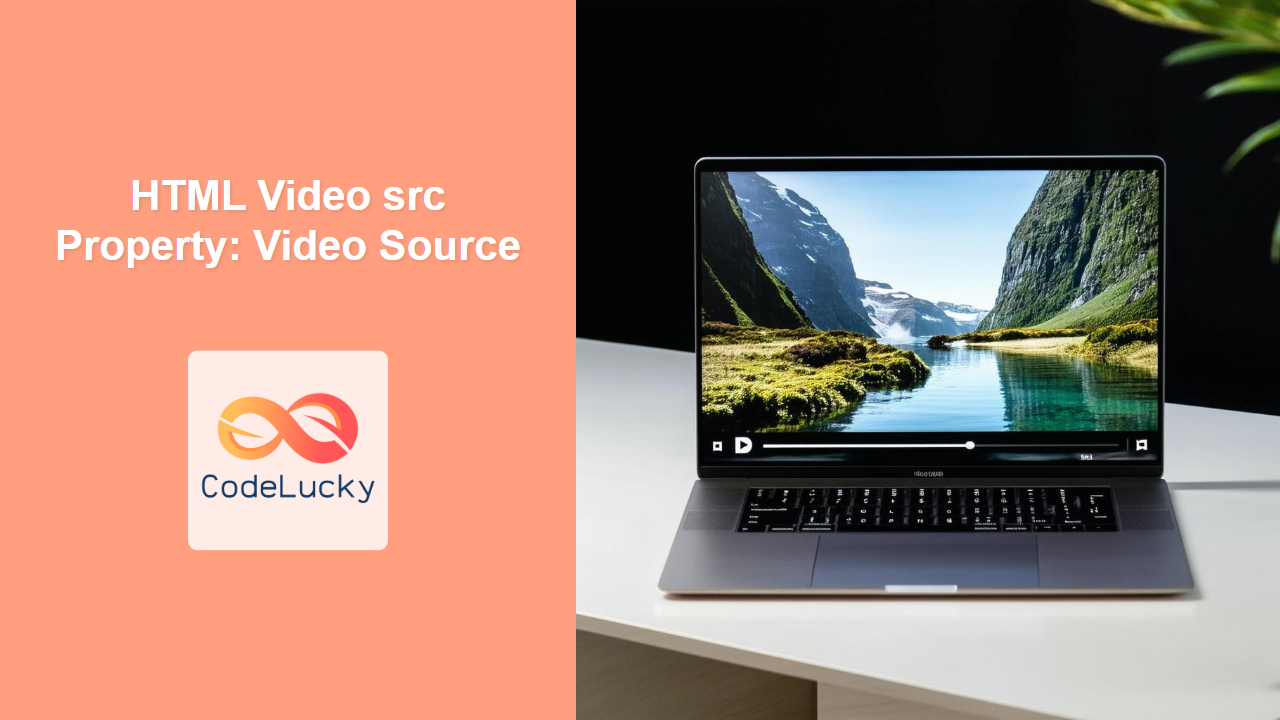
HTML Video src Property: Specifying the Video Source
The src attribute of the HTML <video> element is fundamental for embedding video content into web pages. It specifies the URL of the video file to be displayed. This guide will explore how to use the src property effectively, including setting it directly in HTML and dynamically changing it with JavaScript.
What is the src Property?
The src property defines the source (URL) of the video file that the <video> element will play. It’s a crucial attribute that tells the browser where to fetch the video from.
Syntax
In HTML:
<video src="url_of_video.mp4"></video>
In JavaScript:
videoElement.src = "url_of_video.mp4";
Key Attributes
The src attribute accepts a single value:
| Attribute | Type | Description |
|---|---|---|
| `src` | String (URL) | The URL of the video file to be played. This can be an absolute or relative URL. |
Examples
Let’s explore several practical examples of using the src property to embed and manipulate video sources.
Basic Usage in HTML
This example shows how to embed a video using the src attribute directly within the HTML.
<video width="400" controls>
  <source src="https://www.w3schools.com/html/mov_bbb.mp4" type="video/mp4" />
  Your browser does not support HTML video.
</video>
Output:
A video player with the specified video source will be displayed.
Setting the src Property with JavaScript
This example demonstrates how to dynamically set the src property using JavaScript.
<video id="myVideo1" width="400" controls>
  Your browser does not support HTML video.
</video>

<button onclick="setVideoSource1()">Set Video Source</button>

<script>
  function setVideoSource1() {
    var video1 = document.getElementById("myVideo1");
    video1.src = "https://www.w3schools.com/html/mov_bbb.mp4";
  }
</script>
When the button is clicked, the setVideoSource1() function is called. This function sets the src property of the video element with id="myVideo1" to the specified URL.
Changing the Video Source Dynamically
This example shows how to dynamically change the video source using JavaScript.
<video id="myVideo2" width="400" controls>
  <source id="videoSource2" src="" type="video/mp4" />
  Your browser does not support HTML video.
</video>

<button onclick="changeVideoSource2('https://www.w3schools.com/html/mov_bbb.mp4')">
  Video 1
</button>
<button onclick="changeVideoSource2('https://www.w3schools.com/html/movie.mp4')">
  Video 2
</button>

<script>
  function changeVideoSource2(sourceUrl) {
    var video2 = document.getElementById("myVideo2");
    var source2 = document.getElementById("videoSource2");
    source2.src = sourceUrl;
    video2.load(); // Important: Reload the video to apply the new source
  }
</script>
Clicking the buttons calls the changeVideoSource2() function with different video URLs. This function updates the src property of the <source> element and then calls video.load() to reload the video player with the new source.
Using Multiple <source> Elements
Although the src attribute directly on the <video> element is common, using multiple <source> elements inside the <video> tag is a best practice to provide multiple video formats. The browser will then choose the first format it supports.
<video width="400" controls>
  <source src="https://www.w3schools.com/html/mov_bbb.mp4" type="video/mp4" />
  <source src="https://www.w3schools.com/html/mov_bbb.ogg" type="video/ogg" />
  Your browser does not support HTML video.
</video>
In this example, the browser will attempt to play the MP4 video first. If it doesn’t support MP4, it will try the Ogg video.
Error Handling
It’s good practice to include error handling when dynamically changing video sources.
<video id="myVideo3" width="400" controls>
  <source id="videoSource3" src="" type="video/mp4" />
  Your browser does not support HTML video.
</video>

<button onclick="changeVideoSource3('invalid-url.mp4')">Load Invalid Video</button>

<script>
  var video3 = document.getElementById("myVideo3");

  video3.addEventListener("error", function (event) {
    console.error("Error loading video:", event);
    alert("Error loading video source.");
  });

  function changeVideoSource3(sourceUrl) {
    var source3 = document.getElementById("videoSource3");
    source3.src = sourceUrl;
    video3.load();
  }
</script>
This example adds an event listener to the video element to catch any errors that occur during video loading. If an error occurs, a message is logged to the console, and an alert is displayed.
Tips and Best Practices
- Use Multiple Formats: Provide video in multiple formats (MP4, WebM, Ogg) to ensure compatibility across different browsers.
- Specify Dimensions: Always set the
widthandheightattributes of the<video>element to prevent layout shifts. - Use
<source>Elements: Use the<source>element to specify different video sources within the<video>tag. - Handle Errors: Implement error handling to gracefully manage cases where the video source is invalid or cannot be loaded.
- Preload Attribute: Use the preload attribute to control the preloading behavior of the video.
- Accessibility: Always include a text track (subtitles) for accessibility.
Real-World Applications
- Dynamic Content: Switching video content based on user interaction or data updates.
- Video Galleries: Building video galleries where users can select different videos to play.
- Adaptive Streaming: Implementing adaptive streaming solutions that adjust video quality based on network conditions.
Browser Support
The src attribute of the <video> element is supported by all modern browsers. However, video format support varies, so it’s essential to provide multiple formats to ensure broad compatibility.
Conclusion
The src property is essential for embedding and managing video content in HTML. By understanding how to use the src property effectively, you can create dynamic and engaging video experiences for your users. Whether setting the source directly in HTML or dynamically changing it with JavaScript, the src property provides the flexibility needed to build robust video solutions.
Related Posts

HTML DOM Video Object: Accessing Video Elements
HTML DOM Video Object: A Comprehensive Guide to Accessing Video Elements The HTML DOM Video object provides a powerful interface...
HTML Source src Property: Source URL
HTML Source src Property: Defining the Source URL for Multimedia The HTML <source> tag is used to specify multiple media...

HTML Video: Embedding and Controlling Video Playback on the Web
Introduction Ever wondered how those captivating videos seamlessly play on your favorite websites? The secret lies in the HTML <video>...

HTML DOM Source Object: Accessing Source Elements
HTML DOM Source Object: Accessing Source Elements The HTML DOM Source object represents an HTML <source> element, which is used...
HTML Embed src Property: Embed Source URL
HTML Embed src Property: Embed Source URL The HTML <embed> element is used to embed external content, such as videos,...

HTML Video load() Method: Reloading Video Source
HTML Video load() Method: Reloading Video Source The HTML Video load() method is a crucial function for dynamically updating or...

HTML Video play() Method: Starting Video Playback
HTML Video play() Method: Starting Video Playback The HTML Video play() method initiates the playback of a video element in...
HTML Video seekable Property: Video Seekable
HTML Video seekable Property: Understanding Video Seekable Ranges The HTML <video> element's seekable property is a crucial attribute for understanding...
HTML Audio src Property: Audio Source
HTML Audio src Property: Audio Source The src attribute of the HTML <audio> element specifies the URL of the audio...

HTML Video currentTime Property: Video Current Time
HTML Video currentTime Property: Mastering Video Playback Position The HTML Video currentTime property is a fundamental aspect of controlling video...
HTML Video preload Property: Video Preload
HTML Video preload Property: Optimizing Video Loading The HTML <video> element's preload attribute is used to specify if and how...

HTML Video autoplay Property: Video Autoplay
Understanding the HTML Video autoplay Property The HTML <video> autoplay property is a boolean attribute that, when present, instructs the...





