HTML Video poster Property: Displaying a Placeholder Image
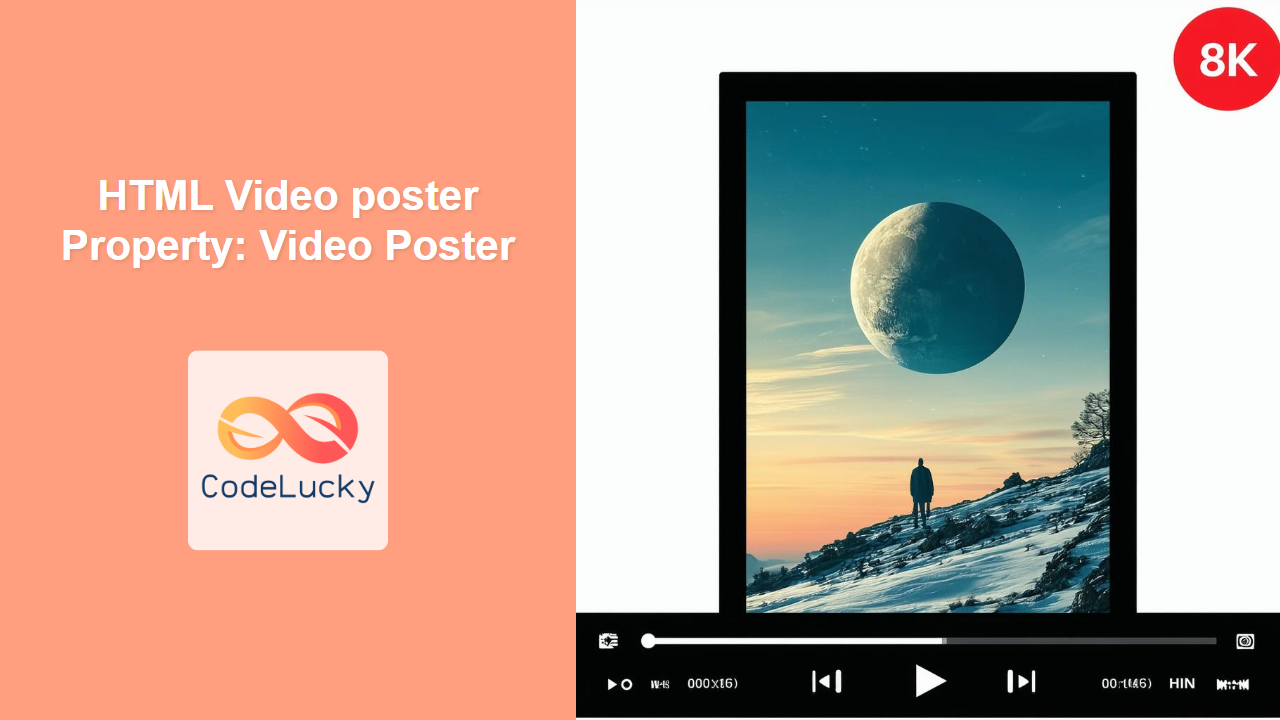
The HTML poster attribute for the <video> element specifies an image to be shown while the video is downloading, or until the user hits the play button. It acts as a visual placeholder and provides users with a preview or key scene from the video content.
Purpose of the poster Attribute
The primary purposes of using the poster attribute are to:
- Improve User Experience: Give users a visual indication of the video’s content before playback.
- Enhance Aesthetics: Display a visually appealing image that represents the video.
- Reduce Load Time Perception: Provide something to look at while the video is loading.
Syntax of the poster Attribute
The poster attribute is added directly to the <video> tag. The value should be a URL pointing to the image file.
<video src="your-video.mp4" poster="your-poster-image.jpg" controls></video>
Attributes
The poster attribute does not have any specific attributes besides the URL to the image file.
| Attribute | Description |
|---|---|
| `poster` | Specifies the URL of an image to display while the video is downloading or until the user starts playback. |
Examples of Using the poster Attribute
Let’s explore several examples demonstrating how to use the poster attribute effectively.
Basic Example
This example shows a basic usage of the poster attribute with a local image.
<video width="400" controls poster="images/poster-basic.jpg">
  <source src="videos/your-video.mp4" type="video/mp4" />
  Your browser does not support the video tag.
</video>
In this case, the image images/poster-basic.jpg will be displayed until the video starts playing.
Using a Remote Image
You can also use an image hosted on a remote server as the poster.
<video
  width="400"
  controls
  poster="https://www.example.com/images/remote-poster.jpg"
>
  <source src="videos/your-video.mp4" type="video/mp4" />
  Your browser does not support the video tag.
</video>
Here, the video will display the image from the specified URL.
Ensuring Proper Image Size
For the best visual experience, ensure the poster image is appropriately sized and has the same aspect ratio as the video.
<video width="640" height="360" controls poster="images/poster-sized.jpg">
  <source src="videos/your-video.mp4" type="video/mp4" />
  Your browser does not support the video tag.
</video>
Using width and height ensure your poster image is displayed correctly.
Dynamically Changing the Poster Image with JavaScript
You can also change the poster image dynamically using JavaScript.
<video id="myVideo" width="400" controls poster="images/default-poster.jpg">
  <source src="videos/your-video.mp4" type="video/mp4" />
  Your browser does not support the video tag.
</video>

<button onclick="changePoster()">Change Poster</button>

<script>
  function changePoster() {
    var videoElement_poster = document.getElementById("myVideo");
    videoElement_poster.poster = "images/new-poster.jpg";
  }
</script>
In this example, clicking the button will change the poster image to images/new-poster.jpg.
Using a Placeholder When the Video Fails to Load
You can use JavaScript to set a default poster if the video fails to load.
<video
  id="videoFallback"
  width="400"
  controls
  poster="images/default-poster.jpg"
>
  <source src="videos/nonexistent-video.mp4" type="video/mp4" />
  Your browser does not support the video tag.
</video>

<script>
  var videoElement_fallback = document.getElementById("videoFallback");
  videoElement_fallback.addEventListener("error", function () {
    videoElement_fallback.poster = "images/fallback-poster.jpg";
  });
</script>
If videos/nonexistent-video.mp4 fails to load, the poster will be updated to images/fallback-poster.jpg.
Implementing a Custom Play Button
You can overlay a custom play button on the poster image using CSS and JavaScript.
<div style="position: relative; width: 400px;">
  <video
    id="customPlay"
    width="400"
    controls
    poster="images/poster-custom-play.jpg"
    style="position: relative; z-index: 1;"
  >
    <source src="videos/your-video.mp4" type="video/mp4" />
    Your browser does not support the video tag.
  </video>
  <button
    id="playButton"
    style="
      position: absolute;
      top: 50%;
      left: 50%;
      transform: translate(-50%, -50%);
      z-index: 2;
      background-color: rgba(0, 0, 0, 0.5);
      color: white;
      border: none;
      padding: 10px 20px;
      cursor: pointer;
    "
    onclick="playVideo()"
  >
    Play
  </button>
</div>

<script>
  function playVideo() {
    var videoElement_play = document.getElementById("customPlay");
    var playButton_play = document.getElementById("playButton");
    videoElement_play.play();
    playButton_play.style.display = "none";
  }

  document.getElementById("customPlay").addEventListener("play", function () {
    document.getElementById("playButton").style.display = "none";
  });

  document.getElementById("customPlay").addEventListener("pause", function () {
    document.getElementById("playButton").style.display = "block";
  });
</script>
This example overlays a “Play” button on the poster and hides it when the video starts playing, and shows the play button again when video is paused.
Real-World Applications of the poster Attribute
The poster attribute is beneficial in various scenarios:
- Video Streaming Platforms: Displaying a frame from the video or a custom thumbnail.
- Educational Websites: Showing a relevant image that represents the lesson or topic.
- E-commerce Sites: Featuring a product image as the video poster.
- News Portals: Using a relevant image to attract attention and provide context.
Browser Support
The poster attribute is supported by all modern browsers, ensuring consistent behavior across different platforms.
Conclusion
The HTML video poster attribute is a valuable tool for enhancing user experience by providing a visual placeholder before video playback. It supports basic implementation, remote images, dynamic changes through JavaScript, fallback mechanisms, and custom play buttons. It is supported by all modern browsers, and is widely used in streaming, education, e-commerce, and news portals. Use it to attract and inform your audience effectively.
Related Posts

HTML Video: Embedding and Controlling Video Playback on the Web
Introduction Ever wondered how those captivating videos seamlessly play on your favorite websites? The secret lies in the HTML <video>...

HTML Video src Property: Video Source
HTML Video src Property: Specifying the Video Source The src attribute of the HTML <video> element is fundamental for embedding...

HTML Video autoplay Property: Video Autoplay
Understanding the HTML Video autoplay Property The HTML <video> autoplay property is a boolean attribute that, when present, instructs the...

HTML DOM Video Object: Accessing Video Elements
HTML DOM Video Object: A Comprehensive Guide to Accessing Video Elements The HTML DOM Video object provides a powerful interface...
HTML Video seekable Property: Video Seekable
HTML Video seekable Property: Understanding Video Seekable Ranges The HTML <video> element's seekable property is a crucial attribute for understanding...
HTML Video preload Property: Video Preload
HTML Video preload Property: Optimizing Video Loading The HTML <video> element's preload attribute is used to specify if and how...

HTML Video controls Property: Display Video Controls
HTML Video controls Property: Display Video Controls The HTML <video> controls attribute specifies whether or not video controls should be...
HTML Source Tag: Defining Media Resources
HTML <source> Tag The <source> tag in HTML is used to specify multiple media resources for <audio> and <video> elements....
HTML Video currentTime Property: Video Current Time
HTML Video currentTime Property: Mastering Video Playback Position The HTML Video currentTime property is a fundamental aspect of controlling video...
HTML Video play() Method: Starting Video Playback
HTML Video play() Method: Starting Video Playback The HTML Video play() method initiates the playback of a video element in...

HTML Video ended Property: Video Ended
HTML Video ended Property: Detecting Video Completion The ended property of the HTML Video element provides a straightforward way to...
HTML Source media Property: Source Media Query
HTML Source media Property: Source Media Query The HTML <source> element is used within <picture> and <video> elements to provide...