
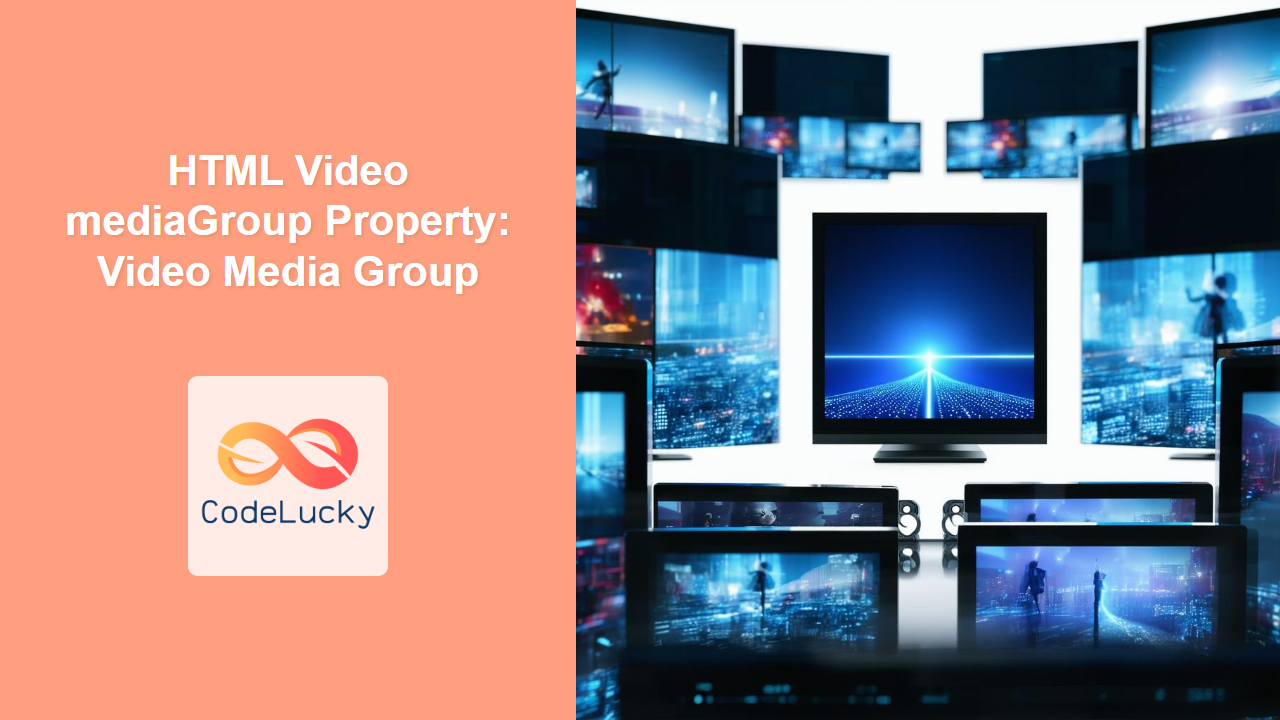
HTML Video mediaGroup Property: Understanding Video Media Grouping
The mediaGroup property in HTML allows you to synchronize multiple media elements, such as <video> and <audio> tags, enabling coordinated playback and control. By assigning the same mediaGroup attribute value to multiple media elements, you can ensure that they start, pause, and seek together. This is particularly useful for scenarios like synchronized video presentations, multi-angle video displays, or coordinated audio-visual experiences.
Purpose of the mediaGroup Property
The main purpose of the mediaGroup property is to:
- Synchronize the playback of multiple media elements.
- Coordinate actions like play, pause, and seek across grouped media.
- Create cohesive multimedia experiences.
Syntax
The mediaGroup property is an HTML attribute that you set on <video> elements. Its value is a string that identifies the media group.
<video src="video1.mp4" mediagroup="myGroup"></video>
<video src="video2.mp4" mediagroup="myGroup"></video>
Possible Values
The value of the mediaGroup attribute is a string that serves as an identifier for the group. Media elements with the same mediaGroup value will be synchronized.
| Value | Description |
|---|---|
| `string` | A string that identifies the media group. Elements with the same string value are grouped together. |
Examples
Let’s explore some practical examples of how to use the mediaGroup property.
Basic Synchronization
In this example, two video elements are synchronized using the mediaGroup property. When you play, pause, or seek in one video, the other video will follow suit.
<!DOCTYPE html>
<html>
<head>
    <title>Basic Media Group Synchronization</title>
</head>
<body>

<video id="video1Group" src="https://www.w3schools.com/html/mov_bbb.mp4" width="320" height="240" controls mediagroup="mySyncGroup"></video>
<video id="video2Group" src="https://www.w3schools.com/html/mov_bbb.mp4" width="320" height="240" controls mediagroup="mySyncGroup"></video>

</body>
</html>
In this basic example, two videos play simultaneously because they share the same mediagroup.
Synchronizing Audio and Video
The mediaGroup property can also synchronize audio and video elements. Here’s an example:
<!DOCTYPE html>
<html>
<head>
    <title>Synchronizing Audio and Video</title>
</head>
<body>

<video id="videoSync" src="https://www.w3schools.com/html/mov_bbb.mp4" width="320" height="240" controls mediagroup="audioVideoSync"></video>
<audio id="audioSync" src="https://www.w3schools.com/html/horse.ogg" controls mediagroup="audioVideoSync"></audio>

</body>
</html>
This example synchronizes a video and an audio file, ensuring they play in coordination.
Multi-Angle Video Display
For a more advanced scenario, consider a multi-angle video display where multiple videos show the same event from different perspectives. The mediaGroup property can ensure that all angles are synchronized.
<!DOCTYPE html>
<html>
<head>
    <title>Multi-Angle Video Display</title>
    <style>
        .video-container {
            display: flex;
        }
        .video-container video {
            margin: 10px;
        }
    </style>
</head>
<body>

<div class="video-container">
    <video id="videoAngle1" src="https://www.w3schools.com/html/mov_bbb.mp4" width="320" height="240" controls mediagroup="multiAngle"></video>
    <video id="videoAngle2" src="https://www.w3schools.com/html/mov_bbb.mp4" width="320" height="240" controls mediagroup="multiAngle"></video>
    <video id="videoAngle3" src="https://www.w3schools.com/html/mov_bbb.mp4" width="320" height="240" controls mediagroup="multiAngle"></video>
</div>

</body>
</html>
Here, three videos are synchronized to play together, simulating a multi-angle view.
Practical Use Cases
- Interactive Presentations: Synchronize slides (images or videos) with audio commentary to create interactive presentations.
- Online Education: Coordinate multiple video feeds (e.g., a lecturer and a screen recording) for a comprehensive educational experience.
- Live Performances: Provide different camera angles of a live performance, allowing viewers to switch perspectives without losing synchronization.
- Accessibility Features: Synchronize sign language videos with primary audio or video content for deaf or hard-of-hearing users.
Important Considerations
- Browser Compatibility: While the
mediaGroupproperty is widely supported, always test your implementation across different browsers to ensure consistent behavior. - Network Latency: Synchronization can be affected by network latency, especially in streaming scenarios. Consider implementing buffering and synchronization adjustments for a smoother experience.
- User Experience: Ensure that synchronized media elements are visually and functionally coherent to provide a seamless user experience.
Browser Support
The mediaGroup property is supported by all major browsers.
Conclusion
The HTML Video mediaGroup property is a valuable tool for creating synchronized multimedia experiences on the web. By understanding its purpose, syntax, and practical applications, you can leverage this property to build engaging and cohesive audio-visual presentations, multi-angle video displays, and interactive educational content. Remember to consider browser compatibility and network latency to ensure a smooth and consistent user experience. 🎭
Related Posts
HTML Video loop Property: Video Loop
HTML Video loop Property: Looping Videos Seamlessly 🔄 The HTML <video> element provides a powerful way to embed video content...
HTML Video play() Method: Starting Video Playback
HTML Video play() Method: Starting Video Playback The HTML Video play() method initiates the playback of a video element in...
HTML Source Tag: Defining Media Resources
HTML <source> Tag The <source> tag in HTML is used to specify multiple media resources for <audio> and <video> elements....
JavaScript onended Event: Media Playback Ended
JavaScript onended Event: Detecting Media Playback Completion The JavaScript onended event is a crucial tool for web developers when working...
HTML Video currentTime Property: Video Current Time
HTML Video currentTime Property: Mastering Video Playback Position The HTML Video currentTime property is a fundamental aspect of controlling video...
HTML Audio controller Property: Media Controller
HTML Audio controller Property: Media Controller The controller property of the HTML <audio> element allows you to associate a MediaController...
HTML DOM Video Object: Accessing Video Elements
HTML DOM Video Object: A Comprehensive Guide to Accessing Video Elements The HTML DOM Video object provides a powerful interface...
HTML Source media Property: Source Media Query
HTML Source media Property: Source Media Query The HTML <source> element is used within <picture> and <video> elements to provide...
HTML Video played Property: Video Played
HTML Video played Property: Understanding Video Playback The HTML Video played property provides a way to access the ranges of...

HTML Video: Embedding and Controlling Video Playback on the Web
Introduction Ever wondered how those captivating videos seamlessly play on your favorite websites? The secret lies in the HTML <video>...
HTML Audio loop Property: Audio Loop
HTML Audio loop Property: Mastering Audio Looping The loop property in HTML's <audio> element is a boolean attribute that specifies...
HTML Video autoplay Property: Video Autoplay
Understanding the HTML Video autoplay Property The HTML <video> autoplay property is a boolean attribute that, when present, instructs the...





