
HTML URL placeholder Property: Guide for URL Input Placeholders
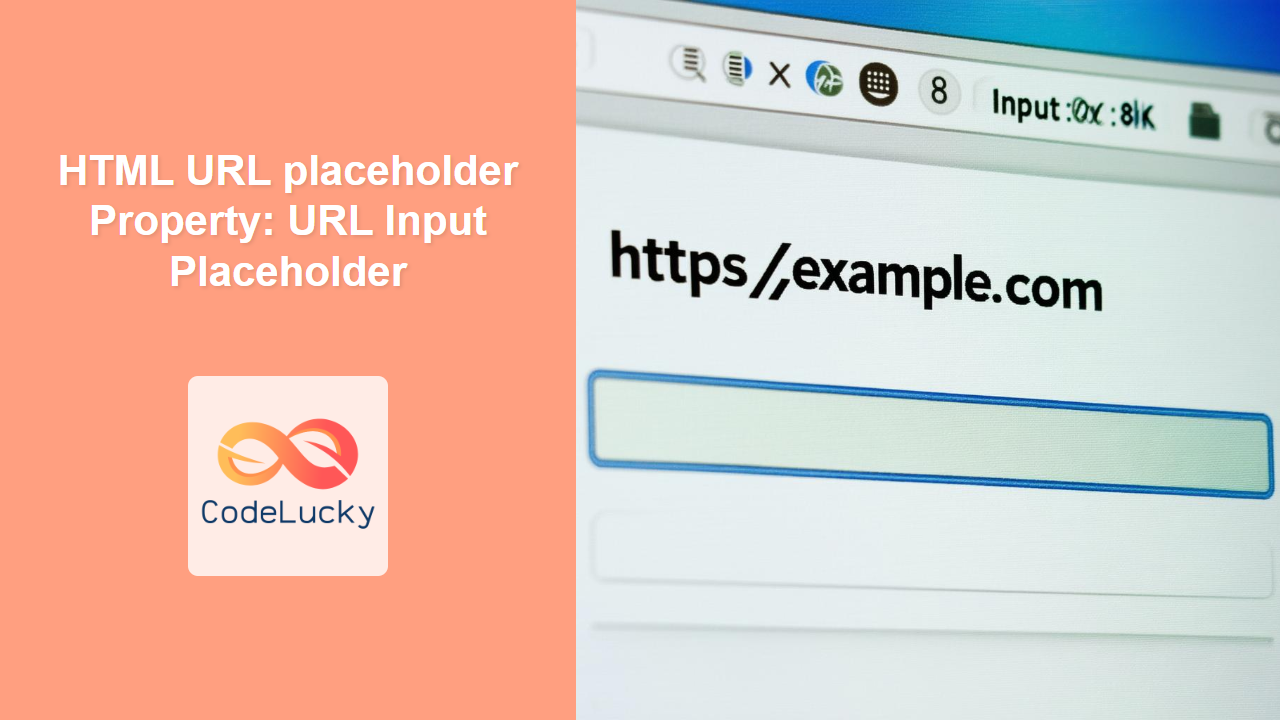
The HTML URL input placeholder property is an attribute that specifies a short hint that describes the expected value of an <input> field. This hint is displayed inside the input field when it is empty, and disappears when the field gains focus or when the user starts typing. Using the placeholder attribute effectively enhances the user experience by providing clear guidance on the expected input format. 📝
Purpose of the placeholder Attribute
The primary purposes of the placeholder attribute are to:
- Guide users by providing a sample of the expected input format.
- Enhance form usability by providing context directly within the input field.
- Reduce the need for separate labels or instructions, making forms more compact and user-friendly.
Syntax of the placeholder Attribute
The placeholder attribute is straightforward to implement:
<input type="url" id="urlInput" name="website" placeholder="https://example.com">
Here, placeholder is the attribute, and "https://example.com" is the hint text that will be displayed in the URL input field.
Key Attributes Related to the <input type="url"> Element
The placeholder attribute is part of a broader set of attributes that enhance the functionality and user experience of the <input type="url"> element. Here’s a look at some related attributes:
| Attribute | Description |
|---|---|
| `form` | Specifies the form the URL input belongs to. |
| `maxLength` | Specifies the maximum number of characters allowed in the URL input. |
| `name` | Specifies the name of the URL input. |
| `pattern` | Specifies a regular expression to check the URL input value against. |
Examples of Using the placeholder Attribute
Let’s explore practical examples of using the placeholder attribute to enhance URL input fields.
Basic Placeholder Example
This example demonstrates a basic implementation of the placeholder attribute in a URL input field.
<label for="website">Website:</label>
<input
  type="url"
  id="website"
  name="website"
  placeholder="https://example.com"
/>
In this example, the placeholder text “https://example.com” is displayed in the input field until the user starts typing.
Placeholder with Label
Combining a placeholder with a label provides a clear and accessible form element.
<label for="websiteWithLabel">Website:</label>
<input
  type="url"
  id="websiteWithLabel"
  name="websiteWithLabel"
  placeholder="Enter your website URL"
/>
Here, the placeholder provides additional context about the expected input, while the label ensures accessibility.
Dynamic Placeholder with JavaScript
You can dynamically change the placeholder text using JavaScript to provide context-sensitive help.
<label for="dynamicWebsite">Website:</label>
<input
  type="url"
  id="dynamicWebsite"
  name="dynamicWebsite"
  placeholder="Enter your website URL"
/>

<script>
  const dynamicWebsiteInput = document.getElementById("dynamicWebsite");
  dynamicWebsiteInput.addEventListener("focus", function () {
    this.placeholder = "e.g., https://www.example.com";
  });
  dynamicWebsiteInput.addEventListener("blur", function () {
    this.placeholder = "Enter your website URL";
  });
</script>
In this example, the placeholder text changes when the input field gains focus, providing more specific guidance.
Placeholder with Validation
Combine the placeholder attribute with the pattern attribute for enhanced user guidance and validation.
<label for="validatedWebsite">Website:</label>
<input
  type="url"
  id="validatedWebsite"
  name="validatedWebsite"
  placeholder="https://example.com"
  pattern="https://.*"
  title="Please enter a URL starting with https://"
/>
Here, the pattern attribute ensures that the input value matches the specified regular expression, and the placeholder provides a hint about the expected format.
Using Placeholder with Form Submission
The placeholder attribute does not affect the actual value submitted with the form. It is only a visual cue.
<form id="urlForm" action="#" method="GET">
  <label for="submittedWebsite">Website:</label>
  <input
    type="url"
    id="submittedWebsite"
    name="submittedWebsite"
    placeholder="https://example.com"
  />
  <button type="submit">Submit</button>
</form>

<script>
  const urlForm_script = document.getElementById("urlForm");
  urlForm_script.addEventListener("submit", function (event) {
    event.preventDefault();
    const websiteInput = document.getElementById("submittedWebsite");
    alert("Submitted URL: " + websiteInput.value);
  });
</script>
In this example, the form submission is intercepted to display the entered URL, demonstrating that the placeholder text is not submitted as the input value.
Real-World Applications of the placeholder Attribute
The placeholder attribute is used in various real-world scenarios:
- E-commerce Websites: Guiding users to enter valid website URLs in profile settings.
- Social Media Platforms: Providing a hint for users to enter their personal website URLs.
- Content Management Systems (CMS): Assisting content creators in adding links to external resources.
- Online Forms: Ensuring users understand the expected format for URL inputs.
Tips and Best Practices
- Use meaningful hints: Ensure the placeholder text provides a clear and relevant example of the expected input.
- Avoid using placeholders as labels: Placeholders should not replace labels, as they disappear when the user starts typing, which can impact accessibility.
- Combine with labels: Use placeholders in conjunction with labels to provide both context and accessibility.
- Test across browsers: Ensure consistent rendering and behavior of the placeholder text across different browsers.
Browser Support
The placeholder attribute is supported by all major browsers.
Note: While the placeholder attribute is widely supported, it’s always a good practice to test your forms across different browsers to ensure a consistent user experience. 🧐
Conclusion
The HTML URL input placeholder attribute is a valuable tool for enhancing the user experience of web forms. By providing clear guidance on the expected input format, you can improve form usability and reduce user errors. Combining placeholders with labels and dynamic JavaScript can further enhance the effectiveness of your forms. Happy coding!
Related Posts
HTML Text placeholder Property: Text Input Placeholder
HTML Text placeholder Property: Enhancing User Experience with Input Hints The HTML placeholder attribute is used within <input> and <textarea>...
HTML Number placeholder Property: Number Input Placeholder
HTML Number placeholder Property: Number Input Placeholder The placeholder attribute in HTML is used within <input> elements to provide a...

HTML Email placeholder Property: Email Input Placeholder
HTML Email placeholder Property: Guiding Users with Email Input Placeholders The HTML placeholder attribute is a valuable tool for enhancing...
HTML TextArea placeholder Property: Textarea Placeholder
HTML TextArea placeholder Property: Enhancing User Experience with Text Hints The HTML <textarea> element is a versatile tool for collecting...
HTML Password placeholder Property: Password Input Placeholder
HTML Password placeholder Property: Enhancing User Experience with Input Hints The placeholder attribute in HTML is a valuable tool for...
HTML Search placeholder Property: Search Input Placeholder
HTML Search placeholder Property: Enhancing Search Input with Placeholder Text The HTML placeholder attribute for the <input type="search"> element provides...
HTML URL form Property: URL Input Form Association
HTML URL form Property: Associating URL Inputs with Forms The HTML URL form property is an essential attribute for the...
HTML URL name Property: URL Input Name
HTML URL name Property: Defining the Name of the URL Input The HTML URL input name property is crucial for...
HTML URL value Property: URL Input Value
HTML URL value Property: Managing URL Input Values The HTML URL value property is a crucial attribute of the <input...
HTML URL type Property: URL Input Type
HTML URL type Property: URL Input Type Explained The HTML <input> element with the type="url" property is specifically designed for...
HTML URL size Property: URL Input Size
HTML URL size Property: Controlling URL Input Size The HTML size property for the <input type="url"> element defines the visible...

HTML Text type Property: Text Input Type
HTML Text type Property: Defining the Text Input Type The HTML type property for the <input> element specifies the type...





