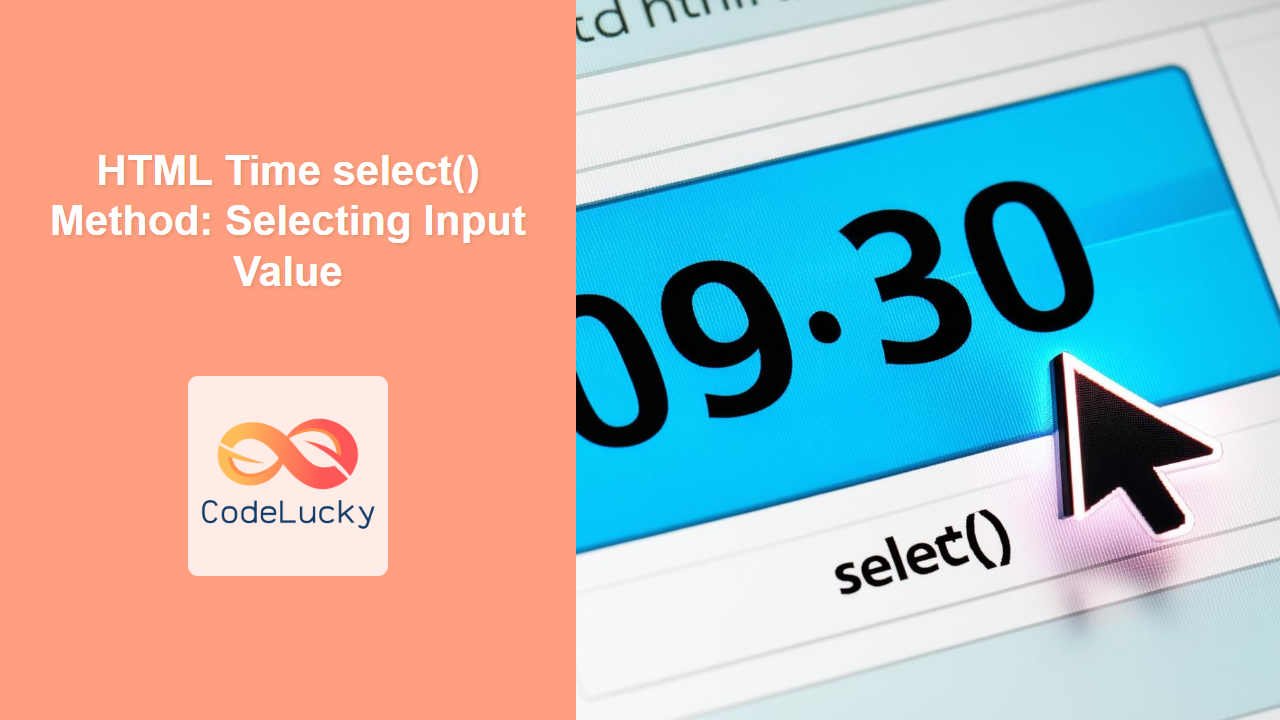
HTML Time select() Method: Selecting Input Value
The select() method in HTML is used to select the text content within an <input> element of type="time". It’s a handy way to programmatically highlight the time value in the input field, making it easier for users to copy, modify, or delete the existing time. This method is particularly useful in scenarios where you want to draw the user’s attention to the input field or pre-select the content for quick editing.
Syntax
The syntax for using the select() method on an HTML time input element is straightforward:
timeInputElement.select();
Where timeInputElement is a reference to the HTML <input type="time"> element obtained using JavaScript.
Key Use Cases
- Directing User Attention: Programmatically selecting the time value to focus the user’s attention on the input field.
- Quick Editing: Pre-selecting the time value to allow users to quickly modify or delete the existing time.
- Form Validation Assistance: Selecting the time value to visually indicate an invalid or incorrect entry.
Examples
Let’s dive into practical examples demonstrating how to use the select() method with HTML time input elements.
Basic Example: Selecting the Time
This example shows how to select the time value in an input field when a button is clicked.
<!DOCTYPE html>
<html>
  <head>
    <title>HTML Time select() Method Example</title>
  </head>
  <body>
    <label for="timeInput">Enter Time:</label>
    <input type="time" id="timeInput" value="10:30" /><br /><br />
    <button onclick="selectTime()">Select Time</button>

    <script>
      function selectTime() {
        const timeInputEl = document.getElementById("timeInput");
        timeInputEl.select();
      }
    </script>
  </body>
</html>
Output:
After entering a time and clicking the “Select Time” button, the time value in the input field will be highlighted.
Selecting Time on Focus
Here, the select() method is called when the input field receives focus, automatically selecting the time.
<!DOCTYPE html>
<html>
  <head>
    <title>HTML Time select() Method on Focus</title>
  </head>
  <body>
    <label for="timeInputFocus">Enter Time:</label>
    <input
      type="time"
      id="timeInputFocus"
      value="14:45"
      onfocus="selectOnFocus()"
    /><br /><br />

    <script>
      function selectOnFocus() {
        const timeInputFocusEl = document.getElementById("timeInputFocus");
        timeInputFocusEl.select();
      }
    </script>
  </body>
</html>
Output:
When you click inside the time input field, the time will automatically be selected.
Selecting Time After Validation
This example demonstrates selecting the time value if validation fails, drawing the user’s attention to the incorrect entry.
<!DOCTYPE html>
<html>
  <head>
    <title>HTML Time select() Method After Validation</title>
  </head>
  <body>
    <label for="timeInputValidate">Enter Time (09:00 - 17:00):</label>
    <input type="time" id="timeInputValidate" value="08:00" /><br /><br />
    <button onclick="validateTime()">Validate Time</button>

    <script>
      function validateTime() {
        const timeInputValidateEl =
          document.getElementById("timeInputValidate");
        const timeValue = timeInputValidateEl.value;
        if (timeValue < "09:00" || timeValue > "17:00") {
          alert("Time must be between 09:00 and 17:00!");
          timeInputValidateEl.select();
        } else {
          alert("Time is valid.");
        }
      }
    </script>
  </body>
</html>
Output:
If you enter a time outside the specified range and click “Validate Time”, an alert will appear, and the invalid time will be selected in the input field.
Using select() with Event Listeners
This approach demonstrates how to use event listeners for a cleaner and more modern JavaScript implementation.
<!DOCTYPE html>
<html>
  <head>
    <title>HTML Time select() Method with Event Listeners</title>
  </head>
  <body>
    <label for="timeInputListener">Enter Time:</label>
    <input type="time" id="timeInputListener" value="11:15" /><br /><br />

    <script>
      document
        .getElementById("timeInputListener")
        .addEventListener("focus", function () {
          this.select();
        });
    </script>
  </body>
</html>
Output:
When the input field is focused, the time will be automatically selected, providing a seamless user experience.
Practical Tips and Considerations
- User Experience: Use the
select()method judiciously. Overuse can be intrusive and annoying for users. - Accessibility: Ensure that the selection behavior doesn’t interfere with assistive technologies. Provide alternative ways for users to understand and correct their input if needed.
- Cross-Browser Testing: While the
select()method is widely supported, always test your implementation across different browsers to ensure consistent behavior.
Browser Support
The select() method is supported by all major browsers, including:
- Chrome
- Firefox
- Safari
- Edge
- Opera
Conclusion
The select() method offers a simple yet effective way to programmatically select the time value within an HTML time input field. By using this method, you can enhance user interaction, streamline form validation, and direct user attention to specific input elements. Whether it’s for quick edits, validation assistance, or simply improving the user experience, the select() method is a valuable addition to your HTML form toolkit. ✨
Related Posts

HTML Input Date select() Method: Selecting Input Value
HTML Input Date select() Method: Selecting Input Value The HTML select() method, when applied to an <input type="date"> element, is...

HTML Input Time type Property: Time Input Type
HTML Input Time type Property: Mastering Time Input in Web Forms The <input type="time"> property in HTML is a powerful...

HTML DOM Input Time Object: Accessing Time Input Elements
HTML DOM Input Time Object: A Deep Dive into Time Input Elements The HTML DOM Input Time object represents an...
HTML Input Text select() Method: Selecting Input Value
HTML Input Text select() Method: Selecting Input Value The select() method in HTML is used to select the text content...
HTML Input Time value Property: Time Input Value
HTML Input Time value Property: Time Input Value The value property of the HTML <input type="time"> element is used to...
HTML Input select() Method: Selecting Input Value
HTML Input select() Method: Selecting Input Value The HTML select() method is a crucial tool for enhancing user experience in...

HTML Number select() Method: Selecting Input Value
HTML Number select() Method: Selecting Input Value The select() method in HTML is used to select the text content within...
HTML Input Time step Property: Time Input Granularity
HTML Input Time step Property: Defining Time Granularity The step attribute for the <input type="time"> element in HTML specifies the...
HTML Input Time focus() Method: Focusing Element
HTML Input Time focus() Method: Focusing Element The focus() method is used to programmatically set focus to an HTML <input...

HTML Input Time defaultValue Property: Time Input Default Value
HTML Input Time defaultValue Property: Setting the Default Time The HTML <input type="time"> element provides a user interface for selecting...

HTML Datetime value Property: Datetime Input Value
HTML Datetime value Property: Datetime Input Value The HTML datetime input type allows users to enter a date and time....
HTML Input Time max Property: Time Input Maximum Time
HTML Input Time max Property: Defining the Maximum Allowed Time The HTML <input type="time"> element provides a user interface for...