
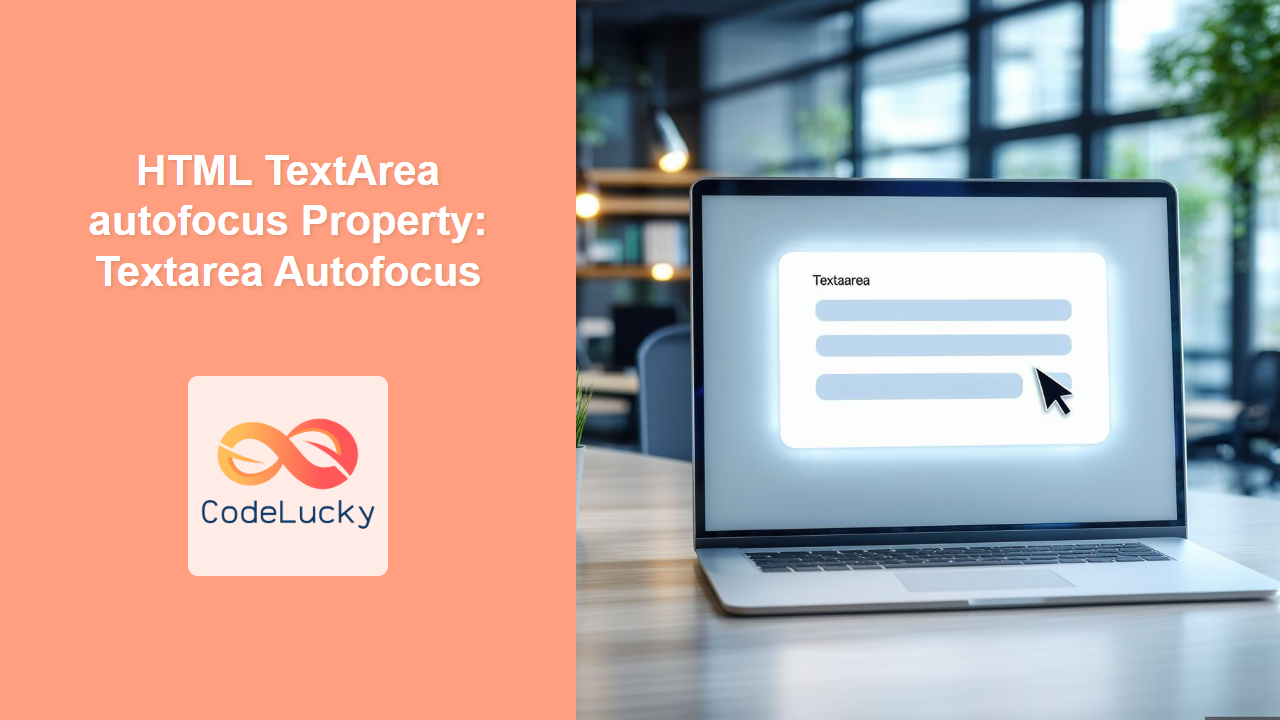
HTML TextArea autofocus Property: A Comprehensive Guide
The HTML <textarea> element is used to create multi-line text input controls, essential for forms requiring user input of more than a single line. The autofocus attribute, a boolean attribute, specifies that a textarea should automatically receive focus when the page loads. This guide will provide a detailed explanation of the autofocus property, including its syntax, practical examples, and usage tips to enhance user experience.
What is the autofocus Property?
The autofocus property is a boolean attribute that, when present, automatically focuses the specified <textarea> element as soon as the page loads. This is useful for guiding users directly to the most important input field on a form.
Purpose of the autofocus Property
The primary purpose of the autofocus property is to improve the user experience by:
- Automatically directing the user’s attention to a specific textarea.
- Reducing the need for users to manually click on a textarea to start typing.
- Streamlining form completion, especially in scenarios where one textarea is the primary focus.
Syntax of the autofocus Property
The autofocus attribute is a boolean attribute. If present, it enables the autofocus behavior.
<textarea id="myTextarea" autofocus>
  <!-- Initial text here -->
</textarea>
Note: The presence of the autofocus attribute (regardless of its value) means it’s enabled. Valid ways to use it include <textarea autofocus>, <textarea autofocus="">, or <textarea autofocus="autofocus">. 👍
Examples of Using the autofocus Property
Let’s explore practical examples of how to use the autofocus property to enhance the user experience on web forms.
Basic Example: Autofocus on a Textarea
This basic example demonstrates how to set focus automatically on a textarea when the page loads.
<form>
  <label for="comment">Enter your comment:</label><br />
  <textarea id="comment" name="comment" rows="4" cols="50" autofocus>
Enter your comment here!
  </textarea>
  <br /><br />
  <input type="submit" value="Submit" />
</form>
In this example, the textarea with the ID comment will automatically receive focus when the page loads, allowing the user to start typing immediately.
Autofocus with Multiple Form Elements
In a form with multiple input elements, autofocus should be used judiciously to focus the most relevant field.
<form>
  <label for="name">Name:</label><br />
  <input type="text" id="name" name="name" /><br /><br />

  <label for="comment2">Enter your comment:</label><br />
  <textarea id="comment2" name="comment2" rows="4" cols="50" autofocus>
Please enter your feedback.
  </textarea>
  <br /><br />
  <input type="submit" value="Submit" />
</form>
Here, the comment2 textarea is set to autofocus, ensuring that the user’s attention is directed to providing feedback upon page load.
Dynamically Adding Autofocus with JavaScript
The autofocus attribute can be dynamically added or removed using JavaScript to control focus based on user interactions or application state.
<form>
  <label for="dynamicTextarea">Enter text:</label><br />
  <textarea id="dynamicTextarea" name="dynamicTextarea" rows="4" cols="50"></textarea>
  <br /><br />
  <button id="focusButton" type="button">Set Focus</button>
</form>

<script>
  document.getElementById("focusButton").addEventListener("click", function () {
    document.getElementById("dynamicTextarea").focus();
  });
</script>
In this example, clicking the “Set Focus” button will programmatically focus the textarea.
Autofocus within a Modal or Dialog
In modals or dialogs, setting autofocus on a primary input field ensures that the user’s attention is immediately directed to the relevant input upon opening the modal.
<button id="openModalButton">Open Modal</button>

<div id="myModal" style="display: none; border: 1px solid black; padding: 20px;">
  <label for="modalInput">Enter value:</label><br />
  <textarea id="modalInput" name="modalInput" rows="4" cols="50" autofocus>
Enter value here
  </textarea>
  <br /><br />
  <button id="closeModalButton" type="button">Close</button>
</div>

<script>
  const modal = document.getElementById("myModal");
  const openBtn = document.getElementById("openModalButton");
  const closeBtn = document.getElementById("closeModalButton");

  openBtn.addEventListener("click", function () {
    modal.style.display = "block";
  });

  closeBtn.addEventListener("click", function () {
    modal.style.display = "none";
  });
</script>
When the modal is opened, the textarea inside it will automatically gain focus, prompting the user to enter a value.
Accessibility Considerations
While autofocus can enhance usability, it should be used carefully to avoid accessibility issues.
- Avoid Overuse: Only one element per page should have the
autofocusattribute to prevent confusion. - Consider Users with Disabilities: Ensure that the autofocus behavior doesn’t interfere with assistive technologies or keyboard navigation.
- Provide Alternatives: If autofocus may be disruptive, provide an alternative way for users to focus the element.
Note: Overusing autofocus can be jarring for users and may violate accessibility guidelines. Use it judiciously to improve, not hinder, the user experience. ⚠️
Tips for Using the autofocus Property
- Prioritize Key Actions: Use
autofocuson the most important input field in a form. - Test with Assistive Technologies: Ensure the
autofocusattribute doesn’t negatively impact users with disabilities. - Consider the User Flow: Ensure that autofocus aligns with the expected user interaction flow on the page.
- Use JavaScript for Conditional Focus: For more complex scenarios, use JavaScript to conditionally set focus based on specific conditions.
Real-World Applications of the autofocus Property
- Login Forms: Automatically focus the username or email field on a login form.
- Search Bars: Focus the search input field on a search results page.
- Comment Forms: Focus the comment textarea on a blog post.
- Feedback Forms: Direct users to the feedback textarea on a contact page.
Browser Support
The autofocus attribute is supported by all major browsers, ensuring consistent behavior across different platforms.
| Browser | Version | Support |
| ————– | ——- | ——- |
| Chrome | Yes | Yes |
| Edge | Yes | Yes |
| Firefox | Yes | Yes |
| Safari | Yes | Yes |
| Opera | Yes | Yes |
| Internet Explorer | 9+ | Yes |
Conclusion
The HTML TextArea autofocus property is a valuable tool for improving user experience by automatically focusing a specific textarea element when the page loads. By understanding its syntax, considering accessibility implications, and following best practices, developers can effectively use the autofocus attribute to create more user-friendly and efficient web forms. Use it wisely, and happy coding! 🚀
Related Posts
HTML Text autofocus Property: Text Input Autofocus
HTML Text autofocus Property: Text Input Autofocus Explained The HTML autofocus property is a boolean attribute that, when present, specifies...
HTML Button autofocus Property: Button Autofocus
Understanding the HTML Button autofocus Property The autofocus property in HTML is a boolean attribute that, when present on an...
HTML Select autofocus Property: Select Autofocus
HTML Select autofocus Property: Automatically Focus Dropdowns The autofocus property in HTML, when used with the <select> element, specifies that...
HTML Submit autofocus Property: Submit Button Autofocus
HTML Submit autofocus Property: Enhancing Form Usability The HTML autofocus attribute, when applied to a submit button, automatically sets the...
HTML TextArea value Property: Textarea Value
HTML TextArea value Property: A Comprehensive Guide The HTML <textarea> element is used to create multi-line text input controls in...
HTML Input Time autofocus Property: Time Input Autofocus
HTML Input Time autofocus Property: Time Input Autofocus The HTML Input Time autofocus property is a boolean attribute that, when...

HTML TextArea name Property: Textarea Name
HTML TextArea name Property: Defining the Textarea Name The HTML <textarea> element is used to create a multi-line text input...
HTML Text focus() Method: Focusing Input
HTML Text focus() Method: Focusing Input Programmatically The HTML Text focus() method is a powerful tool in web development that...

HTML Element focus() Method: Focusing Element
HTML Element focus() Method: Focusing Element The focus() method in HTML is a powerful tool that allows you to programmatically...

HTML PushButton autofocus Property: Button Autofocus
HTML PushButton autofocus Property: Button Autofocus The HTML autofocus property, when applied to a <button> element, specifies that the button...
HTML Password autofocus Property: Password Input Autofocus
HTML Password autofocus Property: Password Input Autofocus The HTML autofocus attribute, when applied to a <input type="password"> element, automatically focuses...

HTML Email autofocus Property: Email Input Autofocus
HTML Email autofocus Property: Email Input Autofocus The HTML autofocus property is a boolean attribute that specifies whether an email...





