
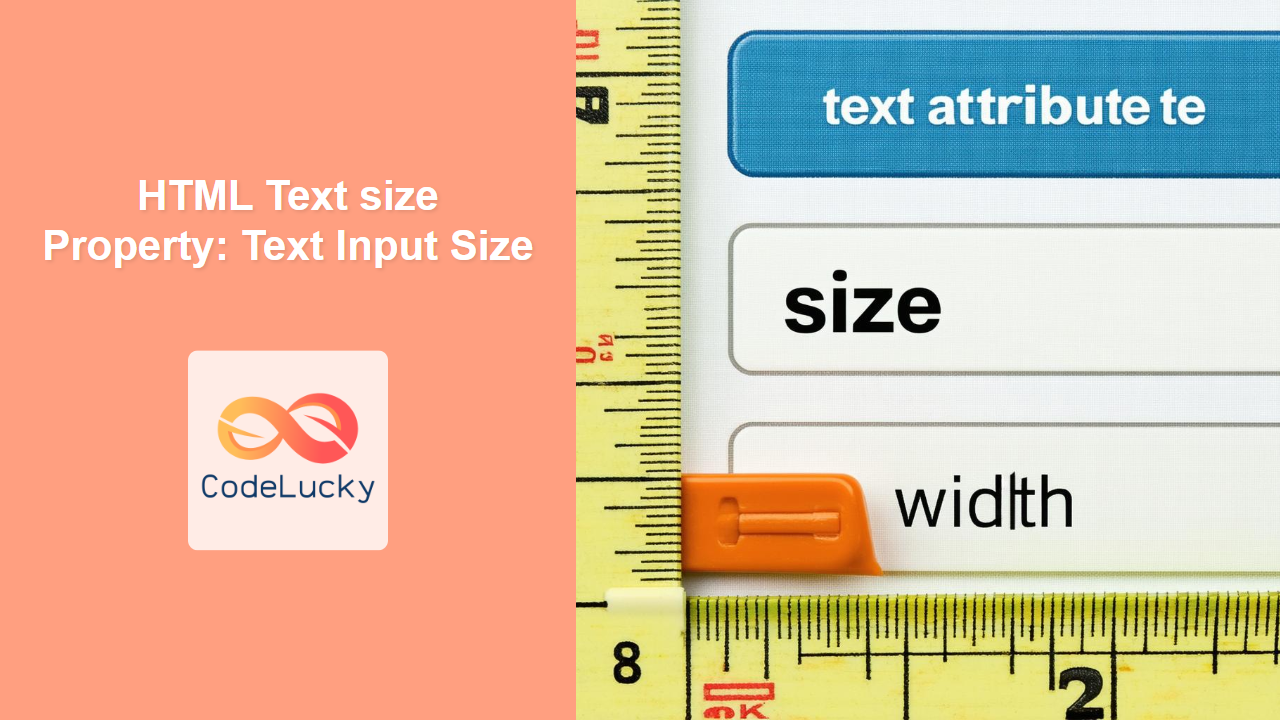
HTML Text size Property: Text Input Size
The HTML size attribute for text input fields specifies the visible width of the input element, measured in characters. This attribute allows you to control how much of the input field is displayed on the screen, influencing its appearance and usability. In this guide, we’ll explore the syntax, usage, and practical examples of the size attribute, helping you create well-structured and user-friendly forms.
What is the size Attribute?
The size attribute is an HTML attribute applicable to <input> elements with type="text", type="search", and type="tel". It defines the number of characters that should be visible within the input field. While it affects the visual width, it does not limit the number of characters a user can enter.
Purpose of the size Attribute
The primary purposes of the size attribute are to:
- Control the visual width of the text input field.
- Provide a hint to users about the expected length of the input.
- Improve the overall user experience by matching the input field’s size to the expected input length.
Syntax of the size Attribute
The syntax for using the size attribute in an HTML <input> element is straightforward:
<input type="text" id="textInput" name="textInput" size="number">
size="number": Specifies the visible width of the input field in characters. Thenumbermust be a positive integer.
HTML Table for size Attribute
| Attribute | Value | Description |
|---|---|---|
| `size` | Positive Integer | Specifies the visible width of the text input field, measured in characters. |
Examples of Using the size Attribute
Let’s explore some practical examples of how to use the size attribute to control the appearance of text input fields.
Basic Example: Setting the Size
In this example, we’ll create a basic text input field and set its size attribute to 20.
<label for="nameInput">Name:</label>
<input
  type="text"
  id="nameInput"
  name="nameInput"
  size="20"
  style="border: 1px solid black;"
/>
The input field will display approximately 20 characters wide.
Example: Adjusting Size for Different Inputs
Here, we’ll adjust the size attribute for different types of input fields, such as name and phone number.
<label for="name">Name:</label>
<input
  type="text"
  id="name"
  name="name"
  size="30"
  style="border: 1px solid black;"
/><br /><br />

<label for="phone">Phone Number:</label>
<input
  type="tel"
  id="phone"
  name="phone"
  size="15"
  style="border: 1px solid black;"
/>
The “Name” input field is set to a size of 30, while the “Phone Number” input field is set to 15, reflecting the expected length of each input.
Example: Using size with Other Attributes
The size attribute can be combined with other attributes like placeholder and required to create more user-friendly input fields.
<label for="city">City:</label>
<input
  type="text"
  id="city"
  name="city"
  size="25"
  placeholder="Enter city name"
  required
  style="border: 1px solid black;"
/>
This input field is set to a size of 25, includes a placeholder to guide the user, and is marked as required.
Example: Dynamic Size Adjustment with JavaScript
Although size is typically set in HTML, you can dynamically adjust it using JavaScript based on certain conditions or user interactions. However, note that CSS is generally preferred for styling adjustments.
<label for="dynamicInput">Dynamic Input:</label>
<input
  type="text"
  id="dynamicInput"
  name="dynamicInput"
  size="10"
  style="border: 1px solid black;"
/>
<button onclick="adjustSize()">Adjust Size</button>

<script>
  function adjustSize() {
    const input_size = document.getElementById("dynamicInput");
    input_size.size = 30;
  }
</script>
Clicking the button will change the size attribute of the input field to 30.
Example: Responsive Size Adjustment with CSS and Media Queries
CSS media queries can adjust the size attribute to be responsive for different screen sizes. Since the size attribute can’t be directly styled with CSS, we can use JavaScript to modify it based on screen size.
<label for="responsiveInput">Responsive Input:</label>
<input
  type="text"
  id="responsiveInput"
  name="responsiveInput"
  size="20"
  style="border: 1px solid black;"
/>

<script>
  function setInitialSize() {
    const input_responsive = document.getElementById("responsiveInput");
    if (window.innerWidth <= 600) {
      input_responsive.size = 15; // Smaller size for smaller screens
    } else {
      input_responsive.size = 30; // Larger size for larger screens
    }
  }

  // Set initial size on page load
  setInitialSize();

  // Update size on window resize
  window.addEventListener("resize", setInitialSize);
</script>
This example adjusts the size attribute based on the screen width, making the input field responsive.
Example: Controlling Input Size with JavaScript
<label for="inputSizeControl">Enter Desired Size:</label>
<input
  type="number"
  id="inputSizeControl"
  name="inputSizeControl"
  min="1"
  max="50"
  value="20"
  style="border: 1px solid black;"
/>
<button onclick="updateInputSize()">Update Input Size</button>
<br /><br />
<label for="resizableInput">Resizable Input:</label>
<input
  type="text"
  id="resizableInput"
  name="resizableInput"
  size="20"
  style="border: 1px solid black;"
/>

<script>
  function updateInputSize() {
    const sizeControl = document.getElementById("inputSizeControl");
    const resizableInput = document.getElementById("resizableInput");
    const newSize = parseInt(sizeControl.value, 10);
    if (newSize >= 1 && newSize <= 50) {
      resizableInput.size = newSize;
    } else {
      alert("Please enter a size between 1 and 50.");
    }
  }
</script>
This example allows users to enter a desired size for the input field, which is then updated dynamically using JavaScript.
Real-World Applications of the size Attribute
The size attribute is used in various scenarios to enhance the user experience:
- Forms: Adjusting the size of input fields to match the expected length of the input, such as names, addresses, and phone numbers.
- Search Bars: Setting the size of the search input field to accommodate typical search queries.
- Settings Panels: Controlling the width of input fields for various settings and configurations.
Use Case Example: Designing a User Registration Form
Let’s create a user registration form with appropriate size attributes for each input field.
<form>
  <label for="firstName">First Name:</label>
  <input
    type="text"
    id="firstName"
    name="firstName"
    size="20"
    required
    style="border: 1px solid black;"
  /><br /><br />

  <label for="lastName">Last Name:</label>
  <input
    type="text"
    id="lastName"
    name="lastName"
    size="20"
    required
    style="border: 1px solid black;"
  /><br /><br />

  <label for="email">Email:</label>
  <input
    type="email"
    id="email"
    name="email"
    size="30"
    required
    style="border: 1px solid black;"
  /><br /><br />

  <label for="phone">Phone Number:</label>
  <input
    type="tel"
    id="phone"
    name="phone"
    size="15"
    style="border: 1px solid black;"
  /><br /><br />

  <label for="password">Password:</label>
  <input
    type="password"
    id="password"
    name="password"
    size="25"
    required
    style="border: 1px solid black;"
  /><br /><br />

  <input type="submit" value="Register" />
</form>
In this example, each input field is assigned a size attribute that corresponds to the expected length of the input. The first name and last name fields have a size of 20, the email field has a size of 30, the phone number field has a size of 15, and the password field has a size of 25.
Browser Support
The size attribute is widely supported across all modern web browsers:
- Chrome
- Firefox
- Safari
- Edge
- Opera
Conclusion
The HTML size attribute provides a simple yet effective way to control the visual width of text input fields. By adjusting the size attribute, you can create more user-friendly forms that guide users and enhance the overall user experience. Whether you’re designing a simple contact form or a complex user registration system, the size attribute is a valuable tool in your HTML toolkit. 👍
Related Posts
HTML Search size Property: Search Input Size
HTML Search size Property: Controlling Search Input Size The HTML size attribute, when applied to a <input type="search"> element, specifies...
HTML URL size Property: URL Input Size
HTML URL size Property: Controlling URL Input Size The HTML size property for the <input type="url"> element defines the visible...

HTML Email size Property: Email Input Size
HTML Email size Property: Controlling the Email Input Field Size The size attribute in HTML email inputs specifies the visible...

HTML Password size Property: Password Input Size
HTML Password size Property: Controlling Password Input Size The size attribute for the <input type="password"> element in HTML allows you...

HTML Text type Property: Text Input Type
HTML Text type Property: Defining the Text Input Type The HTML type property for the <input> element specifies the type...
HTML TextArea maxLength Property: Textarea Maximum Length
HTML TextArea maxLength Property: Setting the Maximum Length for Text Input The HTML <textarea> element is used to create multi-line...
HTML Text maxLength Property: Text Input Maximum Length
HTML maxLength Property: Limiting Text Input Length The HTML maxLength property is a crucial attribute for <input type="text"> and <textarea>...
HTML TextArea cols Property: Textarea Columns
HTML TextArea cols Property: Defining Textarea Columns The HTML <textarea> element is used to create multi-line text input areas within...
HTML Search maxLength Property: Search Input Maximum Length
HTML Search maxLength Property: Limiting Input Length in Search Fields The maxLength property in HTML is used to specify the...

CSS Style fontSize Property: CSS Font Size
CSS fontSize Property: Controlling Text Size The fontSize property in CSS specifies the size of the font. This property is...

HTML Text value Property: Text Input Value
HTML Text value Property: Understanding Text Input Values The value property of an HTML text input field (<input type="text">) is...
HTML Text placeholder Property: Text Input Placeholder
HTML Text placeholder Property: Enhancing User Experience with Input Hints The HTML placeholder attribute is used within <input> and <textarea>...





