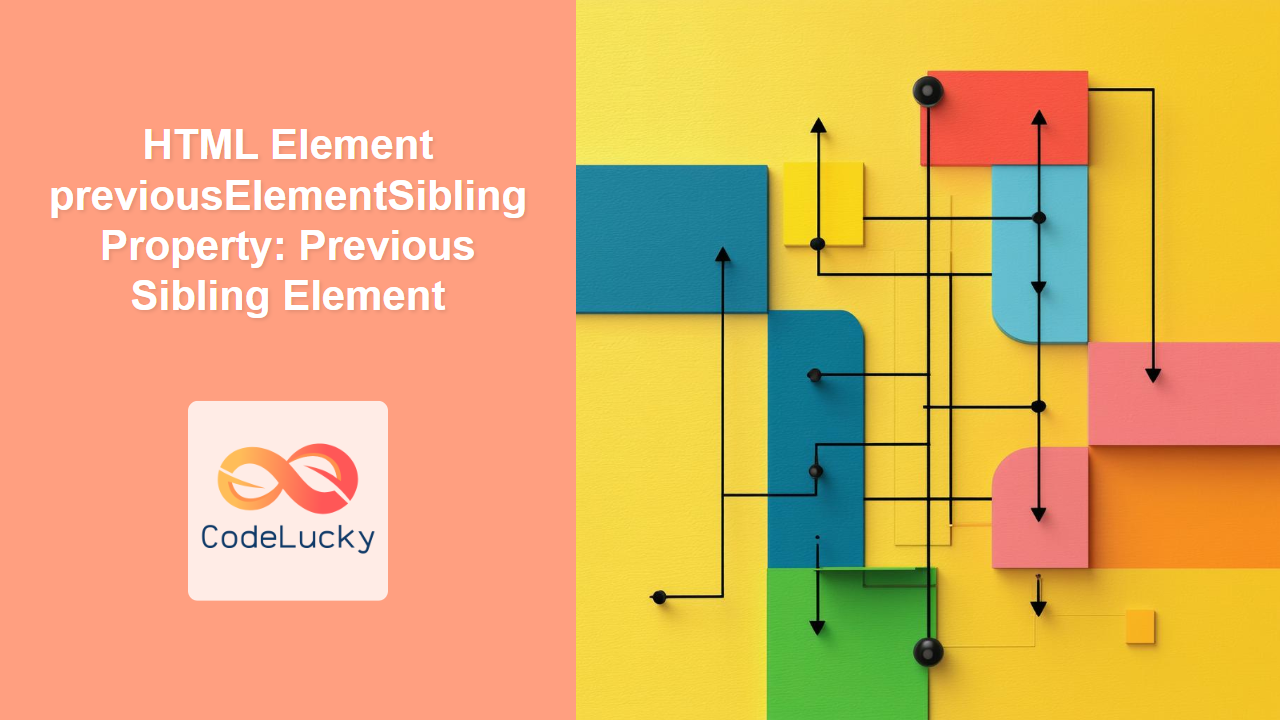
HTML Element previousElementSibling Property: Navigating the DOM
The previousElementSibling property is a read-only property of the HTMLElement interface. It returns the element immediately preceding the specified element in its parent’s children list, or null if the element is the first child. This property is essential for navigating the Document Object Model (DOM) and manipulating elements within the HTML structure.
Understanding previousElementSibling
The previousElementSibling property allows you to traverse the DOM by accessing the element that comes directly before a given element within its parent’s child list. It’s particularly useful when you need to interact with elements relative to a known element.
Syntax
const previousSibling = element.previousElementSibling;
Return Value
- An
Elementrepresenting the previous sibling element, ornullif no such element exists (i.e., the element is the first child).
Key Differences
previousElementSiblingvs.previousSibling:previousElementSiblingreturns only element nodes, whilepreviousSiblingreturns any node type (including text nodes, comments, etc.). UsepreviousElementSiblingwhen you specifically need to interact with other HTML elements. ⚠️
Basic Examples
Let’s start with basic examples to illustrate how previousElementSibling works.
Example 1: Accessing the Previous Sibling
<div id="domContainer1">
  <span>First Span</span>
  <p id="targetElement1">This is a paragraph.</p>
  <span>Third Span</span>
</div>

<script>
  const targetElement1 = document.getElementById("targetElement1");
  const previousSibling1 = targetElement1.previousElementSibling;

  if (previousSibling1) {
    console.log(previousSibling1.textContent); // Output: First Span
  } else {
    console.log("No previous sibling element found.");
  }
</script>
Output:
First Span
Example 2: No Previous Sibling
<div id="domContainer2">
  <p id="targetElement2">This is a paragraph.</p>
  <span>Second Span</span>
  <span>Third Span</span>
</div>

<script>
  const targetElement2 = document.getElementById("targetElement2");
  const previousSibling2 = targetElement2.previousElementSibling;

  if (previousSibling2) {
    console.log(previousSibling2.textContent);
  } else {
    console.log("No previous sibling element found."); // Output: No previous sibling element found.
  }
</script>
Output:
No previous sibling element found.
Practical Use Cases
Let’s explore practical use cases where previousElementSibling can be beneficial.
Use Case 1: Dynamically Adding a Class to the Previous Element
<div id="domContainer3">
  <button id="triggerButton3">Add Class to Previous Element</button>
  <span>First Span</span>
  <p id="targetElement3">This is a paragraph.</p>
  <span>Third Span</span>
</div>

<script>
  const triggerButton3 = document.getElementById("triggerButton3");
  const targetElement3 = document.getElementById("targetElement3");

  triggerButton3.addEventListener("click", function () {
    const previousSibling3 = targetElement3.previousElementSibling;
    if (previousSibling3) {
      previousSibling3.classList.add("highlight");
    }
  });
</script>

<style>
  .highlight {
    background-color: yellow;
    font-weight: bold;
  }
</style>
In this example, clicking the button adds a class called highlight to the previous sibling element of the paragraph, changing its background color and font weight.
Use Case 2: Hiding the Previous Element
<div id="domContainer4">
  <button id="triggerButton4">Hide Previous Element</button>
  <span>First Span</span>
  <p id="targetElement4">This is a paragraph.</p>
  <span>Third Span</span>
</div>

<script>
  const triggerButton4 = document.getElementById("triggerButton4");
  const targetElement4 = document.getElementById("targetElement4");

  triggerButton4.addEventListener("click", function () {
    const previousSibling4 = targetElement4.previousElementSibling;
    if (previousSibling4) {
      previousSibling4.style.display = "none";
    }
  });
</script>
Clicking the button in this example hides the previous sibling element of the paragraph.
Use Case 3: Inserting Content Before an Element’s Previous Sibling
<div id="domContainer5">
  <button id="triggerButton5">Insert Content Before Previous Element</button>
  <span>First Span</span>
  <p id="targetElement5">This is a paragraph.</p>
  <span>Third Span</span>
</div>

<script>
  const triggerButton5 = document.getElementById("triggerButton5");
  const targetElement5 = document.getElementById("targetElement5");

  triggerButton5.addEventListener("click", function () {
    const previousSibling5 = targetElement5.previousElementSibling;
    if (previousSibling5) {
      const newElement5 = document.createElement("div");
      newElement5.textContent = "Inserted Content";
      previousSibling5.parentNode.insertBefore(newElement5, previousSibling5);
    }
  });
</script>
This example inserts a new div element with the text “Inserted Content” before the previous sibling element of the paragraph.
Advanced Examples
Let’s delve into more complex scenarios.
Example 4: Finding the Nearest Previous Heading Element
<div id="domContainer6">
  <h2>Section 1</h2>
  <p>Paragraph 1</p>
  <h3>Subsection 1</h3>
  <p>Paragraph 2</p>
  <h2>Section 2</h2>
  <p id="targetElement6">Paragraph 3</p>
</div>

<script>
  function findNearestPreviousHeading(element) {
    let currentElement = element.previousElementSibling;
    while (currentElement) {
      if (currentElement.tagName.startsWith("H")) {
        return currentElement;
      }
      currentElement = currentElement.previousElementSibling;
    }
    return null;
  }

  const targetElement6 = document.getElementById("targetElement6");
  const nearestHeading6 = findNearestPreviousHeading(targetElement6);

  if (nearestHeading6) {
    console.log("Nearest heading:", nearestHeading6.textContent);
  } else {
    console.log("No previous heading found.");
  }
</script>
Output:
Nearest heading: Section 2
This example demonstrates how to find the nearest previous heading element by traversing up the DOM using previousElementSibling.
Example 5: Implementing a Simple Tab Navigation
<div id="tabContainer7">
  <div class="tabs">
    <button class="tab" data-tab="tab1">Tab 1</button>
    <button class="tab" data-tab="tab2">Tab 2</button>
    <button class="tab active" data-tab="tab3">Tab 3</button>
    <button class="tab" data-tab="tab4">Tab 4</button>
  </div>

  <div class="tab-content" id="tab1">Content for Tab 1</div>
  <div class="tab-content" id="tab2">Content for Tab 2</div>
  <div class="tab-content active" id="tab3">Content for Tab 3</div>
  <div class="tab-content" id="tab4">Content for Tab 4</div>
</div>

<script>
  const tabs7 = document.querySelectorAll(".tab");
  tabs7.forEach((tab) => {
    tab.addEventListener("click", function () {
      // Deactivate all tabs and content
      tabs7.forEach((t) => t.classList.remove("active"));
      document
        .querySelectorAll(".tab-content")
        .forEach((c) => c.classList.remove("active"));

      // Activate the clicked tab and its content
      tab.classList.add("active");
      const tabId7 = tab.dataset.tab;
      document.getElementById(tabId7).classList.add("active");
    });
  });

  // Add event listener to move to the previous tab
  document.addEventListener("keydown", function (event) {
    if (event.key === "ArrowLeft") {
      const activeTab7 = document.querySelector(".tab.active");
      const previousTab7 = activeTab7.previousElementSibling;

      if (previousTab7 && previousTab7.classList.contains("tab")) {
        // Simulate a click on the previous tab
        previousTab7.click();
        event.preventDefault(); // Prevent scrolling
      }
    }
  });
</script>

<style>
  /* Basic styling for the tabs */
  .tabs {
    display: flex;
    margin-bottom: 10px;
  }

  .tab {
    padding: 10px 20px;
    border: 1px solid #ccc;
    background-color: #f0f0f0;
    cursor: pointer;
  }

  .tab.active {
    background-color: #ddd;
  }

  .tab-content {
    display: none;
    padding: 20px;
    border: 1px solid #ccc;
  }

  .tab-content.active {
    display: block;
  }
</style>
This advanced example showcases how to implement a tab navigation system using arrow keys. The previousElementSibling property is used to navigate to the previous tab when the left arrow key is pressed.
Common Mistakes and Pitfalls
- Assuming Existence: Always check if
previousElementSiblingreturns a non-null value before attempting to access its properties or methods. - Confusing with
previousSibling: Remember thatpreviousSiblingcan return text nodes, comments, or other non-element nodes. UsepreviousElementSiblingspecifically when you need to interact with elements. - Incorrect Context: Ensure you are using
previousElementSiblingin the correct context. If the element is dynamically generated or the DOM is frequently updated, the results may be unpredictable.
Tips and Best Practices
- Check for Null: Always verify that
previousElementSiblingdoes not returnnullbefore proceeding to use the returned element. - Use in Combination: Use
previousElementSiblingin combination with other DOM traversal properties likenextElementSibling,parentElement, andchildrenfor more complex DOM manipulations. - Optimize Traversal: When traversing the DOM, try to minimize the number of traversals to improve performance, especially in large documents.
Browser Support
The previousElementSibling property is widely supported across all modern browsers.
| Browser | Version | Support |
| ————– | ——- | ——- |
| Chrome | All | Yes |
| Firefox | All | Yes |
| Safari | All | Yes |
| Edge | All | Yes |
| Opera | All | Yes |
| Internet Explorer | 9+ | Yes |
Conclusion
The previousElementSibling property is a powerful tool for navigating and manipulating the DOM. By understanding its usage and nuances, you can effectively traverse the DOM and create dynamic and interactive web applications. Remember to always check for null and use it in combination with other DOM properties for optimal results. 🚀
Related Posts

HTML Element nextElementSibling Property: Next Sibling Element
Understanding the nextElementSibling Property in HTML The nextElementSibling property is a read-only property of the HTMLElement interface. It returns the...
HTML Node previousSibling Property: Get the Previous Node
HTML Node previousSibling Property: Navigating the DOM The previousSibling property is a read-only property of the Node interface in the...
HTML Node nextSibling Property: Node Next Sibling
HTML Node nextSibling Property: Understanding Node Next Sibling The nextSibling property in the HTML DOM (Document Object Model) is a...

HTML Element lastElementChild Property: Last Child Element
HTML Element lastElementChild Property: Accessing the Last Child Element The lastElementChild property is a read-only property of the HTML DOM...
HTML Node parentElement Property: Node Parent Element
HTML Node parentElement Property: Understanding the Parent Element The parentElement property is a read-only property of the Node interface in...
HTML Node lastChild Property: Get the Last Child Node
HTML Node lastChild Property: Get the Last Child Node The lastChild property is a read-only property of the HTML Node...
HTML Node firstChild Property: Accessing the First Child Node
HTML Node firstChild Property: Accessing the First Child Node The firstChild property is a read-only property of the HTML DOM...
HTML Node parentNode Property: Node Parent Node
HTML Node parentNode Property: Understanding the Parent Node The parentNode property is a read-only property of the HTML Node interface...

HTML Element offsetParent Property: Element Offset Parent
HTML Element offsetParent Property: Understanding Element Offset Parent The offsetParent property in HTML DOM is a read-only property that returns...

JavaScript DOM Elements: Selecting and Modifying Page Elements
JavaScript's ability to interact with the Document Object Model (DOM) is one of its most powerful features. This interaction allows...

HTML DOM Link Object: Accessing Link Elements
HTML DOM Link Object: Accessing and Manipulating Link Elements The HTML DOM Link object provides an interface to interact with...
HTML outerHTML Property: Element Outer HTML
HTML outerHTML Property: Understanding Element Outer HTML The outerHTML property in HTML DOM (Document Object Model) is a powerful feature...