
HTML Element offsetTop Property: Understanding the Element’s Distance to the Top
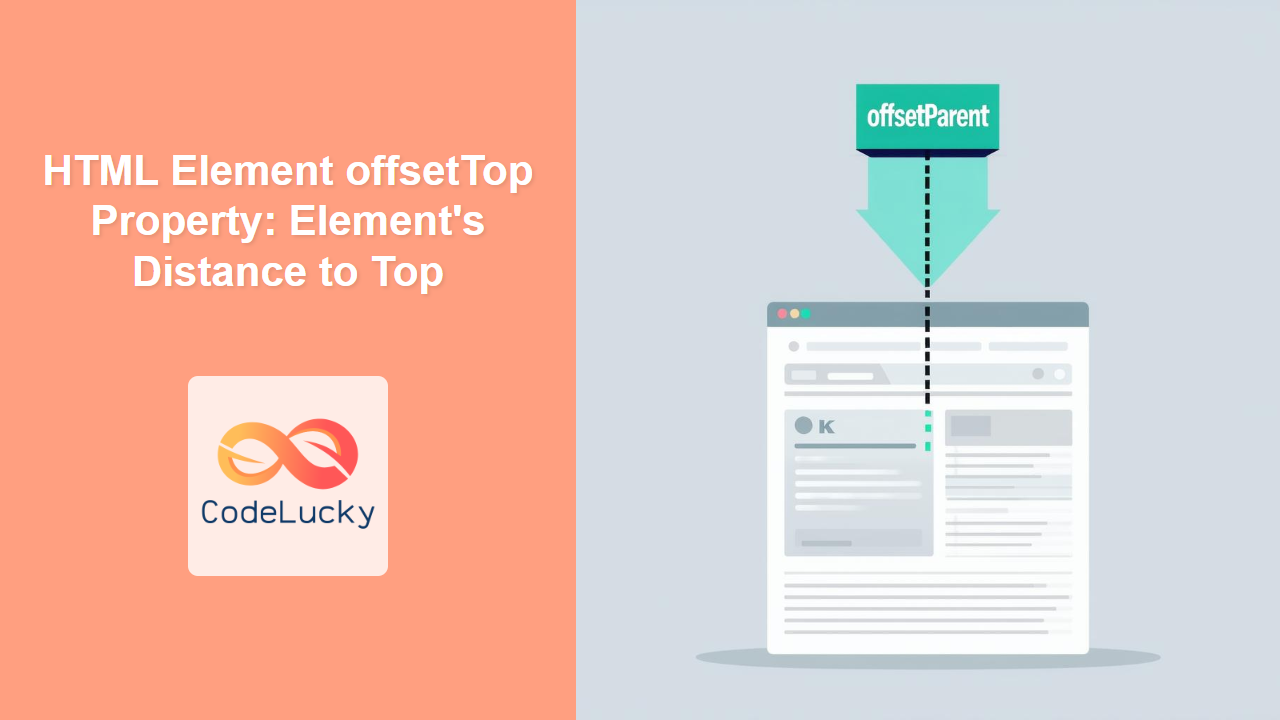
The offsetTop property in HTML DOM provides the distance (in pixels) from the top border of the current element to the top border of its offsetParent element. This property is read-only and is useful for determining the position of an element relative to its containing block, which is essential for dynamic layouts, animations, and interactive web applications.
What is offsetTop?
The offsetTop property returns an integer representing the vertical distance, in pixels, between the outer top edge of the current element and the inner top edge of its offsetParent. The offsetParent is the nearest ancestor element that is positioned (i.e., it has a position value other than static). If no ancestor is positioned, the offsetParent is the document’s body.
Purpose of offsetTop
The main purposes of the offsetTop property are to:
- Determine the vertical position of an element relative to its
offsetParent. - Facilitate dynamic positioning and layout adjustments using JavaScript.
- Create interactive web applications that respond to element positions.
- Implement scrolling effects and animations based on element placement.
Syntax
The syntax for accessing the offsetTop property is straightforward:
let topDistance = element.offsetTop;
Where element is a reference to the HTML element you want to inspect. The returned value is an integer representing the distance in pixels.
Understanding the offsetParent
It’s crucial to understand the concept of the offsetParent to effectively use the offsetTop property. The offsetParent is the closest (nearest in the containing block) positioned ancestor element. An element is considered positioned if its CSS position property is set to anything other than static (e.g., relative, absolute, fixed, or sticky). If no positioned ancestor exists, the offsetParent defaults to the <body> element.
Example 1: Basic Usage with a Positioned Parent
In this example, we have a div with position: relative acting as the offsetParent for another div.
<div
  id="outerDiv1"
  style="position: relative; width: 300px; height: 200px; border: 1px solid black;"
>
  <div
    id="innerDiv1"
    style="position: absolute; top: 50px; left: 50px; width: 100px; height: 50px; background-color: lightblue;"
  ></div>
</div>
<p id="output1"></p>

<script>
  const innerDiv1 = document.getElementById("innerDiv1");
  const output1 = document.getElementById("output1");
  const offsetTop1 = innerDiv1.offsetTop;
  output1.textContent = "OffsetTop: " + offsetTop1 + "px";
</script>
Output:
OffsetTop: 50px
In this case, the offsetTop of innerDiv1 is 50px because it’s positioned 50px from the top of its offsetParent (outerDiv1).
Example 2: No Positioned Parent (Using Body as offsetParent)
If there’s no positioned ancestor, the <body> element becomes the offsetParent.
<div id="outerDiv2" style="width: 300px; height: 200px; border: 1px solid black;">
  <div
    id="innerDiv2"
    style="margin-top: 30px; margin-left: 20px; width: 100px; height: 50px; background-color: lightgreen;"
  ></div>
</div>
<p id="output2"></p>

<script>
  const innerDiv2 = document.getElementById("innerDiv2");
  const output2 = document.getElementById("output2");
  const offsetTop2 = innerDiv2.offsetTop;
  output2.textContent = "OffsetTop: " + offsetTop2 + "px";
</script>
Output:
OffsetTop: 30px
Here, the offsetTop of innerDiv2 is 30px, which is its margin-top value because the <body> is its offsetParent.
Example 3: Dynamic Positioning and Layout Adjustments
This example demonstrates using offsetTop to dynamically adjust the layout.
<div
  id="container3"
  style="position: relative; width: 400px; height: 300px; border: 1px solid black;"
>
  <div
    id="movableDiv3"
    style="position: absolute; top: 20px; left: 20px; width: 80px; height: 40px; background-color: orange;"
  ></div>
  <button id="moveButton3">Move Down</button>
</div>
<p id="output3"></p>

<script>
  const movableDiv3 = document.getElementById("movableDiv3");
  const moveButton3 = document.getElementById("moveButton3");
  const output3 = document.getElementById("output3");

  moveButton3.addEventListener("click", () => {
    let currentTop3 = movableDiv3.offsetTop;
    let newTop3 = currentTop3 + 20;
    movableDiv3.style.top = newTop3 + "px";
    output3.textContent = "Current OffsetTop: " + newTop3 + "px";
  });
</script>
In this interactive example, clicking the “Move Down” button adjusts the top style property of movableDiv3, effectively moving it down, and the offsetTop is updated accordingly.
Example 4: Using offsetTop in Scrolling Effects
This example shows how to use offsetTop to trigger effects when an element comes into view during scrolling.
<div
  id="scrollContainer4"
  style="height: 500px; overflow-y: scroll; border: 1px solid black; position: relative;"
>
  <div
    id="targetDiv4"
    style="position: absolute; top: 400px; left: 50%; width: 100px; height: 50px; background-color: lightcoral;"
  ></div>
</div>
<p id="output4"></p>

<script>
  const scrollContainer4 = document.getElementById("scrollContainer4");
  const targetDiv4 = document.getElementById("targetDiv4");
  const output4 = document.getElementById("output4");

  scrollContainer4.addEventListener("scroll", () => {
    let scrollPosition4 = scrollContainer4.scrollTop;
    let targetOffsetTop4 = targetDiv4.offsetTop;

    if (scrollPosition4 > targetOffsetTop4 - 100) {
      output4.textContent = "Target div is now visible!";
    } else {
      output4.textContent = "Scroll down to see the target div.";
    }
  });
</script>
Here, as the user scrolls, the script checks if the targetDiv4 is within the visible area and updates the output text accordingly.
Browser Support
The offsetTop property is widely supported across all modern browsers:
- Chrome
- Firefox
- Safari
- Edge
- Opera
Since it’s a fundamental property of the DOM, you can rely on its availability in virtually any browser environment.
Tips and Best Practices
- Always Check
offsetParent: Be mindful of theoffsetParentwhen interpretingoffsetTopvalues. Ensure you understand which element is acting as the positioning context. - Avoid CSS Resets: CSS resets that modify the default
positionof elements can affect theoffsetParentand, consequently, theoffsetTopvalue. - Account for Borders and Padding: The
offsetTopvalue does not include the element’s own border or padding. It measures from the outer edge. - Use with
requestAnimationFrame: When usingoffsetTopin animations or scrolling effects, combine it withrequestAnimationFramefor smoother performance.
Conclusion
The offsetTop property is an essential tool for web developers to understand and manipulate the position of HTML elements. By grasping the concept of the offsetParent and using offsetTop in conjunction with JavaScript, you can create dynamic, interactive, and visually appealing web applications. Whether you’re implementing custom layouts, scrolling effects, or complex animations, offsetTop provides the necessary information to bring your ideas to life.
Related Posts
HTML Element offsetLeft Property: Element Offset Left
Understanding the offsetLeft Property in HTML The offsetLeft property in HTML DOM is a read-only property that returns the distance...

HTML Element offsetParent Property: Element Offset Parent
HTML Element offsetParent Property: Understanding Element Offset Parent The offsetParent property in HTML DOM is a read-only property that returns...
HTML Element offsetHeight Property: Element Offset Height
HTML Element offsetHeight Property: Understanding Element Height The offsetHeight property is a read-only property in JavaScript that provides the height...
HTML Element offsetWidth Property: Element Offset Width
Understanding the offsetWidth Property in HTML Elements The offsetWidth property is a read-only property of HTML elements in the DOM...
CSS Style top Property: CSS Top
Understanding the CSS top Property: A Comprehensive Guide The top property in CSS is used to specify the vertical position...
HTML Element clientHeight Property: Element Height
HTML Element clientHeight Property: Understanding Element Height The clientHeight property is a read-only property of an HTML element in the...
CSS Top, Right, Bottom, Left: Complete Guide to Positioning Offset Properties
CSS positioning offset properties—top, right, bottom, and left—are fundamental tools for precisely controlling element placement on web pages. These properties...
CSS Style marginTop Property: CSS Margin Top
Understanding the CSS marginTop Property: A Comprehensive Guide The marginTop property in CSS is used to set the top margin...
CSS Style outlineOffset Property: CSS Outline Offset
CSS outline-offset Property: Comprehensive Guide The CSS outline-offset property specifies the space between an outline and the edge or border...
HTML Element scrollTop Property: Element Scroll Top
HTML Element scrollTop Property: Mastering Element Scroll Top The scrollTop property in HTML DOM represents the distance between the top...
CSS Style paddingTop Property: CSS Padding Top
Understanding the CSS padding-top Property The padding-top property in CSS defines the amount of space between the top edge of...
CSS Relative Positioning: Master Element Offset and Layout Control
Understanding CSS Relative Positioning CSS relative positioning is a fundamental layout technique that allows you to move elements from their...





