
HTML Element offsetHeight Property: Understanding Element Height
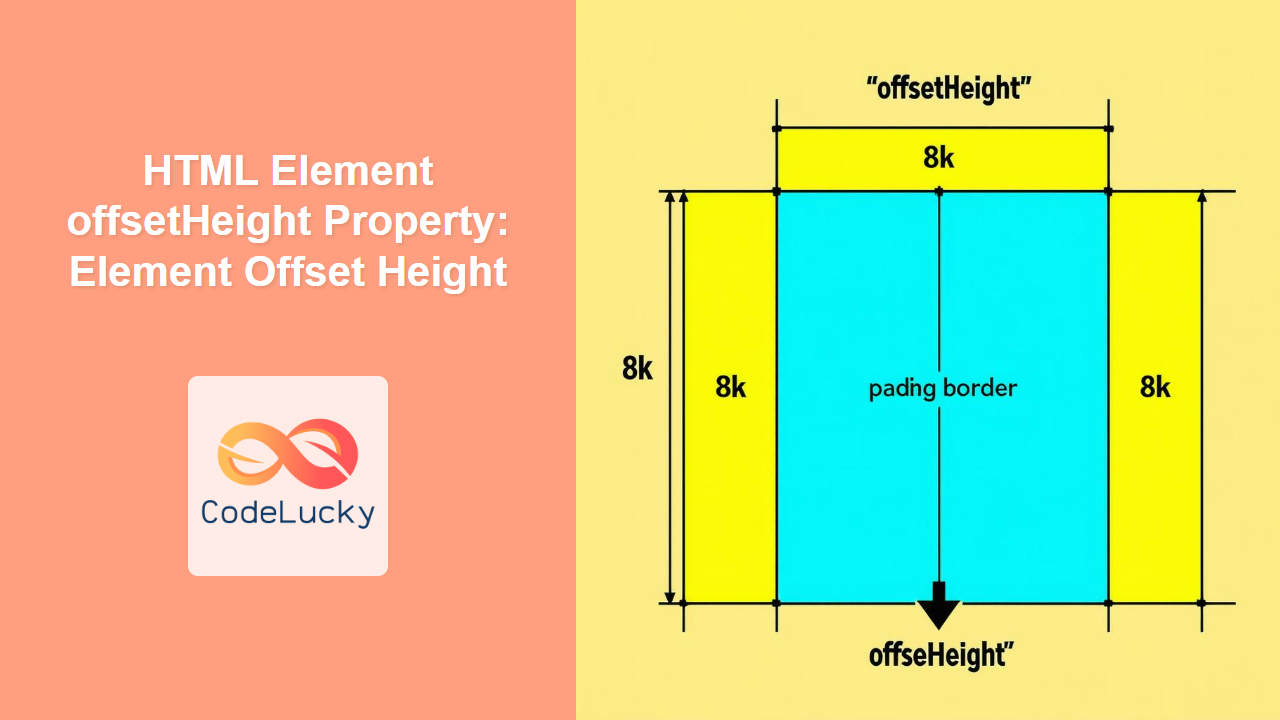
The offsetHeight property is a read-only property in JavaScript that provides the height of an element, including vertical padding, border, and horizontal scrollbar (if present), as an integer. It is a crucial property for accurately determining an element’s visual height on a webpage. This guide will delve into the details of the offsetHeight property, explaining its syntax, usage, and providing practical examples.
What is offsetHeight?
The offsetHeight property returns the rendered height of an element in pixels. This includes:
- The element’s content height
- The element’s vertical padding
- The element’s border
- The height of a horizontal scrollbar, if it is present and visible
It does not include:
- The height of any vertical margin applied to the element.
Syntax
The syntax to access the offsetHeight property is straightforward:
let height = element.offsetHeight;
Here, element is a reference to an HTML element obtained using methods like document.getElementById() or document.querySelector().
Return Value
- The
offsetHeightproperty returns an integer representing the height of the element in pixels. - If the element is not rendered (e.g., it has
display: none), theoffsetHeightproperty returns0.
Usage and Examples
Let’s explore how to use the offsetHeight property with some practical examples.
Basic Example: Retrieving the offsetHeight of a <div> Element
In this example, we’ll retrieve the offsetHeight of a <div> element with specified padding and border.
<div
  id="offsetHeightDiv"
  style="width: 200px; height: 100px; padding: 20px; border: 5px solid black;"
>
  This is a div element.
</div>

<p id="outputHeight"></p>

<script>
  const offsetHeight_div = document.getElementById("offsetHeightDiv");
  const outputHeight_p = document.getElementById("outputHeight");
  const heightValue = offsetHeight_div.offsetHeight;
  outputHeight_p.textContent = "Offset Height: " + heightValue + "px";
</script>
Output:
The output would display the offsetHeight of the div element. Given the specified styles (height: 100px, padding: 20px on each side, border: 5px on each side), the offsetHeight would be calculated as 100 + 2 * 20 + 2 * 5 = 150px.
Dynamic Example: Updating Element Height
In this example, we’ll dynamically update the height of an element and display its updated offsetHeight.
<div
  id="dynamicHeightDiv"
  style="width: 200px; height: 50px; padding: 10px; border: 2px solid red;"
>
  Initial Height
</div>
<button id="increaseHeightBtn">Increase Height</button>
<p id="dynamicHeightOutput"></p>

<script>
  const dynamicHeight_div = document.getElementById("dynamicHeightDiv");
  const increaseHeight_btn = document.getElementById("increaseHeightBtn");
  const dynamicHeightOutput_p = document.getElementById("dynamicHeightOutput");

  increaseHeight_btn.addEventListener("click", () => {
    let currentHeight = dynamicHeight_div.offsetHeight;
    dynamicHeight_div.style.height = (currentHeight + 20) + "px";
    dynamicHeightOutput_p.textContent =
      "Offset Height: " + dynamicHeight_div.offsetHeight + "px";
  });
</script>
In this example, clicking the “Increase Height” button will increase the height of the div by 20 pixels, and the new offsetHeight will be displayed.
Example with Scrollbar
Here’s an example of how offsetHeight accounts for the height of a horizontal scrollbar if it’s present and visible:
<div
  id="scrollbarDiv"
  style="width: 150px; height: 80px; overflow: scroll; border: 1px solid blue;"
>
  This is a scrollable area. This text is long enough to cause a horizontal
  scrollbar to appear.
</div>

<p id="scrollbarHeightOutput"></p>

<script>
  const scrollbar_div = document.getElementById("scrollbarDiv");
  const scrollbarHeightOutput_p = document.getElementById(
    "scrollbarHeightOutput"
  );
  const heightWithScrollbar = scrollbar_div.offsetHeight;
  scrollbarHeightOutput_p.textContent =
    "Offset Height with Scrollbar: " + heightWithScrollbar + "px";
</script>
In this example, the offsetHeight will include the height of the horizontal scrollbar, if it appears.
Getting offsetHeight of an Image
Demonstrates getting the offsetHeight of an image, which might be useful after the image has loaded and its dimensions are determined.
<img
  id="myImage"
  src="https://dummyimage.com/200x100/000/fff"
  alt="Dummy Image"
  style="border: 1px solid green;"
/>
<p id="imageHeightOutput"></p>

<script>
  const myImage_img = document.getElementById("myImage");
  const imageHeightOutput_p = document.getElementById("imageHeightOutput");

  myImage_img.onload = function () {
    const imageHeight = myImage_img.offsetHeight;
    imageHeightOutput_p.textContent =
      "Image Offset Height: " + imageHeight + "px";
  };
</script>
In this example, the offsetHeight of the image is retrieved after the image has loaded.
Calculating Available Space
<div
  id="parentDiv"
  style="width: 300px; height: 200px; border: 1px solid black;"
>
  <div id="childDiv" style="height: auto;">Content</div>
</div>
<p id="availableSpaceOutput"></p>

<script>
  const parentDiv_div = document.getElementById("parentDiv");
  const childDiv_div = document.getElementById("childDiv");
  const availableSpaceOutput_p = document.getElementById(
    "availableSpaceOutput"
  );

  const parentHeight = parentDiv_div.offsetHeight;
  const childHeight = childDiv_div.offsetHeight;
  const availableSpace = parentHeight - childHeight;

  availableSpaceOutput_p.textContent =
    "Available Space: " + availableSpace + "px";
</script>
In this example, we calculate the available space within a parent div by subtracting the child div’s offsetHeight from the parent div’s offsetHeight.
Important Notes
- Read-Only Property:
offsetHeightis a read-only property, meaning you cannot set its value directly. - Element Must Be Rendered: The element must be rendered for
offsetHeightto return a meaningful value. If the element is not displayed (e.g.,display: none),offsetHeightwill return0. 🚫 - Box Model:
offsetHeightincludes the element’s content, padding, border, and scrollbars (if present). It does not include margins. 📦 - Cross-Browser Consistency:
offsetHeightis generally consistent across different browsers, making it reliable for cross-browser development. 🌐 - Dynamic Content: Use
offsetHeightto dynamically adjust the layout or behavior of elements based on their rendered height. ⚙️
Use Cases
- Responsive Design: Adjusting layout based on element height.
- Calculating Available Space: Determining available space within a container.
- Dynamic Animations: Creating animations based on element dimensions.
- Scroll Handling: Implementing custom scroll behaviors based on element height.
- Game Development: Using element dimensions for game logic and rendering. 🎮
Browser Support
The offsetHeight property is supported by all major browsers, including:
- Chrome
- Firefox
- Safari
- Edge
- Opera
- Internet Explorer (IE)
Conclusion
The offsetHeight property is an essential tool for web developers to accurately determine the rendered height of an element, including padding, border, and scrollbars. By understanding and utilizing this property effectively, you can create dynamic and responsive web layouts, implement custom animations, and handle scroll behavior with precision. 🎉
Related Posts

HTML Element clientHeight Property: Element Height
HTML Element clientHeight Property: Understanding Element Height The clientHeight property is a read-only property of an HTML element in the...
HTML Element scrollHeight Property: Element Scroll Height
HTML Element scrollHeight Property: Understanding Element Scroll Height The scrollHeight property is a read-only property of an HTML element that...
HTML Element offsetWidth Property: Element Offset Width
Understanding the offsetWidth Property in HTML Elements The offsetWidth property is a read-only property of HTML elements in the DOM...
HTML Element offsetLeft Property: Element Offset Left
Understanding the offsetLeft Property in HTML The offsetLeft property in HTML DOM is a read-only property that returns the distance...
HTML Element offsetTop Property: Element’s Distance to Top
HTML Element offsetTop Property: Understanding the Element's Distance to the Top The offsetTop property in HTML DOM provides the distance...
CSS Style height Property: CSS Height
Understanding the CSS height Property: A Comprehensive Guide The height property in CSS specifies the height of an element's content...

HTML Element offsetParent Property: Element Offset Parent
HTML Element offsetParent Property: Understanding Element Offset Parent The offsetParent property in HTML DOM is a read-only property that returns...
JavaScript Window outerHeight Property: Window Outer Height
JavaScript Window outerHeight Property: A Comprehensive Guide The JavaScript window.outerHeight property returns the height of the entire browser window, including...
HTML Element scrollWidth Property: Element Scroll Width
Understanding the scrollWidth Property in HTML Elements The scrollWidth property in HTML is a read-only property that returns the total...
HTML Object height Property: Defining Embedded Object Height
HTML Object height Property: Defining Embedded Object Height The HTML <object> height property specifies the vertical height of the embedded...

CSS Style maxHeight Property: CSS Max Height
Understanding the CSS max-height Property The CSS max-height property is a fundamental tool for controlling the maximum height of an...

JavaScript Screen height Property: Screen Height
JavaScript screen.height Property: Understanding Screen Height The screen.height property in JavaScript is a read-only property that returns the total height...





