
HTML Canvas textBaseline Property: Aligning Text Vertically
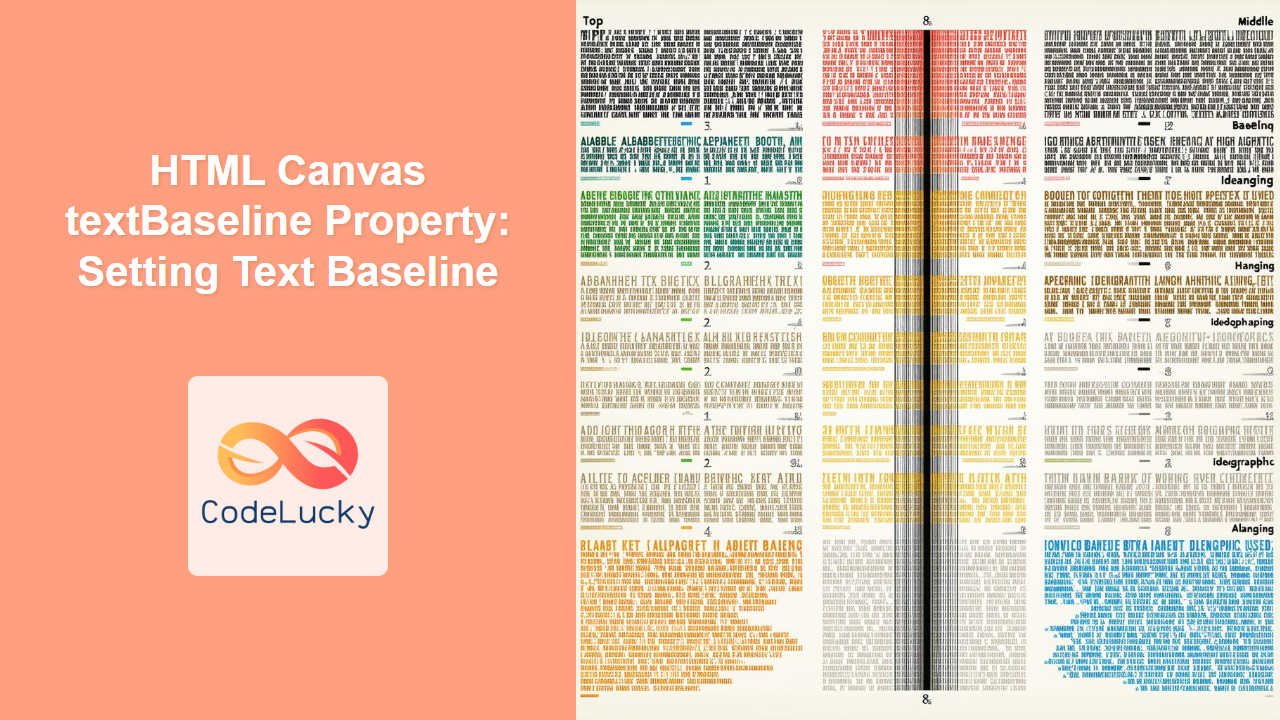
The textBaseline property of the HTML Canvas API is used to specify the vertical alignment of text relative to the text's drawing position on the canvas. This property is crucial for achieving precise text layout and consistent text positioning within your canvas elements. Understanding how to manipulate this property allows you to control how your text aligns, whether at the top, bottom, middle, or other specified baselines.
Understanding Text Baselines
Before diving into the specifics, let's clarify what a text baseline is. In typography, the baseline is the line upon which most letters "sit." The textBaseline property allows you to align the drawing position of the text with different baselines, giving you greater control over the vertical positioning of your text.
Syntax
The syntax for the textBaseline property is straightforward:
ctx.textBaseline = "value";
Where ctx is the 2D rendering context of the canvas element, and value is one of the following string values:
| Value | Description |
|---|---|
top |
The text baseline is the top of the em square. |
hanging |
The text baseline is the hanging baseline. |
middle |
The text baseline is the middle of the em square. |
alphabetic (default) |
The text baseline is the normal alphabetic baseline. |
ideographic |
The text baseline is the ideographic baseline of the characters. |
bottom |
The text baseline is the bottom of the em square. |
Note: The alphabetic baseline is the default, if no other is set explicitly. 💡
Examples
Let's explore different examples to understand how each textBaseline value affects the text's vertical alignment.
Example 1: Default alphabetic Baseline
This example demonstrates the default alphabetic baseline, where most of the text characters are aligned to the baseline.
<canvas id="canvasBaseline1" width="200" height="100" style="border: 1px solid #ddd;"></canvas>
<script></script>
Example 2: top Baseline
Here, the text is aligned with its top edge to the specified drawing point.
<canvas id="canvasBaseline2" width="200" height="100" style="border: 1px solid #ddd;"></canvas>

<script>
//<![CDATA[

    const canvas_2 = document.getElementById('canvasBaseline2');
    const ctx_2 = canvas_2.getContext('2d');
    ctx_2.font = '20px Arial';
    ctx_2.textBaseline = 'top';
    ctx_2.fillText('Hello Canvas!', 10, 50);

//]]]]><![CDATA[>
</script>
Example 3: hanging Baseline
The hanging baseline aligns the text based on the hanging point of the font.
<canvas id="canvasBaseline3" width="200" height="100" style="border: 1px solid #ddd;"></canvas>

<script>
//<![CDATA[

    const canvas_3 = document.getElementById('canvasBaseline3');
    const ctx_3 = canvas_3.getContext('2d');
    ctx_3.font = '20px Arial';
    ctx_3.textBaseline = 'hanging';
    ctx_3.fillText('Hello Canvas!', 10, 50);

//]]]]><![CDATA[>
</script>
Example 4: middle Baseline
This example shows the text aligned to the middle of the text height.
<canvas id="canvasBaseline4" width="200" height="100" style="border: 1px solid #ddd;"></canvas>

<script>
//<![CDATA[

  const canvas_4 = document.getElementById('canvasBaseline4');
  const ctx_4 = canvas_4.getContext('2d');
  ctx_4.font = '20px Arial';
  ctx_4.textBaseline = 'middle';
  ctx_4.fillText('Hello Canvas!', 10, 50);

//]]]]><![CDATA[>
</script>
Example 5: ideographic Baseline
The ideographic baseline aligns the text based on the ideographic baseline of the font.
<canvas id="canvasBaseline5" width="200" height="100" style="border: 1px solid #ddd;"></canvas>

<script>
//<![CDATA[

    const canvas_5 = document.getElementById('canvasBaseline5');
    const ctx_5 = canvas_5.getContext('2d');
    ctx_5.font = '20px Arial';
    ctx_5.textBaseline = 'ideographic';
    ctx_5.fillText('Hello Canvas!', 10, 50);

//]]]]><![CDATA[>
</script>
Example 6: bottom Baseline
This example aligns the text using the bottom edge of the text.
<canvas id="canvasBaseline6" width="200" height="100" style="border: 1px solid #ddd;"></canvas>
<script>
//<![CDATA[
const canvas_6 = document.getElementById('canvasBaseline6');
const ctx_6 = canvas_6.getContext('2d');
ctx_6.font = '20px Arial';
ctx_6.textBaseline = 'bottom';
ctx_6.fillText('Hello Canvas!', 10, 50);
//]]]]><
HTML Canvas direction Property: Text Direction
HTML Canvas direction Property: Controlling Text Direction The HTML Canvas direction property allows you to specify the text direction when...
HTML Canvas font Property: Setting Font Styles
HTML Canvas font Property: Setting Font Styles The font property in the HTML Canvas API is used to specify the...
CSS Style lineHeight Property: CSS Line Height
Understanding the CSS line-height Property: Your Guide to Perfect Text Spacing The line-height property in CSS is a fundamental tool...
HTML Canvas strokeText() Method: Drawing Stroked Text
HTML Canvas strokeText() Method: Drawing Stroked Text The strokeText() method in the HTML Canvas API is used to draw outlined...

CSS Style textAlign Property: CSS Text Align
Understanding the CSS textAlign Property: Aligning Text in Web Layouts The textAlign property in CSS specifies the horizontal alignment of...
HTML Canvas fillText() Method: Drawing Filled Text
HTML Canvas fillText() Method: Drawing Filled Text on a Canvas The fillText() method in the HTML Canvas API is used...
CSS Line-Height: Complete Guide to Controlling Text Spacing and Readability
The CSS line-height property is one of the most fundamental yet underutilized tools for creating readable, visually appealing typography on...
CSS vertical-align Property: CSS Vertical Align
CSS vertical-align Property: Mastering Vertical Alignment The CSS vertical-align property specifies the vertical alignment of an inline or table-cell box....
CSS Style textAlignLast Property: CSS Text Align Last
CSS textAlignLast Property: Controlling the Last Line's Alignment The textAlignLast property in CSS specifies how the last line of a...
HTML Canvas lineWidth Property: Setting Line Widths
HTML Canvas lineWidth Property: Controlling Line Thickness The HTML Canvas lineWidth property is a fundamental part of the Canvas API,...
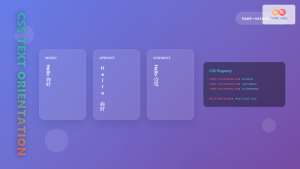
CSS Text-Orientation Property: Complete Guide to Vertical Text Character Control
The CSS text-orientation property controls how individual characters are oriented within vertical text layouts. This powerful property becomes essential when...
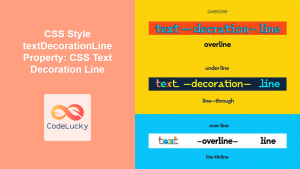
CSS Style textDecorationLine Property: CSS Text Decoration Line
CSS text-decoration-line Property: Styling Text Decorations The text-decoration-line property in CSS is used to specify the kind of text decoration...





