
HTML Canvas shadowBlur Property: Adding Blur to Shadows
The shadowBlur property of the HTML Canvas API allows you to add a blur effect to shadows of shapes, text, and images drawn on the canvas. This property controls the amount of blurring applied to the shadow, making it appear softer and more diffuse. Understanding and utilizing shadowBlur can significantly enhance the visual appeal of your canvas graphics by adding depth and dimension.
Understanding shadowBlur
The shadowBlur property specifies the blur level using a numerical value, where a higher value corresponds to a more significant blur effect. The default value for shadowBlur is 0, which means no blur is applied, resulting in a sharp shadow.
Syntax
ctx.shadowBlur = blurAmount;
ctx: The 2D rendering context of the canvas.blurAmount: A number specifying the amount of blur. Non-integer values are allowed.
Important Points
- Non-negative Values: The
blurAmountmust be a non-negative number. Negative values are ignored by the browser. - Applied Before Drawing: The
shadowBlurproperty must be set before drawing the shape, text, or image that will have the shadow. - Cumulative Effect: Like other shadow properties (offset, color), the
shadowBlurproperty is part of the rendering context state. Once set, it will apply to all subsequent draw operations until changed. - Performance: Extremely high blur values may impact performance, especially on less powerful devices. It is important to test your implementations for efficiency.
Practical Examples
Let's explore how to use the shadowBlur property with practical examples.
Basic Shadow Blur
In this example, we'll draw a simple rectangle and apply a basic shadow with a blur.
<canvas
  id="canvasBlurBasic"
  width="300"
  height="200"
  style="border: 1px solid #ddd;"
></canvas>

<script>
//<![CDATA[

  const canvas_blur_basic = document.getElementById("canvasBlurBasic");
  const ctx_blur_basic = canvas_blur_basic.getContext("2d");

  ctx_blur_basic.shadowColor = "rgba(0, 0, 0, 0.5)"; // Shadow color
  ctx_blur_basic.shadowBlur = 10; // Blur amount
  ctx_blur_basic.shadowOffsetX = 5; // Horizontal offset
  ctx_blur_basic.shadowOffsetY = 5; // Vertical offset

  ctx_blur_basic.fillStyle = "lightblue";
  ctx_blur_basic.fillRect(50, 50, 150, 100);

//]]]]><![CDATA[>
</script>
In this example, the rectangle has a light blue fill, and a shadow is applied with a 10px blur. The shadow is offset by 5px horizontally and vertically, and the color is set to semi-transparent black.
Shadow Blur with Different Values
Let's explore the effect of different shadowBlur values by drawing multiple circles with varying blur amounts.
<canvas
  id="canvasBlurMultiple"
  width="400"
  height="250"
  style="border: 1px solid #ddd;"
></canvas>

<script>
//<![CDATA[

  const canvas_blur_multiple = document.getElementById("canvasBlurMultiple");
  const ctx_blur_multiple = canvas_blur_multiple.getContext("2d");

  const blurValues = [0, 5, 10, 20];
  const xPositions = [50, 150, 250, 350];

  for (let i = 0; i < blurValues.length; i++) {
    ctx_blur_multiple.shadowColor = "rgba(0, 0, 0, 0.5)";
    ctx_blur_multiple.shadowBlur = blurValues[i];
    ctx_blur_multiple.shadowOffsetX = 2;
    ctx_blur_multiple.shadowOffsetY = 2;

    ctx_blur_multiple.beginPath();
    ctx_blur_multiple.arc(xPositions[i], 125, 30, 0, 2 * Math.PI);
    ctx_blur_multiple.fillStyle = "orange";
    ctx_blur_multiple.fill();
  }

//]]]]><![CDATA[>
</script>
This example draws four circles, each with a different shadowBlur value (0, 5, 10, and 20). You can observe how increasing the shadowBlur value makes the shadow softer and more spread out.
Shadow Blur with Text
The shadowBlur property also applies to text. Here's an example of how to use it with the fillText() method.
<canvas
  id="canvasBlurText"
  width="400"
  height="150"
  style="border: 1px solid #ddd;"
></canvas>

<script>
//<![CDATA[

  const canvas_blur_text = document.getElementById("canvasBlurText");
  const ctx_blur_text = canvas_blur_text.getContext("2d");

  ctx_blur_text.shadowColor = "purple";
  ctx_blur_text.shadowBlur = 10;
  ctx_blur_text.shadowOffsetX = 3;
  ctx_blur_text.shadowOffsetY = 3;

  ctx_blur_text.font = "40px Arial";
  ctx_blur_text.fillStyle = "black";
  ctx_blur_text.fillText("Blurred Text", 50, 90);

//]]]]><![CDATA[>
</script>
In this example, the text "Blurred Text" is drawn with a black fill and a purple shadow that has a 10px blur. This helps the text stand out, creating a slightly more subtle text effect.
Shadow Blur with Images
You can apply the shadowBlur to images as well. Let's see it in action.
<canvas
id="canvasBlurImage"
width="250"
height="200"
style="border: 1px solid #ddd;"
></canvas>
<script>
//<![CDATA[
const canvas_blur_image = document.getElementById("canvasBlurImage");
const ctx_blur_image = canvas_blur_image.getContext("2d");
const image_blur = new Image();
image_blur.src = 'https://dummyimage.com/70x70/000/fff';
image_blur.onload = function () {
ctx_blur_image.shadowColor = "rgba(0, 0, 0, 0.8)";
ctx_blur_image.shadowBlur = 15;
ctx_blur_image.shadowOffsetX = 5;
ctx_blur_image.shadowOffsetY = 5;
ctx_blur_image.drawImage(image_blur, 75, 50);
};
//]]]]><
HTML Canvas shadowColor Property: Setting Shadow Color
HTML Canvas shadowColor Property: Setting Shadow Color The HTML Canvas shadowColor property allows you to set the color of the...
HTML Canvas shadowOffsetY Property: Setting Shadow Offset
HTML Canvas shadowOffsetY Property: Setting Shadow Offset The HTML Canvas shadowOffsetY property is a key tool for controlling the vertical...

CSS Style textShadow Property: CSS Text Shadow
CSS text-shadow Property: Comprehensive Guide The text-shadow property in CSS adds shadows to text, creating depth, emphasis, or visually appealing...
CSS Blur Filter: Complete Guide to Gaussian Blur Effects and Visual Applications
The CSS blur filter is one of the most versatile and visually appealing effects in modern web design. This powerful...
CSS Style boxShadow Property: CSS Box Shadow
Understanding the CSS box-shadow Property The box-shadow property in CSS allows you to add shadow effects around an element's frame....

CSS Drop-Shadow Filter: Complete Guide to Creating Professional Shadow Effects
The CSS drop-shadow() filter function is a powerful tool that allows developers to create realistic shadow effects for any HTML...

CSS Backdrop-Filter: Complete Guide to Background Blur and Visual Effects
What is CSS Backdrop-Filter? The backdrop-filter property in CSS allows you to apply graphical effects like blur, brightness, contrast, and...
HTML Canvas ImageData Data Property: Pixel Manipulation
HTML Canvas ImageData data Property: Pixel-Level Control The HTML Canvas ImageData object's data property provides direct access to the underlying...
HTML Canvas createLinearGradient() Method: Creating Linear Gradients
The createLinearGradient() Method: Mastering Linear Gradients on HTML Canvas The createLinearGradient() method in the HTML Canvas API is a powerful...

HTML Canvas fillStyle Property: Filling Styles
HTML Canvas fillStyle Property: Defining Filling Styles The HTML Canvas fillStyle property is a fundamental aspect of the Canvas API,...
HTML Canvas drawImage() Method: Drawing Images on Canvas
HTML Canvas drawImage() Method: A Comprehensive Guide The drawImage() method in the HTML Canvas API is a powerful tool for...
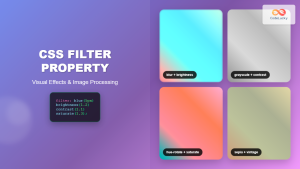
CSS Filter Property: Complete Guide to Visual Effects and Image Processing
The CSS filter property is a powerful tool that allows developers to apply visual effects and image processing techniques directly...





