

Setting up web hosting is the foundation of establishing your online presence. Whether you’re launching a personal blog, business website, or e-commerce store, understanding the hosting setup process is crucial for success. This comprehensive guide will walk you through every step, from selecting a domain name to deploying your website.
Understanding Web Hosting Fundamentals
Web hosting is a service that allows your website to be accessible on the internet. When you purchase hosting, you’re essentially renting space on a server where your website files are stored and served to visitors worldwide.
Types of Web Hosting
- Shared Hosting: Multiple websites share server resources – most cost-effective for beginners
- VPS Hosting: Virtual private server with dedicated resources – better performance and control
- Dedicated Hosting: Entire server dedicated to your website – maximum performance and customization
- Cloud Hosting: Resources distributed across multiple servers – scalable and reliable
- Managed WordPress Hosting: Optimized specifically for WordPress websites
Step 1: Choosing and Registering Your Domain Name
Your domain name is your website’s address on the internet. Here’s how to choose and register one:
Domain Selection Best Practices
- Keep it short and memorable (under 15 characters)
- Use relevant keywords for SEO benefits
- Avoid hyphens and numbers
- Choose the right extension (.com, .org, .net)
- Ensure it’s brandable and professional
Registration Process
You can register domains through:
- Domain registrars (GoDaddy, Namecheap, Google Domains)
- Hosting providers (often included with hosting plans)
- Website builders (Wix, Squarespace)
Example Domain Registration:
Domain: myawesomewebsite.com
Registrar: Namecheap
Cost: $10-15/year
Registration Period: 1-10 years
Auto-renewal: Recommended
Step 2: Selecting the Right Hosting Provider
Choosing the right hosting provider is critical for your website’s performance, security, and reliability.

Key Factors to Consider
| Factor | Why It Matters | What to Look For |
|---|---|---|
| Uptime | Website availability | 99.9% uptime guarantee |
| Speed | User experience & SEO | SSD storage, CDN included |
| Support | Technical assistance | 24/7 live chat/phone support |
| Scalability | Future growth | Easy plan upgrades |
| Security | Data protection | SSL certificates, backups |
Popular Hosting Providers Comparison
- Bluehost: WordPress recommended, beginner-friendly, 24/7 support
- SiteGround: Excellent performance, managed hosting, premium support
- HostGator: Affordable plans, unlimited bandwidth, easy setup
- A2 Hosting: Fast servers, developer-friendly, anytime money-back guarantee
- WP Engine: Premium managed WordPress hosting, advanced security
Step 3: Purchasing Your Hosting Plan
Once you’ve selected a provider, follow these steps to purchase hosting:
Hosting Plan Selection Process
- Visit the hosting provider’s website
- Choose your hosting type (shared, VPS, dedicated)
- Select plan duration (longer terms = better discounts)
- Add domain registration (if not already owned)
- Configure additional services:
- SSL certificate (often free)
- Website backup
- Domain privacy protection
- Email accounts
- Complete payment and account setup
Sample Hosting Purchase
Hosting Provider: SiteGround
Plan: StartUp (Shared Hosting)
Duration: 12 months
Price: $6.99/month (first year)
Domain: mywebsite.com (free first year)
SSL: Let's Encrypt (free)
Email: 10 email accounts included
Storage: 10GB SSD
Bandwidth: Unmetered
Total Cost: $83.88 for first year
Step 4: Connecting Your Domain to Hosting
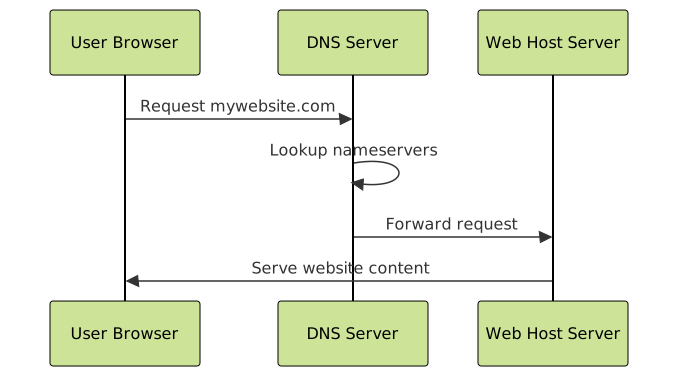
After purchasing hosting, you need to connect your domain to point to your hosting server.
DNS Configuration Methods
There are two primary ways to connect your domain to hosting:
Method 1: Update Nameservers (Recommended)
- Get nameserver information from your hosting provider:
Primary Nameserver: ns1.siteground.com Secondary Nameserver: ns2.siteground.com - Log into your domain registrar’s control panel
- Find DNS/Nameserver settings
- Replace existing nameservers with hosting provider’s nameservers
- Save changes (propagation takes 24-48 hours)
Method 2: Update DNS Records
- Get your hosting IP address from hosting provider
- Access DNS management in domain registrar
- Update A record to point to hosting IP:
Type: A Name: @ Value: 192.168.1.100 (example IP) TTL: 3600 - Update CNAME record for www subdomain:
Type: CNAME
Name: www
Value: mywebsite.com
TTL: 3600
Step 5: Setting Up Your Hosting Control Panel
Most hosting providers offer a control panel (cPanel, Plesk, or custom dashboard) to manage your hosting account.
Initial Control Panel Setup
- Access control panel using credentials provided by hosting company
- Verify domain connection in domain management section
- Set up email accounts if needed
- Install SSL certificate (usually automatic with Let’s Encrypt)
- Configure security settings and enable firewall
Essential Control Panel Features
- File Manager: Upload and manage website files
- Database Management: Create and manage MySQL databases
- Email Management: Set up email accounts and forwarding
- Backup Tools: Schedule automatic backups
- SSL/TLS Management: Install and manage security certificates
- Application Installer: One-click install for WordPress, Joomla, etc.
Step 6: Installing SSL Certificate
SSL (Secure Sockets Layer) certificates encrypt data between your website and visitors, improving security and SEO rankings.

SSL Installation Methods
Automatic SSL (Recommended)
Most modern hosting providers offer free Let’s Encrypt SSL certificates:
- Log into hosting control panel
- Navigate to SSL/TLS section
- Enable “Auto SSL” or “Let’s Encrypt”
- Select your domain from the list
- Click “Install” or “Enable”
- Wait 5-15 minutes for certificate activation
Manual SSL Installation
For premium or custom SSL certificates:
- Purchase SSL certificate from provider (Comodo, DigiCert, etc.)
- Generate Certificate Signing Request (CSR) in control panel
- Submit CSR to SSL provider for validation
- Download issued certificate files
- Upload certificate files to hosting control panel
- Install certificate for your domain
Verifying SSL Installation
After installation, verify your SSL certificate:
- Visit your website using https://
- Check for padlock icon in browser address bar
- Use SSL checker tools like SSL Labs SSL Test
- Set up HTTPS redirect in .htaccess file:
RewriteEngine On
RewriteCond %{HTTPS} off
RewriteRule ^(.*)$ https://%{HTTP_HOST}%{REQUEST_URI} [L,R=301]
Step 7: Uploading Your Website Files
Now it’s time to upload your website content to the hosting server.
File Upload Methods
Method 1: File Manager (Beginner-Friendly)
- Access File Manager in hosting control panel
- Navigate to public_html folder (your website’s root directory)
- Click “Upload” button
- Select website files from your computer
- Wait for upload completion
- Extract ZIP files if necessary
Method 2: FTP/SFTP (Advanced Users)
FTP Client Setup (using FileZilla):
Host: ftp.yourdomain.com (or IP address)
Username: Your FTP username
Password: Your FTP password
Port: 21 (FTP) or 22 (SFTP)
Connection Type: SFTP (recommended for security)
Upload Process:
- Connect to FTP server using credentials
- Navigate to public_html directory
- Upload files by dragging from local to remote panel
- Set proper file permissions (typically 644 for files, 755 for folders)
File Structure Best Practices
public_html/
├── index.html (or index.php)
├── css/
│   └── styles.css
├── js/
│   └── scripts.js
├── images/
│   ├── logo.png
│   └── banner.jpg
├── .htaccess
└── robots.txt
Step 8: Setting Up Email Accounts
Professional email accounts using your domain name enhance credibility and branding.
Creating Email Accounts
- Access Email section in hosting control panel
- Click “Create Email Account”
- Enter email details:
Email: [email protected] Password: SecurePassword123! Mailbox Quota: 1000 MB - Configure email client settings (if using Outlook, Thunderbird, etc.)
Email Configuration Settings
| Setting | IMAP | POP3 | SMTP |
|---|---|---|---|
| Server | mail.yourdomain.com | mail.yourdomain.com | mail.yourdomain.com |
| Port | 993 (SSL) / 143 | 995 (SSL) / 110 | 465 (SSL) / 587 |
| Encryption | SSL/TLS | SSL/TLS | SSL/TLS |
| Authentication | Required | Required | Required |
Step 9: Testing and Optimizing Your Website
Before going live, thoroughly test your website’s functionality and performance.

Pre-Launch Checklist
- ✅ All pages load correctly
- ✅ Navigation menus work properly
- ✅ Contact forms submit successfully
- ✅ Images display correctly
- ✅ SSL certificate is active
- ✅ Website is mobile-responsive
- ✅ Page loading speed is optimized
- ✅ SEO meta tags are configured
- ✅ Analytics tracking is installed
- ✅ Backup system is configured
Performance Optimization Tips
- Optimize images: Use WebP format, compress file sizes
- Enable caching: Browser caching, server-side caching
- Minify code: CSS, JavaScript, and HTML compression
- Use CDN: Content Delivery Network for faster loading
- Database optimization: Clean up unused data and optimize queries
Step 10: Going Live and Post-Launch Tasks
Once everything is tested and working correctly, your website is ready to go live.
Final Launch Steps
- Remove “Coming Soon” pages or maintenance modes
- Submit sitemap to search engines (Google Search Console, Bing Webmaster Tools)
- Set up Google Analytics for traffic monitoring
- Configure website monitoring for uptime and performance
- Schedule regular backups
- Plan content updates and maintenance schedule
Ongoing Maintenance Tasks
- Regular updates: CMS, plugins, and themes
- Security monitoring: Malware scans, firewall rules
- Performance monitoring: Page speed, uptime tracking
- Backup verification: Test backup restoration processes
- Content updates: Fresh content for SEO and engagement
Troubleshooting Common Issues
Website Not Loading
Possible Causes and Solutions:
- DNS propagation delay: Wait 24-48 hours after DNS changes
- Incorrect nameservers: Verify nameserver settings with hosting provider
- File permissions: Ensure proper permissions (644 for files, 755 for directories)
- Missing index file: Upload index.html or index.php to public_html
Email Not Working
- Check MX records: Ensure MX records point to hosting provider
- Verify email settings: Confirm SMTP/IMAP configuration
- Test with webmail: Access email through hosting control panel
- Check spam folders: Emails might be filtered as spam
SSL Certificate Issues
- Mixed content warnings: Update all HTTP links to HTTPS
- Certificate not trusted: Reinstall SSL certificate
- Expired certificate: Renew SSL certificate before expiration
- Chain issues: Install intermediate certificates
Security Best Practices
Securing your website should be a top priority from day one.
Essential Security Measures
- Strong passwords: Use complex, unique passwords for all accounts
- Two-factor authentication: Enable 2FA for hosting and domain accounts
- Regular updates: Keep CMS, plugins, and themes updated
- Security plugins: Install security plugins (Wordfence, Sucuri)
- Firewall configuration: Enable web application firewall
- Regular backups: Daily automated backups to secure location
- File permissions: Set appropriate file and directory permissions
- Hide sensitive files: Protect configuration files and admin areas
Security Monitoring
# .htaccess security rules example
# Block access to sensitive files
<Files ~ "^(wp-config\.php|\.htaccess|\.htpasswd)$">
Order allow,deny
Deny from all
</Files>

# Disable directory browsing
Options -Indexes

# Block suspicious requests
RewriteEngine On
RewriteCond %{QUERY_STRING} (\<|%3C).*script.*(\>|%3E) [NC,OR]
RewriteCond %{QUERY_STRING} GLOBALS(=|\[|\%[0-9A-Z]{0,2}) [OR]
RewriteRule .* - [F]
Cost Optimization Strategies
Minimize hosting costs while maintaining quality service:
- Annual billing: Pay annually for significant discounts
- Resource monitoring: Choose plans that match your actual usage
- Free alternatives: Utilize free SSL certificates, CDNs
- Promotional offers: Take advantage of new customer deals
- Upgrade planning: Scale resources as your website grows
Conclusion
Setting up web hosting successfully requires careful planning and attention to detail. By following this comprehensive guide, you’ve learned how to:
- Select and register the perfect domain name
- Choose the right hosting provider and plan
- Configure DNS settings and SSL certificates
- Upload website files and set up email accounts
- Test, optimize, and secure your website
- Troubleshoot common issues
Remember that web hosting is an ongoing responsibility. Regular maintenance, security updates, and performance monitoring are essential for maintaining a successful online presence. Start with a reliable shared hosting plan and scale up as your website grows and requires more resources.
Take time to familiarize yourself with your hosting control panel, maintain regular backups, and stay informed about web hosting best practices. With proper setup and maintenance, your website will provide a solid foundation for your online goals.





