

Website migration is one of the most critical operations in web development, whether you’re changing hosting providers, moving to a new domain, or upgrading your infrastructure. A poorly executed migration can result in downtime, data loss, SEO penalties, and frustrated users. This comprehensive guide will walk you through every aspect of website migration, ensuring a smooth transition with minimal disruption.
What is Website Migration?
Website migration refers to the process of moving a website from one environment to another. This could involve:
- Hosting migration: Moving from one web host to another
- Domain migration: Changing your website’s domain name
- Platform migration: Switching content management systems (e.g., WordPress to Drupal)
- Protocol migration: Moving from HTTP to HTTPS
- Server migration: Upgrading or changing server infrastructure

Pre-Migration Planning
1. Assess Your Current Website
Before starting any migration, conduct a thorough audit of your existing website:
- Content inventory: Document all pages, posts, media files, and databases
- Technical requirements: Note PHP version, database requirements, and server specifications
- Third-party integrations: List all plugins, extensions, and external services
- Traffic patterns: Identify peak traffic times to schedule migration during low-traffic periods
2. Choose the Right Migration Strategy
Select the appropriate migration approach based your website’s complexity and requirements:
| Strategy | Best For | Downtime | Risk Level |
|---|---|---|---|
| Direct Migration | Small, simple websites | High | Medium |
| Staged Migration | Medium to large websites | Low | Low |
| Blue-Green Deployment | Mission-critical websites | None | Very Low |
Complete Website Migration Process
Step 1: Create a Complete Backup
Never attempt migration without a comprehensive backup. This is your safety net if something goes wrong.
Database Backup
For MySQL databases, use the following command:
mysqldump -u username -p database_name > backup_file.sqlFor WordPress sites, you can also use phpMyAdmin to export your database:
- Access phpMyAdmin from your hosting control panel
- Select your WordPress database
- Click “Export” tab
- Choose “Quick” export method and “SQL” format
- Click “Go” to download the backup file
File System Backup
Create a complete backup of all website files:
# Using tar command
tar -czf website_backup.tar.gz /path/to/website/

# Using rsync for incremental backup
rsync -avz /path/to/website/ /backup/location/
Step 2: Set Up the New Environment
Prepare your destination environment before migration:
- Server configuration: Ensure the new server meets all technical requirements
- Domain setup: Configure DNS settings (don’t point to new server yet)
- SSL certificates: Install and configure SSL certificates
- Database creation: Set up the database with appropriate user permissions
Step 3: Transfer Files and Database
File Transfer Methods
FTP/SFTP Transfer:
# Using SCP for secure transfer
scp -r /local/website/path/ user@newserver:/remote/path/

# Using rsync over SSH
rsync -avz -e ssh /local/website/ user@newserver:/remote/path/
Control Panel Migration:
Many hosting providers offer migration tools through their control panels. For cPanel users:
- Access cPanel on the new hosting account
- Navigate to “Files” → “Backup Wizard”
- Upload your backup files
- Use “File Manager” to extract files to public_html
Database Migration
# Import database on new server
mysql -u username -p new_database_name < backup_file.sql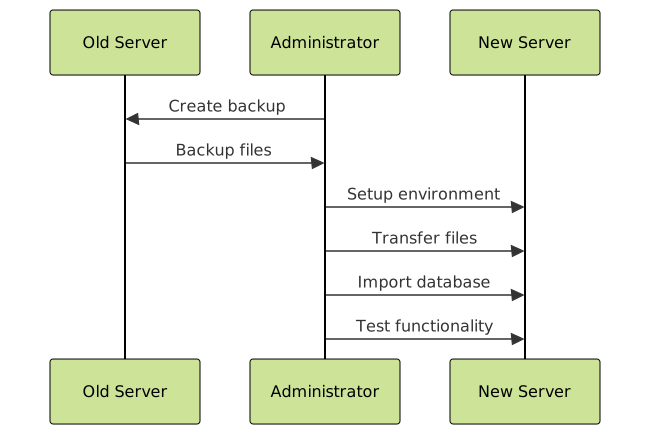
Step 4: Update Configuration Files
Modify configuration files to match the new environment:
WordPress Configuration
Update wp-config.php with new database credentials:
// Database settings for new server
define('DB_NAME', 'new_database_name');
define('DB_USER', 'new_database_user');
define('DB_PASSWORD', 'new_database_password');
define('DB_HOST', 'new_database_host');

// Update site URLs if domain is changing
define('WP_HOME','https://newdomain.com');
define('WP_SITEURL','https://newdomain.com');
Update Database URLs
If changing domains, update all URLs in the database:
-- Update WordPress site URLs
UPDATE wp_options SET option_value = 'https://newdomain.com' WHERE option_name = 'home';
UPDATE wp_options SET option_value = 'https://newdomain.com' WHERE option_name = 'siteurl';

-- Update post content URLs
UPDATE wp_posts SET post_content = REPLACE(post_content, 'https://olddomain.com', 'https://newdomain.com');
Step 5: DNS Configuration and Testing
Before switching DNS, test your new site using temporary methods:
Hosts File Testing
Edit your local hosts file to test the new site:
# Windows: C:\Windows\System32\drivers\etc\hosts
# Mac/Linux: /etc/hosts

new.server.ip.address newdomain.com
new.server.ip.address www.newdomain.com
Staging Subdomain Testing
Create a staging subdomain pointing to the new server:
staging.newdomain.com → New Server IP
DNS Migration and Propagation
DNS Record Types to Update
| Record Type | Purpose | Example |
|---|---|---|
| A Record | Points domain to IP address | example.com → 192.168.1.1 |
| CNAME | Points subdomain to domain | www.example.com → example.com |
| MX Record | Email server configuration | mail.example.com → 10 |
| TXT Record | Verification and SPF records | Domain verification strings |
TTL Management
Reduce Time To Live (TTL) values before migration to speed up DNS propagation:
- 48-72 hours before migration: Lower TTL to 300 seconds (5 minutes)
- During migration: Update DNS records
- After successful migration: Restore TTL to normal values (3600-86400 seconds)
WordPress-Specific Migration
Using WordPress Migration Plugins
Several plugins can simplify WordPress migration:
- Duplicator: Creates complete site packages
- All-in-One WP Migration: Simple drag-and-drop migration
- UpdraftPlus: Backup and restore functionality
Manual WordPress Migration Steps
- Download WordPress files via FTP or file manager
- Export database through phpMyAdmin
- Upload files to new server
- Create new database and import data
- Update wp-config.php with new database details
- Update site URLs in database
- Test functionality before DNS switch

Post-Migration Tasks
Comprehensive Testing Checklist
After migration, perform thorough testing:
- Functionality testing: Test all forms, login systems, and interactive features
- Performance testing: Check page load speeds and server response times
- Mobile responsiveness: Verify the site works on all devices
- SSL certificate: Ensure HTTPS is working correctly
- Email functionality: Test contact forms and email delivery
- SEO elements: Verify meta tags, sitemaps, and robots.txt
SEO Considerations
Protect your search engine rankings during migration:
- 301 redirects: Set up permanent redirects for changed URLs
- XML sitemap: Update and resubmit sitemap to search engines
- Google Search Console: Monitor for crawl errors and indexing issues
- Analytics: Verify tracking codes are working correctly
Setting Up 301 Redirects
For Apache servers, use .htaccess file:
# Redirect old domain to new domain
RewriteEngine On
RewriteCond %{HTTP_HOST} ^olddomain\.com$ [OR]
RewriteCond %{HTTP_HOST} ^www\.olddomain\.com$
RewriteRule ^(.*)$ https://newdomain.com/$1 [R=301,L]

# Redirect specific pages
Redirect 301 /old-page.html https://newdomain.com/new-page/
Common Migration Issues and Solutions
Database Connection Errors
Problem: “Error establishing a database connection”
Solutions:
- Verify database credentials in configuration files
- Check database server hostname and port
- Ensure database user has proper permissions
- Test database connection independently
File Permission Issues
Problem: Images not displaying or upload errors
Solutions:
# Set correct permissions for WordPress
find /path/to/wordpress/ -type d -exec chmod 755 {} \;
find /path/to/wordpress/ -type f -exec chmod 644 {} \;
chmod 600 wp-config.php
Mixed Content Warnings
Problem: HTTPS site loading HTTP resources
Solutions:
- Update all internal links to use HTTPS
- Use protocol-relative URLs:
//example.com/image.jpg - Install SSL plugins for automatic HTTPS enforcement

Migration Tools and Services
Free Migration Tools
- WordPress Duplicator: Complete site packaging and migration
- All-in-One WP Migration: Simple backup and restore
- cPanel Migration: Built-in hosting control panel tools
- Manual FTP/Database: Full control over migration process
Professional Migration Services
- Hosting provider migration: Many hosts offer free migration services
- WordPress migration specialists: Professional migration services
- Development agencies: Complete migration and optimization packages
Best Practices for Zero-Downtime Migration
Blue-Green Deployment Strategy
Implement zero-downtime migration using blue-green deployment:
- Blue environment: Current live website
- Green environment: New migrated website
- Traffic switch: Instant DNS/load balancer switch
- Rollback capability: Quick switch back if issues arise
Database Synchronization
For dynamic sites, implement database synchronization:
# Script for incremental database sync
#!/bin/bash
TIMESTAMP=$(date +%Y%m%d_%H%M%S)
mysqldump --single-transaction --routines --triggers \
  -u source_user -p source_db > sync_$TIMESTAMP.sql
mysql -u dest_user -p dest_db < sync_$TIMESTAMP.sql
Monitoring and Maintenance
Post-Migration Monitoring
Set up monitoring to catch issues early:
- Uptime monitoring: Services like Pingdom or UptimeRobot
- Performance monitoring: Google PageSpeed Insights, GTmetrix
- Error logging: Server logs and application error tracking
- Search Console: Monitor for SEO issues and crawl errors
Performance Optimization
Optimize your newly migrated site:
- Caching implementation: Set up page and object caching
- CDN configuration: Implement content delivery network
- Image optimization: Compress and optimize media files
- Database optimization: Clean up and optimize database tables
Conclusion
Website migration is a complex process that requires careful planning, execution, and monitoring. By following this comprehensive guide, you can ensure a successful migration with minimal downtime and no data loss. Remember that preparation is key – always create complete backups, test thoroughly in a staging environment, and have a rollback plan ready.
The key to successful migration lies in understanding your specific requirements, choosing the right strategy, and methodically executing each step. Whether you’re moving to a new host, changing domains, or upgrading your platform, this systematic approach will help you achieve a smooth transition while maintaining your site’s performance and search engine rankings.
Take your time with each phase, test thoroughly, and don’t hesitate to seek professional help for mission-critical websites. A well-executed migration sets the foundation for improved performance, better security, and enhanced user experience.





