Introduction
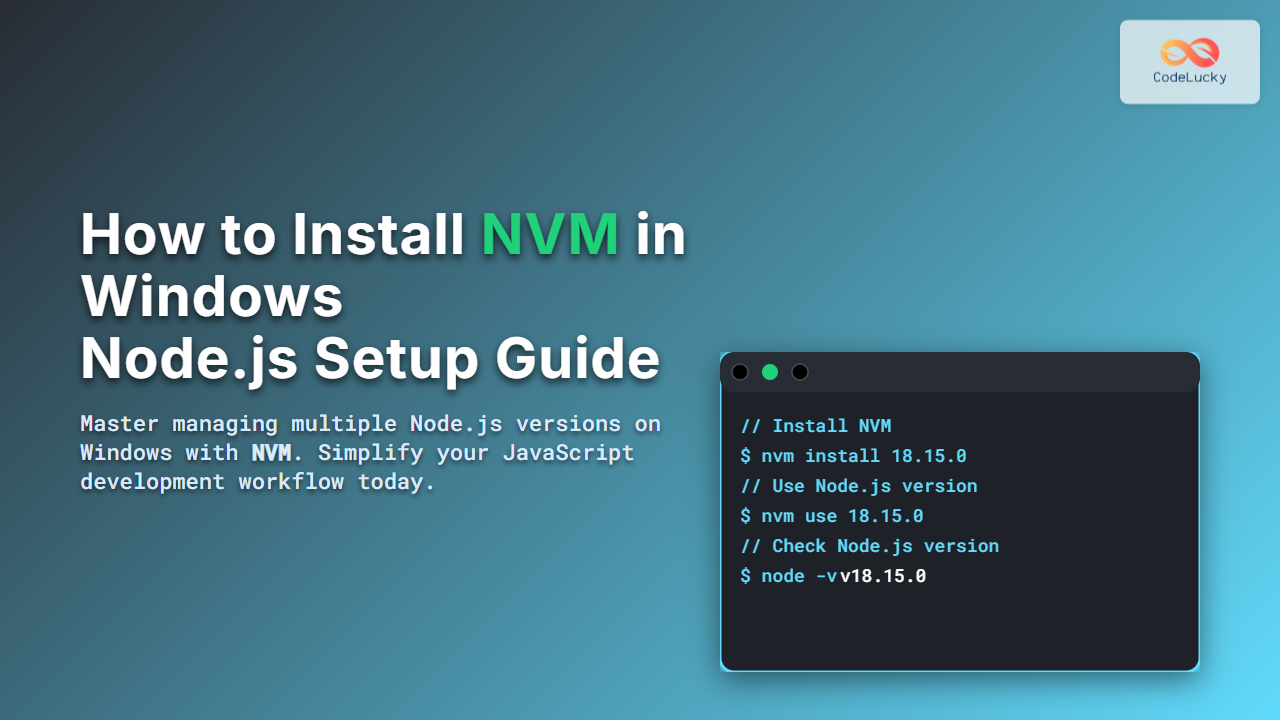
Managing multiple versions of Node.js on a Windows machine can be challenging without the right tools. NVM (Node Version Manager) for Windows is a powerful utility that simplifies this process, allowing developers to easily install, switch, and manage different Node.js versions on their system. This detailed guide will walk you through how to install NVM on Windows and set up Node.js efficiently for your development needs.
What is NVM?
NVM stands for Node Version Manager. It is a command-line tool that lets you install and switch between different versions of Node.js and npm with simple commands. This is especially useful when working on multiple projects requiring different Node versions or testing compatibility.

Prerequisites
- Windows OS: Windows 7, 8, 10, or later versions.
- Admin privileges: Required for software installation.
- Internet connection: Needed to download installers and Node.js versions.
Step 1: Download NVM for Windows
The original NVM was made for Unix-based systems, but for Windows, there is a compatible fork called “nvm-windows”. To begin:
- Visit the nvm-windows repository or official download site (commonly on GitHub).
- Download the latest
nvm-setup.zipornvm-setup.exefile.
Step 2: Install NVM
Run the installer and follow these steps carefully:
- Accept the license agreement.
- Choose the installation directory (default is usually
C:\Program Files\nvm). - Select the directory where Node.js versions will be stored (default is
C:\Program Files\nodejs). - Finish the installation.
Step 3: Verify NVM Installation
Open Command Prompt or PowerShell, then type:
nvm versionYou should see the installed NVM version number. If you get an error, restart your terminal or check your PATH environment variables to ensure the NVM path is included.
Step 4: Installing Node.js Versions Using NVM
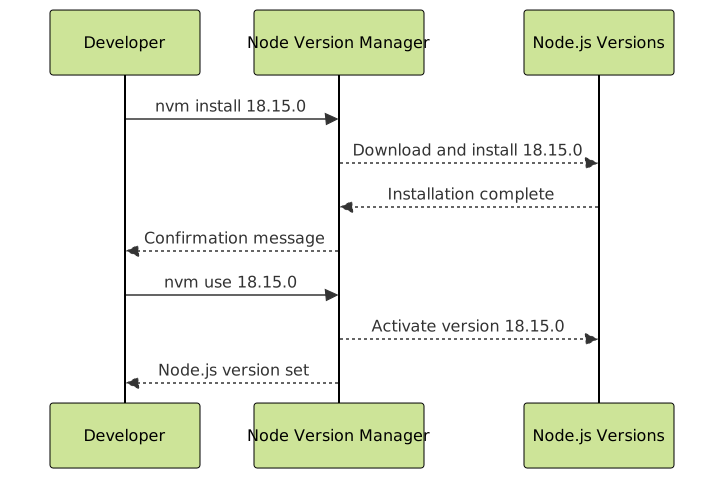
With NVM installed, you can now download and install any Node.js version easily. Use:
nvm install <version>For example, to install Node.js version 18.15.0:
nvm install 18.15.0Once installed, you can check available versions on your system with:
nvm listStep 5: Switching Node.js Versions
To switch between installed Node.js versions, run:
nvm use <version>Example:
nvm use 18.15.0Confirm the active version by running:
node -vThis will show the current active Node.js version.
Step 6: Setting Default Node.js Version
You can set a default Node.js version that loads automatically when opening a new terminal session by running:
nvm use <version>Or edit the settings.txt config file in the NVM directory to include your preferred version in the alias default line.
Additional Tips for Using NVM on Windows
- Uninstalling Node.js versions: Use
nvm uninstall <version>to remove a version no longer needed. - Running Node.js commands: After selecting a version with NVM, Node and npm commands work as usual.
- PATH Issues: Ensure no other global Node.js installations conflict with NVM paths.
- Administrator Mode: Sometimes running Terminal as administrator fixes permission issues.
Example Interactive Demo
Try this simple Node.js script to verify your setup:
console.log("Current Node.js version:", process.version);Run this in a terminal after selecting your Node version with NVM:
node yourscript.jsOutput example:
Current Node.js version: v18.15.0Why Use NVM on Windows?
NVM simplifies complex workflow challenges for developers who work with multiple projects requiring different Node environments. By easily switching Node.js versions, it improves testing, debugging, and deployment processes.

Conclusion
Installing NVM on Windows is a straightforward yet powerful step to optimize Node.js development. This guide has covered downloading, installing, managing versions, and troubleshooting tips for NVM on Windows. With NVM, managing Node.js versions becomes effortless, boosting productivity and reducing environment conflicts.
For developers aiming for smooth Node.js workflows on Windows, following this setup guide is highly recommended.