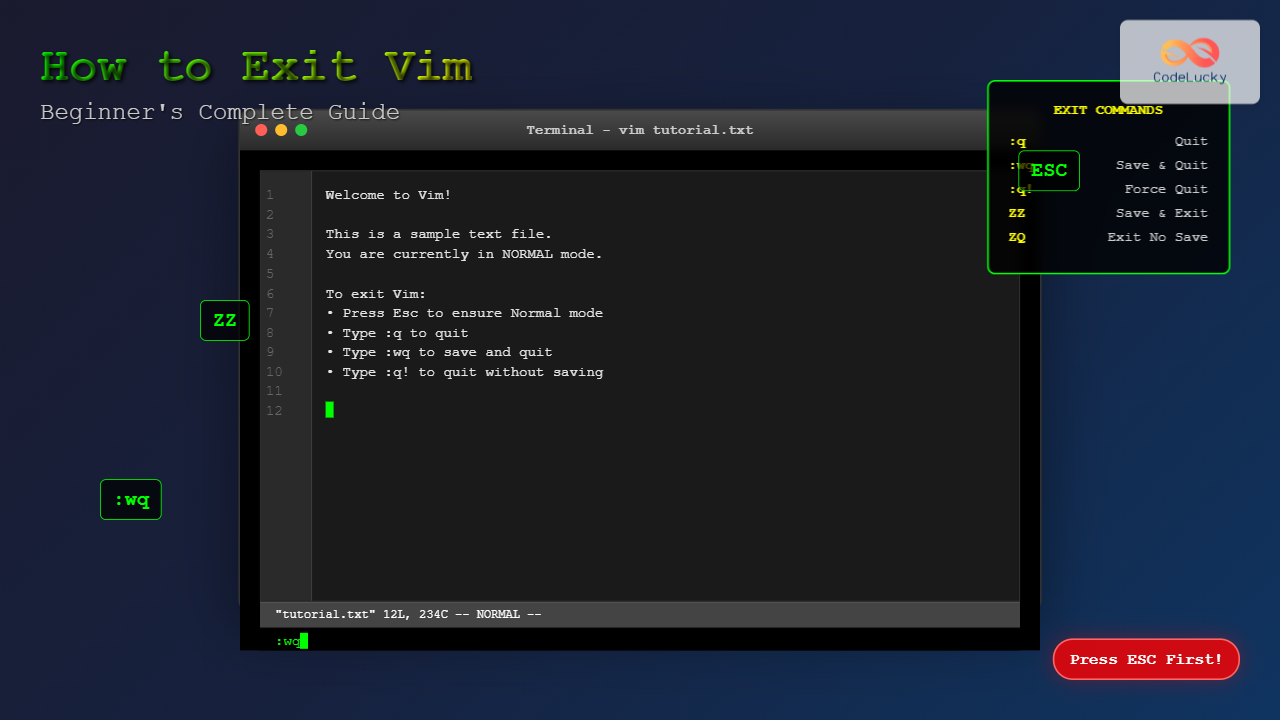
Vim is one of the most powerful text editors available, but it’s also notorious for trapping beginners who can’t figure out how to exit. If you’ve found yourself stuck in Vim, don’t panic – you’re not alone. This comprehensive guide will teach you every method to exit Vim properly, understand the different modes, and avoid common pitfalls.
Understanding Vim Modes
Before learning how to exit Vim, it’s crucial to understand Vim’s modal editing system. Vim operates in different modes, and knowing which mode you’re in determines how you can exit.

The Four Main Vim Modes
- Normal Mode: The default mode where you can navigate and execute commands
- Insert Mode: Where you type and edit text
- Visual Mode: For selecting text
- Command-line Mode: For executing complex commands
Quick Exit Methods (Most Common)
Here are the most frequently used methods to exit Vim, starting with the quickest solutions:
1. The Classic Exit Command
The most straightforward way to exit Vim:
:qSteps:
- Press
Escto ensure you’re in Normal mode - Type
:q - Press
Enter
Visual Output:
~
~
~
:q
2. Save and Exit
To save your changes and exit:
:wqThis command writes (saves) the file and quits Vim in one action.
3. Force Quit Without Saving
If you want to exit without saving changes:
:q!The exclamation mark forces the exit, discarding any unsaved changes.
Complete List of Exit Commands
Here’s a comprehensive table of all Vim exit commands:
| Command | Action | When to Use |
|---|---|---|
:q |
Quit (if no changes) | When you haven’t modified the file |
:q! |
Force quit without saving | Discard all changes and exit |
:wq |
Write and quit | Save changes and exit |
:x |
Write and quit (smart) | Only writes if changes exist |
ZZ |
Save and exit (Normal mode) | Quick save and exit without colon |
ZQ |
Quit without saving | Quick exit without saving |
:wqa |
Write and quit all | Multiple files open |
:qa! |
Force quit all | Exit all files without saving |
Step-by-Step Exit Process

Handling Different Scenarios
Scenario 1: File Has Unsaved Changes
When you try to exit with :q and Vim shows:
E37: No write since last change (add ! to override)Solutions:
- Save and exit:
:wq - Exit without saving:
:q! - Just save:
:wthen:q
Scenario 2: Read-only File
For read-only files, use:
:qOr if you made changes you want to discard:
:q!Scenario 3: Multiple Files Open
When working with multiple files:
:qa– Quit all files:wqa– Save and quit all files:qa!– Force quit all without saving
Keyboard Shortcuts for Quick Exit
These shortcuts work in Normal mode without typing the colon:
ZZ (Save and Exit)
ZZEquivalent to :wq but faster to type.
ZQ (Quit Without Saving)
ZQEquivalent to :q! but faster to type.
Troubleshooting Common Exit Problems

Problem 1: Stuck in Insert Mode
Symptoms: Commands like :q appear as text
Solution:
- Press
Esckey - Try your exit command again
Problem 2: Command Not Recognized
Symptoms: Error message “Not an editor command”
Solutions:
- Ensure you’re in Normal mode (press
Esc) - Make sure to type the colon
:before commands - Check for typos in the command
Problem 3: Permission Denied
Symptoms: Can’t save file due to permissions
Solutions:
- Exit without saving:
:q! - Save to different location:
:w ~/filename - Use sudo (if available):
:w !sudo tee %
Advanced Exit Techniques
Conditional Exits
Save only if changes were made:
:xThis is smarter than :wq because it doesn’t update the file’s timestamp if no changes were made.
Exiting Specific Windows
In split-window scenarios:
:q– Close current window:only– Close all other windowsCtrl+w q– Close current window
Emergency Exit
If Vim becomes unresponsive:
Ctrl+Z– Suspend Vim (return withfg)Ctrl+C– Interrupt current operation
Best Practices for Vim Exit

1. Always Check Your Mode
Before attempting to exit, ensure you’re in Normal mode by pressing Esc.
2. Use Appropriate Commands
- Use
:wqwhen you want to save changes - Use
:q!when you want to discard changes - Use
:xfor smart saving
3. Learn the Shortcuts
Master ZZ and ZQ for faster workflow.
Practice Examples
Example 1: Basic Text Editing
# Open a file
vim test.txt

# Enter insert mode
i

# Type some text
Hello, World!

# Exit insert mode
Esc

# Save and exit
:wq
Example 2: Quick Exit Without Changes
# Open Vim
vim

# Realize you don't need to edit
# Quick exit
:q
Example 3: Discard Changes
# Open file and make changes
vim important.txt
i
Some unwanted changes
Esc

# Discard changes and exit
:q!
Memory Aids and Mnemonics
Remember these commands with simple mnemonics:
- :q = “Quit”
- :w = “Write” (save)
- :wq = “Write and Quit”
- :q! = “Quit!” (force)
- ZZ = “Zap and Zip” (save and exit)
- ZQ = “Zap Quickly” (exit without saving)
Conclusion
Exiting Vim doesn’t have to be intimidating once you understand the basic principles. The key is knowing which mode you’re in and choosing the appropriate exit command for your situation. Start with the basic commands (:q, :wq, :q!) and gradually incorporate the shortcuts (ZZ, ZQ) as you become more comfortable.
Remember: when in doubt, press Esc first to ensure you’re in Normal mode, then use your exit command. With practice, exiting Vim will become second nature, and you’ll appreciate the power and efficiency this legendary editor offers.
The most important thing is not to panic if you get stuck – every Vim user has been there, and now you have all the tools you need to exit gracefully every time.