Introduction
Managing branches is a fundamental part of working with Git, the widely used version control system. Being able to show all branches in a Git repository helps developers visualize work streams, switch contexts, and maintain a clean, organized project history. This guide covers everything you need to know about listing branches in Git — including local branches, remote branches, and useful visuals to understand the branching structure effectively.
What Is a Branch in Git?
A Git branch represents an independent line of development in a repository. Branches isolate changes so you can work on features, fixes, or experiments without affecting the main codebase (often the main or master branch). Over time, you may have many branches, which makes knowing how to list and manage them crucial.

How to Show All Local Branches
To list all local branches in your Git repository, the command is:
git branchThis command outputs a list of branch names with the currently active branch highlighted with an asterisk *.
  main
* feature-login
  bugfix-header
Explanation:
mainandbugfix-headerare existing branches.feature-loginis the currently checked-out branch.
How to Show All Remote Branches
Remote branches represent branches stored on remote repositories (e.g., GitHub, GitLab). To see all remote branches, use:
git branch -rThis lists branches like:
  origin/main
  origin/feature-login
  origin/bugfix-header
Show Both Local and Remote Branches
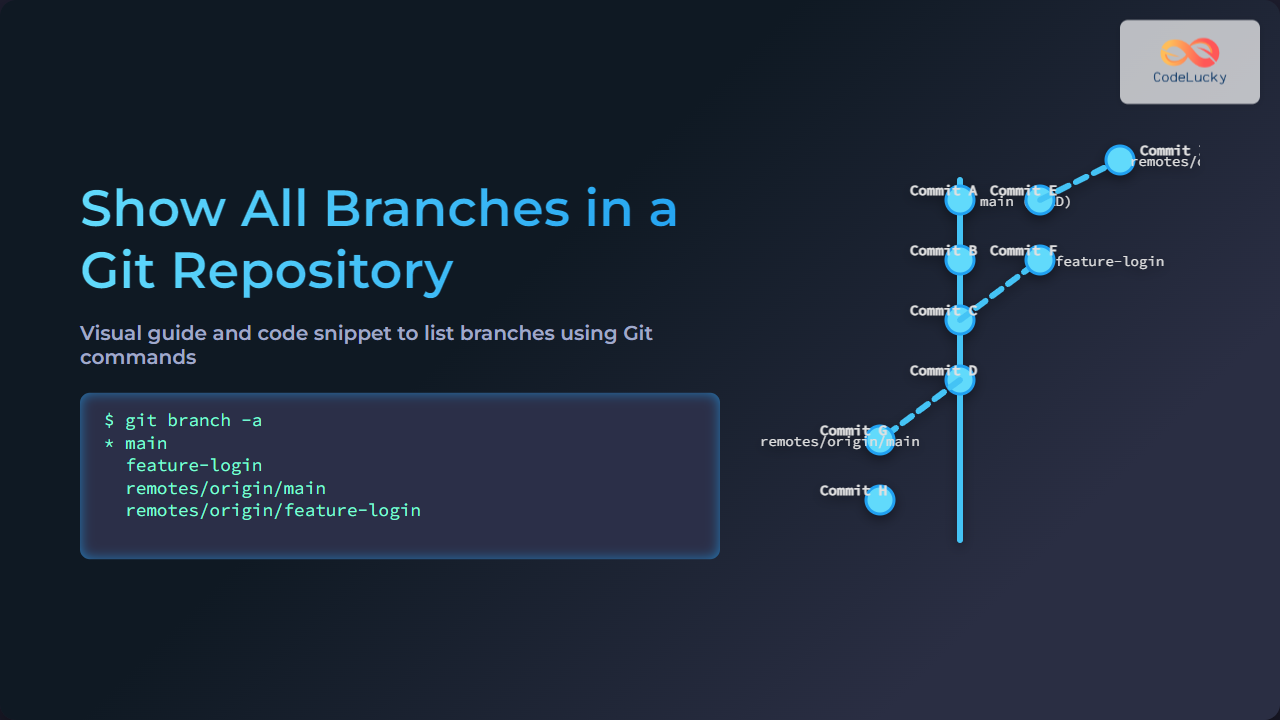
You might want to see all branches, local and remote, to get a complete view of your repository state. Use:
git branch -aThis outputs something like:
* main
  feature-login
  remotes/origin/main
  remotes/origin/feature-login
  remotes/origin/bugfix-header
Visualizing Branches with Git Log
Getting a visual history of branches helps understand their relationships better. Use the following command:
git log --oneline --graph --all --decorateThis will show an ASCII graph-style output in the terminal, indicating branching and merging:
* 9fceb02 (feature-login) Add login form
| * 88f61bf (main) Fix homepage bug
|/
* a1b2c7d Initial commit
Mermaid Diagram of a Git Branching Model
Below is a visual representation using mermaid to help understand a common branch structure:
Interactive Ways to Explore Branches
Many GUI tools (e.g., GitKraken, SourceTree, GitHub Desktop) provide interactive visualizations of branches. For command-line users, tools like tig or gitk offer interactive views of branches and commit histories.
Summary of Useful Commands
| Command | Description | Example Output |
|---|---|---|
git branch |
List all local branches |
main * feature-login bugfix-header |
git branch -r |
List all remote branches |
origin/main origin/feature-login |
git branch -a |
List all local and remote branches |
* main feature-login remotes/origin/main |
git log --oneline --graph --all --decorate |
Visualize commit history and branches |
* 9fceb02 (feature-login) Add login form | * 88f61bf (main) Fix homepage bug |/ * a1b2c7d Initial commit |
Conclusion
Knowing how to show all branches in a Git repository is essential for effective version control and collaboration. Using git branch variations and visual tools ensures clear insight into project branching. This knowledge improves navigation and workflow efficiency in software development.