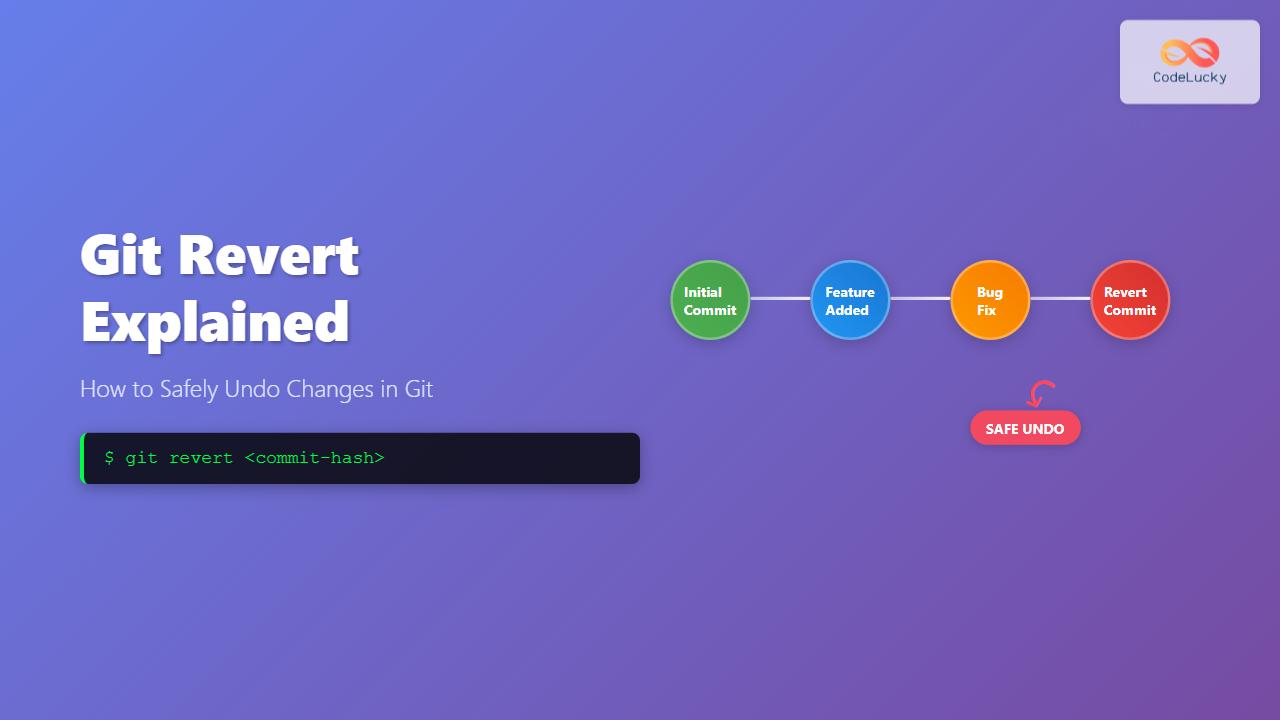
Git revert is one of the most powerful and safe commands in Git for undoing changes. Unlike other undo operations that can rewrite history, git revert creates new commits that reverse the effects of previous commits, maintaining a clean and transparent project history.
Understanding Git Revert vs Other Undo Commands
Before diving deep into git revert, it’s crucial to understand how it differs from other Git undo operations:

| Command | Safety Level | History Impact | Use Case |
|---|---|---|---|
git revert |
Very Safe | Preserves history | Shared repositories |
git reset |
Dangerous | Rewrites history | Local changes only |
git checkout |
Safe | No impact | Temporary file changes |
What is Git Revert?
Git revert is a command that creates a new commit that undoes the changes made by a previous commit. Instead of removing the problematic commit from history, it applies the inverse of those changes, effectively neutralizing the unwanted modifications while preserving the complete project timeline.
Key Benefits of Git Revert
- History Preservation: Maintains complete commit history
- Team Safety: Safe to use on shared repositories
- Transparency: Shows exactly what was undone and when
- Reversibility: Revert commits can themselves be reverted
Basic Git Revert Syntax
The basic syntax for git revert is straightforward:
git revert <commit-hash>Simple Revert Example
Let’s walk through a practical example. Suppose you have the following commit history:
$ git log --oneline
d4f2c1a (HEAD -> main) Add user authentication
b8e3f2d Fix navigation bug
a1c4d5e Initial project setup
If you want to revert the authentication commit:
$ git revert d4f2c1aThis creates a new commit that undoes the authentication changes:
$ git log --oneline
e7f8g9h (HEAD -> main) Revert "Add user authentication"
d4f2c1a Add user authentication
b8e3f2d Fix navigation bug
a1c4d5e Initial project setup
Advanced Git Revert Options
Revert Without Committing
Use the --no-commit or -n flag to revert changes without automatically committing:
$ git revert -n d4f2c1aThis stages the revert changes, allowing you to review and modify them before committing:
$ git status
On branch main
Changes to be committed:
  (use "git restore --staged <file>..." to unstage)
        modified:   auth.js
        deleted:    login.html
Revert Multiple Commits
You can revert multiple commits in a single command:
# Revert multiple specific commits
$ git revert d4f2c1a b8e3f2d

# Revert a range of commits
$ git revert HEAD~3..HEAD
Revert Merge Commits
Reverting merge commits requires specifying which parent to revert to using the -m flag:
$ git revert -m 1 <merge-commit-hash>The number indicates which parent branch to consider as the “main line”:

Interactive Git Revert
For complex scenarios, you can use interactive mode to selectively revert parts of a commit:
$ git revert -n <commit-hash>
$ git add -p  # Selectively stage changes
$ git commit -m "Partial revert of commit"
Example: Partial Revert
Suppose a commit modified both CSS and JavaScript files, but you only want to revert the JavaScript changes:
$ git revert -n a1b2c3d
$ git restore --staged styles.css  # Keep CSS changes
$ git commit -m "Revert JavaScript changes from a1b2c3d"
Handling Revert Conflicts
Sometimes reverting a commit causes conflicts, especially when subsequent commits have modified the same code areas:
$ git revert d4f2c1a
error: could not revert d4f2c1a... Add user authentication
hint: after resolving the conflicts, mark the corrected paths
hint: with 'git add <paths>' and then run 'git revert --continue'
Resolving Conflicts
- Identify conflicts:
$ git status On branch main You are currently reverting commit d4f2c1a. (fix conflicts and run "git revert --continue") Unmerged paths: (use "git add <file>..." to mark resolution) both modified: auth.js - Edit conflicted files:
# In auth.js <<<<<<< HEAD function newAuthMethod() { // Current implementation } ======= // Original code (being reverted) >>>>>>> parent of d4f2c1a... Add user authentication - Complete the revert:
$ git add auth.js
$ git revert --continue
Best Practices for Git Revert
When to Use Git Revert
- Production hotfixes: Quickly undo problematic releases
- Shared repositories: When others have already pulled the commits
- Maintaining audit trails: When you need to show what was changed and why
- Collaborative environments: Safe for team workflows
Git Revert Workflow

Writing Good Revert Commit Messages
Always write clear, descriptive commit messages for reverts:
# Good revert messages
git revert d4f2c1a -m "Revert authentication feature due to security vulnerability"

git revert b8e3f2d -m "Revert navigation fix - breaks mobile layout"

# Poor revert messages
git revert d4f2c1a -m "Revert"
git revert b8e3f2d -m "Undo"
Common Git Revert Scenarios
Scenario 1: Reverting the Latest Commit
# Revert the most recent commit
$ git revert HEAD

# Alternative syntax
$ git revert HEAD~0
Scenario 2: Reverting Multiple Recent Commits
# Revert last 3 commits individually
$ git revert HEAD~2 HEAD~1 HEAD

# Revert last 3 commits in one operation
$ git revert --no-commit HEAD~2..HEAD
$ git commit -m "Revert last 3 commits due to integration issues"
Scenario 3: Emergency Production Rollback
# Create hotfix branch
$ git checkout -b hotfix/rollback-feature

# Revert problematic commits
$ git revert <commit-hash>

# Push and create pull request
$ git push origin hotfix/rollback-feature
Troubleshooting Git Revert
Aborting a Revert
If you encounter issues during a revert, you can abort the operation:
$ git revert --abortReverting a Revert
Sometimes you need to undo a revert (essentially re-applying the original changes):
# Find the revert commit
$ git log --oneline
e7f8g9h Revert "Add user authentication"

# Revert the revert
$ git revert e7f8g9h
Performance Considerations
For large repositories or commits with many file changes:
- Use
--no-committo review changes before committing - Consider reverting in smaller chunks
- Test thoroughly in a separate branch first
Git Revert in Team Workflows
Code Review Integration
In team environments, always follow your code review process for reverts:
# Create feature branch for revert
$ git checkout -b revert/problematic-feature

# Perform revert
$ git revert <commit-hash>

# Push and create pull request
$ git push origin revert/problematic-feature
Continuous Integration Considerations
- Automated testing: Ensure revert commits trigger full test suites
- Deployment pipelines: Verify revert doesn’t break automated deployments
- Rollback procedures: Document revert processes for emergency situations
Advanced Git Revert Techniques
Custom Revert Strategies
For complex merge scenarios, you can specify merge strategies:
$ git revert -X theirs <commit-hash>  # Favor their changes
$ git revert -X ours <commit-hash>    # Favor our changes
Scripting Git Reverts
For automated workflows, you can script revert operations:
#!/bin/bash
# Emergency rollback script

COMMIT_TO_REVERT=$1
BRANCH_NAME="emergency-rollback-$(date +%Y%m%d-%H%M%S)"

git checkout -b $BRANCH_NAME
git revert --no-edit $COMMIT_TO_REVERT
git push origin $BRANCH_NAME

echo "Emergency rollback branch created: $BRANCH_NAME"
Monitoring and Auditing Reverts
Keep track of revert operations for better project management:
# Find all revert commits
$ git log --grep="Revert" --oneline

# Show detailed revert history
$ git log --grep="Revert" --stat

# Find what was reverted
$ git show <revert-commit-hash>
Conclusion
Git revert is an essential tool for safe and transparent version control management. By creating new commits that undo previous changes, it maintains project history integrity while providing a reliable mechanism for rolling back problematic code.
Key takeaways:
- Always use git revert for shared repositories
- Write descriptive commit messages for all reverts
- Test revert changes thoroughly before deployment
- Follow team code review processes even for emergency reverts
- Document revert procedures for your team
Master git revert to handle code rollbacks confidently while maintaining clean, auditable project history. Remember, the goal isn’t just to undo changes, but to do so in a way that preserves transparency and enables effective team collaboration.