
Understanding Git Reset –hard HEAD
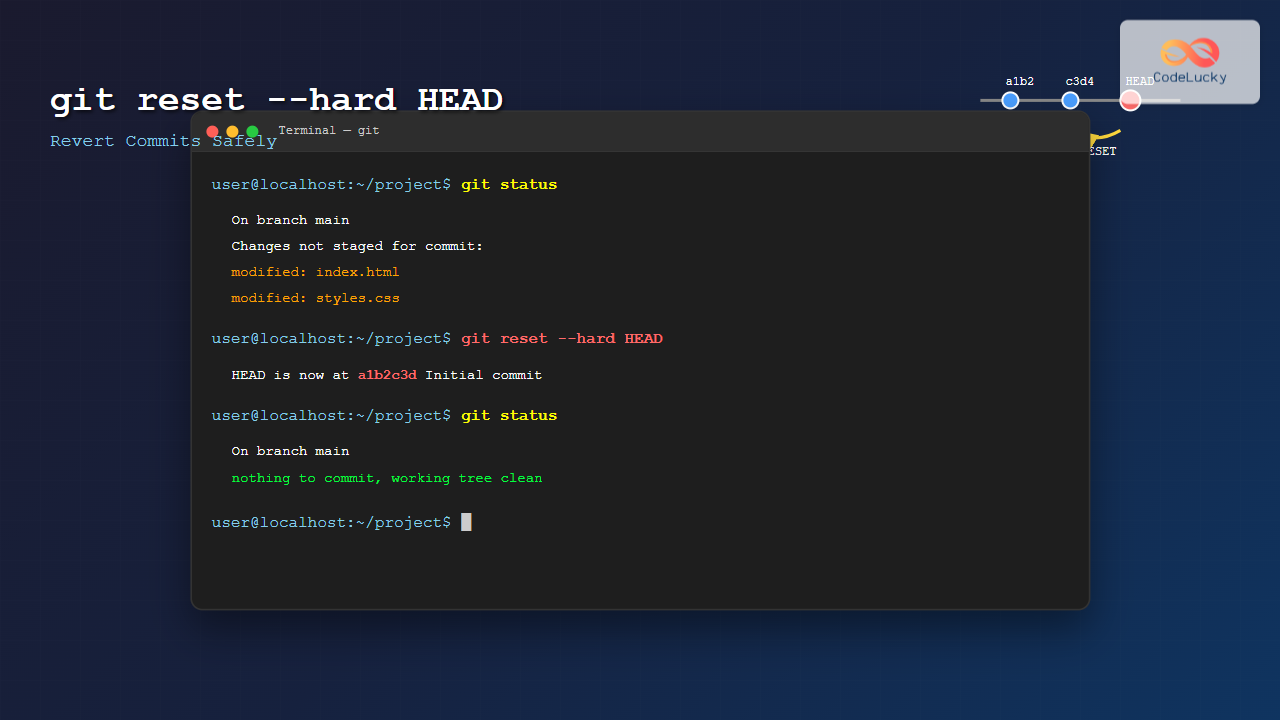
The git reset --hard HEAD command is one of Git’s most powerful and potentially dangerous tools for reverting changes. It completely discards all uncommitted changes in your working directory and resets your repository to the last commit (HEAD). This command is essential for developers who need to quickly undo modifications and return to a clean state.

What Does git reset –hard HEAD Do?
When you execute git reset --hard HEAD, Git performs three critical operations:
- Resets the HEAD pointer: Points to the current commit (no change in this case)
- Resets the staging area: Clears all staged files
- Resets the working directory: Discards all uncommitted changes
The --hard flag is what makes this command destructive – it modifies your working directory, unlike --soft or --mixed options that preserve your changes.
Basic Syntax and Usage
The basic syntax for the command is straightforward:
git reset --hard HEADYou can also specify how many commits back you want to reset:
# Reset to the previous commit
git reset --hard HEAD~1

# Reset to 3 commits ago
git reset --hard HEAD~3

# Reset to a specific commit
git reset --hard <commit-hash>
Step-by-Step Examples
Example 1: Discarding Uncommitted Changes
Let’s start with a practical scenario where you’ve made changes to multiple files but want to discard everything:
# Check current status
$ git status
On branch main
Changes not staged for commit:
  (use "git add <file>..." to update what will be committed)
  (use "git restore <file>..." to discard changes to working directory)
	modified:   index.html
	modified:   styles.css
	modified:   script.js

Untracked files:
  (use "git add <file>..." to include in what will be committed)
	temp.txt

no changes added to commit (use "git add ." or "git commit -a")
Now execute the reset command:
# Reset to HEAD (discard all changes)
$ git reset --hard HEAD
HEAD is now at a1b2c3d Initial commit

# Check status again
$ git status
On branch main
Untracked files:
  (use "git add <file>..." to include in what will be committed)
	temp.txt

nothing added to commit but untracked files present (use "git add" to track)
Result: All modified files (index.html, styles.css, script.js) are reverted to their state in the HEAD commit. The untracked file temp.txt remains because git reset doesn’t affect untracked files.
Example 2: Reverting to Previous Commits
Here’s how to revert to previous commits using different variations:
# View commit history
$ git log --oneline
d4e5f6g Fix navigation bug
c3d4e5f Add user authentication
b2c3d4e Update styling
a1b2c3d Initial commit

# Reset to the commit before the navigation fix
$ git reset --hard HEAD~1
HEAD is now at c3d4e5f Add user authentication

# Verify the reset
$ git log --oneline
c3d4e5f Add user authentication
b2c3d4e Update styling
a1b2c3d Initial commit
Example 3: Resetting with Staged Changes
This example shows what happens when you have both staged and unstaged changes:
# Make changes and stage some
$ echo "New content" > file1.txt
$ echo "More content" > file2.txt
$ git add file1.txt

# Check status
$ git status
On branch main
Changes to be committed:
  (use "git restore --staged <file>..." to unstage)
	modified:   file1.txt

Changes not staged for commit:
  (use "git add <file>..." to update what will be committed)
  (use "git restore <file>..." to discard changes to working directory)
	modified:   file2.txt

# Reset everything
$ git reset --hard HEAD
HEAD is now at c3d4e5f Add user authentication

# Check status - everything is clean
$ git status
On branch main
nothing to commit, working tree clean
Understanding Git Reset Modes
Git reset has three modes, and understanding the differences is crucial:

| Mode | HEAD | Staging Area | Working Directory |
|---|---|---|---|
--soft |
Reset | Unchanged | Unchanged |
--mixed |
Reset | Reset | Unchanged |
--hard |
Reset | Reset | Reset |
Advanced Use Cases
Resetting to a Specific Commit
You can reset to any commit using its hash:
# Find the commit hash you want
$ git log --oneline
c3d4e5f Add user authentication
b2c3d4e Update styling
a1b2c3d Initial commit

# Reset to the "Update styling" commit
$ git reset --hard b2c3d4e
HEAD is now at b2c3d4e Update styling

# Verify
$ git log --oneline
b2c3d4e Update styling
a1b2c3d Initial commit
Using with Remote Branches
Reset to match a remote branch exactly:
# Fetch latest changes from remote
$ git fetch origin

# Reset local branch to match remote
$ git reset --hard origin/main
HEAD is now at f7g8h9i Latest commit from remote
Recovery Methods: What If You Make a Mistake?
Since git reset --hard is destructive, Git provides recovery mechanisms:
Using Git Reflog
Git keeps a log of all HEAD movements in the reflog:
# View reflog to find lost commits
$ git reflog
c3d4e5f HEAD@{0}: reset: moving to HEAD~1
d4e5f6g HEAD@{1}: commit: Fix navigation bug
c3d4e5f HEAD@{2}: commit: Add user authentication

# Recover by resetting to the lost commit
$ git reset --hard d4e5f6g
HEAD is now at d4e5f6g Fix navigation bug
Time-Based Recovery
You can also reference reflog entries by time:
# Reset to where HEAD was 1 hour ago
$ git reset --hard HEAD@{1.hour.ago}

# Reset to where HEAD was yesterday
$ git reset --hard HEAD@{yesterday}
Best Practices and Safety Tips
Always Check Status First
# Good practice: always check what you're about to lose
$ git status
$ git diff HEAD
Create a Backup Branch
Before performing destructive operations, create a backup:
# Create backup branch
$ git branch backup-before-reset

# Now safely perform reset
$ git reset --hard HEAD~3

# If needed, restore from backup
$ git reset --hard backup-before-reset
Use Stash for Temporary Storage
If you might want your changes later, use stash instead:
# Stash changes instead of discarding
$ git stash push -m "Work in progress before reset"

# Clean working directory (similar effect to reset --hard)
$ git status
On branch main
nothing to commit, working tree clean

# Later, restore if needed
$ git stash pop
Common Pitfalls and How to Avoid Them
Losing Untracked Files
Problem: git reset --hard doesn’t remove untracked files, which can be confusing.
Solution: Use git clean in combination:
# Remove untracked files and directories
$ git clean -fd

# Or combine both operations
$ git reset --hard HEAD && git clean -fd
Resetting Shared Branches
Problem: Using reset --hard on branches that others are working on.
Solution: Use git revert for shared branches:
# Bad: This will cause problems for other developers
$ git reset --hard HEAD~1
$ git push --force

# Good: This creates a new commit that undoes changes
$ git revert HEAD
$ git push
Troubleshooting Common Issues
Permission Denied Errors
If you encounter permission errors:
# On Windows, files might be locked
$ git reset --hard HEAD
error: unable to unlink 'file.txt': Permission denied

# Solution: Close applications using the file, then retry
Merge Conflicts During Reset
Reset operations should not cause merge conflicts, but if you see them:
# Force the reset to complete
$ git reset --hard HEAD
# This should always work as it discards all changes
Alternative Commands
Sometimes other commands might be more appropriate:
- For single files:
git checkout HEAD -- filename - For unstaged changes:
git restore filename - For staged changes:
git restore --staged filename - For temporary storage:
git stash
Conclusion
The git reset --hard HEAD command is a powerful tool for reverting changes in Git, but it requires careful usage due to its destructive nature. Always remember to:
- Check your repository status before executing the command
- Create backups when working with important changes
- Use the reflog for recovery when mistakes happen
- Consider alternatives like
git stashfor temporary changes - Avoid using
--hardreset on shared branches
With these practices in mind, git reset --hard HEAD becomes an invaluable tool for maintaining clean and organized Git repositories. Remember that Git’s reflog provides a safety net, making most “lost” work recoverable within the default 90-day retention period.





