
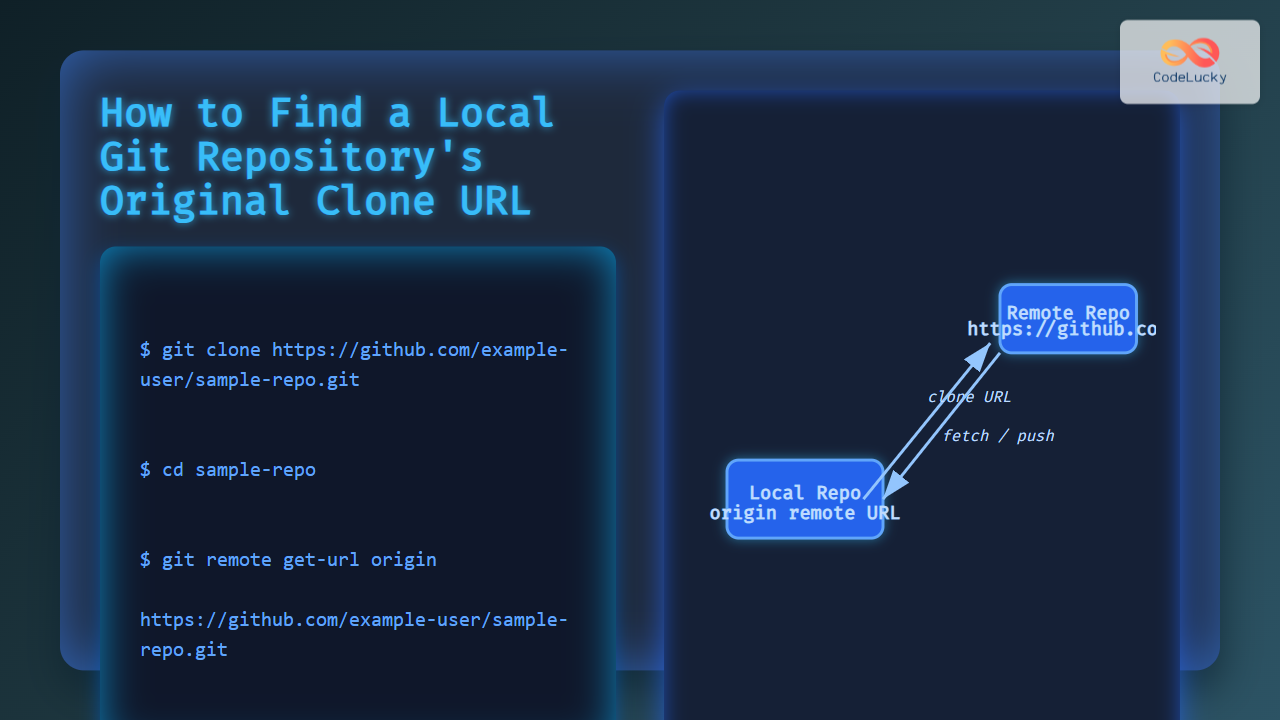
When working with Git repositories locally, it is often useful to know the exact URL from which the repository was originally cloned. This information can help you verify the source, troubleshoot remotes, or set up new remote references consistently. This guide walks you through how to determine the original clone URL of a local Git repository with detailed commands, examples, and visual explanations for clarity.
Understanding the Remote URL in Git
Every Git repository has one or more remote entries that track remote locations, typically for pushing and pulling changes. The original clone URL is stored as the default origin remote in your local repository’s Git configuration.

The remote URL is saved inside your repo’s configuration, which you can inspect anytime with Git commands.
How to Check the Remote Origin URL
Open your terminal or command prompt and navigate to the root folder of your Git repository, then run:
git remote get-url originThis command outputs the URL of the origin remote, which, unless changed, is the URL you cloned from.
Example
Suppose you cloned a repository from GitHub as:
git clone https://github.com/example-user/sample-repo.gitRunning the command:
git remote get-url originWould output:
https://github.com/example-user/sample-repo.gitAlternative Commands to Retrieve the Remote URL
git remote -v– Displays all remotes with URLs for fetch and push.git config --get remote.origin.url– Reads directly from Git config to get the origin URL.
Example:
$ git remote -v
origin  https://github.com/example-user/sample-repo.git (fetch)
origin  https://github.com/example-user/sample-repo.git (push)
Inspecting .git/config File
The remote URLs are stored in the .git/config file in the repository folder. You can open this file with any text editor and look for the [remote "origin"] section:
[remote "origin"]
    url = https://github.com/example-user/sample-repo.git
    fetch = +refs/heads/*:refs/remotes/origin/*
This confirms the origin URL the repository uses.
What If the Origin URL Has Changed?
Sometimes, the remote URL might have been updated after cloning. To confirm what the very original URL was at clone time, Git does not keep a direct history, but you can:
- Check reflogs or command history if available.
- Inspect any local documentation or commit message notes that mention the URL.
Otherwise, the current origin URL is your best source.
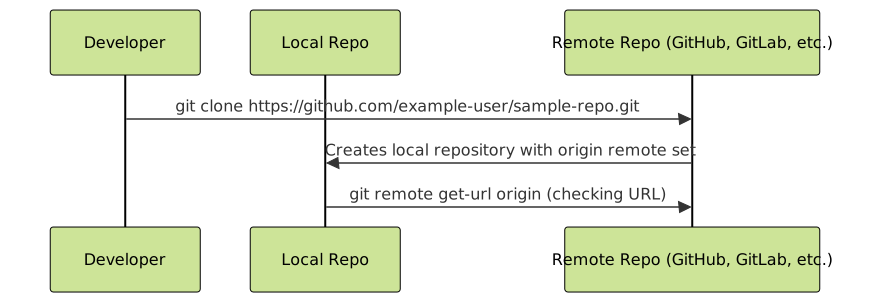
Visual Workflow: Cloning and Origin Remote Setup
Practical Tips for Working with Remote URLs
- Rename remotes: If working with multiple remotes, you can rename or add different remote URLs with
git remote renameorgit remote add. - Change the URL: Update the origin URL using
git remote set-url origin <new-url>if the repository location changes. - Check remote details quickly: Use
git remote show originfor detailed info about fetch/push URLs and branch mappings.
Summary
To determine the URL that a local Git repository was originally cloned from, the primary method is to inspect the origin remote using git remote get-url origin or git remote -v. The URL listed here is the remote repository’s address used during the original clone operation unless changed later. For complete confirmation, inspecting the .git/config file is also effective.
Knowing how to find this URL is essential for managing remotes, collaborating smoothly in teams, and maintaining good Git hygiene.





