
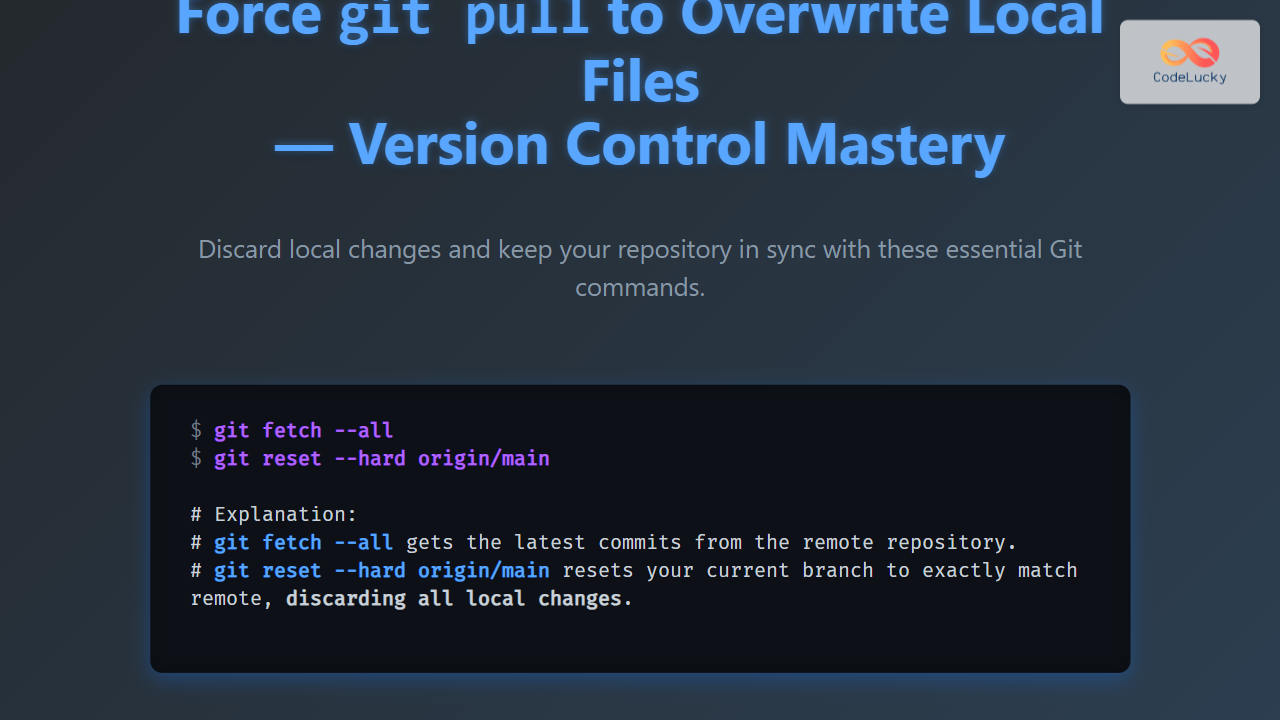
In collaborative software development, using Git effectively is crucial for smooth workflows. Sometimes, when performing a git pull, conflicts or local changes block the update from the remote repository. A common need arises to force git pull to overwrite local files, discarding local changes and syncing completely with the remote state.
This article explains how to achieve that safely, with detailed command examples, visual flow diagrams for clarity, and interactive tips for understanding Git’s internal behavior.
Why Does git pull Sometimes Fail to Update?
The git pull command fetches updates from a remote repository and tries to merge those changes into the current branch. If you have local uncommitted changes or conflicting commits, Git prevents automatic update to avoid losing untracked or modified files.
To safely force a pull and overwrite local files, you need to reset your local changes first or fetch and reset to remote explicitly.
Method 1: Using git reset and git pull
This method involves discarding local changes by resetting the branch to match the remote, then pulling the latest updates:
git fetch --all
git reset --hard origin/your-branch-name
Here’s what happens:
git fetch --allupdates all remote tracking branches.git reset --hard origin/your-branch-nameresets your current branch to exactly match the remote branch, discarding all local changes.
After this, your local branch is now synced to the remote, with no local changes remaining. Now a git pull will update your local repository without conflicts.
Example
git fetch --all
git reset --hard origin/main
git pull
Output:
From https://github.com/yourrepo/project
 * branch            main       -> FETCH_HEAD
HEAD is now at a1b2c3d Fix typos and update README
Already up to date.
Method 2: Force Pull Using Rebase and Checkout
If you want to replace local changes but keep the history linear, you can force pull with rebase:
git fetch origin
git rebase --abort  # If a rebase was in progress and failed
git reset --hard origin/your-branch-name
This approach resets all local changes plus any partial rebases, ensuring your branch matches remote perfectly.
Method 3: Clean Untracked Files and Force Pull
Sometimes untracked local files block updates. Use this to clean and reset:
git clean -fd
git fetch origin
git reset --hard origin/your-branch-name
Explanation:
git clean -fdremoves all untracked files and folders.- Followed by reset to remote state.
Interactive Visual Flow of Force Pull Operation

Understanding git reset –hard
The git reset --hard command is a powerful tool that resets the HEAD, index, and working tree.
- HEAD is moved to specified commit (e.g., remote branch).
- Index is updated to match commit.
- Working directory files are overwritten to match the commit state.
Because all local changes are discarded, use this with caution, ideally after committing or stashing files you want to keep.
Alternative: Using git pull with Force Options
Directly forcing git pull isn’t supported, but combining commands can achieve similar results.
You can also do a hard reset using a single combined command:
git fetch origin && git reset --hard origin/your-branch-name
Troubleshooting Common Issues
- Error: “Your local changes to the following files would be overwritten by merge.”
Solution: Usegit reset --hardor stash your changes before pulling. - Untracked files blocking pull
Solution: Usegit clean -fdto remove untracked files safely.
Summary Table of Commands
| Goal | Command(s) | Effect |
|---|---|---|
| Force update local branch to remote | git fetch --all |
Discard local changes, sync to remote |
| Remove untracked files and force update | git clean -fd |
Delete untracked files, discard changes, sync |
| Abort ongoing rebase and force update | git rebase --abort |
Stop rebase, discard changes, sync |
Conclusion
Forcing git pull to overwrite local files mainly involves resetting your local branch to the remote state forcibly. The recommended approach is performing git fetch followed by git reset --hard. This method removes all local changes and aligns your files perfectly with the remote repository.
Always ensure you have backed up important changes before resetting, as these steps are destructive to local modifications. Using these techniques effectively keeps your version control clean, avoiding merge conflicts and stale code.





