
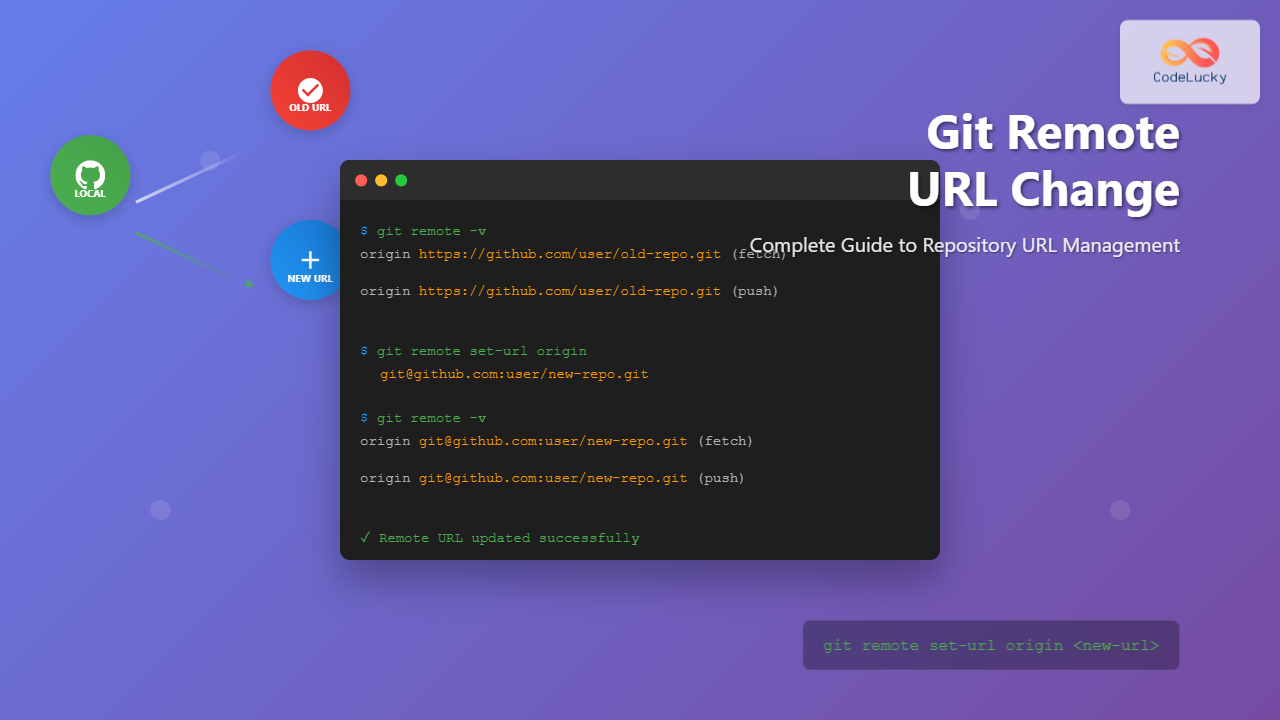
Managing Git repositories often requires updating remote URLs, whether you’re migrating between hosting services, switching from HTTPS to SSH authentication, or simply updating repository locations. This comprehensive guide will walk you through various methods to change your Git remote URL efficiently.
Understanding Git Remote URLs
A Git remote URL is the address that tells Git where to find your remote repository. It’s the bridge between your local repository and the remote server hosting your code. Remote URLs can use different protocols:
- HTTPS:
https://github.com/username/repository.git - SSH:
[email protected]:username/repository.git - Git protocol:
git://github.com/username/repository.git

Checking Current Remote URLs
Before changing any remote URL, it’s essential to understand your current configuration. Use these commands to inspect your existing remotes:
View All Remote URLs
git remote -vExpected Output:
origin  https://github.com/username/old-repo.git (fetch)
origin  https://github.com/username/old-repo.git (push)
upstream    https://github.com/original-author/repo.git (fetch)
upstream    https://github.com/original-author/repo.git (push)
View Specific Remote Details
git remote show originExpected Output:
* remote origin
  Fetch URL: https://github.com/username/old-repo.git
  Push  URL: https://github.com/username/old-repo.git
  HEAD branch: main
  Remote branches:
    main tracked
    develop tracked
Method 1: Using git remote set-url Command
The git remote set-url command is the most straightforward method to change a remote URL. This approach modifies the existing remote without creating a new one.
Basic Syntax
git remote set-url <remote-name> <new-url>Practical Examples
Changing Origin Remote URL
# Change from HTTPS to SSH
git remote set-url origin [email protected]:username/new-repo.git

# Change to a different repository
git remote set-url origin https://github.com/username/different-repo.git

# Change to GitLab
git remote set-url origin https://gitlab.com/username/project.git
Verification
git remote -vExpected Output:
origin  [email protected]:username/new-repo.git (fetch)
origin  [email protected]:username/new-repo.git (push)
Method 2: Changing Push and Fetch URLs Separately
Sometimes you need different URLs for fetching and pushing operations. Git allows you to set separate URLs for these actions.
Setting Different Push URL
# Set a different push URL while keeping the same fetch URL
git remote set-url --push origin [email protected]:username/repo.git
Setting Different Fetch URL
# This changes the fetch URL (and push URL if not separately set)
git remote set-url origin https://github.com/username/repo.git
Example: Using Different Protocols
# Fetch via HTTPS (no authentication required for public repos)
git remote set-url origin https://github.com/username/repo.git

# Push via SSH (for authenticated operations)
git remote set-url --push origin [email protected]:username/repo.git
Verification Output:
origin  https://github.com/username/repo.git (fetch)
origin  [email protected]:username/repo.git (push)
Method 3: Removing and Re-adding Remotes
When you need complete control over remote configuration, you can remove the existing remote and add a new one with the desired URL.
Step-by-Step Process
# Step 1: Remove existing remote
git remote remove origin

# Step 2: Add new remote with updated URL
git remote add origin https://github.com/username/new-repo.git

# Step 3: Verify the change
git remote -v
Expected Output:
origin  https://github.com/username/new-repo.git (fetch)
origin  https://github.com/username/new-repo.git (push)
Adding Multiple Remotes
# Add upstream remote for original repository
git remote add upstream https://github.com/original-author/repo.git

# Add a backup remote
git remote add backup https://gitlab.com/username/backup-repo.git
Common Scenarios and Solutions
Switching from HTTPS to SSH
This is particularly useful when you want to avoid entering credentials repeatedly:
# Current HTTPS URL
git remote -v
# origin  https://github.com/username/repo.git (fetch)
# origin  https://github.com/username/repo.git (push)

# Change to SSH
git remote set-url origin [email protected]:username/repo.git

# Verify the change
git remote -v
# origin  [email protected]:username/repo.git (fetch)
# origin  [email protected]:username/repo.git (push)
Migrating Between Git Hosting Services
# From GitHub to GitLab
git remote set-url origin https://gitlab.com/username/project.git

# From GitLab to Bitbucket
git remote set-url origin https://bitbucket.org/username/repository.git

# To self-hosted Git server
git remote set-url origin https://git.yourcompany.com/username/project.git
Updating Repository Name or Username
# After changing GitHub username
git remote set-url origin https://github.com/new-username/repo.git

# After renaming repository
git remote set-url origin https://github.com/username/new-repo-name.git
Advanced Remote Management
Working with Multiple Push URLs
You can configure a single remote to push to multiple repositories simultaneously:
# Add multiple push URLs to the same remote
git remote set-url --add --push origin https://github.com/username/repo.git
git remote set-url --add --push origin https://gitlab.com/username/repo.git
Configuration Result:
origin  https://github.com/username/repo.git (fetch)
origin  https://github.com/username/repo.git (push)
origin  https://gitlab.com/username/repo.git (push)
Using Git Configuration Files
You can also modify remote URLs directly in the Git configuration:
# Edit repository configuration
git config --edit

# Or modify specific remote URL
git config remote.origin.url https://github.com/username/new-repo.git
Troubleshooting Common Issues
Authentication Errors
When switching to SSH, ensure your SSH key is properly configured:
# Test SSH connection
ssh -T [email protected]

# Expected output for GitHub:
# Hi username! You've successfully authenticated, but GitHub does not provide shell access.
Remote Does Not Exist Error
If you encounter “fatal: No such remote” error:
# Check existing remotes
git remote -v

# Add the remote if it doesn't exist
git remote add origin https://github.com/username/repo.git
Permission Denied Errors
For HTTPS authentication issues:
# Configure credentials (if using credential helper)
git config --global credential.helper store

# Or use personal access token instead of password
git remote set-url origin https://username:[email protected]/username/repo.git
Best Practices
Security Considerations
- Use SSH for private repositories to avoid exposing credentials
- Avoid embedding passwords in HTTPS URLs
- Use personal access tokens instead of passwords for HTTPS
- Regularly rotate access tokens and SSH keys
Workflow Recommendations
- Always verify changes with
git remote -v - Test connectivity after changing URLs
- Update team documentation when changing shared repository URLs
- Consider using git aliases for frequently used remote operations
Creating Useful Git Aliases
# Add helpful aliases to your Git configuration
git config --global alias.remote-url 'remote -v'
git config --global alias.set-origin 'remote set-url origin'

# Usage
git remote-url          # Shows all remote URLs
git set-origin new-url  # Changes origin URL
Testing Your Changes
After changing your remote URL, it’s crucial to test the connection:
Test Fetch Operation
# Fetch from the new remote
git fetch origin

# Expected output (if successful):
# From github.com:username/repo
#  * [new branch]      main       -> origin/main
Test Push Operation
# Create a test commit (optional)
echo "# Remote URL updated" >> README.md
git add README.md
git commit -m "Test remote URL change"

# Push to verify connectivity
git push origin main
Conclusion
Changing Git remote URLs is a fundamental skill for developers working with distributed version control. Whether you’re migrating between hosting services, updating authentication methods, or managing multiple remotes, the techniques covered in this guide will help you maintain efficient workflows.
Remember to always verify your changes with git remote -v and test connectivity after updating URLs. By following the best practices outlined here, you’ll ensure smooth repository management and avoid common pitfalls that can disrupt your development process.
The git remote set-url command remains the most straightforward approach for most scenarios, while advanced techniques like multiple push URLs and separate fetch/push configurations offer flexibility for complex workflows. Choose the method that best fits your specific requirements and maintain consistent practices across your projects.





