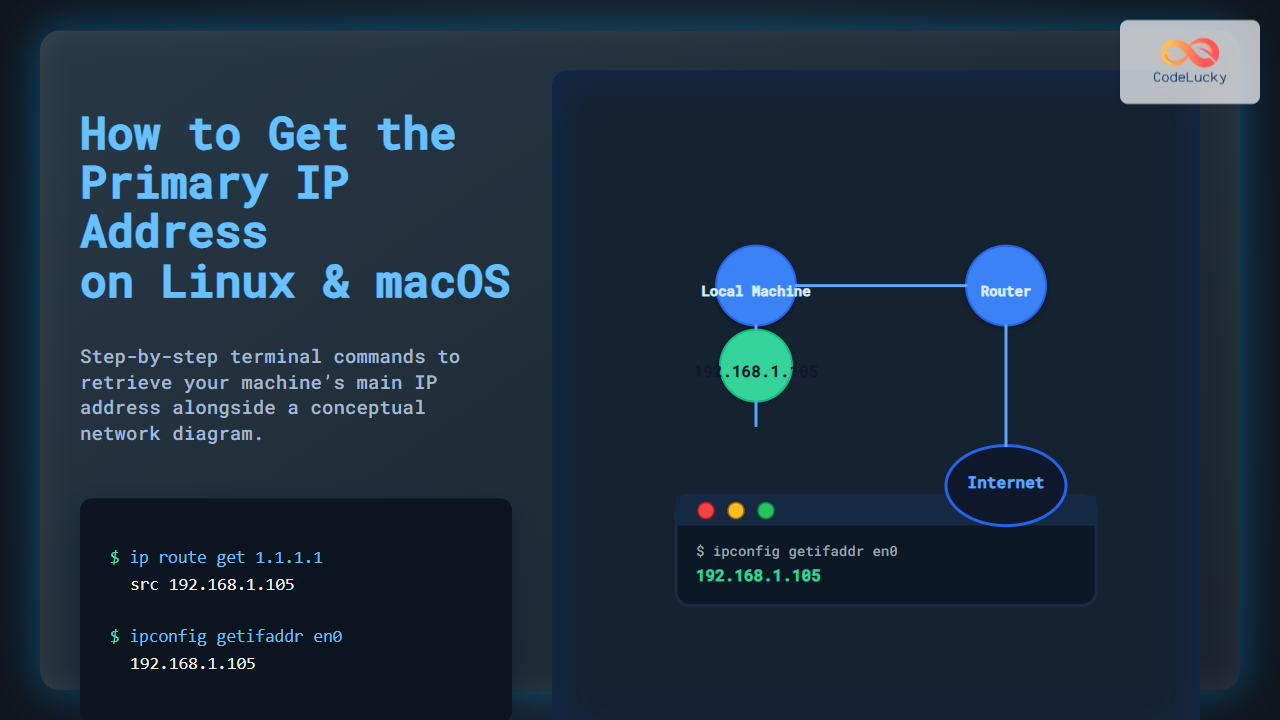
Understanding and retrieving the primary IP address of your local machine is essential for network configuration, debugging, and programming tasks. This comprehensive guide covers multiple methods to acquire the primary IP address on Linux and macOS (OS X), complete with clear command examples, expected outputs, and visual diagrams to aid understanding.
What Is the Primary IP Address?
The primary IP address refers to the main IPv4 address assigned to the local machine’s active network interface. This is typically the address used for outgoing connections and local network communication. Machines often have multiple IP addresses associated with different interfaces; the primary one is commonly connected to the default route.

How to Get the Primary IP Address on Linux
Linux offers multiple command-line tools to fetch IP addresses, with ip and ifconfig being the most common.
Method 1: Using the ip Command
The ip command is modern, versatile, and preferred in most Linux distributions.
# Find the primary IP by checking the interface connected to default route
ip route get 1.1.1.1 | grep -oP 'src \K[\d.]+'
Explanation: This requests the route to the external IP 1.1.1.1 and extracts the source IP address used to send packets. This IP reflects your primary IP address.
Sample Output:
192.168.1.105
Method 2: Using hostname Command
The hostname command with the -I flag displays all assigned IP addresses. The first one usually is the primary.
hostname -I | awk '{print $1}'
Sample Output:
192.168.1.105
Method 3: Using ifconfig Command
Though deprecated on some distros, ifconfig is still widely available.
ifconfig $(ip route | grep default | awk '{print $5}') | grep 'inet ' | awk '{print $2}'
Here, the command extracts the interface used for the default route, then fetches its IPv4 address.
How to Get the Primary IP Address on macOS (OS X)
macOS uses slightly different commands but follows similar principles.
Method 1: Using ipconfig getifaddr
This command fetches the IP address for a specific interface.
ipconfig getifaddr en0
Here, en0 typically represents the primary Ethernet or Wi-Fi interface. If you have multiple interfaces, you can check which ones are active first.
Sample Output:
192.168.1.105
Method 2: Using networksetup Command
This can list active network services to identify the primary interface, then get its IP address.
primaryInterface=$(route get default | grep interface | awk '{print $2}')
ipconfig getifaddr $primaryInterface
This script automatically detects the interface used for the default route and prints its IP address, ensuring accuracy even if the interface changes.
Method 3: Using ifconfig on macOS
Similar to Linux, you can extract the IP address with:
ifconfig $(route get default | awk '/interface/ {print $2}') | grep inet | grep -v 127.0.0.1 | awk '{print $2}'
This command identifies the default interface and then lists its IP address excluding the loopback.

Verifying the IP Address
Use the ping command to verify connectivity with the primary IP:
ping -c 3 192.168.1.105
If ping succeeds, the IP is active and reachable for local or wider network use.
Summary Table of Commands
| Operating System | Command | Purpose |
|---|---|---|
| Linux | ip route get 1.1.1.1 | grep -oP 'src \K[\d.]+' |
Fetches source IP for outgoing traffic (primary IP) |
| Linux | hostname -I | awk '{print $1}' |
Lists all IPs, shows first as primary |
| macOS | ipconfig getifaddr en0 |
Fetches IP of interface en0 (Wi-Fi/Ethernet) |
| macOS | primaryInterface=$(route get default | awk '/interface/ {print $2}'); ipconfig getifaddr $primaryInterface |
Auto-detect primary interface and fetch IP |
Interactive Example
Run this shell script snippet interactively to display the primary IP address on either system:
#!/bin/bash
if [[ "$OSTYPE" == "darwin"* ]]; then
  iface=$(route get default | awk '/interface/ {print $2}')
  ipconfig getifaddr $iface
elif [[ "$OSTYPE" == "linux-gnu"* ]]; then
  ip route get 1.1.1.1 | grep -oP 'src \K[\d.]+'
else
  echo "Unsupported OS"
fi
This script first detects the OS, then prints the primary IP accordingly.
Conclusion
Knowing how to get your machine’s primary IP address on Linux and macOS is vital for networking and scripting. Utilize the ip, hostname, ifconfig, and macOS-specific commands as outlined for accurate results. The visual process flow and command examples in this guide ensure clear understanding and immediate application.