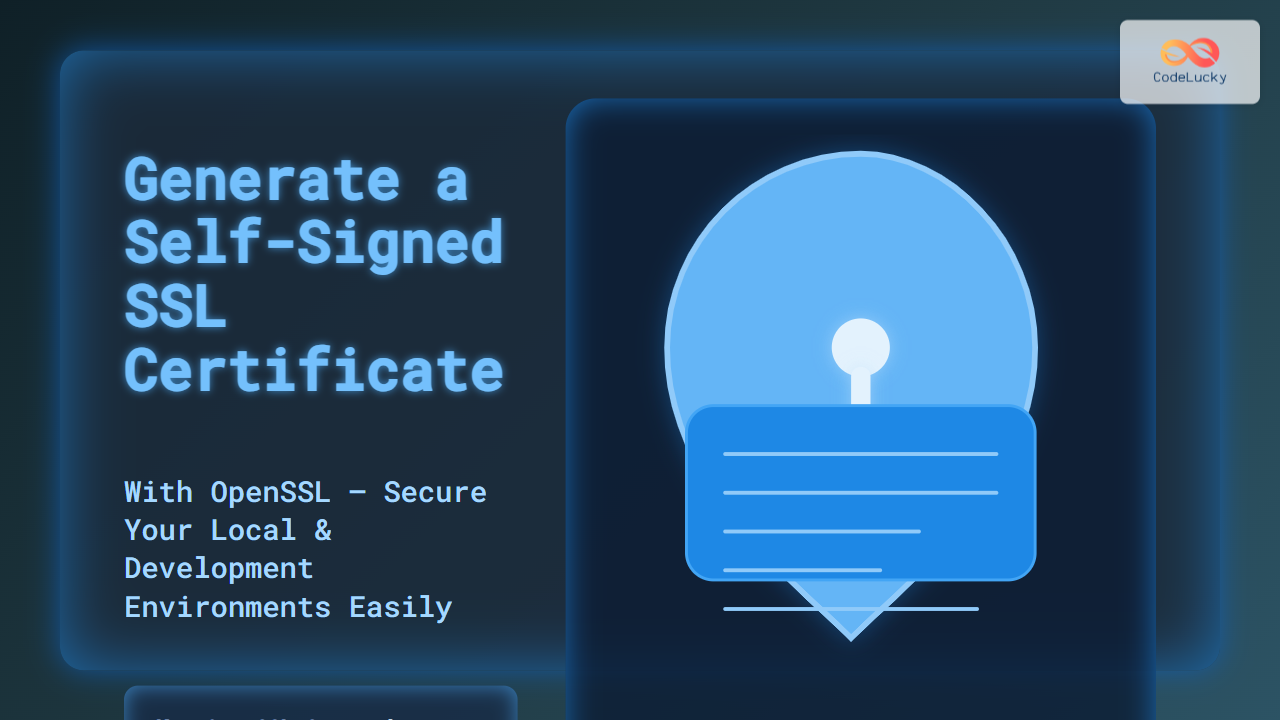
Securing web traffic is paramount, and SSL/TLS certificates facilitate encrypted communication between clients and servers. When a trusted Certificate Authority (CA) signed certificate is not feasible, generating a self-signed SSL certificate with OpenSSL becomes the go-to solution for testing, development, or internal use. This comprehensive guide explains how to create such a certificate step-by-step, complete with command examples, output excerpts, and helpful diagrams to visualize the process.
What is a Self-Signed SSL Certificate?
A self-signed SSL certificate is an SSL certificate signed with its own private key rather than a public CA. While it provides encryption and identity verification within controlled environments, it is not trusted by browsers by default since it lacks a third-party signature.
Why Generate a Self-Signed SSL Certificate?
- Testing SSL configurations on development or staging servers
- Internal applications where public trust is not required
- Learning and experimenting with SSL/TLS
Prerequisites
- OpenSSL installed on your machine (Linux, macOS, Windows)
- Access to terminal or command line interface
Step 1: Generate a Private Key
The private key is essential for creating the SSL certificate. To generate a 2048-bit RSA private key, run:
openssl genrsa -out mydomain.key 2048Output:
Generating RSA private key, 2048 bit long modulus (2 primes)
.............................................................................+++++
......................................+++++
e is 65537 (0x10001)
This creates mydomain.key, your private key file.
Step 2: Generate a Certificate Signing Request (CSR) (Optional)
This step is optional for self-signed certificates but useful if you want to generate the certificate based on detailed input like organization data.
openssl req -new -key mydomain.key -out mydomain.csrFollow the prompts to enter details:
- Country Name (2 letter code)
- State or Province Name
- Locality Name (City)
- Organization Name
- Organizational Unit Name
- Common Name (your domain name)
- Email Address
Step 3: Generate the Self-Signed Certificate
You can generate the self-signed certificate directly without a CSR or use the CSR if created.
Generate a certificate valid for 365 days:
openssl req -x509 -nodes -days 365 -key mydomain.key -out mydomain.crtOr, using the CSR:
openssl x509 -req -days 365 -in mydomain.csr -signkey mydomain.key -out mydomain.crtSample output snippet:
Signature ok
subject=/C=US/ST=California/L=San Francisco/O=Example Corp/CN=www.example.com
Getting Private key
Step 4: Verify the Certificate
Check the certificate details to ensure correctness:
openssl x509 -in mydomain.crt -text -nooutThis outputs details like:
- Subject (who the certificate is for)
- Issuer (self-signed, so same as subject)
- Validity dates
- Public key info
- Extensions
Step 5: Deploy the Certificate to a Web Server
Deploy the key and certificate on your server software. For example:
- Apache: Configure
SSLCertificateFileandSSLCertificateKeyFiledirectives - Nginx: Use
ssl_certificateandssl_certificate_keysettings
Restart your web server to enable HTTPS with your self-signed certificate.
Example: Quick Command Set
Full quick command to generate a private key and self-signed certificate valid for 1 year:
openssl req -x509 -nodes -days 365 -newkey rsa:2048 -keyout mydomain.key -out mydomain.crtThis command creates the private key and certificate in one step, asking for certificate info interactively.
Common Error Handling Tips
- “unable to write ‘random state’”: Usually harmless but set correct permissions on home directory.
- Browser Warning: Browsers show untrusted warnings for self-signed certificates unless explicitly added to trusted stores.
How Self-Signed SSL Works – Visual Summary

Conclusion
Generating a self-signed SSL certificate using OpenSSL is straightforward and invaluable for testing and internal projects. While not suitable for production public sites due to trust issues, it helps secure environments during development or intranet use. This guide’s detailed explanations, command examples, and diagrams assist developers and system administrators in implementing SSL quickly and correctly.