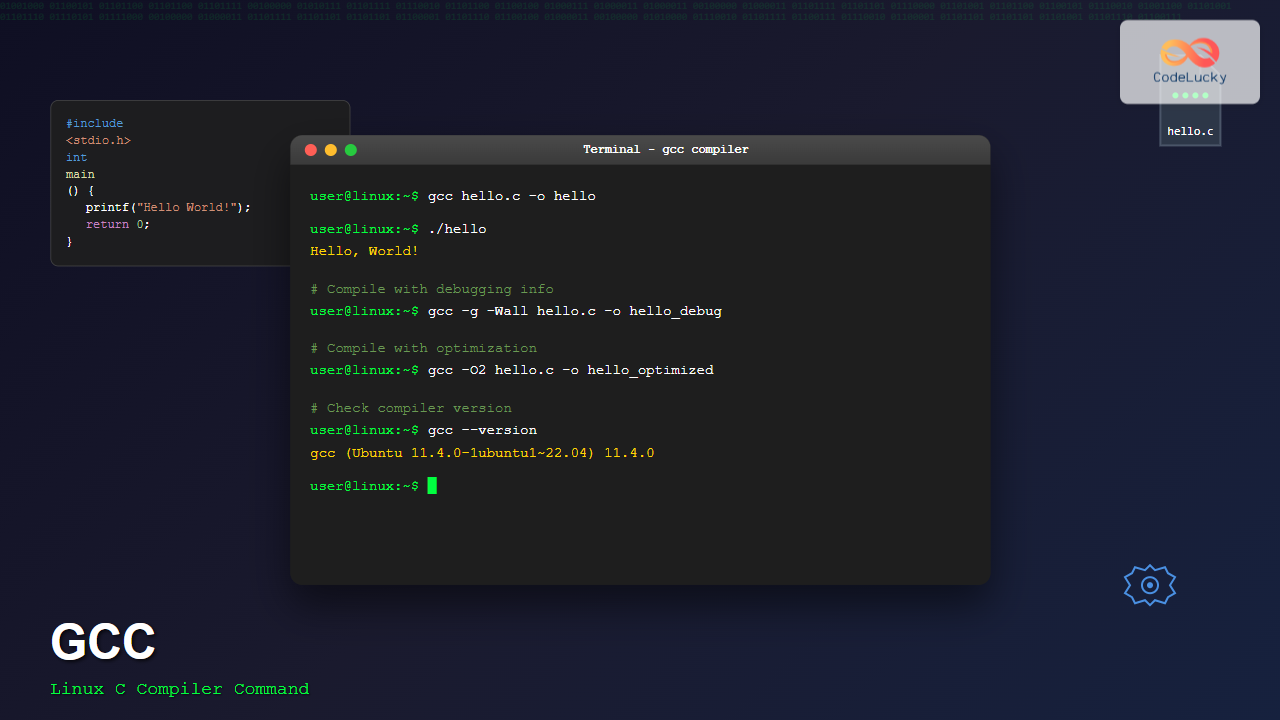
The gcc (GNU Compiler Collection) is one of the most essential tools for C programmers working on Linux systems. This powerful compiler transforms your C source code into executable programs, offering extensive optimization options and debugging capabilities. Whether you’re a beginner learning C programming or an experienced developer, mastering gcc will significantly enhance your development workflow.
What is gcc Command?
The gcc command is the GNU Compiler Collection’s C compiler frontend. It processes C source files through multiple stages: preprocessing, compilation, assembly, and linking, ultimately producing executable binary files. Originally developed for the GNU operating system, gcc has become the standard compiler for most Unix-like systems, including Linux distributions.
Basic Syntax of gcc Command
The fundamental syntax of the gcc command follows this pattern:
gcc [options] source_file(s) -o output_fileWhere:
- options: Compiler flags and parameters
- source_file(s): One or more C source files (.c extension)
- -o output_file: Specifies the name of the output executable
Installing gcc on Linux
Most Linux distributions come with gcc pre-installed. If not, you can install it using your distribution’s package manager:
# Ubuntu/Debian
sudo apt update
sudo apt install gcc

# CentOS/RHEL/Fedora
sudo yum install gcc
# or for newer versions
sudo dnf install gcc

# Arch Linux
sudo pacman -S gcc
Verify the installation:
gcc --versionCompiling Your First C Program
Let’s start with a simple “Hello World” program. Create a file named hello.c:
#include <stdio.h>

int main() {
    printf("Hello, World!\n");
    return 0;
}
Compile and run the program:
gcc hello.c -o hello
./hello
Output:
Hello, World!Understanding the Compilation Process
The gcc compilation process consists of four main stages:
1. Preprocessing
Handles preprocessor directives like #include and #define:
gcc -E hello.c -o hello.i2. Compilation
Converts preprocessed code to assembly language:
gcc -S hello.c -o hello.s3. Assembly
Translates assembly code to machine code (object file):
gcc -c hello.c -o hello.o4. Linking
Links object files with libraries to create the final executable:
gcc hello.o -o helloEssential gcc Compiler Flags
Basic Compilation Flags
| Flag | Description | Example |
|---|---|---|
-o |
Specify output file name | gcc file.c -o program |
-c |
Compile without linking | gcc -c file.c |
-g |
Include debugging information | gcc -g file.c -o program |
-Wall |
Enable all common warnings | gcc -Wall file.c -o program |
-Werror |
Treat warnings as errors | gcc -Werror file.c -o program |
Optimization Flags
# No optimization (default)
gcc hello.c -o hello

# Basic optimization
gcc -O1 hello.c -o hello

# Standard optimization
gcc -O2 hello.c -o hello

# Aggressive optimization
gcc -O3 hello.c -o hello

# Optimize for size
gcc -Os hello.c -o hello
Working with Multiple Source Files
When working with larger projects, you’ll often need to compile multiple source files. Let’s create an example:
math_utils.h:
#ifndef MATH_UTILS_H
#define MATH_UTILS_H

int add(int a, int b);
int multiply(int a, int b);

#endif
math_utils.c:
#include "math_utils.h"

int add(int a, int b) {
    return a + b;
}

int multiply(int a, int b) {
    return a * b;
}
main.c:
#include <stdio.h>
#include "math_utils.h"

int main() {
    int x = 10, y = 5;
    printf("Addition: %d + %d = %d\n", x, y, add(x, y));
    printf("Multiplication: %d * %d = %d\n", x, y, multiply(x, y));
    return 0;
}
Compile all files together:
gcc main.c math_utils.c -o calculator
./calculator
Output:
Addition: 10 + 5 = 15
Multiplication: 10 * 5 = 50
Alternatively, compile object files separately:
gcc -c main.c -o main.o
gcc -c math_utils.c -o math_utils.o
gcc main.o math_utils.o -o calculator
Including Libraries
To link external libraries, use the -l flag followed by the library name:
# Link with math library
gcc program.c -lm -o program

# Link with pthread library
gcc program.c -lpthread -o program

# Specify library path
gcc program.c -L/path/to/library -lmylibrary -o program
Example: Using Math Library
math_example.c:
#include <stdio.h>
#include <math.h>

int main() {
    double number = 16.0;
    double result = sqrt(number);
    printf("Square root of %.2f is %.2f\n", number, result);
    printf("Sine of π/2 is %.2f\n", sin(M_PI/2));
    return 0;
}
Compile with math library:
gcc math_example.c -lm -o math_example
./math_example
Output:
Square root of 16.00 is 4.00
Sine of π/2 is 1.00
Debugging with gcc
The -g flag includes debugging information in the compiled binary, making it compatible with debuggers like gdb:
gcc -g -Wall program.c -o program
gdb ./program
Common Warning Flags
# Enable comprehensive warnings
gcc -Wall -Wextra -Wpedantic program.c -o program

# Check for uninitialized variables
gcc -Wall -Wuninitialized program.c -o program

# Detect format string issues
gcc -Wall -Wformat=2 program.c -o program
Creating Static and Shared Libraries
Static Library (.a)
# Compile object files
gcc -c math_utils.c -o math_utils.o

# Create static library
ar rcs libmath_utils.a math_utils.o

# Use the library
gcc main.c -L. -lmath_utils -o program
Shared Library (.so)
# Create shared library
gcc -fPIC -shared math_utils.c -o libmath_utils.so

# Compile and link with shared library
gcc main.c -L. -lmath_utils -o program

# Run with library path
LD_LIBRARY_PATH=. ./program
Cross-Platform Compilation
gcc supports cross-compilation for different architectures:
# 32-bit compilation on 64-bit system
gcc -m32 program.c -o program

# ARM cross-compilation
arm-linux-gnueabihf-gcc program.c -o program_arm
Makefile Integration
Create a simple Makefile for automated compilation:
CC=gcc
CFLAGS=-Wall -Wextra -g
TARGET=calculator
SOURCES=main.c math_utils.c

$(TARGET): $(SOURCES)
	$(CC) $(CFLAGS) $(SOURCES) -o $(TARGET)

clean:
	rm -f $(TARGET) *.o

.PHONY: clean
Compile using:
make
make clean
Advanced gcc Features
Profile-Guided Optimization
# Step 1: Compile with profiling
gcc -fprofile-generate program.c -o program

# Step 2: Run program to collect data
./program

# Step 3: Recompile with profile data
gcc -fprofile-use program.c -o program_optimized
Link Time Optimization
gcc -flto -O2 *.c -o optimized_programCommon gcc Error Messages and Solutions
| Error Message | Cause | Solution |
|---|---|---|
fatal error: stdio.h: No such file |
Missing development headers | Install build-essential package |
undefined reference to 'function' |
Missing library link | Add appropriate -l flag |
permission denied |
Output file not executable | Use chmod +x filename |
multiple definition of 'function' |
Function defined multiple times | Use header guards or extern |
Performance Tips and Best Practices
- Use appropriate optimization levels: -O2 for release builds, -O0 for debugging
- Enable warnings: Always use -Wall -Wextra for comprehensive warning detection
- Include debugging information: Use -g during development for better debugging
- Separate compilation: Use -c for large projects to avoid recompiling unchanged files
- Use Makefiles: Automate compilation process for complex projects
- Profile your code: Use -pg for profiling with gprof
Conclusion
The gcc command is an indispensable tool for C programmers on Linux systems. From simple program compilation to advanced optimization techniques, gcc provides comprehensive functionality for all development needs. By mastering the various compiler flags, understanding the compilation process, and following best practices, you can significantly improve your development workflow and create efficient, well-optimized C programs.
Start with basic compilation commands and gradually explore advanced features like optimization flags, debugging options, and library linking. Regular practice with different gcc options will make you a more proficient C developer and help you tackle complex programming projects with confidence.
Related Posts
g++ Command Linux: Complete Guide to Compile C++ Programs Efficiently
The g++ command is one of the most essential tools for C++ developers working on Linux systems. As part of...

C Compilers: Choosing and Using Different C Compilers
C programming is a powerful and versatile language that has stood the test of time. One of the key components...
C Makefiles: Automating Compilation Process
In the world of C programming, efficiency is key. As projects grow larger and more complex, manually compiling each source...

C Environment Setup: Installation and Configuration
Welcome to the world of C programming! 🖥️ Whether you're a beginner taking your first steps into coding or an...

C Standard Library: <stdio.h> Functions
The C programming language is renowned for its efficiency and power, and much of this comes from its extensive standard...
source Command Linux: Execute Scripts and Load Functions Efficiently
The source command in Linux is a powerful built-in shell command that executes commands from a file within the current...

C Functions: Defining and Calling Functions
Functions are the building blocks of C programming, allowing you to organize your code into reusable, manageable pieces. In this...
make Command Linux: Complete Guide to Building Programs from Source Code
The make command is one of the most essential tools in Linux for building and compiling software from source code....
C++ Environment Setup: Installation and Configuration
Setting up a robust C++ development environment is crucial for any aspiring or seasoned programmer. This comprehensive guide will walk...

C Header Files: Declaring Shared Functions and Variables
In the world of C programming, header files play a crucial role in organizing and structuring code. They serve as...

C Preprocessor Directives: #include, #define, and Conditional Compilation
The C preprocessor is a powerful tool that plays a crucial role in the compilation process of C programs. It's...

C Command Line Arguments: argc and argv
In the world of C programming, command line arguments provide a powerful way to make your programs more flexible and...