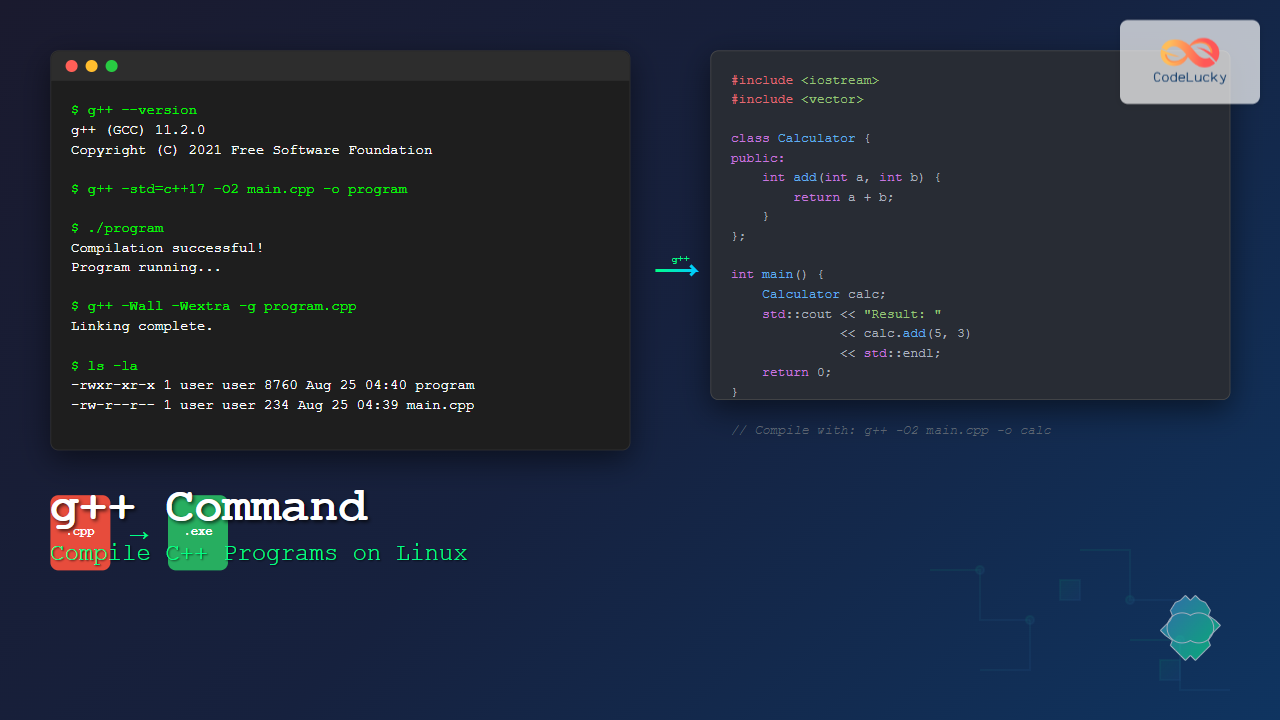
The g++ command is one of the most essential tools for C++ developers working on Linux systems. As part of the GNU Compiler Collection (GCC), g++ transforms your C++ source code into executable programs through a sophisticated compilation process. Whether you’re a beginner learning C++ or an experienced developer optimizing production code, mastering g++ will significantly enhance your development workflow.
What is the g++ Command?
The g++ command is the GNU C++ compiler that comes pre-installed on most Linux distributions. It’s a frontend to the GCC (GNU Compiler Collection) specifically designed for compiling C++ programs. The g++ compiler handles the entire compilation pipeline, including preprocessing, compilation, assembly, and linking stages.
Key Features of g++:
- Supports multiple C++ standards (C++98, C++11, C++14, C++17, C++20, C++23)
- Cross-platform compatibility
- Extensive optimization capabilities
- Comprehensive debugging support
- Rich set of warning and error messages
Basic Syntax and Usage
The basic syntax of the g++ command follows this pattern:
g++ [options] source-files -o output-fileSimple Compilation Example
Let’s start with a basic “Hello World” program to demonstrate fundamental g++ usage:
// hello.cpp
#include <iostream>

int main() {
    std::cout << "Hello, World!" << std::endl;
    return 0;
}
To compile this program:
$ g++ hello.cpp -o hello
$ ./hello
Output:
Hello, World!Essential g++ Command Options
Output Specification (-o)
The -o flag specifies the output executable name:
# Creates executable named 'myprogram'
$ g++ source.cpp -o myprogram

# Without -o, creates 'a.out' by default
$ g++ source.cpp
C++ Standard Selection (-std)
Specify which C++ standard to use during compilation:
$ g++ -std=c++11 program.cpp -o program_cpp11
$ g++ -std=c++17 program.cpp -o program_cpp17
$ g++ -std=c++20 program.cpp -o program_cpp20
Warning Flags (-W options)
Enable comprehensive warnings to catch potential issues:
$ g++ -Wall -Wextra -Wpedantic program.cpp -o program-Wall: Enables most common warnings-Wextra: Additional useful warnings-Wpedantic: Warns about non-standard C++ features
Debug Information (-g)
Include debugging symbols for use with debuggers like GDB:
$ g++ -g program.cpp -o program_debugOptimization Levels
g++ offers various optimization levels to improve program performance:
Optimization Flags Comparison
# No optimization (default, fastest compilation)
$ g++ program.cpp -o program_O0

# Basic optimization
$ g++ -O1 program.cpp -o program_O1

# Moderate optimization (recommended for most cases)
$ g++ -O2 program.cpp -o program_O2

# Aggressive optimization
$ g++ -O3 program.cpp -o program_O3

# Optimize for size
$ g++ -Os program.cpp -o program_Os
Performance Example
Let’s demonstrate optimization impact with a simple mathematical computation:
// math_intensive.cpp
#include <iostream>
#include <chrono>

int main() {
    auto start = std::chrono::high_resolution_clock::now();

    long long sum = 0;
    for (int i = 0; i < 1000000000; i++) {
        sum += i * i;
    }

    auto end = std::chrono::high_resolution_clock::now();
    auto duration = std::chrono::duration_cast<std::chrono::milliseconds>(end - start);

    std::cout << "Sum: " << sum << std::endl;
    std::cout << "Time: " << duration.count() << "ms" << std::endl;
    return 0;
}
# Compile with different optimization levels
$ g++ math_intensive.cpp -o math_O0
$ g++ -O2 math_intensive.cpp -o math_O2
$ g++ -O3 math_intensive.cpp -o math_O3
# Test performance
$ time ./math_O0
$ time ./math_O2
$ time ./math_O3Compiling Multiple Files
Multiple Source Files
When working with larger projects, you’ll often need to compile multiple source files:
// main.cpp
#include "calculator.h"
#include <iostream>

int main() {
    Calculator calc;
    std::cout << "5 + 3 = " << calc.add(5, 3) << std::endl;
    return 0;
}

// calculator.h
#ifndef CALCULATOR_H
#define CALCULATOR_H

class Calculator {
public:
    int add(int a, int b);
    int subtract(int a, int b);
};

#endif

// calculator.cpp
#include "calculator.h"

int Calculator::add(int a, int b) {
    return a + b;
}

int Calculator::subtract(int a, int b) {
    return a - b;
}
Compile all files together:
$ g++ main.cpp calculator.cpp -o calculator_appSeparate Compilation and Linking
For larger projects, compile object files separately then link them:
# Compile to object files (-c flag)
$ g++ -c calculator.cpp -o calculator.o
$ g++ -c main.cpp -o main.o

# Link object files
$ g++ calculator.o main.o -o calculator_app

# Or combine in one command
$ g++ *.o -o calculator_app
Working with Libraries
Including Library Paths
Use -I for include directories and -L for library directories:
# Include custom header directory
$ g++ -I./include program.cpp -o program

# Link with library directory and specific library
$ g++ -L./lib program.cpp -lmylib -o program
Static vs Dynamic Linking
# Static linking (default for most libraries)
$ g++ program.cpp -static -o program_static

# Dynamic linking with specific library
$ g++ program.cpp -lboost_system -o program_dynamic
Advanced g++ Features
Preprocessor Options
Control preprocessing behavior:
# Define macros
$ g++ -DDEBUG=1 -DVERSION='"1.0"' program.cpp -o program

# Show only preprocessor output
$ g++ -E program.cpp
Compiler Information
Get useful information about your g++ installation:
# Check g++ version
$ g++ --version

# Show default include paths
$ g++ -v -E -x c++ /dev/null

# List supported standards
$ g++ --help=target | grep std
Profile-Guided Optimization
For maximum performance in production code:
# Step 1: Compile with profiling
$ g++ -fprofile-generate program.cpp -o program_prof

# Step 2: Run with typical workload
$ ./program_prof

# Step 3: Compile with profile data
$ g++ -fprofile-use program.cpp -o program_optimized
Error Handling and Debugging
Common Compilation Errors
Understanding common g++ error messages:
// error_example.cpp
#include <iostream>

int main() {
    int x = 10;
    int y = 0;
    std::cout << x / y << std::endl;  // Runtime error, not compile error

    // Compile error example:
    undeclared_variable = 5;  // This will cause compilation error
    return 0;
}
Compilation will produce:
$ g++ error_example.cpp -o error_prog
error_example.cpp: In function 'int main()':
error_example.cpp:8:5: error: 'undeclared_variable' was not declared in this scope
    8 |     undeclared_variable = 5;
      |     ^~~~~~~~~~~~~~~~~~~
Debugging Flags
# Maximum debug information
$ g++ -g3 -ggdb program.cpp -o program_debug

# Debug with optimization (careful with this)
$ g++ -g -O2 program.cpp -o program_opt_debug

# Include debugging symbols but optimize
$ g++ -g -DNDEBUG -O2 program.cpp -o program_release_debug
Best Practices and Tips
Recommended Compilation Command
For development, use this comprehensive command:
$ g++ -std=c++17 -Wall -Wextra -Wpedantic -g -O2 program.cpp -o programMakefile Integration
Create a simple Makefile for consistent compilation:
# Makefile
CXX = g++
CXXFLAGS = -std=c++17 -Wall -Wextra -Wpedantic -g -O2
TARGET = myprogram
SOURCES = main.cpp calculator.cpp

$(TARGET): $(SOURCES)
	$(CXX) $(CXXFLAGS) $(SOURCES) -o $(TARGET)

clean:
	rm -f $(TARGET)

.PHONY: clean
Performance Tips
- Use
-O2for most production builds - Enable
-march=nativefor CPU-specific optimizations - Use
-fltofor link-time optimization in large projects - Consider
-ffast-mathfor floating-point intensive code (with caution)
Troubleshooting Common Issues
Linking Problems
When encountering “undefined reference” errors:
# Check if you're missing library links
$ g++ program.cpp -lm -lpthread -o program

# Verify library paths
$ g++ -L/usr/local/lib program.cpp -lcustomlib -o program
Header File Issues
# Add include paths for custom headers
$ g++ -I./headers -I../common/include program.cpp -o program
Conclusion
The g++ command is an incredibly powerful and flexible tool for C++ development on Linux. From simple program compilation to complex optimization strategies, mastering g++ will significantly improve your development efficiency and program performance. Start with basic compilation, gradually incorporate optimization flags, and leverage advanced features as your projects grow in complexity.
Remember to always use appropriate warning flags during development, choose the right optimization level for your use case, and maintain consistent compilation practices across your projects. With these skills, you’ll be well-equipped to handle any C++ compilation task on Linux systems.
Related Posts
gcc Command Linux: Complete Guide to Compiling C Programs with Examples
The gcc (GNU Compiler Collection) is one of the most essential tools for C programmers working on Linux systems. This...
C++ Environment Setup: Installation and Configuration
Setting up a robust C++ development environment is crucial for any aspiring or seasoned programmer. This comprehensive guide will walk...

C++ Hello World: Your First C++ Program
Welcome to the exciting world of C++ programming! 🚀 In this comprehensive guide, we'll walk you through creating your very...

C++ Best Practices: Writing Clean and Efficient C++ Code
C++ is a powerful and versatile programming language, but with great power comes great responsibility. Writing clean and efficient C++...

C++ Introduction: Language Overview and History
C++ stands as a titan in the world of programming languages, renowned for its power, flexibility, and efficiency. This article...
make Command Linux: Complete Guide to Building Programs from Source Code
The make command is one of the most essential tools in Linux for building and compiling software from source code....
C++ Syntax: Basic Rules and Structure
C++ is a powerful and versatile programming language that has stood the test of time. Its syntax, while initially intimidating...

C Compilers: Choosing and Using Different C Compilers
C programming is a powerful and versatile language that has stood the test of time. One of the key components...

C++ constexpr: Compile-Time Computations
In the ever-evolving landscape of C++, the constexpr keyword stands out as a powerful feature that enables developers to perform...

C++ Modules: Improved Code Organization (C++20)
C++ has long been a powerhouse in the world of programming, but it's not without its challenges. One of the...
C++ Algorithm Functions: Standard Library Algorithm Operations
C++ provides a powerful set of algorithm functions in its Standard Template Library (STL) that can significantly simplify and optimize...

C++ Type Traits: Compile-Time Type Information
In the world of C++ programming, type traits are powerful tools that allow developers to obtain information about types at...