

File Transfer Protocol (FTP) remains one of the most reliable methods for uploading and managing files on your website. Whether you’re a beginner launching your first site or an experienced developer managing multiple projects, understanding FTP setup is crucial for efficient website management.
What is FTP and Why Do You Need It?
FTP (File Transfer Protocol) is a standard network protocol used to transfer files between a client and server over a TCP-based network like the Internet. It provides a secure and efficient way to upload, download, and manage files on your web server.

Key Benefits of Using FTP
- Bulk File Transfer: Upload multiple files and folders simultaneously
- Direct Server Access: Manage files directly on your web server
- Resume Capability: Resume interrupted transfers
- File Permissions: Set proper file and folder permissions
- Backup and Sync: Create backups and synchronize local and remote files
Types of FTP Connections
Understanding different FTP connection types helps you choose the most secure option for your needs:
1. Standard FTP
Traditional FTP transmits data in plain text, making it less secure but widely supported.
2. FTPS (FTP over SSL/TLS)
Adds encryption layer to standard FTP for enhanced security.
3. SFTP (SSH File Transfer Protocol)
Uses SSH protocol for secure file transfers with authentication and encryption.

Getting Your FTP Credentials
Before setting up FTP, you need to obtain credentials from your web hosting provider. These typically include:
- FTP Server/Host: ftp.yourdomain.com or server IP address
- Username: Your FTP account username
- Password: Your FTP account password
- Port: Usually 21 for FTP, 22 for SFTP, or 990 for FTPS
Finding FTP Details in Common Hosting Panels
cPanel Users:
- Log into your cPanel dashboard
- Navigate to “Files” section
- Click “FTP Accounts”
- View existing accounts or create new ones
Plesk Users:
- Access your Plesk control panel
- Go to “Websites & Domains”
- Click “FTP Access”
- Review or create FTP accounts
Choosing the Right FTP Client
An FTP client is software that connects to your server and manages file transfers. Here are the most popular options:
| FTP Client | Platform | Price | Best For |
|---|---|---|---|
| FileZilla | Windows, Mac, Linux | Free | Beginners and professionals |
| WinSCP | Windows | Free | Windows users preferring SFTP |
| Cyberduck | Windows, Mac | Free | Mac users and cloud storage |
| Transmit | Mac | Paid | Mac professionals |
| Core FTP | Windows | Free/Paid | Simple interface preference |
Step-by-Step FTP Setup with FileZilla
FileZilla is the most popular free FTP client. Here’s how to set it up:
Installation
- Download FileZilla from the official website
- Run the installer and follow the setup wizard
- Launch FileZilla after installation
Creating Your First Connection
- Open Site Manager: Click File → Site Manager (or Ctrl+S)
- Create New Site: Click “New Site” button
- Configure Connection:
Host: ftp.yourdomain.com
Protocol: FTP - File Transfer Protocol
Encryption: Use explicit FTP over TLS if available
Logon Type: Normal
User: your-ftp-username
Password: your-ftp-password
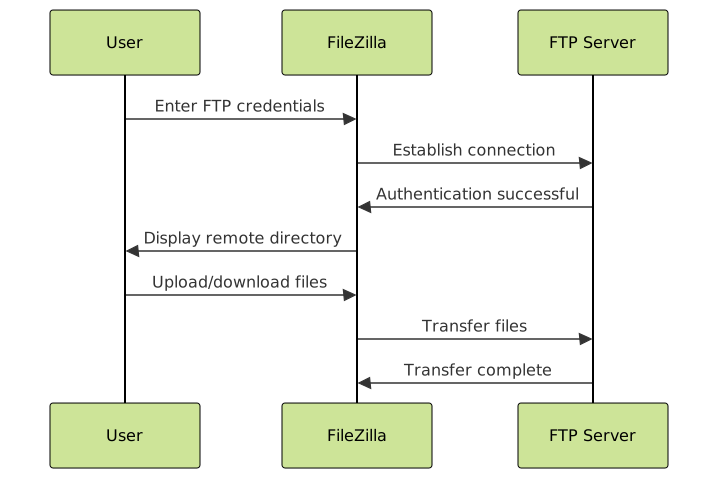
Testing Your Connection
- Click “Connect” in the Site Manager
- Check the status log for successful connection messages
- Verify you can see your server directory structure
Successful Connection Output Example:
Status: Connecting to ftp.yourdomain.com:21...
Status: Connection established, waiting for welcome message...
Response: 220 ProFTPD Server ready.
Command: AUTH TLS
Response: 234 AUTH TLS successful
Status: Initializing TLS...
Status: TLS connection established.
Command: USER your-username
Response: 331 Password required for your-username
Command: PASS ********
Response: 230 User your-username logged in
Command: SYST
Response: 215 UNIX Type: L8
Command: FEAT
Status: Logged in
Status: Retrieving directory listing...
Command: PWD
Response: 257 "/" is the current directory
Command: TYPE I
Response: 200 Type set to I
Command: PASV
Status: Directory listing of "/" successful
Understanding the FileZilla Interface

Interface Components:
- Toolbar: Quick access to connection and transfer controls
- Message Log: Displays connection status and command responses
- Local Site: Shows files on your computer (left panel)
- Remote Site: Shows files on your server (right panel)
- Transfer Queue: Displays current and queued file transfers
Uploading Files to Your Website
Single File Upload
- Navigate to your local file in the left panel
- Navigate to the destination folder in the right panel (usually public_html or www)
- Right-click the file and select “Upload”
- Or simply drag and drop from left to right panel
Multiple File Upload
- Select multiple files using Ctrl+Click (Windows) or Cmd+Click (Mac)
- Drag selected files to the remote directory
- Monitor progress in the transfer queue
Folder Upload
- Right-click on a local folder
- Select “Upload”
- FileZilla will recreate the folder structure on the server
Upload Progress Example:
Command: TYPE I
Response: 200 Type set to I
Command: PASV
Response: 227 Entering Passive Mode (192,168,1,100,195,149).
Command: STOR index.html
Response: 150 Opening BINARY mode data connection for index.html
Response: 226 Transfer complete
Status: File transfer successful, transferred 2,048 bytes in 1 second
Managing File Permissions
File permissions control who can read, write, or execute files on your server. Understanding permissions is crucial for website security and functionality.
Permission Levels
- Read (r): View file contents (4)
- Write (w): Modify file contents (2)
- Execute (x): Run file as program (1)
Common Permission Settings
| Permission | Numeric | Description | Use Case |
|---|---|---|---|
| 644 | rw-r–r– | Owner: read/write, Others: read only | HTML, CSS, images |
| 755 | rwxr-xr-x | Owner: full access, Others: read/execute | Directories, scripts |
| 600 | rw——- | Owner: read/write, Others: no access | Configuration files |
| 777 | rwxrwxrwx | Full access for everyone | Rarely recommended |
Setting Permissions in FileZilla
- Right-click on a file or folder in the remote panel
- Select “File Permissions”
- Use checkboxes or enter numeric value
- Check “Recurse into subdirectories” for folders
- Click “OK” to apply changes
Advanced FTP Operations
Synchronization
Keep your local and remote directories synchronized:
- Select both local and remote directories
- Go to File → Directory Comparison
- Review differences highlighted in different colors
- Upload or download files as needed
Transfer Settings
Optimize transfer performance:
- Transfer Type: ASCII for text files, Binary for images/executables
- Concurrent Transfers: Adjust number of simultaneous transfers
- Speed Limits: Set upload/download speed limits if needed
Queue Management
- Pause/Resume: Control active transfers
- Priority: Reorder queued transfers
- Retry: Automatically retry failed transfers
Common Website Directory Structure

Important Directories Explained
- public_html or www: Your website’s document root
- cgi-bin: Server-side scripts and executables
- logs: Server access and error logs
- mail: Email-related files and settings
- ssl: SSL certificates and keys
Troubleshooting Common FTP Issues
Connection Problems
Issue: “Connection timed out”
Solutions:
- Check your internet connection
- Verify FTP server address and port
- Try passive mode instead of active mode
- Check firewall settings
Issue: “Authentication failed”
Solutions:
- Double-check username and password
- Ensure account is active and not suspended
- Try different encryption settings
- Contact your hosting provider
Transfer Problems
Issue: “Transfer failed” or incomplete uploads
Solutions:
- Check available disk space on server
- Verify file permissions
- Try transferring smaller files first
- Switch between ASCII and Binary transfer modes
- Disable antivirus real-time scanning temporarily
Performance Issues
Issue: Slow transfer speeds
Solutions:
- Adjust number of concurrent transfers
- Use compression when available
- Transfer during off-peak hours
- Check with your ISP about upload speeds
Security Best Practices
Connection Security
- Use SFTP or FTPS: Always prefer encrypted connections
- Strong Passwords: Use complex, unique passwords for FTP accounts
- IP Restrictions: Limit FTP access to specific IP addresses
- Regular Updates: Keep your FTP client software updated
File Security
- Proper Permissions: Set restrictive permissions for sensitive files
- Regular Backups: Backup your website files regularly
- Clean Downloads: Scan downloaded files for malware
- Delete Temporary Files: Remove unnecessary files from server
Alternative File Transfer Methods
While FTP remains popular, consider these alternatives for specific use cases:
1. SSH/SCP
- Security: Highly secure encrypted transfers
- Integration: Works well with command-line workflows
- Efficiency: Better for single file transfers
2. Web-based File Managers
- Convenience: No additional software required
- Accessibility: Access from any device with internet
- Limitations: Usually slower for large transfers
3. Git Deployment
- Version Control: Track changes and collaborate
- Automation: Automated deployments possible
- Backup: Built-in version history
Optimizing Your FTP Workflow
Automation Scripts
Create batch files or scripts for repetitive tasks:
# Example batch upload script
#!/bin/bash
lftp -c "
set ftp:ssl-allow no
open ftp://username:[email protected]
lcd /local/path/
cd /remote/path/
mirror --reverse --delete --verbose
bye
"
Bookmarks and Shortcuts
- Save frequently accessed directories as bookmarks
- Create desktop shortcuts for common FTP operations
- Use keyboard shortcuts for faster navigation
Monitoring and Logging
- Enable detailed logging for troubleshooting
- Monitor transfer statistics
- Set up alerts for failed transfers
Conclusion
Mastering FTP setup and management is essential for effective website administration. From basic file uploads to advanced synchronization and security practices, FTP provides the foundation for professional web development workflows.
Remember to prioritize security by using encrypted connections, implementing strong authentication, and following best practices for file permissions. Regular maintenance and monitoring of your FTP operations will ensure reliable and efficient website management.
Whether you’re maintaining a simple blog or managing complex web applications, the skills covered in this guide will serve as your foundation for successful website file management. Start with basic transfers and gradually implement advanced features as your needs grow.





