

File Transfer Protocol (FTP) remains one of the most reliable methods for uploading files to your website. Whether you’re a beginner launching your first site or an experienced developer managing multiple projects, understanding how to properly set up and use FTP is essential for efficient website management.
This comprehensive guide will walk you through everything you need to know about FTP setup, from choosing the right client to implementing security best practices.
What is FTP and Why Do You Need It?
FTP (File Transfer Protocol) is a standard network protocol used to transfer files between a client computer and a server over a network connection. For web developers and site owners, FTP provides a direct way to upload, download, and manage files on your web hosting server.

Key Benefits of Using FTP
- Direct server access: Upload files directly to your hosting server without web interfaces
- Bulk operations: Transfer multiple files and folders simultaneously
- File management: Rename, delete, and organize files efficiently
- Permission control: Set file and folder permissions easily
- Resume capability: Resume interrupted transfers automatically
Prerequisites for FTP Setup
Before setting up FTP access, ensure you have the following information from your web hosting provider:
Essential FTP Credentials
- FTP Server/Host: Usually your domain name or server IP address
- Username: Your FTP account username
- Password: Your FTP account password
- Port: Typically 21 for FTP or 22 for SFTP
- Connection Type: FTP, SFTP, or FTPS

Choosing the Right FTP Client
Selecting an appropriate FTP client is crucial for a smooth experience. Here are the most popular options across different platforms:
Windows FTP Clients
- FileZilla: Free, open-source, feature-rich client
- WinSCP: Secure copy client with advanced features
- Core FTP: Lightweight client with SSL/TLS support
- CuteFTP: Professional client with automation features
Mac FTP Clients
- FileZilla: Cross-platform compatibility
- Cyberduck: Native Mac client with cloud storage integration
- Transmit: Premium client with advanced synchronization
- ForkLift: Dual-pane file manager with FTP support
Linux FTP Clients
- FileZilla: GUI client with full feature set
- Command Line FTP: Built-in terminal-based client
- gFTP: GTK+ based FTP client
- Nautilus: Built-in file manager with FTP support
Step-by-Step FTP Setup Guide
We’ll use FileZilla as our example client due to its popularity and availability across all platforms. The process is similar for other FTP clients.
Step 1: Download and Install FileZilla
- Visit the official FileZilla website (filezilla-project.org)
- Download the appropriate version for your operating system
- Run the installer and follow the installation wizard
- Launch FileZilla after installation
Step 2: Configure Your FTP Connection
- Open Site Manager: Click File → Site Manager or press Ctrl+S
- Create New Site: Click “New Site” button and give it a descriptive name
- Enter Connection Details:
- Host: Enter your FTP server address
- Port: Leave blank for default (21) or enter custom port
- Protocol: Select FTP, SFTP, or FTPS based on your hosting
- Encryption: Choose “Use explicit FTP over TLS” for security
- Logon Type: Select “Normal”
- User: Enter your FTP username
- Password: Enter your FTP password
- Test Connection: Click “Connect” to verify your settings
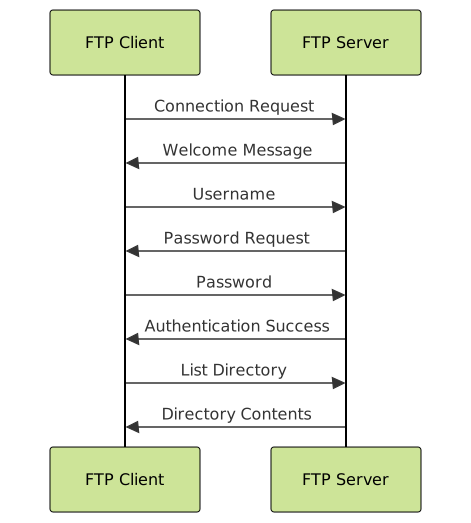
Step 3: Navigate the FileZilla Interface
Understanding the FileZilla interface is crucial for efficient file management:
- Local Site Pane (Left): Shows files on your computer
- Remote Site Pane (Right): Shows files on your server
- Transfer Queue (Bottom): Displays file transfer progress
- Message Log (Top): Shows connection status and commands
Uploading Files to Your Website
Basic File Upload Process
- Connect to Server: Use your saved site configuration
- Navigate to Web Root: Usually public_html, www, or htdocs folder
- Select Local Files: Choose files from your computer’s local pane
- Drag and Drop: Drag files from local to remote pane
- Monitor Transfer: Watch progress in the transfer queue
Advanced Upload Techniques
Synchronized Browsing
Enable synchronized browsing to automatically match directory navigation between local and remote panes:
- Click View → Synchronized Browsing
- Navigate folders on either side
- Both panes will mirror your navigation
Directory Comparison
Compare local and remote directories to identify differences:
- Select View → Directory Comparison
- Choose comparison mode (size, modification date)
- Files will be highlighted based on differences
File Transfer Modes
Understanding transfer modes ensures files are uploaded correctly:
- ASCII Mode: For text files (HTML, CSS, JavaScript, PHP)
- Binary Mode: For images, videos, executables, and compressed files
- Auto Mode: Automatically detects file type and chooses appropriate mode
Security Best Practices
Securing your FTP connection protects your website from unauthorized access and data breaches.

Use Secure Protocols
SFTP (SSH File Transfer Protocol)
- Encrypts all data transmission
- Uses SSH keys for authentication
- Operates on port 22
- Preferred for production environments
FTPS (FTP Secure)
- Adds SSL/TLS encryption to standard FTP
- Backward compatible with FTP clients
- Uses ports 21 (control) and 990 (data)
- Good compromise between security and compatibility
Password Security
- Use strong passwords: Combine uppercase, lowercase, numbers, and symbols
- Enable two-factor authentication: When available with your hosting provider
- Regular password updates: Change passwords every 90 days
- Unique credentials: Don’t reuse FTP passwords elsewhere
Access Control
- Limit FTP users: Create separate accounts for different team members
- Directory restrictions: Restrict access to specific folders
- IP restrictions: Limit connections to specific IP addresses
- Regular audits: Review and remove unused FTP accounts
File Management Best Practices
Directory Structure Organization
Maintain a clean, logical directory structure for easy navigation:
public_html/
├── index.html
├── css/
│   ├── style.css
│   └── responsive.css
├── js/
│   ├── main.js
│   └── vendor/
├── images/
│   ├── logos/
│   ├── gallery/
│   └── icons/
├── includes/
└── backups/
File Naming Conventions
- Use lowercase: Avoid mixed case in filenames
- No spaces: Use hyphens or underscores instead
- Descriptive names: Make filenames self-explanatory
- Version control: Include version numbers for major updates
Backup Strategies
- Regular downloads: Download complete site backups weekly
- Version control: Use Git for code version management
- Automated backups: Set up hosting provider backup services
- Local copies: Maintain local development environments
Troubleshooting Common FTP Issues
Connection Problems
Cannot Connect to Server
Possible causes and solutions:
- Incorrect credentials: Verify username, password, and server address
- Firewall blocking: Check Windows Firewall or antivirus settings
- ISP restrictions: Contact ISP if port 21 is blocked
- Server maintenance: Check with hosting provider
Passive vs. Active Mode
If connections fail, try switching between passive and active modes:
- Go to Edit → Settings → Connection → FTP
- Under “Transfer mode,” select:
- Passive: Client initiates both connections
- Active: Server initiates data connection
- Try connecting again
Transfer Issues
Slow Transfer Speeds
- Increase simultaneous transfers: Edit → Settings → Transfers
- Check network conditions: Test internet speed
- Use compression: Enable if supported by server
- Schedule large transfers: Upload during off-peak hours
Failed Transfers
- File permissions: Ensure write permissions on server
- Disk space: Check available space on server
- File size limits: Break large files into smaller chunks
- Connection timeout: Increase timeout values in settings
Advanced FTP Features
Automated File Synchronization
Set up automated synchronization to keep local and remote files in sync:
- Directory Synchronization: Tools → Directory Synchronization
- Configure sync options:
- Choose local and remote directories
- Select synchronization direction
- Set file comparison criteria
- Preview changes: Review what will be synchronized
- Execute synchronization: Apply changes automatically

Batch Operations
Queue Multiple Transfers
- Select multiple files: Hold Ctrl/Cmd while clicking
- Add to queue: Right-click → “Add to queue”
- Process queue: Transfers will execute in order
- Priority management: Reorder queue items as needed
Search and Replace
Some advanced FTP clients support search and replace operations across multiple files:
- Pattern matching: Search for specific file patterns
- Content search: Find files containing specific text
- Bulk rename: Rename multiple files using patterns
FTP Alternatives and When to Use Them
Web-Based File Managers
Advantages:
- No software installation required
- Access from any device with web browser
- Integrated with hosting control panel
- Built-in text editor for quick edits
Disadvantages:
- Limited functionality compared to FTP clients
- Slower for large file operations
- Dependent on web browser capabilities
Git Version Control
When to use Git:
- Collaborative development projects
- Need for version history and rollbacks
- Automated deployment workflows
- Integration with CI/CD pipelines
Cloud Storage Integration
Modern hosting providers often integrate with cloud storage services:
- Dropbox sync: Automatic file synchronization
- Google Drive integration: Direct file access
- OneDrive connectivity: Seamless Microsoft ecosystem
Performance Optimization Tips
Connection Settings
- Concurrent connections: Increase for faster transfers (typically 2-10)
- Transfer buffer size: Optimize based on connection speed
- Keep-alive settings: Prevent connection timeouts
- Compression: Enable when supported by server
File Organization
- Compress before upload: Use ZIP for multiple small files
- Optimize images: Reduce file sizes before upload
- Remove unnecessary files: Clean up temporary and backup files
- Use incremental uploads: Only transfer changed files
Monitoring and Maintenance
Regular Maintenance Tasks
- Review access logs: Monitor for unauthorized access attempts
- Update client software: Keep FTP client up to date
- Clean temporary files: Remove cached and temporary files
- Verify backups: Regularly test backup integrity
Security Auditing
- Password rotation: Change FTP passwords quarterly
- Access review: Audit user permissions monthly
- Connection monitoring: Track unusual connection patterns
- Server updates: Ensure FTP server software is current
Conclusion
Mastering FTP setup and management is essential for efficient website administration. By following this comprehensive guide, you now have the knowledge to set up secure FTP connections, manage files effectively, and troubleshoot common issues.
Remember to prioritize security by using encrypted protocols like SFTP or FTPS, implementing strong authentication methods, and regularly auditing your FTP access. Combined with proper file organization and regular maintenance, FTP remains a powerful tool for website management in 2025 and beyond.
Whether you’re uploading your first website or managing multiple production environments, these FTP best practices will help ensure reliable, secure, and efficient file transfers for all your web development projects.
- What is FTP and Why Do You Need It?
- Prerequisites for FTP Setup
- Choosing the Right FTP Client
- Step-by-Step FTP Setup Guide
- Uploading Files to Your Website
- Security Best Practices
- File Management Best Practices
- Troubleshooting Common FTP Issues
- Advanced FTP Features
- FTP Alternatives and When to Use Them
- Performance Optimization Tips
- Monitoring and Maintenance
- Conclusion





