

PowerShell modules are packages of cmdlets, functions, variables, and other resources that extend PowerShell’s functionality. Understanding how to find, install, and import modules is essential for leveraging PowerShell’s full potential. This comprehensive guide covers the three critical commands: Get-Module, Install-Module, and Import-Module.
Understanding PowerShell Modules
A PowerShell module is a reusable package that contains cmdlets, providers, functions, workflows, variables, and aliases. Modules help organize code, promote reusability, and extend PowerShell’s capabilities beyond built-in commands.

Module Types
PowerShell supports several module types:
- Script Modules: Contain PowerShell scripts with .psm1 extension
- Binary Modules: Compiled .NET assemblies (DLL files)
- Manifest Modules: Use .psd1 files to describe module contents
- Dynamic Modules: Created in memory during runtime
Get-Module: Discovering Available Modules
The Get-Module cmdlet retrieves information about modules that are loaded or available in the current session. It’s your primary tool for discovering what modules you can use.
Syntax and Parameters
Get-Module [[-Name] <String[]>] [-ListAvailable] [-All] [-Refresh]Viewing Loaded Modules
To see modules currently loaded in your PowerShell session:
Get-ModuleSample Output:
ModuleType Version    Name                                ExportedCommands
---------- -------    ----                                ----------------
Manifest   3.1.0.0    Microsoft.PowerShell.Management     {Add-Content, Clear-Content...}
Manifest   3.1.0.0    Microsoft.PowerShell.Utility        {Add-Member, Add-Type...}
Script     2.0.0      PSReadline                          {Get-PSReadLineKeyHandler...}
Finding Available Modules
To discover all modules available on your system, use the -ListAvailable parameter:
Get-Module -ListAvailableThis command searches all directories in the $env:PSModulePath environment variable.
Searching for Specific Modules
You can search for modules by name using wildcards:
# Find modules with "Azure" in the name
Get-Module -ListAvailable -Name *Azure*

# Find a specific module
Get-Module -ListAvailable -Name PowerShellGet
Getting Module Details
To view detailed information about a module:
Get-Module -Name PowerShellGet -ListAvailable | Select-Object *Sample Output:
Name              : PowerShellGet
Path              : C:\Program Files\WindowsPowerShell\Modules\PowerShellGet\2.2.5\PowerShellGet.psd1
Description       : PowerShell module with commands for discovering, installing, updating and publishing modules
ModuleType        : Script
Version           : 2.2.5
ExportedCommands  : {Find-Command, Find-DscResource, Find-Module...}
ExportedAliases   : {inmo, fimo, upmo, pumo}
Viewing Module Commands
To see all commands exported by a module:
# Get commands from a loaded module
Get-Command -Module PowerShellGet

# Get commands from an available module (auto-imports)
Get-Command -Module PSReadline
Install-Module: Installing Modules from Repositories
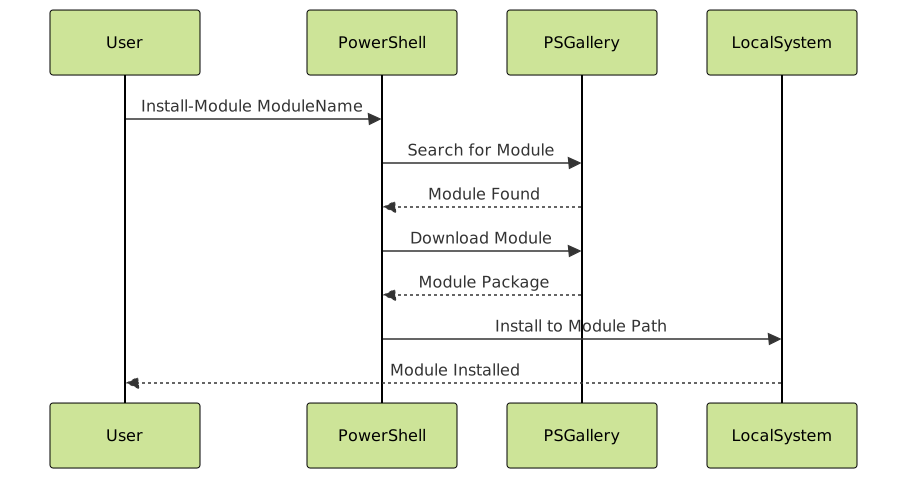
The Install-Module cmdlet downloads and installs modules from online repositories, primarily the PowerShell Gallery (PSGallery). This is the modern way to add functionality to PowerShell.
Syntax and Key Parameters
Install-Module [-Name] <String[]> [-MinimumVersion <String>]
    [-MaximumVersion <String>] [-RequiredVersion <String>]
    [-Repository <String[]>] [-Scope <String>] [-Force]
Installing a Module
Basic installation from PSGallery:
# Install the latest version
Install-Module -Name Az

# Install with confirmation prompt
Install-Module -Name Pester -Confirm
The first time you run Install-Module, you may be prompted to trust the PSGallery repository.
Installation Scopes
Modules can be installed for all users or just the current user:
# Install for current user only (no admin rights needed)
Install-Module -Name ImportExcel -Scope CurrentUser

# Install for all users (requires administrator privileges)
Install-Module -Name ImportExcel -Scope AllUsers
Installation Paths:
- CurrentUser:
$HOME\Documents\PowerShell\Modules - AllUsers:
C:\Program Files\PowerShell\Modules
Version Management
Control which version of a module to install:
# Install a specific version
Install-Module -Name Pester -RequiredVersion 5.3.0

# Install minimum version
Install-Module -Name PSScriptAnalyzer -MinimumVersion 1.20.0

# Install maximum version
Install-Module -Name SqlServer -MaximumVersion 21.1.18256
Finding Modules Before Installing
Search the PowerShell Gallery before installing:
# Find modules by name
Find-Module -Name *Docker*

# Find modules by tag
Find-Module -Tag 'AWS'

# Get module information
Find-Module -Name ImportExcel | Select-Object Name, Version, Description
Sample Output:
Name        Version Description
----        ------- -----------
ImportExcel 7.8.4   PowerShell module to import/export Excel spreadsheets, without Excel
Updating Installed Modules
Keep your modules up to date:
# Update a specific module
Update-Module -Name Az

# Update all modules
Get-InstalledModule | Update-Module

# Check for available updates
Get-InstalledModule | ForEach-Object {
    $latest = Find-Module -Name $_.Name
    if ($latest.Version -gt $_.Version) {
        [PSCustomObject]@{
            Name = $_.Name
            InstalledVersion = $_.Version
            LatestVersion = $latest.Version
        }
    }
}
Uninstalling Modules
Remove modules you no longer need:
# Uninstall a specific version
Uninstall-Module -Name Pester -RequiredVersion 5.3.0

# Uninstall all versions
Uninstall-Module -Name Pester -AllVersions
Import-Module: Loading Modules into Your Session
The Import-Module cmdlet loads a module into your current PowerShell session, making its commands available for use. Modern PowerShell versions support automatic module loading, but explicit importing is sometimes necessary.
Syntax and Parameters
Import-Module [-Name] <String[]> [-Force] [-Global]
    [-Prefix <String>] [-PassThru] [-MinimumVersion <Version>]
Basic Module Import
# Import a module by name
Import-Module -Name Az.Compute

# Import multiple modules
Import-Module -Name Az.Storage, Az.Network

# Import with verbose output
Import-Module -Name PSReadline -Verbose
Automatic Module Loading
PowerShell 3.0 and later automatically import modules when you use their commands:
# These commands auto-import their modules
Get-Service    # Imports Microsoft.PowerShell.Management
Get-Process    # Imports Microsoft.PowerShell.Management
Get-Date       # Imports Microsoft.PowerShell.Utility
Check auto-loading preference:
$PSModuleAutoLoadingPreference
# Output: All (default)
Force Reimporting
Sometimes you need to reload a module, especially during development:
# Force reimport (useful for development)
Import-Module -Name MyCustomModule -Force

# Remove and reimport
Remove-Module -Name MyCustomModule
Import-Module -Name MyCustomModule
Using Module Prefixes
Prevent naming conflicts by adding prefixes to imported commands:
# Add prefix to avoid conflicts
Import-Module -Name Storage -Prefix Local

# Now use commands with prefix
Get-LocalDisk
Get-LocalVolume
Importing Specific Commands
Load only the commands you need:
# Import specific cmdlets
Import-Module -Name Az.Compute -Cmdlet Get-AzVM, Start-AzVM

# Import specific functions
Import-Module -Name MyModule -Function Get-CustomData
Global and Local Scope
Control where module commands are available:
# Import to global scope (available everywhere)
Import-Module -Name SqlServer -Global

# Import to local scope (default, current scope only)
Import-Module -Name Pester
Module Management Workflow

Complete Example: Working with a New Module
# Step 1: Search for the module
Find-Module -Name ImportExcel

# Step 2: View module details
Find-Module -Name ImportExcel | Select-Object Name, Version, Description, Author

# Step 3: Install the module
Install-Module -Name ImportExcel -Scope CurrentUser -Force

# Step 4: Verify installation
Get-Module -Name ImportExcel -ListAvailable

# Step 5: Import the module (or let auto-import handle it)
Import-Module -Name ImportExcel

# Step 6: Explore module commands
Get-Command -Module ImportExcel

# Step 7: Use module commands
$data = Import-Excel -Path "C:\Data\Report.xlsx"
$data | Export-Excel -Path "C:\Data\Modified.xlsx" -AutoSize
Module Path Management
PowerShell searches for modules in directories defined by the PSModulePath environment variable.
Viewing Module Paths
# View all module paths
$env:PSModulePath -split ';'

# Or formatted
$env:PSModulePath.Split(';') | ForEach-Object { $_ }
Sample Output:
C:\Users\YourName\Documents\PowerShell\Modules
C:\Program Files\PowerShell\Modules
C:\Program Files\WindowsPowerShell\Modules
C:\Windows\system32\WindowsPowerShell\v1.0\Modules
Adding Custom Module Paths
# Add temporary path (current session only)
$env:PSModulePath += ";C:\CustomModules"

# Add permanently (Windows)
[Environment]::SetEnvironmentVariable(
    "PSModulePath",
    $env:PSModulePath + ";C:\CustomModules",
    [EnvironmentVariableTarget]::User
)
Troubleshooting Common Issues
Module Not Found
# Check if module exists
Get-Module -Name ModuleName -ListAvailable

# Refresh module cache
Get-Module -ListAvailable -Refresh

# Verify module path
$env:PSModulePath
Import Errors
# Import with verbose and error details
Import-Module -Name ModuleName -Verbose -ErrorAction Continue

# Check module manifest
Test-ModuleManifest -Path "C:\Path\To\Module.psd1"
Version Conflicts
# List all versions of a module
Get-Module -Name ModuleName -ListAvailable | Select-Object Name, Version, Path

# Import specific version
Import-Module -Name ModuleName -RequiredVersion 2.1.0

# Remove old versions
Get-InstalledModule -Name ModuleName -AllVersions |
    Where-Object Version -lt "3.0.0" |
    Uninstall-Module
Permission Issues
# Install to user scope (no admin needed)
Install-Module -Name ModuleName -Scope CurrentUser

# Check execution policy
Get-ExecutionPolicy

# Set execution policy (if needed)
Set-ExecutionPolicy -ExecutionPolicy RemoteSigned -Scope CurrentUser
Creating Custom Modules
Understanding how to create your own modules helps you organize reusable code.
Simple Script Module
# Create module directory
New-Item -Path "$HOME\Documents\PowerShell\Modules\MyTools" -ItemType Directory

# Create module file (MyTools.psm1)
@"
function Get-SystemInfo {
    [CmdletBinding()]
    param()

    [PSCustomObject]@{
        ComputerName = $env:COMPUTERNAME
        UserName = $env:USERNAME
        OSVersion = [System.Environment]::OSVersion.VersionString
        PowerShellVersion = $PSVersionTable.PSVersion.ToString()
    }
}

function Get-DiskSpace {
    [CmdletBinding()]
    param(
        [string]$DriveLetter = "C"
    )

    Get-PSDrive -Name $DriveLetter | Select-Object Name,
        @{N='UsedGB';E={[math]::Round($_.Used/1GB,2)}},
        @{N='FreeGB';E={[math]::Round($_.Free/1GB,2)}}
}

Export-ModuleMember -Function Get-SystemInfo, Get-DiskSpace
"@ | Out-File -FilePath "$HOME\Documents\PowerShell\Modules\MyTools\MyTools.psm1"

# Import and test
Import-Module -Name MyTools
Get-SystemInfo
Module with Manifest
# Create module manifest
New-ModuleManifest -Path "$HOME\Documents\PowerShell\Modules\MyTools\MyTools.psd1" `
    -ModuleVersion "1.0.0" `
    -Author "Your Name" `
    -Description "Collection of system utility functions" `
    -RootModule "MyTools.psm1" `
    -FunctionsToExport "Get-SystemInfo", "Get-DiskSpace"
Best Practices
Module Installation
- Use
-Scope CurrentUserwhen you don’t have administrator privileges - Always review module information with
Find-Modulebefore installing - Keep modules updated with
Update-Module - Uninstall unused modules to reduce clutter
Module Usage
- Let PowerShell auto-import modules when possible
- Use
Import-Module -Forceduring development and testing - Add commonly used modules to your PowerShell profile for automatic loading
- Use module prefixes to avoid command name conflicts
Module Development
- Create module manifests for all custom modules
- Use
Export-ModuleMemberto control what’s publicly available - Version your modules properly
- Include help documentation using comment-based help
PowerShell Profile Integration
Automate module management by adding commands to your PowerShell profile:
# View profile location
$PROFILE

# Edit profile
notepad $PROFILE

# Add to profile for automatic module loading
@"
# Auto-import frequently used modules
Import-Module -Name PSReadline
Import-Module -Name ImportExcel
Import-Module -Name Pester

# Set module auto-loading preference
$PSModuleAutoLoadingPreference = 'All'

# Check for module updates weekly
$lastCheck = Get-Content "$HOME\.lastmodulecheck" -ErrorAction SilentlyContinue
if (-not $lastCheck -or ((Get-Date) - [DateTime]$lastCheck).Days -ge 7) {
    Write-Host "Checking for module updates..." -ForegroundColor Yellow
    Get-InstalledModule | Update-Module -ErrorAction SilentlyContinue
    Get-Date | Out-File "$HOME\.lastmodulecheck"
}
"@ | Add-Content -Path $PROFILE
Advanced Module Management
Finding Module Dependencies
# View module dependencies
$module = Get-Module -Name Az.Compute -ListAvailable | Select-Object -First 1
$module.RequiredModules

# Or from manifest
$manifest = Test-ModuleManifest -Path "C:\Path\To\Module.psd1"
$manifest.RequiredModules
Comparing Module Versions
# Compare installed vs available versions
Get-InstalledModule | ForEach-Object {
    $installed = $_
    $available = Find-Module -Name $_.Name -ErrorAction SilentlyContinue

    if ($available) {
        [PSCustomObject]@{
            Name = $installed.Name
            InstalledVersion = $installed.Version
            AvailableVersion = $available.Version
            UpdateAvailable = $available.Version -gt $installed.Version
        }
    }
} | Where-Object UpdateAvailable | Format-Table -AutoSize
Backing Up Installed Modules
# Export list of installed modules
Get-InstalledModule | Export-Csv -Path "$HOME\InstalledModules.csv" -NoTypeInformation

# Restore modules on another machine
Import-Csv -Path "$HOME\InstalledModules.csv" | ForEach-Object {
    Install-Module -Name $_.Name -RequiredVersion $_.Version -Force
}
Conclusion
Mastering Get-Module, Install-Module, and Import-Module is fundamental to effective PowerShell usage. These commands form the foundation of module management, enabling you to discover, install, and use the vast ecosystem of PowerShell modules. Whether you’re using built-in modules, installing from PSGallery, or creating your own custom modules, understanding these commands will significantly enhance your PowerShell productivity. Practice these techniques regularly, and you’ll develop efficient workflows for managing modules across all your PowerShell projects.





