Understanding PowerShell Cmdlets and Extension Models
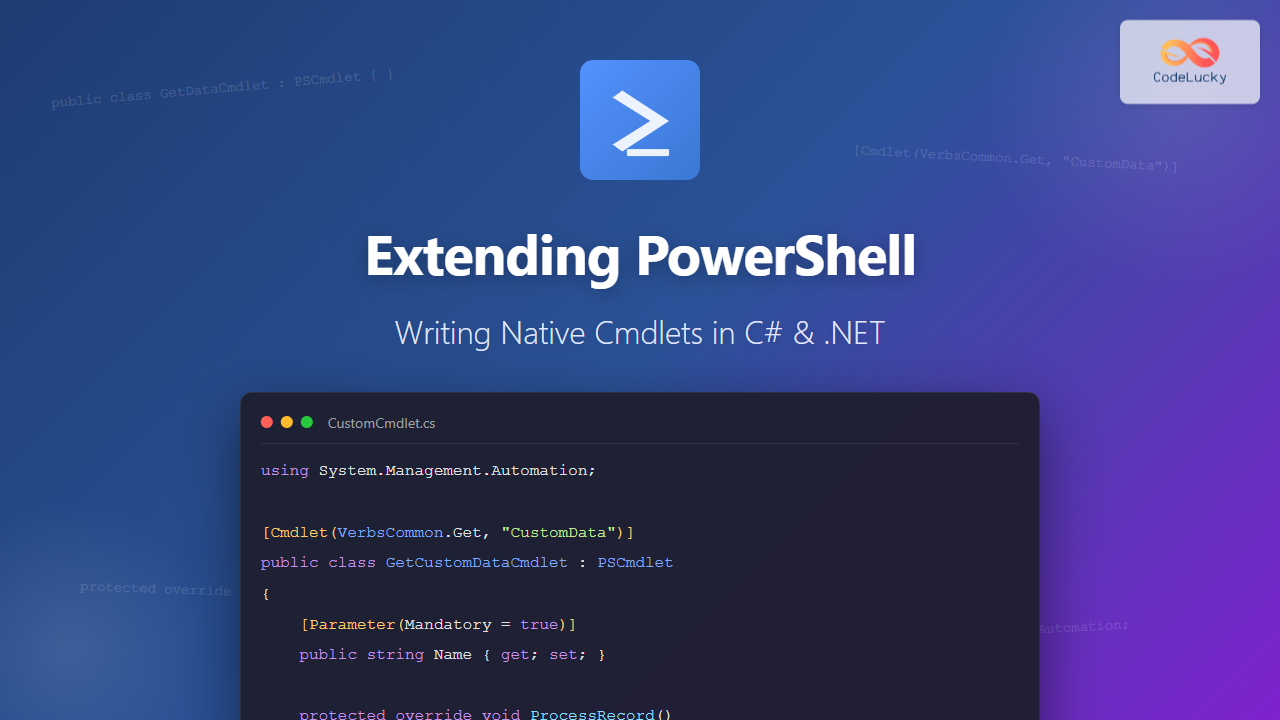
PowerShell offers multiple ways to extend its functionality, but writing native cmdlets in C# and .NET provides the most powerful and performant approach. While script-based functions work well for simple tasks, binary cmdlets offer superior performance, better error handling, and seamless integration with the .NET ecosystem.
Native cmdlets are compiled .NET assemblies that implement the PowerShell SDK interfaces. They run directly in the PowerShell runtime without interpretation overhead, making them ideal for computationally intensive operations, complex parameter validation, and scenarios requiring direct access to .NET libraries.

Setting Up Your Development Environment
To develop PowerShell cmdlets in C#, you need the appropriate development tools and PowerShell SDK packages. The development process requires Visual Studio or the .NET SDK with your preferred code editor.
Required Tools and SDKs
Install the .NET SDK (version 6.0 or later recommended) from the official Microsoft website. You’ll also need the PowerShell Standard Library or the platform-specific PowerShell SDK NuGet packages.
# Create a new class library project
dotnet new classlib -n MyPowerShellModule -f net6.0

# Add PowerShell SDK package
dotnet add package PowerShellStandard.Library --version 5.1.1
The PowerShellStandard.Library package provides compatibility across PowerShell 5.1 and PowerShell 7+, making your cmdlets work across different PowerShell versions without recompilation.
Project Structure Best Practices
Organize your project with clear separation between cmdlets, supporting classes, and resources. A typical structure includes separate folders for cmdlets, models, utilities, and module manifests.
MyPowerShellModule/
├── Cmdlets/
│   ├── GetDataCmdlet.cs
│   └── SetDataCmdlet.cs
├── Models/
│   └── DataObject.cs
├── Utilities/
│   └── Helpers.cs
├── MyPowerShellModule.csproj
└── MyPowerShellModule.psd1
Creating Your First PowerShell Cmdlet
Building a cmdlet requires inheriting from the Cmdlet or PSCmdlet base class and implementing the required processing methods. The most common pattern uses BeginProcessing, ProcessRecord, and EndProcessing methods.
Basic Cmdlet Structure
Here’s a complete example of a simple cmdlet that demonstrates the fundamental structure:
using System.Management.Automation;

namespace MyPowerShellModule.Cmdlets
{
    [Cmdlet(VerbsCommon.Get, "Greeting")]
    [OutputType(typeof(string))]
    public class GetGreetingCmdlet : PSCmdlet
    {
        [Parameter(
            Mandatory = true,
            Position = 0,
            ValueFromPipeline = true,
            ValueFromPipelineByPropertyName = true,
            HelpMessage = "Name of the person to greet")]
        [ValidateNotNullOrEmpty]
        public string Name { get; set; }

        [Parameter(
            Mandatory = false,
            HelpMessage = "Add enthusiasm to the greeting")]
        public SwitchParameter Enthusiastic { get; set; }

        protected override void ProcessRecord()
        {
            string greeting = $"Hello, {Name}!";

            if (Enthusiastic)
            {
                greeting += " Great to see you!";
            }

            WriteObject(greeting);
        }
    }
}
Understanding Cmdlet Attributes
The Cmdlet attribute defines the verb and noun that form your cmdlet name. PowerShell has approved verbs (Get, Set, New, Remove, etc.) that maintain consistency across the ecosystem. The OutputType attribute documents what types your cmdlet returns.
# After building and importing the module
Import-Module .\MyPowerShellModule.dll

# Using the cmdlet
Get-Greeting -Name "John"
# Output: Hello, John!

Get-Greeting -Name "Sarah" -Enthusiastic
# Output: Hello, Sarah! Great to see you!

# Pipeline support
"Alice", "Bob", "Charlie" | Get-Greeting
# Output:
# Hello, Alice!
# Hello, Bob!
# Hello, Charlie!
Advanced Parameter Handling
Parameters are the interface between users and your cmdlets. PowerShell provides extensive parameter validation attributes and features for creating robust, user-friendly cmdlets.
Parameter Validation Attributes
Validation attributes enforce constraints on parameter values before your cmdlet code executes, providing immediate feedback to users:
[Cmdlet(VerbsCommon.New, "UserAccount")]
public class NewUserAccountCmdlet : PSCmdlet
{
    [Parameter(Mandatory = true)]
    [ValidateLength(3, 20)]
    [ValidatePattern("^[a-zA-Z][a-zA-Z0-9]*$")]
    public string Username { get; set; }

    [Parameter(Mandatory = true)]
    [ValidateRange(18, 120)]
    public int Age { get; set; }

    [Parameter(Mandatory = false)]
    [ValidateSet("Admin", "User", "Guest", IgnoreCase = true)]
    public string Role { get; set; } = "User";

    [Parameter(Mandatory = false)]
    [ValidateScript({ $_ -match "^[a-zA-Z0-9._%+-]+@[a-zA-Z0-9.-]+\.[a-zA-Z]{2,}$" })]
    public string Email { get; set; }

    protected override void ProcessRecord()
    {
        var account = new
        {
            Username = Username,
            Age = Age,
            Role = Role,
            Email = Email ?? "Not provided"
        };

        WriteObject(account);
    }
}
Parameter Sets
Parameter sets allow cmdlets to have different parameter combinations for different use cases, similar to method overloading:
[Cmdlet(VerbsCommon.Get, "FileInfo")]
public class GetFileInfoCmdlet : PSCmdlet
{
    [Parameter(
        ParameterSetName = "ByPath",
        Mandatory = true,
        Position = 0)]
    public string Path { get; set; }

    [Parameter(
        ParameterSetName = "ById",
        Mandatory = true)]
    public int FileId { get; set; }

    [Parameter(
        ParameterSetName = "ByFilter",
        Mandatory = true)]
    public string Filter { get; set; }

    protected override void ProcessRecord()
    {
        switch (ParameterSetName)
        {
            case "ByPath":
                WriteVerbose($"Retrieving file by path: {Path}");
                // Implementation
                break;
            case "ById":
                WriteVerbose($"Retrieving file by ID: {FileId}");
                // Implementation
                break;
            case "ByFilter":
                WriteVerbose($"Retrieving files by filter: {Filter}");
                // Implementation
                break;
        }
    }
}
# Different ways to call the cmdlet
Get-FileInfo -Path "C:\data\file.txt"
Get-FileInfo -FileId 12345
Get-FileInfo -Filter "*.log"

Implementing Pipeline Support
Pipeline support is a cornerstone of PowerShell’s design philosophy. Binary cmdlets can efficiently process pipeline input using the ProcessRecord method, which executes once for each pipeline object.
Pipeline Input Methods
Parameters can accept pipeline input by value (the entire object) or by property name (specific properties from the object):
[Cmdlet(VerbsData.ConvertTo, "UpperCase")]
[OutputType(typeof(string))]
public class ConvertToUpperCaseCmdlet : PSCmdlet
{
    [Parameter(
        Mandatory = true,
        Position = 0,
        ValueFromPipeline = true)]
    public string InputText { get; set; }

    private int processedCount = 0;

    protected override void BeginProcessing()
    {
        WriteVerbose("Starting text conversion process");
        processedCount = 0;
    }

    protected override void ProcessRecord()
    {
        if (!string.IsNullOrWhiteSpace(InputText))
        {
            string result = InputText.ToUpperInvariant();
            WriteObject(result);
            processedCount++;
        }
    }

    protected override void EndProcessing()
    {
        WriteVerbose($"Processed {processedCount} items");
    }
}
# Single value
ConvertTo-UpperCase "hello world"
# Output: HELLO WORLD

# Pipeline processing
"apple", "banana", "cherry" | ConvertTo-UpperCase
# Output:
# APPLE
# BANANA
# CHERRY

# From file
Get-Content names.txt | ConvertTo-UpperCase
Pipeline by Property Name
For complex objects, you can bind parameters to specific properties:
[Cmdlet(VerbsCommon.Format, "PersonInfo")]
public class FormatPersonInfoCmdlet : PSCmdlet
{
    [Parameter(
        ValueFromPipelineByPropertyName = true)]
    public string FirstName { get; set; }

    [Parameter(
        ValueFromPipelineByPropertyName = true)]
    public string LastName { get; set; }

    [Parameter(
        ValueFromPipelineByPropertyName = true)]
    public int Age { get; set; }

    protected override void ProcessRecord()
    {
        string formatted = $"{LastName}, {FirstName} (Age: {Age})";
        WriteObject(formatted);
    }
}
# Create objects with matching properties
$people = @(
    [PSCustomObject]@{ FirstName="John"; LastName="Doe"; Age=30 }
    [PSCustomObject]@{ FirstName="Jane"; LastName="Smith"; Age=28 }
)

$people | Format-PersonInfo
# Output:
# Doe, John (Age: 30)
# Smith, Jane (Age: 28)
Error Handling and Reporting
Professional cmdlets require robust error handling that integrates with PowerShell’s error management system. The PSCmdlet base class provides methods for writing different types of errors.
Terminating vs Non-Terminating Errors
Terminating errors stop cmdlet execution immediately, while non-terminating errors allow processing to continue:
[Cmdlet(VerbsCommon.Get, "RemoteData")]
public class GetRemoteDataCmdlet : PSCmdlet
{
    [Parameter(Mandatory = true)]
    public string[] Urls { get; set; }

    [Parameter]
    public SwitchParameter StopOnError { get; set; }

    protected override void ProcessRecord()
    {
        foreach (var url in Urls)
        {
            try
            {
                WriteVerbose($"Fetching data from: {url}");

                // Validate URL
                if (!Uri.TryCreate(url, UriKind.Absolute, out Uri validUri))
                {
                    var error = new ErrorRecord(
                        new ArgumentException($"Invalid URL format: {url}"),
                        "InvalidUrl",
                        ErrorCategory.InvalidArgument,
                        url);

                    if (StopOnError)
                    {
                        ThrowTerminatingError(error);
                    }
                    else
                    {
                        WriteError(error);
                        continue;
                    }
                }

                // Simulate data fetching
                var data = $"Data from {url}";
                WriteObject(data);
            }
            catch (Exception ex)
            {
                var error = new ErrorRecord(
                    ex,
                    "DataFetchError",
                    ErrorCategory.ReadError,
                    url);

                if (StopOnError)
                {
                    ThrowTerminatingError(error);
                }
                else
                {
                    WriteError(error);
                }
            }
        }
    }
}
# Non-terminating errors - continues processing
Get-RemoteData -Urls "invalid-url", "https://api.example.com", "bad-url"
# Output:
# Error for invalid-url
# Data from https://api.example.com
# Error for bad-url

# Terminating error - stops on first error
Get-RemoteData -Urls "invalid-url", "https://api.example.com" -StopOnError
# Stops at first error

Progress Reporting for Long Operations
Long-running operations benefit from progress reporting, which provides user feedback and can be monitored programmatically:
[Cmdlet(VerbsData.Export, "LargeDataset")]
public class ExportLargeDatasetCmdlet : PSCmdlet
{
    [Parameter(Mandatory = true)]
    public string OutputPath { get; set; }

    [Parameter(Mandatory = true)]
    public int RecordCount { get; set; }

    protected override void ProcessRecord()
    {
        var progressRecord = new ProgressRecord(
            0,
            "Exporting Data",
            "Preparing export...");

        for (int i = 0; i < RecordCount; i++)
        {
            // Update progress every 100 records
            if (i % 100 == 0)
            {
                int percentComplete = (int)((double)i / RecordCount * 100);
                progressRecord.StatusDescription = $"Exporting record {i} of {RecordCount}";
                progressRecord.PercentComplete = percentComplete;
                WriteProgress(progressRecord);
            }

            // Simulate data export
            // Actual export logic here
        }

        progressRecord.RecordType = ProgressRecordType.Completed;
        WriteProgress(progressRecord);

        WriteObject($"Successfully exported {RecordCount} records to {OutputPath}");
    }
}
Working with ShouldProcess for Confirmation
Cmdlets that make changes should implement ShouldProcess to support WhatIf and Confirm parameters. This is crucial for cmdlets that modify system state:
[Cmdlet(VerbsCommon.Remove, "CustomItem", SupportsShouldProcess = true)]
public class RemoveCustomItemCmdlet : PSCmdlet
{
    [Parameter(
        Mandatory = true,
        Position = 0,
        ValueFromPipeline = true)]
    public string ItemName { get; set; }

    [Parameter]
    public SwitchParameter Force { get; set; }

    protected override void ProcessRecord()
    {
        // Check if item exists
        bool itemExists = CheckItemExists(ItemName);

        if (!itemExists)
        {
            WriteWarning($"Item '{ItemName}' does not exist.");
            return;
        }

        // Build confirmation message
        string target = ItemName;
        string action = "Remove item";

        // ShouldProcess respects -WhatIf and -Confirm
        if (ShouldProcess(target, action))
        {
            try
            {
                // Perform the removal
                WriteVerbose($"Removing item: {ItemName}");
                PerformRemoval(ItemName);
                WriteObject($"Successfully removed item: {ItemName}");
            }
            catch (Exception ex)
            {
                var error = new ErrorRecord(
                    ex,
                    "RemovalFailed",
                    ErrorCategory.OperationStopped,
                    ItemName);
                WriteError(error);
            }
        }
    }

    private bool CheckItemExists(string name)
    {
        // Simulated check
        return true;
    }

    private void PerformRemoval(string name)
    {
        // Actual removal logic
    }
}
# Shows what would happen without making changes
Remove-CustomItem -ItemName "TestItem" -WhatIf
# Output: What if: Performing the operation "Remove item" on target "TestItem".

# Prompts for confirmation
Remove-CustomItem -ItemName "TestItem" -Confirm

# Bypasses confirmation when used with Force
Remove-CustomItem -ItemName "TestItem" -Force
Creating Custom Output Types
Complex cmdlets often return custom objects rather than simple strings. Define classes that represent your data domain:
namespace MyPowerShellModule.Models
{
    public class ServerInfo
    {
        public string Name { get; set; }
        public string IpAddress { get; set; }
        public ServerStatus Status { get; set; }
        public DateTime LastChecked { get; set; }
        public int Uptime { get; set; }
    }

    public enum ServerStatus
    {
        Online,
        Offline,
        Maintenance,
        Unknown
    }
}

[Cmdlet(VerbsCommon.Get, "ServerStatus")]
[OutputType(typeof(ServerInfo))]
public class GetServerStatusCmdlet : PSCmdlet
{
    [Parameter(
        Mandatory = true,
        ValueFromPipeline = true)]
    public string[] ServerName { get; set; }

    protected override void ProcessRecord()
    {
        foreach (var server in ServerName)
        {
            var serverInfo = new ServerInfo
            {
                Name = server,
                IpAddress = GetServerIp(server),
                Status = CheckServerStatus(server),
                LastChecked = DateTime.Now,
                Uptime = GetServerUptime(server)
            };

            WriteObject(serverInfo);
        }
    }

    private string GetServerIp(string name)
    {
        // IP resolution logic
        return "192.168.1.100";
    }

    private ServerStatus CheckServerStatus(string name)
    {
        // Status check logic
        return ServerStatus.Online;
    }

    private int GetServerUptime(string name)
    {
        // Uptime calculation
        return 72;
    }
}
Get-ServerStatus -ServerName "WebServer01", "DbServer01"

# Output (formatted by PowerShell):
# Name         IpAddress       Status LastChecked         Uptime
# ----         ---------       ------ -----------         ------
# WebServer01  192.168.1.100   Online 10/22/2025 5:22 PM     72
# DbServer01   192.168.1.100   Online 10/22/2025 5:22 PM     72

# Access individual properties
$servers = Get-ServerStatus -ServerName "WebServer01"
$servers[0].Status
# Output: Online
Building and Packaging Your Module
After developing your cmdlets, you need to compile the assembly and create a module manifest for proper PowerShell integration.
Creating the Module Manifest
The module manifest (.psd1 file) describes your module and controls how PowerShell loads it:
# MyPowerShellModule.psd1
@{
    RootModule = 'MyPowerShellModule.dll'
    ModuleVersion = '1.0.0'
    GUID = 'a1b2c3d4-e5f6-7890-ab12-cd34ef567890'
    Author = 'Your Name'
    CompanyName = 'Your Company'
    Copyright = '(c) 2025 Your Company. All rights reserved.'
    Description = 'Custom PowerShell cmdlets for advanced operations'

    PowerShellVersion = '5.1'
    DotNetFrameworkVersion = '4.7.2'

    FunctionsToExport = @()
    CmdletsToExport = @(
        'Get-Greeting',
        'New-UserAccount',
        'Get-FileInfo',
        'ConvertTo-UpperCase',
        'Format-PersonInfo',
        'Get-RemoteData',
        'Export-LargeDataset',
        'Remove-CustomItem',
        'Get-ServerStatus'
    )
    VariablesToExport = @()
    AliasesToExport = @()

    PrivateData = @{
        PSData = @{
            Tags = @('PowerShell', 'Cmdlets', 'Automation')
            LicenseUri = 'https://github.com/yourrepo/LICENSE'
            ProjectUri = 'https://github.com/yourrepo'
        }
    }
}
Building and Testing
Compile your project and test the resulting module:
# Build the project
dotnet build -c Release

# The compiled DLL will be in bin/Release/net6.0/
# Import the module
Import-Module .\bin\Release\net6.0\MyPowerShellModule.dll

# List available cmdlets
Get-Command -Module MyPowerShellModule

# Get help for a cmdlet
Get-Help Get-Greeting -Full

Advanced Techniques and Best Practices
Asynchronous Operations
For cmdlets that perform network operations or other I/O-bound tasks, implement async patterns properly:
[Cmdlet(VerbsCommon.Get, "WebContent")]
public class GetWebContentCmdlet : PSCmdlet
{
    [Parameter(Mandatory = true)]
    public string Url { get; set; }

    private static readonly HttpClient httpClient = new HttpClient();

    protected override void ProcessRecord()
    {
        try
        {
            // Use GetAwaiter().GetResult() in cmdlets
            var content = httpClient.GetStringAsync(Url)
                .GetAwaiter()
                .GetResult();

            WriteObject(content);
        }
        catch (HttpRequestException ex)
        {
            var error = new ErrorRecord(
                ex,
                "WebRequestFailed",
                ErrorCategory.ConnectionError,
                Url);
            WriteError(error);
        }
    }

    protected override void StopProcessing()
    {
        // Cleanup if cmdlet is stopped
        base.StopProcessing();
    }
}
Implementing Dynamic Parameters
Dynamic parameters appear based on the values of other parameters or runtime conditions:
[Cmdlet(VerbsCommon.Get, "Data")]
public class GetDataCmdlet : PSCmdlet, IDynamicParameters
{
    [Parameter(Mandatory = true)]
    public string Source { get; set; }

    public object GetDynamicParameters()
    {
        if (Source == "Database")
        {
            var paramDictionary = new RuntimeDefinedParameterDictionary();

            var connectionStringParam = new RuntimeDefinedParameter(
                "ConnectionString",
                typeof(string),
                new Collection
                {
                    new ParameterAttribute
                    {
                        Mandatory = true,
                        HelpMessage = "Database connection string"
                    }
                });

            paramDictionary.Add("ConnectionString", connectionStringParam);
            return paramDictionary;
        }
        else if (Source == "File")
        {
            var paramDictionary = new RuntimeDefinedParameterDictionary();

            var filePathParam = new RuntimeDefinedParameter(
                "FilePath",
                typeof(string),
                new Collection
                {
                    new ParameterAttribute
                    {
                        Mandatory = true,
                        HelpMessage = "Path to the data file"
                    }
                });

            paramDictionary.Add("FilePath", filePathParam);
            return paramDictionary;
        }

        return null;
    }

    protected override void ProcessRecord()
    {
        if (Source == "Database")
        {
            var connectionString = GetDynamicParameterValue("ConnectionString") as string;
            WriteObject($"Connecting to database: {connectionString}");
        }
        else if (Source == "File")
        {
            var filePath = GetDynamicParameterValue("FilePath") as string;
            WriteObject($"Reading from file: {filePath}");
        }
    }

    private object GetDynamicParameterValue(string paramName)
    {
        var dynParams = GetDynamicParameters() as RuntimeDefinedParameterDictionary;
        return dynParams?[paramName].Value;
    }
}
# Different parameters appear based on Source
Get-Data -Source Database -ConnectionString "Server=.;Database=MyDb"
Get-Data -Source File -FilePath "C:\data\input.csv"
Memory Management and Disposal
Properly implement IDisposable for cmdlets that use unmanaged resources:
[Cmdlet(VerbsCommon.Get, "ManagedResource")]
public class GetManagedResourceCmdlet : PSCmdlet, IDisposable
{
    private FileStream fileStream;
    private StreamReader reader;

    [Parameter(Mandatory = true)]
    public string FilePath { get; set; }

    protected override void BeginProcessing()
    {
        try
        {
            fileStream = new FileStream(FilePath, FileMode.Open, FileAccess.Read);
            reader = new StreamReader(fileStream);
        }
        catch (Exception ex)
        {
            var error = new ErrorRecord(
                ex,
                "FileOpenError",
                ErrorCategory.OpenError,
                FilePath);
            ThrowTerminatingError(error);
        }
    }

    protected override void ProcessRecord()
    {
        string line;
        while ((line = reader.ReadLine()) != null)
        {
            WriteObject(line);
        }
    }

    protected override void EndProcessing()
    {
        Dispose();
    }

    protected override void StopProcessing()
    {
        Dispose();
    }

    public void Dispose()
    {
        reader?.Dispose();
        fileStream?.Dispose();
    }
}
Testing Your Cmdlets
Comprehensive testing ensures your cmdlets work correctly across different scenarios. Use Pester for PowerShell-specific testing:
# MyPowerShellModule.Tests.ps1
BeforeAll {
    Import-Module .\bin\Release\net6.0\MyPowerShellModule.dll -Force
}

Describe "Get-Greeting Cmdlet Tests" {
    It "Returns greeting with name" {
        $result = Get-Greeting -Name "Test"
        $result | Should -Be "Hello, Test!"
    }

    It "Returns enthusiastic greeting when switch is used" {
        $result = Get-Greeting -Name "Test" -Enthusiastic
        $result | Should -Match "Great to see you!"
    }

    It "Processes pipeline input" {
        $names = "Alice", "Bob"
        $results = $names | Get-Greeting
        $results.Count | Should -Be 2
        $results[0] | Should -Be "Hello, Alice!"
    }

    It "Validates parameter with ValidateNotNullOrEmpty" {
        { Get-Greeting -Name "" } | Should -Throw
    }
}

Describe "ConvertTo-UpperCase Cmdlet Tests" {
    It "Converts text to uppercase" {
        $result = ConvertTo-UpperCase -InputText "hello"
        $result | Should -Be "HELLO"
    }

    It "Handles pipeline input correctly" {
        $input = "apple", "banana"
        $results = $input | ConvertTo-UpperCase
        $results[0] | Should -Be "APPLE"
        $results[1] | Should -Be "BANANA"
    }
}
Publishing and Distribution
Once your module is complete and tested, you can distribute it through various channels:
PowerShell Gallery
The PowerShell Gallery is the primary repository for sharing PowerShell modules:
# Register for a PowerShell Gallery API key first

# Publish the module
Publish-Module -Path .\MyPowerShellModule -NuGetApiKey "your-api-key"

# Users can then install with:
Install-Module -Name MyPowerShellModule
Local Distribution
For enterprise environments, distribute through internal repositories or file shares:
# Copy to user's modules directory
Copy-Item -Path .\MyPowerShellModule -Destination "$env:USERPROFILE\Documents\PowerShell\Modules\" -Recurse

# Or to system-wide location (requires admin)
Copy-Item -Path .\MyPowerShellModule -Destination "$env:ProgramFiles\PowerShell\Modules\" -Recurse
Performance Considerations
Binary cmdlets offer performance advantages, but proper implementation is crucial:
Optimization Techniques
- Minimize object creation in tight loops
- Use StringBuilder for string concatenation
- Cache expensive computations
- Consider parallel processing for independent operations
- Profile your code to identify bottlenecks
[Cmdlet(VerbsData.Convert, "DataEfficiently")]
public class ConvertDataEfficientlyCmdlet : PSCmdlet
{
    [Parameter(ValueFromPipeline = true)]
    public string[] Data { get; set; }

    private StringBuilder resultBuilder = new StringBuilder();
    private Dictionary cache = new Dictionary();

    protected override void BeginProcessing()
    {
        // Initialize resources once
        resultBuilder.Clear();
    }

    protected override void ProcessRecord()
    {
        foreach (var item in Data)
        {
            // Use caching to avoid repeated expensive operations
            if (!cache.TryGetValue(item, out string processed))
            {
                processed = ExpensiveOperation(item);
                cache[item] = processed;
            }

            resultBuilder.AppendLine(processed);
        }
    }

    protected override void EndProcessing()
    {
        WriteObject(resultBuilder.ToString());
    }

    private string ExpensiveOperation(string input)
    {
        // Simulate expensive operation
        return input.ToUpperInvariant();
    }
}
Debugging Native Cmdlets
Visual Studio provides excellent debugging capabilities for PowerShell cmdlets:
// Add to your project for easier debugging
#if DEBUG
[Cmdlet(VerbsDiagnostic.Test, "DebugCmdlet")]
public class TestDebugCmdlet : PSCmdlet
{
    protected override void ProcessRecord()
    {
        // Attach debugger programmatically
        if (!System.Diagnostics.Debugger.IsAttached)
        {
            System.Diagnostics.Debugger.Launch();
        }

        WriteObject("Debugger attached");
    }
}
#endif
Debugging Steps
- Build your project in Debug configuration
- Set breakpoints in Visual Studio
- Launch PowerShell and import your module
- In Visual Studio, attach to the PowerShell process (Debug → Attach to Process)
- Execute your cmdlet in PowerShell
- Visual Studio will hit your breakpoints
Common Patterns and Anti-Patterns
Patterns to Follow
- Single Responsibility: Each cmdlet should do one thing well
- Consistent Naming: Use approved verbs and clear nouns
- Pipeline Support: Accept and emit objects that work well with other cmdlets
- Proper Error Handling: Use appropriate error types and provide meaningful messages
- Documentation: Include XML documentation comments for IntelliSense support
Anti-Patterns to Avoid
- Using console output (Console.WriteLine) instead of Write-Output
- Creating cmdlets with too many parameters
- Ignoring PowerShell conventions for error handling
- Not implementing ShouldProcess for destructive operations
- Forgetting to dispose of unmanaged resources
- Using Thread.Sleep instead of proper async patterns
Real-World Example: Complete File Processing Module
Here’s a comprehensive example demonstrating multiple concepts:
namespace FileProcessing.Cmdlets
{
    [Cmdlet(VerbsData.Import, "CustomData", SupportsShouldProcess = true)]
    [OutputType(typeof(DataRecord))]
    public class ImportCustomDataCmdlet : PSCmdlet, IDisposable
    {
        [Parameter(
            Mandatory = true,
            Position = 0,
            ValueFromPipeline = true,
            ValueFromPipelineByPropertyName = true)]
        [ValidateNotNullOrEmpty]
        [Alias("FullName", "Path")]
        public string FilePath { get; set; }

        [Parameter]
        [ValidateSet("CSV", "JSON", "XML")]
        public string Format { get; set; } = "CSV";

        [Parameter]
        public SwitchParameter IncludeMetadata { get; set; }

        private int processedFiles = 0;
        private List openStreams = new List();

        protected override void BeginProcessing()
        {
            WriteVerbose($"Starting import with format: {Format}");
        }

        protected override void ProcessRecord()
        {
            if (!File.Exists(FilePath))
            {
                var error = new ErrorRecord(
                    new FileNotFoundException($"File not found: {FilePath}"),
                    "FileNotFound",
                    ErrorCategory.ObjectNotFound,
                    FilePath);
                WriteError(error);
                return;
            }

            if (!ShouldProcess(FilePath, "Import data"))
            {
                return;
            }

            try
            {
                var progressRecord = new ProgressRecord(
                    0,
                    "Importing Data",
                    $"Processing {Path.GetFileName(FilePath)}");
                WriteProgress(progressRecord);

                var records = ProcessFile(FilePath, Format);

                foreach (var record in records)
                {
                    if (IncludeMetadata)
                    {
                        record.SourceFile = FilePath;
                        record.ImportedAt = DateTime.Now;
                    }
                    WriteObject(record);
                }

                processedFiles++;

                progressRecord.RecordType = ProgressRecordType.Completed;
                WriteProgress(progressRecord);
            }
            catch (Exception ex)
            {
                var error = new ErrorRecord(
                    ex,
                    "ImportError",
                    ErrorCategory.ReadError,
                    FilePath);
                WriteError(error);
            }
        }

        protected override void EndProcessing()
        {
            WriteVerbose($"Completed. Processed {processedFiles} file(s)");
        }

        protected override void StopProcessing()
        {
            Dispose();
            base.StopProcessing();
        }

        private List ProcessFile(string path, string format)
        {
            var results = new List();

            switch (format)
            {
                case "CSV":
                    results = ProcessCsv(path);
                    break;
                case "JSON":
                    results = ProcessJson(path);
                    break;
                case "XML":
                    results = ProcessXml(path);
                    break;
            }

            return results;
        }

        private List ProcessCsv(string path)
        {
            // CSV processing implementation
            var records = new List();
            using (var reader = new StreamReader(path))
            {
                string line;
                bool firstLine = true;
                while ((line = reader.ReadLine()) != null)
                {
                    if (firstLine)
                    {
                        firstLine = false;
                        continue;
                    }

                    var parts = line.Split(',');
                    records.Add(new DataRecord
                    {
                        Id = parts[0],
                        Value = parts[1]
                    });
                }
            }
            return records;
        }

        private List ProcessJson(string path)
        {
            // JSON processing implementation
            return new List();
        }

        private List ProcessXml(string path)
        {
            // XML processing implementation
            return new List();
        }

        public void Dispose()
        {
            foreach (var stream in openStreams)
            {
                stream?.Dispose();
            }
            openStreams.Clear();
        }
    }

    public class DataRecord
    {
        public string Id { get; set; }
        public string Value { get; set; }
        public string SourceFile { get; set; }
        public DateTime ImportedAt { get; set; }
    }
}
# Usage examples
Import-CustomData -FilePath "data.csv"

Get-ChildItem *.csv | Import-CustomData -Format CSV -IncludeMetadata

Import-CustomData -FilePath "data.json" -Format JSON -WhatIf

# With error handling
Import-CustomData -FilePath "*.csv" -ErrorAction Continue
Conclusion
Writing native PowerShell cmdlets in C# and .NET provides a powerful way to extend PowerShell with high-performance, robust functionality. By following PowerShell conventions, implementing proper error handling, supporting pipeline operations, and adhering to best practices, you can create professional-grade cmdlets that integrate seamlessly into the PowerShell ecosystem.
Binary cmdlets offer advantages in performance, type safety, and access to the full .NET framework. While they require more setup than script-based functions, the investment pays off for complex operations, frequently-used tools, and enterprise-grade modules.
Start with simple cmdlets to understand the fundamentals, then gradually incorporate advanced features like dynamic parameters, async operations, and sophisticated error handling. Test thoroughly, document comprehensively, and distribute through appropriate channels to maximize the impact of your PowerShell extensions.
- Understanding PowerShell Cmdlets and Extension Models
- Setting Up Your Development Environment
- Creating Your First PowerShell Cmdlet
- Advanced Parameter Handling
- Implementing Pipeline Support
- Error Handling and Reporting
- Progress Reporting for Long Operations
- Working with ShouldProcess for Confirmation
- Creating Custom Output Types
- Building and Packaging Your Module
- Advanced Techniques and Best Practices
- Testing Your Cmdlets
- Publishing and Distribution
- Performance Considerations
- Debugging Native Cmdlets
- Common Patterns and Anti-Patterns
- Real-World Example: Complete File Processing Module
- Conclusion