The Excel VALUE function is a powerful data conversion tool that transforms text strings containing numeric values into actual numbers that Excel can use for calculations. Whether you’re dealing with imported data, text-formatted numbers, or cleaning up messy datasets, understanding the VALUE function is essential for efficient spreadsheet management.
What is the Excel VALUE Function?
The VALUE function converts a text string that represents a number into a numeric value. This function is particularly useful when working with data imported from external sources where numbers might be stored as text, preventing Excel from performing mathematical operations on them.
VALUE Function Syntax
The syntax for the VALUE function is straightforward:
=VALUE(text)Parameter:
- text (required): The text string you want to convert to a number. This can be a cell reference, a direct text string in quotes, or a formula that returns text.
How the VALUE Function Works
The VALUE function recognizes various number formats and converts them accordingly. It can handle:
- Basic numeric text strings
- Numbers with decimal points
- Negative numbers
- Numbers with thousands separators (commas)
- Percentage values
- Currency symbols (depending on system locale)
- Scientific notation
Basic VALUE Function Examples
Simple Text-to-Number Conversion
The most basic use case involves converting plain text numbers:
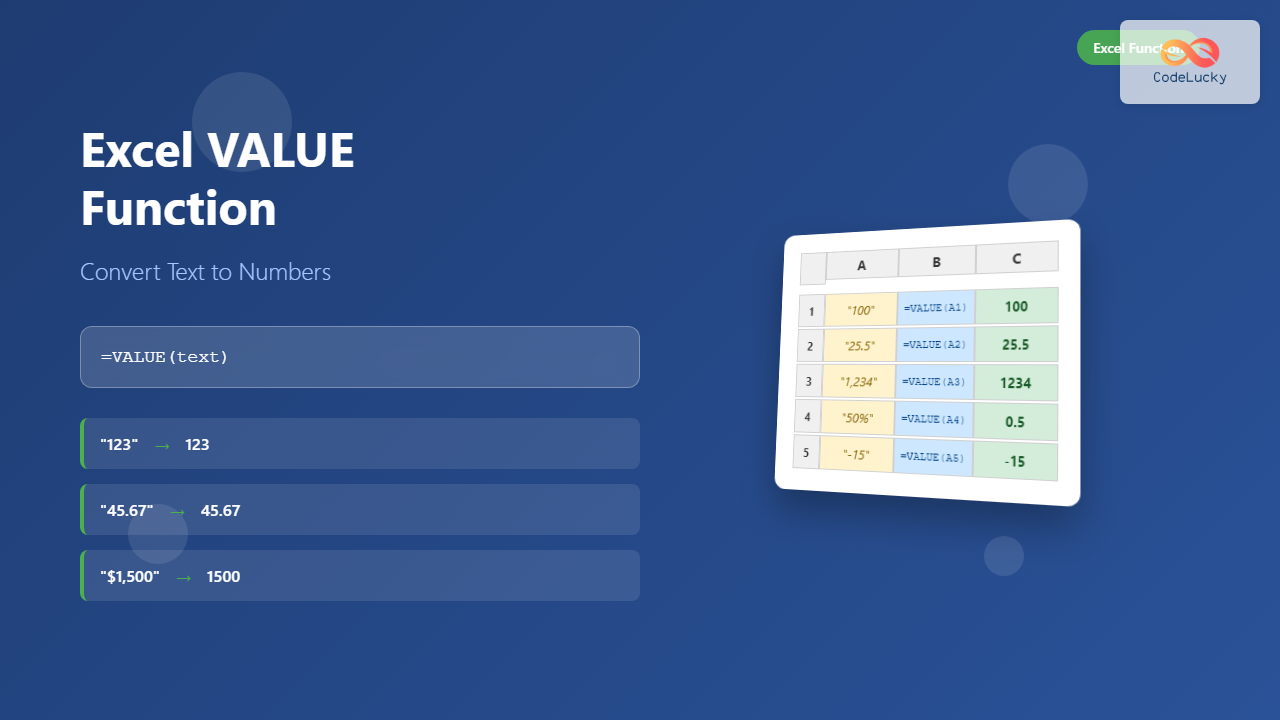
=VALUE("123")
Result: 123
=VALUE("45.67")
Result: 45.67Converting Cell References
When cell A1 contains the text “100”:
=VALUE(A1)
Result: 100
Handling Negative Numbers
=VALUE("-25.5")
Result: -25.5
Advanced VALUE Function Applications
Converting Numbers with Thousands Separators
The VALUE function can handle numbers with comma separators:
=VALUE("1,234,567")
Result: 1234567
Percentage Conversion
When converting percentage text, the function returns the decimal equivalent:
=VALUE("50%")
Result: 0.5
Scientific Notation
=VALUE("1.23E+02")
Result: 123
Common VALUE Function Use Cases
Cleaning Imported Data
When importing data from CSV files or external databases, numbers often come in as text. The VALUE function helps convert these for calculations:
=VALUE(TRIM(A1))This combination removes extra spaces and converts the text to a number.
Converting Currency Text
For currency values stored as text (depending on locale settings):
=VALUE("$1,500.00")
Result: 1500
Array Formula Applications
Convert multiple text values at once using array formulas:
=VALUE(A1:A10)This converts an entire range of text numbers to numeric values.
VALUE Function with Other Excel Functions
Combining with LEFT, RIGHT, and MID
Extract and convert portions of text strings:
=VALUE(LEFT(A1,3))This extracts the first three characters from cell A1 and converts them to a number.
Using with SUBSTITUTE
Remove unwanted characters before conversion:
=VALUE(SUBSTITUTE(A1,"$",""))This removes dollar signs before converting to a number.
Conditional Conversion with IF
=IF(ISNUMBER(A1),A1,VALUE(A1))This formula checks if A1 is already a number; if not, it converts it using VALUE.
Error Handling and Troubleshooting
Common VALUE Function Errors
#VALUE! Error: This occurs when the text cannot be converted to a number. Common causes include:
- Text containing non-numeric characters (except recognized formats)
- Multiple decimal points
- Unrecognized currency or date formats
- Empty cells passed as arguments
Error Prevention Strategies
Use IFERROR to handle potential conversion failures:
=IFERROR(VALUE(A1),"Invalid Number")Use ISNUMBER to check before conversion:
=IF(ISNUMBER(A1),A1,IF(ISTEXT(A1),VALUE(A1),""))VALUE Function vs. Other Conversion Methods
VALUE vs. Multiply by 1
While both methods convert text to numbers, VALUE is more explicit:
=VALUE(A1)    ' Explicit conversion
=A1*1         ' Implicit conversion
VALUE vs. Double Negative (–)
The double negative method is shorter but less readable:
=VALUE(A1)    ' Clear intent
=--A1         ' Concise but cryptic
Performance Considerations
When working with large datasets, consider these performance tips:
- Use VALUE only when necessary – don’t convert numbers that are already numeric
- Combine with data validation to prevent errors
- Consider using array formulas for batch conversions
- Cache results rather than repeated conversions
Real-World Examples
Financial Data Processing
Converting accounting software exports where negative numbers appear in parentheses:
=IF(RIGHT(A1,1)=")",VALUE("-"&SUBSTITUTE(SUBSTITUTE(A1,"(",""),")",""))/100,VALUE(A1))Survey Data Cleanup
Converting Likert scale responses stored as text:
=VALUE(SUBSTITUTE(SUBSTITUTE(A1,"Strongly Agree","5"),"Agree","4"))Best Practices for Using VALUE Function
- Always validate input: Check if conversion is necessary before applying VALUE
- Handle errors gracefully: Use IFERROR or IF statements to manage conversion failures
- Document your formulas: Add comments explaining why VALUE conversion is needed
- Test with sample data: Verify the function works with your specific data format
- Consider locale settings: Be aware that number formats vary by region
Limitations of the VALUE Function
Understanding the limitations helps avoid common pitfalls:
- Cannot convert dates stored as text (use DATEVALUE instead)
- Limited to numeric conversions only
- Depends on system locale for format recognition
- Cannot handle complex mixed data types
Alternative Functions for Text-to-Number Conversion
NUMBERVALUE Function
More flexible than VALUE, allowing custom decimal and thousands separators:
=NUMBERVALUE("1.234,56",",",".")TEXT-to-Columns Feature
For one-time bulk conversions, Excel’s Text-to-Columns feature can be more efficient than formulas.
Conclusion
The Excel VALUE function is an indispensable tool for data cleaning and conversion tasks. By understanding its syntax, applications, and limitations, you can efficiently transform text-based numeric data into calculation-ready numbers. Whether you’re processing financial reports, survey responses, or imported datasets, mastering the VALUE function will significantly improve your Excel productivity and data accuracy.
Remember to always validate your data, handle potential errors, and consider performance implications when working with large datasets. With proper implementation, the VALUE function becomes a powerful ally in maintaining clean, usable spreadsheet data.
Related Posts
Excel TEXT Function: Complete Guide to Number-to-Text Formatting
The Excel TEXT function is one of the most powerful yet underutilized functions for converting numeric values into formatted text...
Excel DECIMAL Function: Convert Any Base Number to Decimal Instantly
The DECIMAL function in Excel is a powerful mathematical tool that converts numbers from any specified base to decimal (base...

Excel ROMAN Function: Complete Guide to Converting Numbers to Roman Numerals
The Excel ROMAN function is a powerful built-in formula that converts Arabic numbers (regular integers) into their Roman numeral equivalents....

Excel TYPE Function: Complete Guide to Data Type Detection and Validation
The Excel TYPE function is a powerful information function that identifies the data type of a value in a cell...

Excel BASE Function: Complete Guide to Number Base Conversion
The BASE function in Excel is a powerful mathematical tool that converts decimal numbers into different number bases, making it...

Excel ARABIC Function: Convert Roman Numerals to Arabic Numbers with Syntax Examples
The Excel ARABIC function is a powerful built-in tool that converts Roman numerals into their corresponding Arabic number format. Whether...
Excel ISNUMBER Function: Complete Guide to Numeric Value Detection and Validation
What is the Excel ISNUMBER Function? The ISNUMBER function in Microsoft Excel is a logical function that tests whether a...

Excel RIGHT Function: Extract Text from Right Side with Examples
The RIGHT function in Excel is a powerful text manipulation tool that extracts a specified number of characters from the...

Excel REPLACE Function: Complete Text Replacement Guide with Examples
The Excel REPLACE function is a powerful text manipulation tool that allows you to replace a specific portion of text...

Excel INT Function: Complete Guide to Integer Extraction and Rounding
The Excel INT function is a fundamental mathematical function that extracts the integer portion of a number by rounding it...

Excel OCT2DEC Function: Complete Guide to Converting Octal Numbers to Decimal
What is the Excel OCT2DEC Function? The OCT2DEC function in Microsoft Excel is a powerful engineering function that converts octal...

Excel POWER Function: Complete Guide to Exponentiation Formula with Examples
What is the Excel POWER Function? The Excel POWER function is a built-in mathematical function that calculates the result of...
- What is the Excel VALUE Function?
- How the VALUE Function Works
- Basic VALUE Function Examples
- Advanced VALUE Function Applications
- Common VALUE Function Use Cases
- VALUE Function with Other Excel Functions
- Error Handling and Troubleshooting
- VALUE Function vs. Other Conversion Methods
- Performance Considerations
- Real-World Examples
- Best Practices for Using VALUE Function
- Limitations of the VALUE Function
- Alternative Functions for Text-to-Number Conversion
- Conclusion