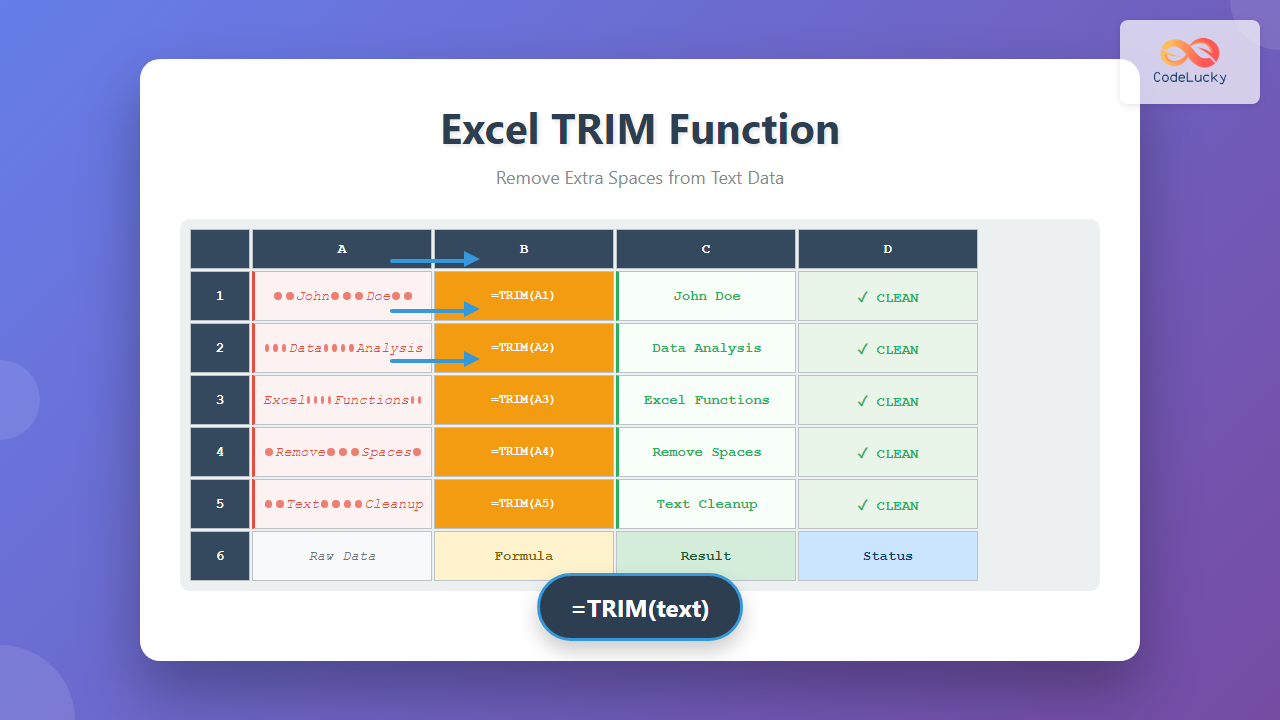
The Excel TRIM function is an essential text manipulation tool that removes unwanted spaces from text strings, making your data cleaner and more consistent. Whether you’re dealing with imported data, user input, or merged datasets, the TRIM function helps eliminate leading spaces, trailing spaces, and multiple consecutive spaces between words.
What is the Excel TRIM Function?
The TRIM function in Excel is a built-in text function that removes all extra spaces from a text string, except for single spaces between words. It’s particularly useful when cleaning data that contains irregular spacing, which often occurs when importing data from external sources or when users enter data inconsistently.
This function automatically handles three types of space removal:
- Leading spaces – Spaces at the beginning of text
- Trailing spaces – Spaces at the end of text
- Multiple consecutive spaces – Reduces multiple spaces between words to single spaces
TRIM Function Syntax
The syntax for the TRIM function is straightforward:
=TRIM(text)Parameters:
- text (required) – The text string or cell reference containing the text you want to clean
The function returns a cleaned text string with extra spaces removed.
Basic TRIM Function Examples
Example 1: Removing Leading and Trailing Spaces
If cell A1 contains “ Hello World ” (with extra spaces before and after), the formula:
=TRIM(A1)Returns: “Hello World” (clean text without leading or trailing spaces)
Example 2: Reducing Multiple Spaces Between Words
For text like “Excel is powerful” in cell B1, using:
=TRIM(B1)Returns: “Excel is powerful” (single spaces between words)
Example 3: Cleaning Mixed Space Issues
When cell C1 contains “ Data Analysis Made Easy “, the formula:
=TRIM(C1)Returns: “Data Analysis Made Easy” (all spacing issues resolved)
Advanced TRIM Function Techniques
Combining TRIM with Other Functions
The TRIM function becomes more powerful when combined with other Excel functions:
TRIM + UPPER
=UPPER(TRIM(A1))Removes extra spaces and converts text to uppercase.
TRIM + PROPER
=PROPER(TRIM(A1))Cleans spaces and converts text to proper case (first letter of each word capitalized).
TRIM + SUBSTITUTE
=TRIM(SUBSTITUTE(A1, CHAR(160), " "))Replaces non-breaking spaces (CHAR(160)) with regular spaces before trimming.
Array Formula with TRIM
To apply TRIM to multiple cells simultaneously, you can use an array formula:
=TRIM(A1:A10)This formula (entered as an array formula in older Excel versions or as a dynamic array in Excel 365) applies the TRIM function to the entire range.
Common Use Cases for TRIM Function
Data Import Cleanup
When importing data from CSV files, databases, or web sources, extra spaces often appear. The TRIM function is essential for cleaning this imported data before analysis.
User Form Data Processing
When users enter data through forms, they might accidentally add extra spaces. Using TRIM ensures consistent data formatting regardless of user input variations.
Data Consolidation
When merging data from multiple sources, spacing inconsistencies can prevent proper matching. TRIM helps standardize text formatting for accurate data consolidation.
Report Preparation
Before creating reports or presentations, TRIM ensures that all text data appears clean and professional.
TRIM Function Limitations and Considerations
Non-Breaking Spaces
The TRIM function doesn’t remove non-breaking spaces (ASCII 160). To handle these, combine TRIM with SUBSTITUTE:
=TRIM(SUBSTITUTE(A1, CHAR(160), " "))Other Whitespace Characters
TRIM only removes regular spaces (ASCII 32). Other whitespace characters like tabs or line breaks require additional functions:
=TRIM(SUBSTITUTE(SUBSTITUTE(A1, CHAR(9), " "), CHAR(10), " "))Numeric Values
When applied to numbers, TRIM converts them to text. If you need to maintain numeric formatting, ensure proper data type handling after using TRIM.
TRIM vs. Other Space-Removal Methods
TRIM vs. Find & Replace
While Find & Replace can remove specific characters, TRIM provides more intelligent space handling by preserving single spaces between words while removing excess spaces.
TRIM vs. CLEAN Function
The CLEAN function removes non-printable characters, while TRIM specifically targets space characters. Often, using both functions together provides comprehensive text cleaning:
=TRIM(CLEAN(A1))Practical Implementation Examples
Cleaning Name Lists
For a column of names with inconsistent spacing:
| Original (A1:A3) | Formula (B1:B3) | Result |
|---|---|---|
| John Doe | =TRIM(A1) | John Doe |
| Jane Smith | =TRIM(A2) | Jane Smith |
| Bob Johnson | =TRIM(A3) | Bob Johnson |
Product Code Standardization
When product codes have spacing issues:
=TRIM(UPPER(A1))This formula both removes extra spaces and standardizes the case for product codes.
Performance Tips and Best Practices
Apply TRIM During Import
When possible, apply TRIM functions immediately after importing data to prevent spacing issues from propagating through your workbook.
Use Helper columns
Create helper columns with TRIM formulas, then copy and paste values to replace the original data once cleaned.
Combine with Data Validation
Use TRIM in conjunction with data validation rules to ensure clean data entry from the start.
Troubleshooting Common TRIM Issues
Formula Not Working
If TRIM doesn’t seem to work, check for:
- Non-breaking spaces (use SUBSTITUTE with CHAR(160))
- Other whitespace characters like tabs or line breaks
- Leading apostrophes that force text formatting
Unexpected Results
If TRIM produces unexpected results:
- Verify the source data doesn’t contain hidden characters
- Check if the text contains special Unicode spaces
- Ensure cell formatting isn’t affecting display
Alternative Methods for Space Removal
Power Query Method
For large datasets, Power Query offers efficient space cleaning capabilities through its Transform Data feature.
VBA Solutions
For automated processing, VBA macros can apply TRIM-like functionality across multiple worksheets or workbooks.
Conclusion
The Excel TRIM function is an indispensable tool for maintaining clean, consistent data in your spreadsheets. By removing unwanted spaces while preserving the integrity of your text, TRIM helps ensure accurate data analysis, reliable lookups, and professional-looking reports. Whether you’re cleaning imported data, standardizing user input, or preparing data for analysis, mastering the TRIM function will significantly improve your Excel efficiency and data quality.
Remember to combine TRIM with other text functions when dealing with complex data cleaning scenarios, and always test your formulas with sample data to ensure they produce the expected results. With proper implementation, the TRIM function becomes a cornerstone of effective Excel data management.
Related Posts
Excel CLEAN Function: Remove Non-Printable Characters Complete Guide
Excel's CLEAN function is an essential tool for data cleaning that removes non-printable characters from text strings. Whether you're dealing...

Excel PROPER Function: Convert Text to Title Case with Simple Formula
The Excel PROPER function is a powerful text manipulation tool that converts any text string to title case, where the...

Excel TEXTJOIN Function: Complete Guide to Advanced Text Concatenation
The TEXTJOIN function in Microsoft Excel is a powerful text manipulation tool that allows you to combine text from multiple...
Excel LEN Function: Complete Guide to Text Length Calculation and Formulas
The Excel LEN function is one of the most fundamental text manipulation tools in Microsoft Excel, designed to calculate the...

Excel UPPER Function: Complete Guide to Converting Text to Uppercase
The Excel UPPER function is an essential text manipulation tool that converts all lowercase letters in a text string to...
MySQL TRIM Functions: Removing Unwanted Spaces and Characters
Data, especially text data, often comes with unwanted spaces or characters. MySQL's TRIM functions are your go-to tools for cleaning...
Excel MID Function: Complete Guide to Extract Text from Middle of Strings
The Excel MID function is one of the most powerful text manipulation tools available in Microsoft Excel. This function allows...

Excel REPLACE Function: Complete Text Replacement Guide with Examples
The Excel REPLACE function is a powerful text manipulation tool that allows you to replace a specific portion of text...

JavaScript String trim() Method: Trimming Whitespace
JavaScript String trim() Method: Trimming Whitespace Effectively The trim() method in JavaScript is a powerful tool for cleaning up strings...
Excel LOWER Function: Convert Text to Lowercase with Syntax Examples
The Excel LOWER function is a powerful text manipulation tool that converts all uppercase letters in a text string to...

Excel LEFT Function: Complete Guide to Extract Text from Left Side
The Excel LEFT function is one of the most essential text manipulation tools in Microsoft Excel, designed to extract a...

JavaScript String trimStart() Method: Trimming Leading Whitespace
JavaScript String trimStart() Method: Trimming Leading Whitespace In JavaScript, the trimStart() method is a string method used to remove whitespace...