The TIME function in Microsoft Excel is a powerful built-in function that allows you to create time values by combining individual hour, minute, and second components. This essential function is part of Excel’s date and time function library and serves as a fundamental tool for time-based calculations and data manipulation.
Understanding the Excel TIME Function
The TIME function constructs a time value from three separate numeric arguments representing hours, minutes, and seconds. Unlike entering time manually, the TIME function ensures consistency and eliminates formatting errors when working with time data programmatically.
TIME Function Syntax
The syntax for the TIME function is straightforward:
=TIME(hour, minute, second)Where:
- Hour: A number from 0 to 32767 representing the hour component
- Minute: A number from 0 to 32767 representing the minute component
- Second: A number from 0 to 32767 representing the second component
How Excel Handles Time Values
Excel stores time values as decimal fractions of a 24-hour day. For example, 12:00 PM (noon) is stored as 0.5 because it represents half a day. This internal representation allows Excel to perform mathematical operations on time values efficiently.
When you use the TIME function, Excel automatically converts the result to this decimal format, though it displays the result in time format based on your cell formatting.
Basic TIME Function Examples
Creating Standard Time Values
Here are fundamental examples of using the TIME function:
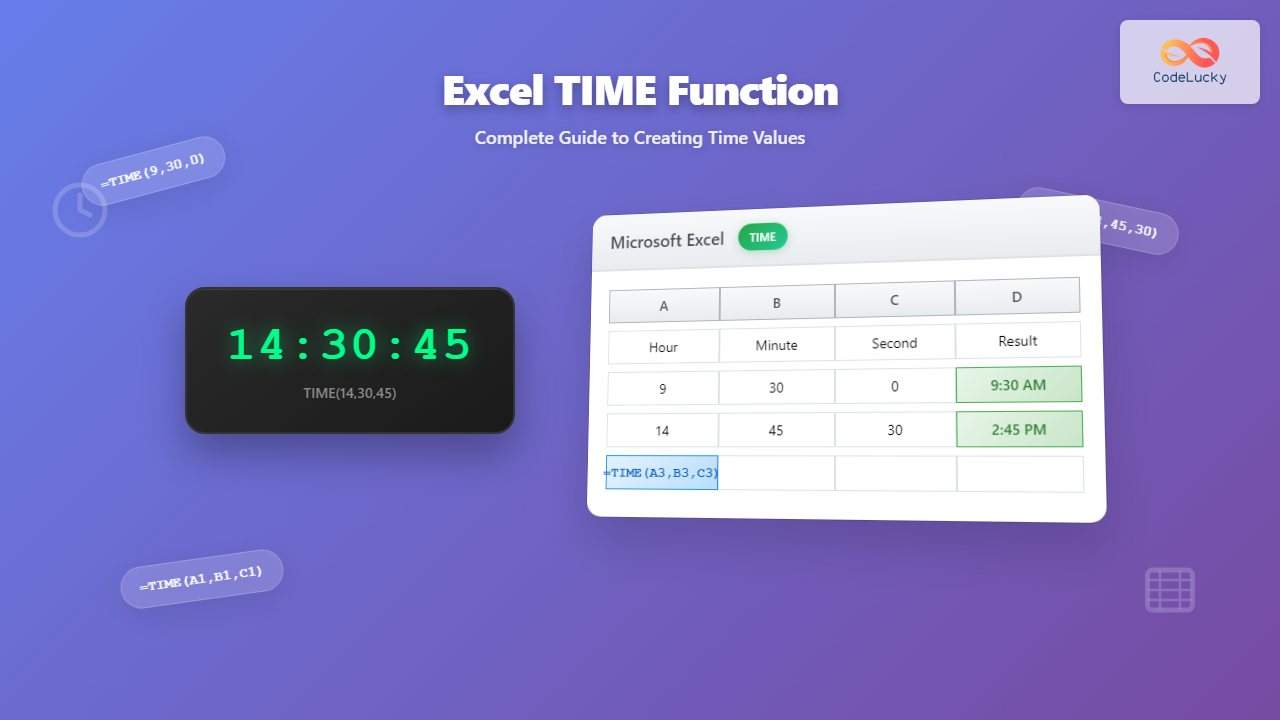
=TIME(9, 30, 0)creates 9:30:00 AM=TIME(14, 45, 30)creates 2:45:30 PM=TIME(0, 0, 0)creates 12:00:00 AM (midnight)=TIME(12, 0, 0)creates 12:00:00 PM (noon)
Working with Variable Components
The TIME function becomes particularly powerful when combined with cell references:
=TIME(A1, B1, C1)This formula creates a time value using hours from cell A1, minutes from B1, and seconds from C1, making it perfect for dynamic time calculations.
Advanced TIME Function Techniques
Handling Values Beyond Normal Ranges
One of the TIME function’s strengths is its ability to handle values that exceed normal time boundaries:
=TIME(25, 0, 0)results in 1:00:00 AM (25 hours = 1 hour + 24 hours)=TIME(0, 75, 0)results in 1:15:00 AM (75 minutes = 1 hour 15 minutes)=TIME(0, 0, 3665)results in 1:01:05 AM (3665 seconds = 1 hour 1 minute 5 seconds)
Excel automatically converts overflow values to their equivalent time representation, making calculations more flexible.
Creating Time from Calculations
You can use mathematical expressions within the TIME function:
=TIME(8+A1, 30+B1, 0)This formula adds values from cells A1 and B1 to base time components, useful for calculating adjusted schedules or time shifts.
Practical Applications of the TIME Function
Employee Time Tracking
Create start and end times for employee schedules:
=TIME(9, 0, 0)  ' Start time: 9:00 AM
=TIME(17, 30, 0) ' End time: 5:30 PM
Calculating Elapsed Time
Combine TIME with other functions to calculate time differences:
=TIME(17, 30, 0) - TIME(9, 0, 0)This formula calculates the difference between 5:30 PM and 9:00 AM, resulting in 8 hours and 30 minutes.
Time-Based Conditional Formatting
Use TIME function results in conditional formatting rules to highlight specific time ranges or create visual schedules.
Common TIME Function Errors and Solutions
#VALUE! Error
This error occurs when:
- Non-numeric values are used as arguments
- Text strings are passed instead of numbers
Solution: Ensure all arguments are numeric values or valid cell references containing numbers.
Unexpected Results
If your TIME function returns unexpected values:
- Check cell formatting – ensure it’s set to time format
- Verify that your arguments are within expected ranges
- Remember that Excel uses 24-hour format internally
TIME Function vs. Manual Time Entry
While you can enter time values directly (like 9:30 AM), the TIME function offers several advantages:
- Consistency: Eliminates formatting variations
- Flexibility: Accepts calculated values and cell references
- Error Prevention: Automatically handles overflow values
- Integration: Works seamlessly with other Excel functions
Combining TIME with Other Excel Functions
TIME and DATE Functions
Create complete datetime values:
=DATE(2024, 1, 15) + TIME(14, 30, 0)This combines a date (January 15, 2024) with a time (2:30 PM) to create a complete datetime value.
TIME with TEXT Function
Format time values as text strings:
=TEXT(TIME(14, 30, 0), "h:mm AM/PM")This displays the time as “2:30 PM” in text format.
TIME with IF Function
Create conditional time values:
=IF(A1="Morning", TIME(9, 0, 0), TIME(13, 0, 0))This returns 9:00 AM for “Morning” and 1:00 PM for other values.
Best Practices for Using the TIME Function
Input Validation
Always validate your inputs to prevent errors:
=IF(AND(A1>=0, A1<=23, B1>=0, B1<=59, C1>=0, C1<=59), TIME(A1, B1, C1), "Invalid Time")Consistent Formatting
Apply consistent time formatting to cells containing TIME function results to maintain readability and prevent confusion.
Documentation
Comment your formulas when using complex TIME function combinations to help other users understand your logic.
TIME Function Limitations and Considerations
While powerful, the TIME function has some limitations:
- Results are limited to 24-hour periods (times beyond 24 hours wrap around)
- Cannot directly handle negative time values
- Requires numeric inputs (cannot parse text time strings)
Alternative Time Functions in Excel
Excel provides several related functions for time manipulation:
- TIMEVALUE: Converts text time strings to time values
- NOW: Returns current date and time
- HOUR, MINUTE, SECOND: Extract components from existing time values
- TIME: Creates time from components (the focus of this article)
Conclusion
The Excel TIME function is an essential tool for anyone working with time data in spreadsheets. Its ability to create precise time values from individual components makes it invaluable for scheduling, time tracking, and temporal calculations. By understanding its syntax, capabilities, and best practices, you can leverage the TIME function to create more efficient and accurate Excel solutions.
Whether you're building employee schedules, calculating time differences, or creating time-based reports, mastering the TIME function will significantly enhance your Excel proficiency and enable you to handle time-related data with confidence and precision.
Related Posts
Excel VALUE Function: Complete Guide to Text-to-Number Conversion
The Excel VALUE function is a powerful data conversion tool that transforms text strings containing numeric values into actual numbers...
Excel AVERAGE Function: Complete Guide to Mean Calculation with Syntax Examples
The Excel AVERAGE function is one of the most fundamental and widely-used statistical functions in Microsoft Excel. This powerful function...

C Time Functions: Date and Time Operations with <time.h>
Time is an essential concept in programming, and C provides a robust set of functions for working with dates and...

Excel SUM Function: Complete Guide to Addition Formulas and Advanced Techniques
The Excel SUM function is one of the most fundamental and widely-used formulas in Microsoft Excel, designed to add numerical...

Excel MIN Function: Complete Guide to Finding Minimum Values with Formula Examples
The MIN function in Microsoft Excel is one of the most fundamental and frequently used statistical functions for data analysis....

Excel POWER Function: Complete Guide to Exponentiation Formula with Examples
What is the Excel POWER Function? The Excel POWER function is a built-in mathematical function that calculates the result of...

Excel NOW Function: Complete Guide to Real-Time Date and Time Display
The Excel NOW function is one of the most essential date and time functions for creating dynamic spreadsheets that automatically...
Excel TEXT Function: Complete Guide to Number-to-Text Formatting
The Excel TEXT function is one of the most powerful yet underutilized functions for converting numeric values into formatted text...

Excel DAYS Function: Complete Guide to Calculate Date Differences
The Excel DAYS function is a powerful date calculation tool that determines the number of days between two dates. Whether...

Excel TODAY Function: Complete Guide to Current Date Formulas and Real-Time Applications
The Excel TODAY function is one of the most fundamental and powerful date functions in Microsoft Excel, automatically returning the...

Excel TYPE Function: Complete Guide to Data Type Detection and Validation
The Excel TYPE function is a powerful information function that identifies the data type of a value in a cell...
Excel DECIMAL Function: Convert Any Base Number to Decimal Instantly
The DECIMAL function in Excel is a powerful mathematical tool that converts numbers from any specified base to decimal (base...