
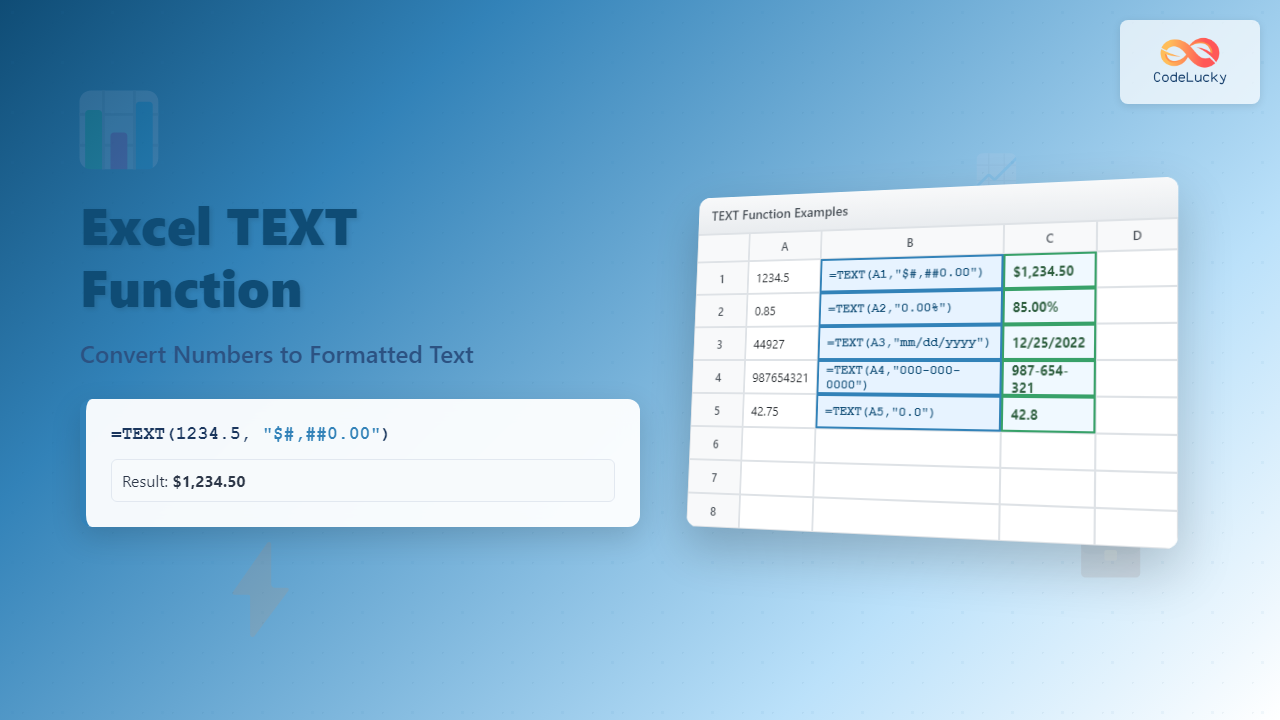
The Excel TEXT function is one of the most powerful yet underutilized functions for converting numeric values into formatted text strings. Whether you’re creating professional reports, generating custom labels, or combining numbers with text, mastering the TEXT function will significantly enhance your Excel productivity and data presentation capabilities.
What is the Excel TEXT Function?
The TEXT function converts a numeric value to text using a specified number format. This function is particularly useful when you need to display numbers in a specific format while maintaining them as text strings, or when combining formatted numbers with other text elements in Excel formulas.
Unlike standard number formatting that only changes the display appearance, the TEXT function actually converts the number to a text string, making it ideal for concatenation operations and scenarios where you need consistent text output regardless of cell formatting.
TEXT Function Syntax and Parameters
The TEXT function follows a simple two-parameter syntax:
=TEXT(value, format_text)
The function accepts two required arguments:
- value: The numeric value you want to convert to text. This can be a number, cell reference, or formula that returns a numeric result.
- format_text: A text string that defines how the number should be formatted. This parameter uses Excel’s number format codes to specify the desired output format.
Both parameters are mandatory, and the function will return an error if either parameter is missing or invalid.
Essential Number Format Codes
Understanding format codes is crucial for effectively using the TEXT function. These codes determine how your numbers will appear as text strings.
Basic Number Format Codes
The most fundamental format codes include:
- 0: Displays a digit or zero if no digit exists in that position
- #: Displays a digit only if it’s significant (no leading/trailing zeros)
- ?: Displays a digit or space for alignment purposes
- .: Decimal point separator
- ,: Thousands separator
Date and Time Format Codes
For date and time formatting, key codes include:
- yyyy: Four-digit year (2024)
- yy: Two-digit year (24)
- mmm: Three-letter month abbreviation (Jan)
- mmmm: Full month name (January)
- dd: Two-digit day (01-31)
- hh: Hours in 24-hour format
- mm: Minutes
- ss: Seconds
Currency and Percentage Codes
Financial formatting options include:
- $: Dollar sign prefix
- %: Percentage format (multiplies by 100)
- [Red]: Colors negative numbers red
- (): Encloses negative numbers in parentheses
Practical TEXT Function Examples
Let’s explore real-world applications of the TEXT function with detailed examples that demonstrate its versatility and power.
Basic Number Formatting
Converting a simple number with decimal places:
=TEXT(1234.5, "0.00") returns “1234.50”
This example shows how the TEXT function adds trailing zeros to meet the specified decimal place requirement, ensuring consistent formatting across your data.
Currency Formatting
Creating professional currency displays:
=TEXT(1234.5, "$#,##0.00") returns “$1,234.50”
This format combines multiple elements: the dollar sign prefix, thousands separator, and two decimal places, creating a professional financial display.
Date Formatting Examples
Converting Excel date serial numbers to custom text formats:
=TEXT(TODAY(), "mmmm dd, yyyy") might return “December 15, 2024”
=TEXT(NOW(), "dddd, mmmm dd, yyyy") could return “Monday, December 15, 2024”
These examples demonstrate how the TEXT function can create human-readable date formats from Excel’s internal date serial numbers.
Time Formatting Applications
For time-based data presentation:
=TEXT(NOW(), "hh:mm AM/PM") returns “02:30 PM”
=TEXT(0.75, "hh:mm") returns “18:00” (representing 75% of a day)
Percentage Formatting
Converting decimal values to percentage text:
=TEXT(0.85, "0%") returns “85%”
=TEXT(0.8547, "0.00%") returns “85.47%”
Advanced TEXT Function Techniques
Combining TEXT with Other Functions
The TEXT function becomes particularly powerful when combined with other Excel functions. Here are sophisticated examples:
Creating Dynamic Reports:
="Sales for " & TEXT(TODAY(), "mmmm yyyy") & ": " & TEXT(SUM(A1:A10), "$#,##0")
This formula creates a dynamic report header that updates automatically with the current month and formatted sales total.
Conditional Formatting with TEXT:
=IF(A1>0, TEXT(A1, "$#,##0.00"), "(" & TEXT(ABS(A1), "$#,##0.00") & ")")
This example formats positive numbers as regular currency and negative numbers in parentheses, following accounting conventions.
Custom Number Formats
Creating specialized formats for unique requirements:
Phone Number Formatting:
=TEXT(1234567890, "(000) 000-0000") returns “(123) 456-7890”
Social Security Number Format:
=TEXT(123456789, "000-00-0000") returns “123-45-6789”
Custom ID Formats:
=TEXT(ROW(), "ID-000") creates sequential IDs like “ID-001”, “ID-002”, etc.
TEXT Function for Data Concatenation
One of the most valuable applications of the TEXT function is in data concatenation scenarios where you need to combine formatted numbers with text strings.
Creating Mailing Labels
="Invoice #" & TEXT(A1, "0000") & " - Due: " & TEXT(B1, "mm/dd/yyyy")
This formula creates professional invoice labels with properly formatted numbers and dates.
Report Generation
="Q" & TEXT(MONTH(TODAY())/3, "0") & " Revenue: " & TEXT(SUM(Revenue), "$#,##0.00")
This creates quarterly revenue reports with automatic quarter calculation and currency formatting.
Common TEXT Function Errors and Solutions
Understanding #VALUE! Errors
The #VALUE! error typically occurs when:
- The format_text parameter contains invalid format codes
- The value parameter cannot be converted to a number
- Circular references exist in the formula
To resolve these errors, always verify that your format codes are valid Excel number format codes and that your value parameter represents a numeric value.
Handling Text Input
When working with cells that might contain text instead of numbers, wrap the TEXT function with error handling:
=IF(ISNUMBER(A1), TEXT(A1, "$#,##0.00"), "Invalid Input")
TEXT Function Performance Considerations
While the TEXT function is powerful, understanding its performance implications helps optimize your spreadsheets:
Memory Usage
TEXT functions convert numbers to text strings, which consume more memory than numeric values. In large datasets, consider whether number formatting might be more appropriate than TEXT function conversion.
Calculation Speed
TEXT functions are calculation-intensive, especially when used extensively across large spreadsheets. For better performance, consider using TEXT functions only where text output is specifically required.
Alternative Approaches to Number Formatting
While the TEXT function is versatile, sometimes alternative approaches might be more appropriate:
Cell Formatting vs. TEXT Function
Use cell formatting when you need numbers to remain numeric for calculations but want to change their display appearance. Use the TEXT function when you need actual text strings for concatenation or when the output must be text regardless of cell formatting.
Custom Number Formats
Excel’s custom number format feature can achieve many of the same results as the TEXT function while maintaining numeric data types. Access this through Format Cells > Number > Custom.
Best Practices for TEXT Function Usage
To maximize the effectiveness of the TEXT function in your Excel workflows:
Documentation and Consistency
Always document your format codes and maintain consistency across similar applications. Create a reference sheet with your commonly used format codes for easy access.
Testing and Validation
Test your TEXT functions with various input values, including edge cases like zero, negative numbers, and very large numbers, to ensure robust performance.
Localization Considerations
Remember that format codes may behave differently in different regional settings. Test your formulas across different locale settings if your workbook will be used internationally.
Conclusion
The Excel TEXT function is an invaluable tool for converting numbers into formatted text strings, enabling sophisticated data presentation and report generation capabilities. By mastering its syntax, understanding format codes, and applying advanced techniques, you can create professional, dynamic spreadsheets that automatically format and display data according to your specific requirements.
Whether you’re creating invoices, generating reports, or building complex data analysis tools, the TEXT function provides the flexibility and power needed to present numeric data in exactly the format your audience expects. Practice with the examples provided, experiment with different format codes, and gradually incorporate more advanced techniques to fully leverage this powerful Excel function in your daily work.
Related Posts
Excel VALUE Function: Complete Guide to Text-to-Number Conversion
The Excel VALUE function is a powerful data conversion tool that transforms text strings containing numeric values into actual numbers...
Excel ROMAN Function: Complete Guide to Converting Numbers to Roman Numerals
The Excel ROMAN function is a powerful built-in formula that converts Arabic numbers (regular integers) into their Roman numeral equivalents....
Excel DECIMAL Function: Convert Any Base Number to Decimal Instantly
The DECIMAL function in Excel is a powerful mathematical tool that converts numbers from any specified base to decimal (base...

Excel TYPE Function: Complete Guide to Data Type Detection and Validation
The Excel TYPE function is a powerful information function that identifies the data type of a value in a cell...

Excel ARABIC Function: Convert Roman Numerals to Arabic Numbers with Syntax Examples
The Excel ARABIC function is a powerful built-in tool that converts Roman numerals into their corresponding Arabic number format. Whether...

Excel RIGHT Function: Extract Text from Right Side with Examples
The RIGHT function in Excel is a powerful text manipulation tool that extracts a specified number of characters from the...
Excel CELL Function: Complete Guide to Cell Information Formula Syntax
The CELL function in Microsoft Excel is a powerful information function that returns specific details about the formatting, location, or...
Excel ISNUMBER Function: Complete Guide to Numeric Value Detection and Validation
What is the Excel ISNUMBER Function? The ISNUMBER function in Microsoft Excel is a logical function that tests whether a...

Excel BASE Function: Complete Guide to Number Base Conversion
The BASE function in Excel is a powerful mathematical tool that converts decimal numbers into different number bases, making it...

Excel SUM Function: Complete Guide to Addition Formulas and Advanced Techniques
The Excel SUM function is one of the most fundamental and widely-used formulas in Microsoft Excel, designed to add numerical...

Excel INT Function: Complete Guide to Integer Extraction and Rounding
The Excel INT function is a fundamental mathematical function that extracts the integer portion of a number by rounding it...

Excel COUNT Function: Complete Guide to Number Counting Formulas
The COUNT function is one of Excel's most fundamental and frequently used statistical functions. Whether you're analyzing sales data, tracking...





