
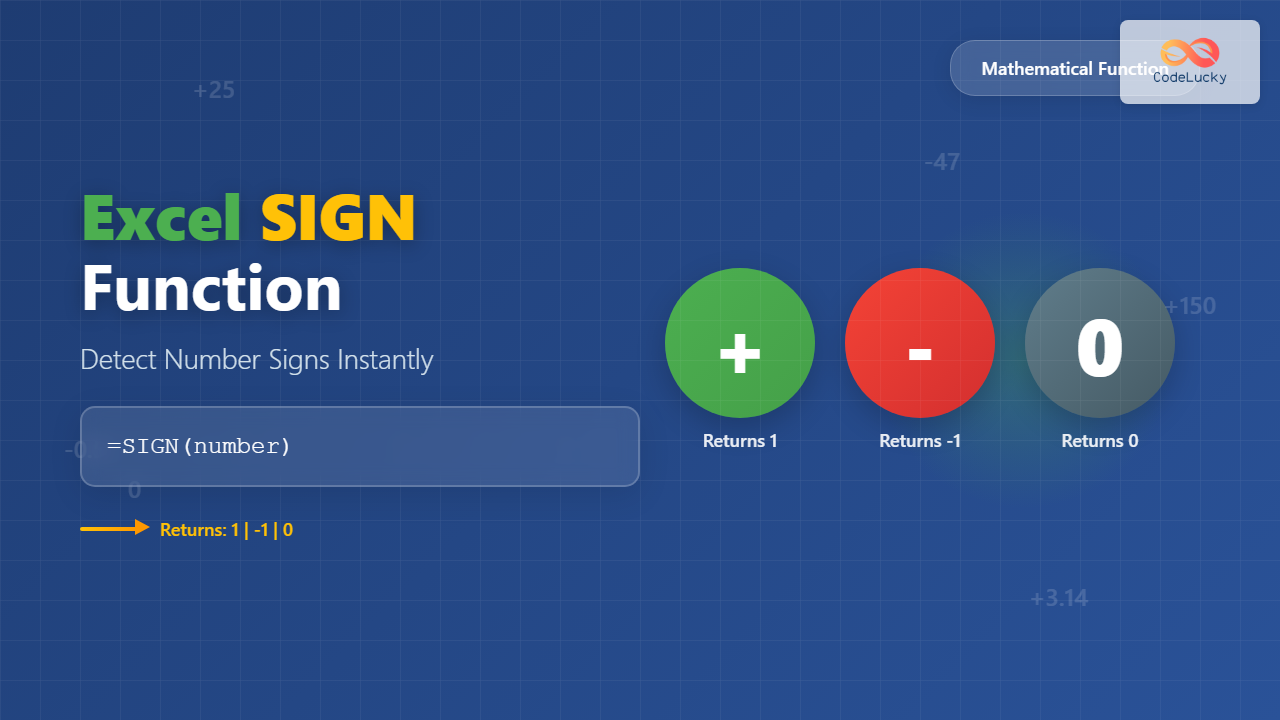
The Excel SIGN function is a powerful mathematical tool that determines whether a number is positive, negative, or zero. This essential function returns simple numeric codes that make data analysis and conditional logic remarkably straightforward.
What is the Excel SIGN Function?
The SIGN function analyzes any numeric value and returns one of three possible results:
- 1 for positive numbers
- -1 for negative numbers
- 0 for zero values
This seemingly simple function becomes incredibly valuable when you need to categorize data, create conditional formulas, or perform mathematical operations based on number signs.
SIGN Function Syntax
The syntax for the SIGN function is remarkably straightforward:
=SIGN(number)Parameters Explained
- number (required): Any real number or cell reference containing a numeric value
The function accepts various input types including integers, decimals, cell references, and even results from other formulas.
Basic SIGN Function Examples
Let’s explore fundamental examples to understand how SIGN works:
Direct Number Input
=SIGN(25)returns 1 (positive)=SIGN(-47)returns -1 (negative)=SIGN(0)returns 0 (zero)=SIGN(3.14)returns 1 (positive decimal)=SIGN(-0.5)returns -1 (negative decimal)
Cell Reference Examples
When using cell references, the SIGN function evaluates the actual value in the referenced cell:
| Cell A1 | Formula | Result |
|---|---|---|
| 150 | =SIGN(A1) | 1 |
| -75 | =SIGN(A1) | -1 |
| 0 | =SIGN(A1) | 0 |
Advanced SIGN Function Applications
Combining SIGN with IF Statements
The SIGN function becomes extremely powerful when combined with logical functions. Here’s how to create descriptive labels:
=IF(SIGN(A1)=1,"Positive",IF(SIGN(A1)=-1,"Negative","Zero"))This formula converts numeric sign codes into readable text descriptions.
Mathematical Operations with SIGN
Use SIGN to control mathematical operations based on number polarity:
=A1*SIGN(B1)This formula multiplies A1 by the sign of B1, effectively copying B1’s sign to A1’s absolute value.
Data Categorization
Create powerful categorization systems using SIGN:
=CHOOSE(SIGN(A1)+2,"Negative","Zero","Positive")This formula uses CHOOSE with SIGN to create instant categorization. The +2 adjustment transforms SIGN’s output (-1, 0, 1) into CHOOSE’s required index numbers (1, 2, 3).
Real-World SIGN Function Use Cases
Financial Analysis
In financial spreadsheets, SIGN helps identify profit and loss patterns:
- Categorize monthly profits and losses
- Create visual indicators for positive/negative cash flows
- Build conditional formatting rules based on financial performance
Sales Performance Tracking
Sales teams use SIGN to analyze performance metrics:
=IF(SIGN(B2-C2)=1,"Above Target","Below Target")This compares actual sales (B2) against targets (C2), instantly showing performance status.
Temperature and Scientific Data
Scientific applications benefit from SIGN’s ability to categorize measurements:
- Identify above/below freezing temperatures
- Categorize elevation data (above/below sea level)
- Analyze experimental results with positive/negative outcomes
SIGN Function Error Handling
Common Errors and Solutions
The SIGN function typically handles most scenarios gracefully, but certain situations require attention:
- #VALUE! Error: Occurs when the input contains non-numeric text
- Solution: Use ISNUMBER to validate data before applying SIGN
=IF(ISNUMBER(A1),SIGN(A1),"Invalid Input")Handling Blank Cells
When referencing potentially blank cells, SIGN treats empty cells as zero:
=IF(A1="","No Data",SIGN(A1))SIGN Function vs Alternative Methods
Comparison with ABS Function
While ABS returns absolute values, SIGN focuses on direction:
ABS(-5)returns 5SIGN(-5)returns -1
Combining both functions provides comprehensive number analysis:
=ABS(A1)*SIGN(B1)Manual Sign Detection
While you could use complex IF statements to detect signs, SIGN provides elegant simplicity:
Manual approach:
=IF(A1>0,1,IF(A1<0,-1,0))SIGN approach:
=SIGN(A1)Performance and Compatibility
Excel Version Compatibility
The SIGN function works across all modern Excel versions:
- Excel 2019 and Excel 365
- Excel 2016 and Excel 2013
- Excel Online and Excel Mobile
- Compatible with Google Sheets and other spreadsheet applications
Performance Considerations
SIGN is extremely lightweight and processes quickly even with large datasets. It's more efficient than complex nested IF statements for sign detection tasks.
Advanced Tips and Tricks
Creating Sign-Based Conditional Formatting
Use SIGN in conditional formatting rules to automatically highlight positive and negative values with different colors.
Array Formula Applications
Apply SIGN to entire ranges for bulk sign detection:
=SIGN(A1:A100)This creates an array of sign values for the entire range.
Combining with SUMPRODUCT
Count positive and negative values efficiently:
=SUMPRODUCT((SIGN(A1:A100)=1)*1)This counts all positive values in the range.
Troubleshooting Common Issues
Unexpected Zero Results
If SIGN consistently returns 0, check for:
- Hidden characters in cell data
- Text that appears numeric but isn't
- Formatting issues affecting number recognition
Formula Not Updating
Ensure calculation settings are automatic:
- Press Ctrl+Alt+F9 to force recalculation
- Check File > Options > Formulas > Calculation Options
Best Practices for Using SIGN
- Validate Input Data: Always ensure your data is properly formatted as numbers
- Document Your Logic: Add comments explaining complex SIGN-based formulas
- Test Edge Cases: Verify behavior with zero values, blanks, and text inputs
- Combine Strategically: Pair SIGN with other functions for powerful analytical tools
Conclusion
The Excel SIGN function transforms complex sign detection into simple, reliable operations. Whether you're analyzing financial data, categorizing scientific measurements, or building conditional logic, SIGN provides the foundation for sophisticated data analysis with minimal complexity.
Master this function to streamline your spreadsheet workflows and create more intuitive data processing systems. The combination of simplicity and power makes SIGN an indispensable tool in any Excel user's arsenal.
Start implementing SIGN in your next spreadsheet project to experience firsthand how this compact function can revolutionize your approach to number analysis and data categorization.
Related Posts
Excel ABS Function: Complete Guide to Absolute Value Calculations
The ABS function in Microsoft Excel is one of the most fundamental mathematical functions that converts any number to its...

Excel INT Function: Complete Guide to Integer Extraction and Rounding
The Excel INT function is a fundamental mathematical function that extracts the integer portion of a number by rounding it...

JavaScript Math.sign() Method: Sign of a Number
JavaScript Math.sign() Method: Determining the Sign of a Number The Math.sign() method in JavaScript is a built-in function that returns...

Excel FLOOR Function: Complete Guide to Floor Rounding with Syntax Examples
The Excel FLOOR function is a powerful mathematical tool that rounds numbers down to the nearest specified multiple. Unlike standard...
Excel ISNUMBER Function: Complete Guide to Numeric Value Detection and Validation
What is the Excel ISNUMBER Function? The ISNUMBER function in Microsoft Excel is a logical function that tests whether a...
Excel DEC2BIN Function: Complete Guide to Converting Decimal to Binary Numbers
What is the Excel DEC2BIN Function? The DEC2BIN function in Microsoft Excel is a powerful engineering function that converts decimal...
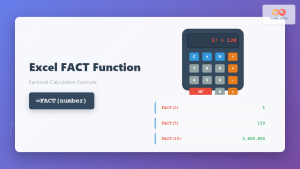
Excel FACT Function: Complete Guide to Factorial Calculations in Spreadsheets
What is the Excel FACT Function? The Excel FACT function is a powerful mathematical function that calculates the factorial of...
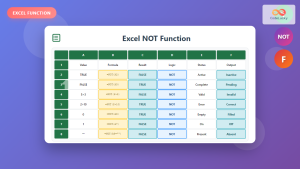
Excel NOT Function: Complete Guide to Reverse Logic Formulas
What is the Excel NOT Function? The Excel NOT function is a powerful logical function that reverses the logical value...

Excel CEILING Function: Complete Guide to Rounding Up Numbers
The Excel CEILING function is a powerful mathematical tool that rounds numbers up to the nearest specified multiple. Whether you're...

Excel ISODD Function: Complete Guide to Odd Number Detection and Validation
What is Excel ISODD Function? The Excel ISODD function is a logical function that determines whether a given number is...
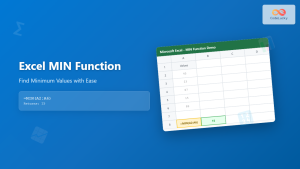
Excel MIN Function: Complete Guide to Finding Minimum Values with Formula Examples
The MIN function in Microsoft Excel is one of the most fundamental and frequently used statistical functions for data analysis....

Excel IF Function: Complete Guide to Conditional Logic Formulas
The Excel IF function is one of the most fundamental and powerful logical functions in Microsoft Excel, enabling users to...





