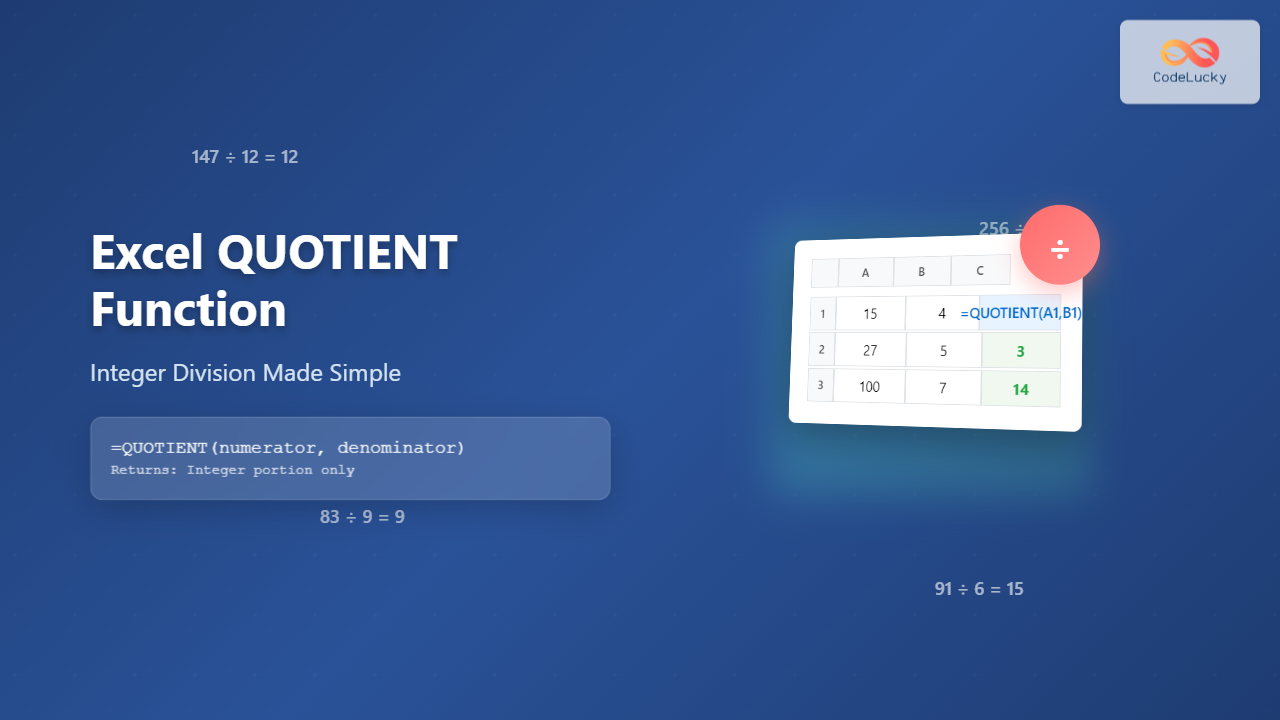
The QUOTIENT function in Microsoft Excel is a powerful mathematical tool that performs integer division by returning only the whole number portion of a division operation, discarding any remainder. This function is essential for various calculations where you need clean integer results without decimal values.
What is the QUOTIENT Function?
The QUOTIENT function divides one number by another and returns only the integer portion of the result. Unlike regular division (/) which returns decimal values, QUOTIENT eliminates the fractional part entirely. This makes it particularly useful for scenarios involving discrete units, batch calculations, or when you need to avoid rounding errors in financial calculations.
QUOTIENT Function Syntax
The syntax for the QUOTIENT function is straightforward:
=QUOTIENT(numerator, denominator)Parameters Explained
- numerator (required): The dividend or number to be divided
- denominator (required): The divisor or number by which to divide
Important Note: If the denominator is zero, Excel will return a #DIV/0! error, as division by zero is mathematically undefined.
Basic QUOTIENT Function Examples
Let’s explore some fundamental examples to understand how the QUOTIENT function works:
Simple Integer Division
=QUOTIENT(10, 3)    // Returns: 3
=QUOTIENT(15, 4)    // Returns: 3
=QUOTIENT(20, 6)    // Returns: 3
In these examples, the function returns only the whole number part of the division, completely ignoring any remainder.
Working with Negative Numbers
=QUOTIENT(-10, 3)   // Returns: -3
=QUOTIENT(10, -3)   // Returns: -3
=QUOTIENT(-10, -3)  // Returns: 3
The QUOTIENT function handles negative numbers by following standard mathematical rules for integer division with truncation toward zero.
Practical Applications and Use Cases
Inventory Management
Calculate how many complete boxes can be filled from available items:
=QUOTIENT(247, 12) // 247 items, 12 per box = 20 complete boxesTime Calculations
Convert minutes to hours (whole hours only):
=QUOTIENT(150, 60) // 150 minutes = 2 complete hoursBatch Processing
Determine how many complete batches can be processed:
=QUOTIENT(1000, 75) // 1000 units, 75 per batch = 13 complete batchesAdvanced QUOTIENT Techniques
Combining with MOD Function
Use QUOTIENT with the MOD function to get both the quotient and remainder:
Complete units: =QUOTIENT(A1, B1)
Remaining units: =MOD(A1, B1)
Array Formulas with QUOTIENT
Apply QUOTIENT to ranges of data for bulk calculations:
=QUOTIENT(A1:A10, B1:B10)Dynamic Reference Usage
Use cell references for flexible calculations:
=QUOTIENT(SUM(A1:A5), C1)Common Errors and Troubleshooting
#DIV/0! Error
This error occurs when the denominator is zero. Prevent it using the IFERROR function:
=IFERROR(QUOTIENT(A1, B1), "Division by zero")#VALUE! Error
This happens when non-numeric values are used. Ensure both arguments are numbers or valid numeric references.
#NUM! Error
Rare but can occur with extremely large numbers. Use appropriate data types and ranges.
QUOTIENT vs. Other Division Methods
QUOTIENT vs. Regular Division (/)
| Operation | QUOTIENT | Regular Division (/) |
|---|---|---|
| 10 ÷ 3 | 3 | 3.333… |
| 15 ÷ 4 | 3 | 3.75 |
QUOTIENT vs. INT Function
While both return integers, they differ with negative numbers:
=QUOTIENT(-10, 3)  // Returns: -3
=INT(-10/3)        // Returns: -4
QUOTIENT truncates toward zero, while INT always rounds down to the nearest integer.
Real-World Examples and Case Studies
Financial Planning Example
Calculate how many complete months a budget will last:
Total Budget: $5,000
Monthly Expenses: $800
Complete Months: =QUOTIENT(5000, 800) = 6 months
Production Planning
Determine production cycles based on available materials:
Available Material: 2,500 units
Material per Cycle: 180 units
Complete Cycles: =QUOTIENT(2500, 180) = 13 cycles
Performance Considerations
The QUOTIENT function is highly efficient and processes quickly even with large datasets. However, consider these optimization tips:
- Use absolute cell references when copying formulas across multiple cells
- Combine with other functions judiciously to avoid complex nested formulas
- Consider using array formulas for bulk operations on large datasets
Compatibility and Version Support
The QUOTIENT function is available in:
- Excel 2007 and later versions
- Excel for Microsoft 365
- Excel Online
- Excel for Mac
- Excel Mobile applications
Best Practices for Using QUOTIENT
Input Validation
Always validate inputs to prevent errors:
=IF(AND(ISNUMBER(A1), ISNUMBER(B1), B1<>0), QUOTIENT(A1, B1), "Invalid Input")Documentation and Comments
Add comments to complex formulas for future reference and team collaboration.
Testing Edge Cases
Test your formulas with various scenarios including negative numbers, zero values, and decimal inputs.
Alternative Functions and Workarounds
If QUOTIENT isn’t available in older Excel versions, you can achieve similar results using:
=TRUNC(A1/B1)      // Equivalent to QUOTIENT
=INT(A1/B1)        // Similar but handles negatives differently
Conclusion
The Excel QUOTIENT function is an essential tool for performing integer division operations efficiently. Its ability to return clean whole numbers makes it invaluable for inventory management, financial calculations, time conversions, and various business applications. By understanding its syntax, behavior with different number types, and practical applications, you can leverage this function to create more accurate and reliable spreadsheet calculations.
Whether you’re managing inventory, planning production schedules, or performing complex mathematical operations, the QUOTIENT function provides the precision and reliability needed for professional-grade Excel spreadsheets. Master this function to enhance your data analysis capabilities and create more sophisticated Excel solutions.
Related Posts

Excel INT Function: Complete Guide to Integer Extraction and Rounding
The Excel INT function is a fundamental mathematical function that extracts the integer portion of a number by rounding it...
Excel MOD Function: Master Remainder Calculations with Formula Examples
The Excel MOD function is a powerful mathematical tool that calculates the remainder after dividing one number by another. Whether...
Excel DECIMAL Function: Convert Any Base Number to Decimal Instantly
The DECIMAL function in Excel is a powerful mathematical tool that converts numbers from any specified base to decimal (base...

Excel FLOOR Function: Complete Guide to Floor Rounding with Syntax Examples
The Excel FLOOR function is a powerful mathematical tool that rounds numbers down to the nearest specified multiple. Unlike standard...

Excel BASE Function: Complete Guide to Number Base Conversion
The BASE function in Excel is a powerful mathematical tool that converts decimal numbers into different number bases, making it...
Excel OCT2DEC Function: Complete Guide to Converting Octal Numbers to Decimal
What is the Excel OCT2DEC Function? The OCT2DEC function in Microsoft Excel is a powerful engineering function that converts octal...
Excel ISNUMBER Function: Complete Guide to Numeric Value Detection and Validation
What is the Excel ISNUMBER Function? The ISNUMBER function in Microsoft Excel is a logical function that tests whether a...
Excel DEC2BIN Function: Complete Guide to Converting Decimal to Binary Numbers
What is the Excel DEC2BIN Function? The DEC2BIN function in Microsoft Excel is a powerful engineering function that converts decimal...
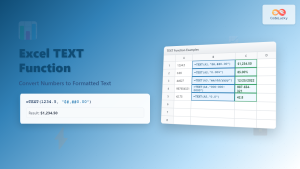
Excel TEXT Function: Complete Guide to Number-to-Text Formatting
The Excel TEXT function is one of the most powerful yet underutilized functions for converting numeric values into formatted text...

Excel CEILING Function: Complete Guide to Rounding Up Numbers
The Excel CEILING function is a powerful mathematical tool that rounds numbers up to the nearest specified multiple. Whether you're...
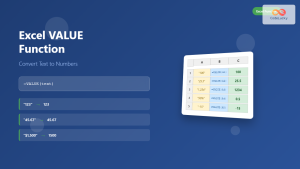
Excel VALUE Function: Complete Guide to Text-to-Number Conversion
The Excel VALUE function is a powerful data conversion tool that transforms text strings containing numeric values into actual numbers...

Excel GCD Function: Complete Guide to Greatest Common Divisor Formula
The GCD function in Excel is a powerful mathematical tool that calculates the greatest common divisor (also known as the...