
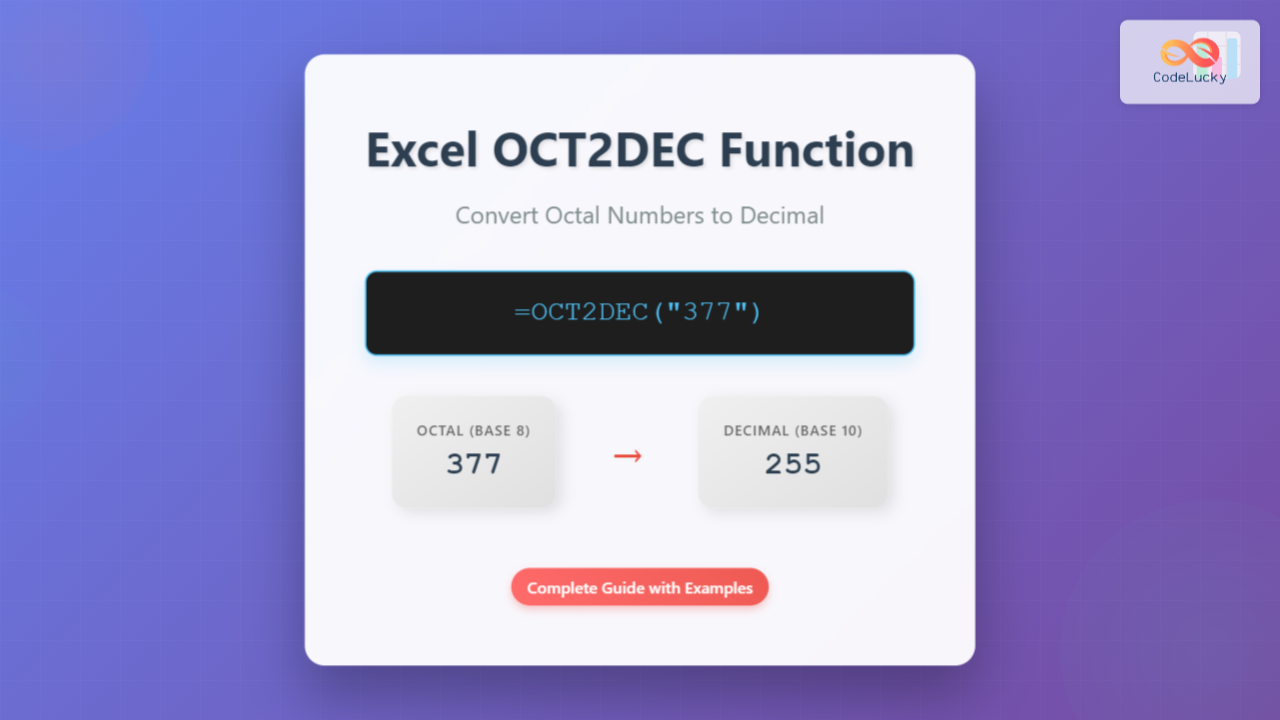
What is the Excel OCT2DEC Function?
The OCT2DEC function in Microsoft Excel is a powerful engineering function that converts octal (base-8) numbers to their decimal (base-10) equivalents. This function is particularly useful for professionals working with computer programming, digital electronics, and systems where octal number representation is common.
Octal numbers use digits 0-7, making them a convenient shorthand for binary representations in computing systems. The OCT2DEC function eliminates the need for manual conversion calculations, streamlining workflows that involve different number base systems.
OCT2DEC Function Syntax
The syntax for the OCT2DEC function is straightforward:
=OCT2DEC(number)Parameters Explained
- number (required): The octal number you want to convert to decimal format
- Can be entered as text string in quotes or as a cell reference
- Must contain only valid octal digits (0-7)
- Maximum length of 10 characters for positive numbers
- Negative numbers use two’s complement notation
How to Use OCT2DEC Function: Step-by-Step Examples
Basic OCT2DEC Examples
Let’s explore practical examples of the OCT2DEC function in action:
Example 1: Simple Octal Conversion
=OCT2DEC("12")
Result: 10
The octal number 12 converts to decimal 10 because (1 × 8¹) + (2 × 8⁰) = 8 + 2 = 10.
Example 2: Larger Octal Numbers
=OCT2DEC("377")
Result: 255
This conversion works as: (3 × 8²) + (7 × 8¹) + (7 × 8⁰) = 192 + 56 + 7 = 255.
Example 3: Using Cell References
=OCT2DEC(A1)
Where A1 contains: 1234
Result: 668
Advanced OCT2DEC Applications
Converting Multiple Values
You can use OCT2DEC with ranges and array formulas for batch conversions. Create a table with octal values in column A and use the formula in column B:
=OCT2DEC(A2)
=OCT2DEC(A3)
=OCT2DEC(A4)
Combining with Other Functions
The OCT2DEC function works seamlessly with other Excel functions:
=SUM(OCT2DEC("10"), OCT2DEC("20"), OCT2DEC("30"))
Result: 32 (8 + 16 + 24)
Understanding Octal to Decimal Conversion
The Mathematical Foundation
Octal to decimal conversion follows positional notation principles. Each digit position represents a power of 8, starting from 8⁰ on the right:
| Octal Position | Power of 8 | Decimal Value |
|---|---|---|
| Rightmost (8⁰) | 1 | Units place |
| Second (8¹) | 8 | Eights place |
| Third (8²) | 64 | Sixty-fours place |
| Fourth (8³) | 512 | Five-hundred-twelves place |
Common Octal to Decimal Conversions
| Octal | Decimal | OCT2DEC Formula |
|---|---|---|
| 1 | 1 | =OCT2DEC(“1”) |
| 10 | 8 | =OCT2DEC(“10”) |
| 100 | 64 | =OCT2DEC(“100”) |
| 777 | 511 | =OCT2DEC(“777”) |
OCT2DEC Error Handling and Troubleshooting
Common Errors and Solutions
#NUM! Error
This error occurs when:
- The input contains invalid octal digits (8 or 9)
- The number exceeds the 10-character limit
- Solution: Verify all digits are 0-7 and within length limits
#VALUE! Error
This error appears when:
- The argument is not a valid number format
- Non-numeric characters are included
- Solution: Ensure the input is properly formatted as text or number
Best Practices for OCT2DEC Usage
- Input Validation: Always verify octal inputs contain only digits 0-7
- Text Format: Use quotes around octal numbers to prevent Excel from misinterpreting them
- Error Checking: Implement IFERROR function for robust error handling
- Documentation: Add comments explaining octal number sources and purposes
Practical Applications of OCT2DEC Function
Computer Programming and Development
Programmers frequently use OCT2DEC when working with:
- Unix/Linux file permissions (chmod commands)
- Assembly language programming
- Low-level system programming
- Embedded systems development
Digital Electronics and Engineering
Engineers utilize OCT2DEC for:
- Digital circuit design
- Microprocessor programming
- Memory address calculations
- Hardware configuration settings
Data Analysis and Conversion
Data analysts use OCT2DEC when:
- Processing legacy system data
- Converting imported datasets
- Standardizing number formats
- Creating data transformation pipelines
OCT2DEC vs Other Excel Number Conversion Functions
Related Functions Comparison
| Function | Purpose | Example |
|---|---|---|
| OCT2DEC | Octal to Decimal | =OCT2DEC(“12”) → 10 |
| DEC2OCT | Decimal to Octal | =DEC2OCT(10) → “12” |
| OCT2BIN | Octal to Binary | =OCT2BIN(“12”) → “1010” |
| OCT2HEX | Octal to Hexadecimal | =OCT2HEX(“12”) → “A” |
Advanced OCT2DEC Techniques and Tips
Creating Custom Validation
Combine OCT2DEC with data validation to ensure accurate inputs:
=AND(LEN(A1)<=10, ISNUMBER(OCT2DEC(A1)))Batch Processing with OCT2DEC
For processing multiple octal values efficiently:
=IF(A2<>"",OCT2DEC(A2),"")Error-Resistant OCT2DEC Formula
Create robust formulas that handle errors gracefully:
=IFERROR(OCT2DEC(A1),"Invalid Octal Number")Performance Considerations and Limitations
OCT2DEC Function Limitations
- Input Length: Maximum 10 characters for octal numbers
- Range Limits: Handles numbers from -512 to 777777777 (octal)
- Error Sensitivity: Strict validation of octal digit requirements
- Performance: Minimal impact on workbook calculation speed
Optimization Tips
- Pre-validate octal inputs to reduce error occurrences
- Use cell references instead of hardcoded values for flexibility
- Implement error handling to prevent formula chain breaks
- Consider using array formulas for large-scale conversions
Conclusion
The Excel OCT2DEC function is an essential tool for anyone working with different number base systems. Whether you're a programmer dealing with file permissions, an engineer working with digital circuits, or a data analyst converting legacy formats, mastering OCT2DEC streamlines your workflow and ensures accurate conversions.
By understanding the function's syntax, limitations, and best practices, you can confidently implement octal to decimal conversions in your Excel projects. Remember to validate inputs, handle errors appropriately, and leverage the function's integration with other Excel features for maximum efficiency.
Start incorporating OCT2DEC into your Excel toolkit today and experience the convenience of automated number base conversions in your spreadsheet workflows.
Related Posts
Excel BASE Function: Complete Guide to Number Base Conversion
The BASE function in Excel is a powerful mathematical tool that converts decimal numbers into different number bases, making it...

Excel BIN2DEC Function: Convert Binary to Decimal Numbers Instantly
What is the Excel BIN2DEC Function? The BIN2DEC function in Microsoft Excel is a powerful engineering function that converts binary...
Excel DECIMAL Function: Convert Any Base Number to Decimal Instantly
The DECIMAL function in Excel is a powerful mathematical tool that converts numbers from any specified base to decimal (base...
Excel HEX2DEC Function: Convert Hexadecimal to Decimal with Formula Examples
The HEX2DEC function in Microsoft Excel is a powerful engineering function that converts hexadecimal (base-16) numbers to their decimal (base-10)...
Excel DEC2BIN Function: Complete Guide to Converting Decimal to Binary Numbers
What is the Excel DEC2BIN Function? The DEC2BIN function in Microsoft Excel is a powerful engineering function that converts decimal...
Excel DEC2HEX Function: Convert Decimal to Hexadecimal Numbers
What is the Excel DEC2HEX Function? The DEC2HEX function in Microsoft Excel is a powerful engineering function that converts decimal...
Excel VALUE Function: Complete Guide to Text-to-Number Conversion
The Excel VALUE function is a powerful data conversion tool that transforms text strings containing numeric values into actual numbers...
Python oct() Function: Converting to Octal String
The oct() function is a built-in Python function that converts an integer to its octal string representation. It's a handy...

Excel POWER Function: Complete Guide to Exponentiation Formula with Examples
What is the Excel POWER Function? The Excel POWER function is a built-in mathematical function that calculates the result of...

Excel INT Function: Complete Guide to Integer Extraction and Rounding
The Excel INT function is a fundamental mathematical function that extracts the integer portion of a number by rounding it...
Excel ISODD Function: Complete Guide to Odd Number Detection and Validation
What is Excel ISODD Function? The Excel ISODD function is a logical function that determines whether a given number is...
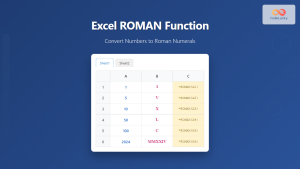
Excel ROMAN Function: Complete Guide to Converting Numbers to Roman Numerals
The Excel ROMAN function is a powerful built-in formula that converts Arabic numbers (regular integers) into their Roman numeral equivalents....





