
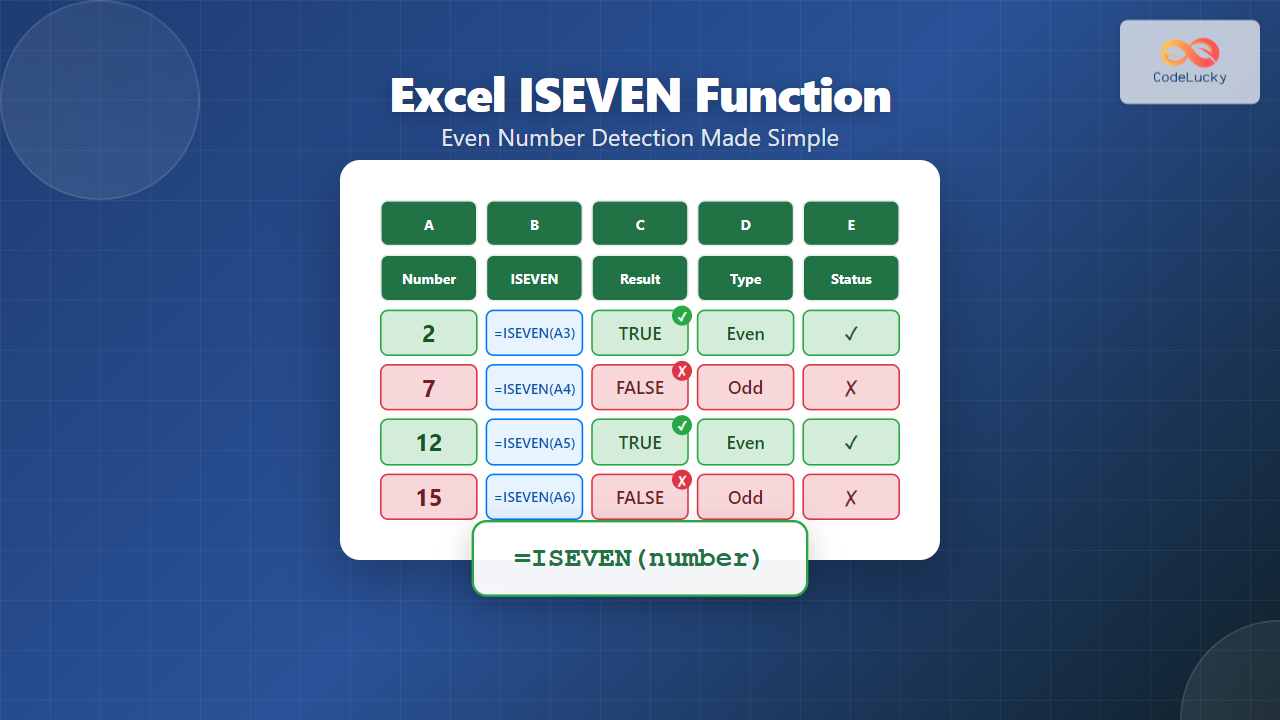
The ISEVEN function in Microsoft Excel is a powerful logical function designed to determine whether a given number is even. This function returns TRUE if the number is even and FALSE if it’s odd, making it an essential tool for data analysis, conditional formatting, and automated calculations.
What is the ISEVEN Function?
The ISEVEN function belongs to Excel’s information functions category and serves as a quick way to test whether a number is divisible by 2. When you need to identify even numbers in large datasets or create conditional logic based on number parity, ISEVEN provides an efficient solution.
ISEVEN Function Syntax
The syntax for the ISEVEN function is straightforward:
=ISEVEN(number)Parameters:
- number (required): The numeric value you want to test for evenness. This can be a direct number, cell reference, or formula result.
How ISEVEN Function Works
The ISEVEN function evaluates the provided number and returns:
- TRUE: If the number is even (divisible by 2 with no remainder)
- FALSE: If the number is odd (not divisible by 2)
- #VALUE! error: If the input is not a numeric value
Basic ISEVEN Function Examples
Simple Number Testing
=ISEVEN(4)    // Returns TRUE
=ISEVEN(7)    // Returns FALSE
=ISEVEN(0)    // Returns TRUE
=ISEVEN(-6)   // Returns TRUE
=ISEVEN(-3)   // Returns FALSE
Using Cell References
If cell A1 contains the number 8:
=ISEVEN(A1) // Returns TRUEAdvanced ISEVEN Function Applications
Conditional Formatting with ISEVEN
You can use ISEVEN with conditional formatting to highlight even numbers in your spreadsheet:
- Select the range of cells you want to format
- Go to Home > Conditional Formatting > New Rule
- Choose “Use a formula to determine which cells to format”
- Enter the formula:
=ISEVEN(A1) - Set your desired formatting and click OK
Combining ISEVEN with IF Function
Create custom messages based on whether numbers are even or odd:
=IF(ISEVEN(A1), "Even Number", "Odd Number")Using ISEVEN for Data Validation
You can restrict cell input to even numbers only:
- Select the target cell
- Go to Data > Data Validation
- Choose “Custom” from the Allow dropdown
- Enter the formula:
=ISEVEN(A1)
ISEVEN with Array Formulas
For Excel 365 users, you can apply ISEVEN to entire ranges:
=ISEVEN(A1:A10)This returns an array of TRUE/FALSE values for each cell in the range.
Practical ISEVEN Function Use Cases
Alternating Row Colors
Use ISEVEN with ROW function for zebra striping:
=ISEVEN(ROW())Creating Even Number Sequences
Generate lists of even numbers using ISEVEN for validation:
=IF(ISEVEN(ROW()*2), ROW()*2, "")Quality Control Applications
In manufacturing or inventory management, use ISEVEN to check batch numbers, part numbers, or serial numbers that follow even-number patterns.
ISEVEN Function Limitations
Non-Numeric Values
ISEVEN returns #VALUE! error when applied to text or non-numeric values:
=ISEVEN("text") // Returns #VALUE! errorDecimal Numbers
ISEVEN truncates decimal numbers before evaluation:
=ISEVEN(4.7)   // Returns TRUE (evaluates 4)
=ISEVEN(5.9)   // Returns FALSE (evaluates 5)
Error Handling with ISEVEN
To handle potential errors, combine ISEVEN with ISNUMBER:
=IF(ISNUMBER(A1), ISEVEN(A1), "Not a number")ISEVEN vs ISODD Function
While ISEVEN detects even numbers, Excel also provides ISODD for odd number detection:
- ISEVEN(4) returns TRUE, ISODD(4) returns FALSE
- ISEVEN(5) returns FALSE, ISODD(5) returns TRUE
Performance Considerations
ISEVEN is computationally efficient and suitable for large datasets. However, when working with millions of rows, consider using it within filtered views or specific ranges to optimize performance.
Common ISEVEN Function Mistakes
Forgetting Error Handling
Always consider what happens when non-numeric data is encountered in your formulas.
Decimal Number Confusion
Remember that ISEVEN truncates decimals, which might not always be the intended behavior.
Text Numbers
Numbers stored as text will cause #VALUE! errors. Use VALUE function to convert:
=ISEVEN(VALUE(A1))Alternative Methods to ISEVEN
While ISEVEN is the most straightforward approach, you can achieve similar results using:
MOD Function
=MOD(A1,2)=0 // Returns TRUE for even numbersMathematical Division
=A1/2=INT(A1/2) // Returns TRUE for even numbersISEVEN Function Compatibility
The ISEVEN function is available in:
- Excel 2007 and later versions
- Excel for Mac
- Excel Online
- Excel Mobile apps
For earlier Excel versions, use the MOD function alternative.
Best Practices for ISEVEN Function
- Validate Input Data: Always ensure your data is numeric before applying ISEVEN
- Use Error Handling: Implement IFERROR or IF(ISNUMBER()) for robust formulas
- Document Your Logic: Add comments explaining why you’re testing for even numbers
- Consider Performance: For large datasets, apply ISEVEN strategically
- Test Edge Cases: Verify behavior with zero, negative numbers, and decimals
Conclusion
The Excel ISEVEN function is a valuable tool for detecting even numbers in your spreadsheets. Whether you’re creating conditional formatting rules, validating data entry, or building complex logical formulas, ISEVEN provides a reliable and efficient solution. By understanding its syntax, limitations, and practical applications, you can leverage this function to enhance your Excel productivity and create more intelligent spreadsheet solutions.
Remember to always test your ISEVEN formulas with various data types and consider implementing error handling for robust, professional spreadsheet applications. With proper implementation, the ISEVEN function becomes an indispensable part of your Excel toolkit for numerical analysis and data processing tasks.
Related Posts

Excel ISODD Function: Complete Guide to Odd Number Detection and Validation
What is Excel ISODD Function? The Excel ISODD function is a logical function that determines whether a given number is...
Excel ISNUMBER Function: Complete Guide to Numeric Value Detection and Validation
What is the Excel ISNUMBER Function? The ISNUMBER function in Microsoft Excel is a logical function that tests whether a...
Excel MOD Function: Master Remainder Calculations with Formula Examples
The Excel MOD function is a powerful mathematical tool that calculates the remainder after dividing one number by another. Whether...

Excel TYPE Function: Complete Guide to Data Type Detection and Validation
The Excel TYPE function is a powerful information function that identifies the data type of a value in a cell...

Excel IF Function: Complete Guide to Conditional Logic Formulas
The Excel IF function is one of the most fundamental and powerful logical functions in Microsoft Excel, enabling users to...
Excel SIGN Function: Master Number Sign Detection with Practical Examples
The Excel SIGN function is a powerful mathematical tool that determines whether a number is positive, negative, or zero. This...
Excel NOT Function: Complete Guide to Reverse Logic Formulas
What is the Excel NOT Function? The Excel NOT function is a powerful logical function that reverses the logical value...

Excel ISBLANK Function: Complete Guide to Empty Cell Detection and Data Validation
What is the Excel ISBLANK Function? The ISBLANK function in Microsoft Excel is a logical function that tests whether a...
Excel DEC2BIN Function: Complete Guide to Converting Decimal to Binary Numbers
What is the Excel DEC2BIN Function? The DEC2BIN function in Microsoft Excel is a powerful engineering function that converts decimal...

Excel AND Function: Complete Guide to Multiple Criteria Logic Testing
The Excel AND function is one of the most powerful logical functions that allows you to test multiple conditions simultaneously...
Excel OCT2DEC Function: Complete Guide to Converting Octal Numbers to Decimal
What is the Excel OCT2DEC Function? The OCT2DEC function in Microsoft Excel is a powerful engineering function that converts octal...

Excel ISERROR Function: Complete Guide to Error Detection and Handling
What is the Excel ISERROR Function? The ISERROR function in Microsoft Excel is a powerful logical function designed to detect...





