
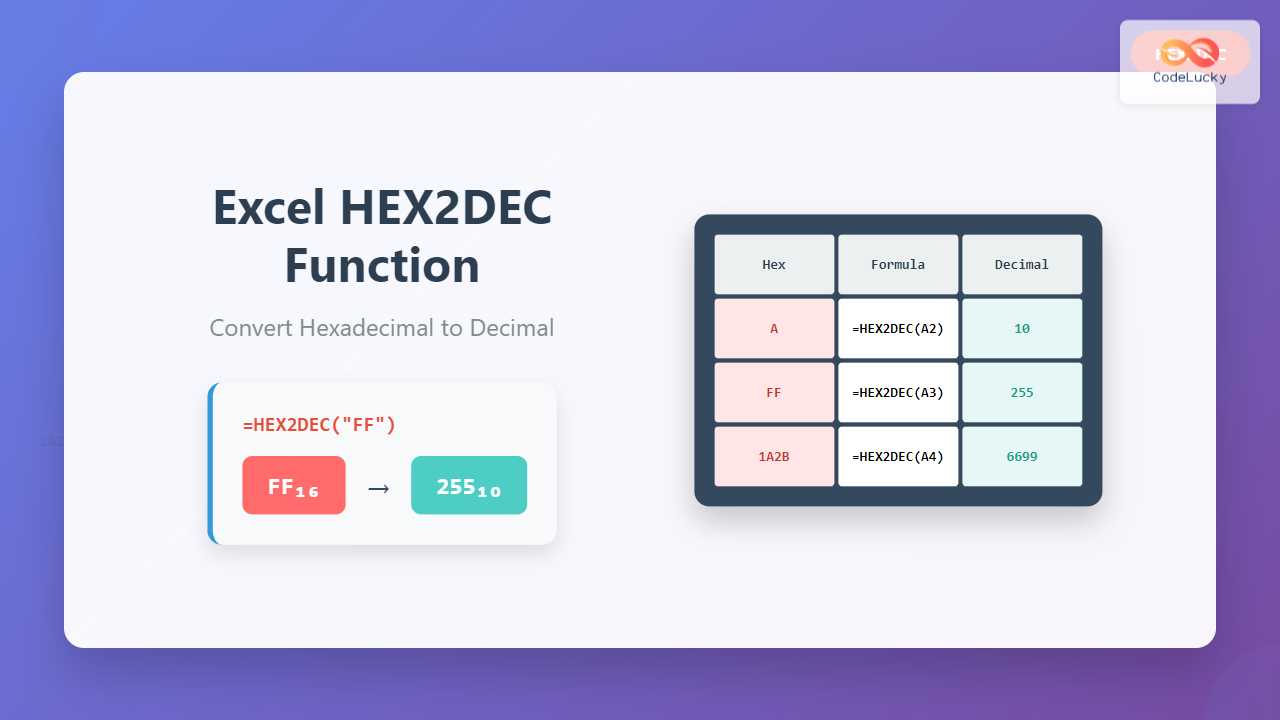
The HEX2DEC function in Microsoft Excel is a powerful engineering function that converts hexadecimal (base-16) numbers to their decimal (base-10) equivalents. Whether you’re working with color codes, memory addresses, or technical data, understanding how to use this function effectively can streamline your data conversion tasks.
What is the HEX2DEC Function?
HEX2DEC is an Excel function that transforms hexadecimal numbers into decimal format. Hexadecimal is a numbering system that uses 16 symbols: digits 0-9 and letters A-F (where A=10, B=11, C=12, D=13, E=14, F=15). This function is particularly useful for programmers, web developers, and engineers who frequently work with hexadecimal values.
HEX2DEC Function Syntax
The syntax for the HEX2DEC function is straightforward:
=HEX2DEC(number)Parameters:
- number (required): The hexadecimal number you want to convert to decimal. This can be a text string representing the hex value or a cell reference containing the hex number.
Important Rules and Limitations
Before diving into examples, it’s crucial to understand the function’s constraints:
- The hexadecimal number cannot exceed 10 characters (40 bits)
- The most significant bit represents the sign (positive or negative)
- For positive numbers, the range is 0 to 549,755,813,887 (decimal)
- For negative numbers, Excel uses two’s complement notation
- Invalid hexadecimal characters will result in a #NUM! error
- The function is not case-sensitive (A and a are treated the same)
Basic HEX2DEC Examples
Let’s explore practical examples to understand how the HEX2DEC function works:
Simple Conversions
=HEX2DEC("A")        // Returns: 10
=HEX2DEC("FF")       // Returns: 255
=HEX2DEC("100")      // Returns: 256
=HEX2DEC("1A2B")     // Returns: 6699
Using Cell References
If you have hexadecimal values in cells, you can reference them directly:
=HEX2DEC(A1)        // Converts hex value in cell A1
=HEX2DEC(B2)        // Converts hex value in cell B2
Advanced HEX2DEC Applications
Converting Color Codes
Web developers often need to convert hexadecimal color codes to decimal values for various applications:
| Hex Color Component | Formula | Decimal Result |
|---|---|---|
| FF (Red) | =HEX2DEC(“FF”) | 255 |
| 80 (Green) | =HEX2DEC(“80”) | 128 |
| 00 (Blue) | =HEX2DEC(“00”) | 0 |
Processing Memory Addresses
For system administrators and programmers working with memory addresses:
=HEX2DEC("7FFF")     // Returns: 32767
=HEX2DEC("ABCD")     // Returns: 43981
=HEX2DEC("FFFF")     // Returns: 65535
Handling Negative Numbers
Excel handles negative hexadecimal numbers using two’s complement representation. For 40-bit numbers:
- If the most significant bit is 0, the number is positive
- If the most significant bit is 1, the number is negative
Examples of negative number conversion:
=HEX2DEC("FFFFFFFFFE")  // Returns: -2
=HEX2DEC("FFFFFFFFFF")  // Returns: -1
Common Errors and Troubleshooting
#NUM! Error
This error occurs when:
- The input contains invalid hexadecimal characters
- The hexadecimal number exceeds 10 characters
- You use characters outside the range 0-9 and A-F
#VALUE! Error
This error appears when:
- The input is not recognized as text or number
- The cell reference is invalid
Practical Use Cases
Data Import and Conversion
When importing data from systems that export hexadecimal values, you can create a conversion table:
| Original Hex (A1) | Conversion Formula (B1) | Decimal Result |
|---|---|---|
| 1F4 | =HEX2DEC(A1) | 500 |
| 3E8 | =HEX2DEC(A2) | 1000 |
| 7D0 | =HEX2DEC(A3) | 2000 |
Quality Assurance Testing
For validating hexadecimal data integrity, you can combine HEX2DEC with conditional formatting or IF statements:
=IF(HEX2DEC(A1)>255,"Invalid RGB Value","Valid")Combining HEX2DEC with Other Functions
With DEC2HEX for Round-trip Conversion
Verify your conversions by converting back:
=DEC2HEX(HEX2DEC("FF")) // Should return: FFWith TEXT Functions
Format the results for better presentation:
=TEXT(HEX2DEC("FF"),"000") // Returns: 255 formatted as 3 digitsArray Formulas for Bulk Conversion
Convert multiple hexadecimal values at once:
=HEX2DEC(A1:A10) // Converts entire range (Excel 365/2021)Performance Tips and Best Practices
- Input Validation: Always validate hexadecimal input before conversion to avoid errors
- Case Consistency: While the function isn’t case-sensitive, maintain consistency for readability
- Error Handling: Use ISERROR or IFERROR functions to handle potential conversion errors gracefully
- Documentation: Comment your formulas when working with complex hexadecimal conversions
Alternative Methods
Manual Calculation
Understanding the manual process helps verify your results:
- Each position represents a power of 16
- Rightmost digit is 16⁰ = 1
- Next digit left is 16¹ = 16
- Continue this pattern for each position
Example: A1B (hex) = 10×16² + 1×16¹ + 11×16⁰ = 2560 + 16 + 11 = 2587
Using Other Programming Tools
While Excel’s HEX2DEC is convenient, you might also use:
- Programming languages (Python, JavaScript, etc.)
- Online conversion tools for verification
- Calculator applications with programmer mode
Conclusion
The HEX2DEC function is an essential tool for anyone working with hexadecimal data in Excel. Its straightforward syntax and reliable performance make it ideal for converting color codes, memory addresses, and other technical data. By understanding its limitations and combining it with other Excel functions, you can create robust data processing workflows that handle hexadecimal conversions efficiently.
Remember to validate your input data, handle potential errors gracefully, and document your formulas for future reference. With these best practices, you’ll be able to leverage the full power of Excel’s HEX2DEC function in your data analysis tasks.
Related Posts

Excel DEC2HEX Function: Convert Decimal to Hexadecimal Numbers
What is the Excel DEC2HEX Function? The DEC2HEX function in Microsoft Excel is a powerful engineering function that converts decimal...
Excel OCT2DEC Function: Complete Guide to Converting Octal Numbers to Decimal
What is the Excel OCT2DEC Function? The OCT2DEC function in Microsoft Excel is a powerful engineering function that converts octal...

Excel BIN2DEC Function: Convert Binary to Decimal Numbers Instantly
What is the Excel BIN2DEC Function? The BIN2DEC function in Microsoft Excel is a powerful engineering function that converts binary...
Excel DECIMAL Function: Convert Any Base Number to Decimal Instantly
The DECIMAL function in Excel is a powerful mathematical tool that converts numbers from any specified base to decimal (base...
Python hex() Function: Converting to Hexadecimal String
In the realm of programming, representing numbers in different bases is a fundamental concept. While decimal (base-10) is the most...

Excel BASE Function: Complete Guide to Number Base Conversion
The BASE function in Excel is a powerful mathematical tool that converts decimal numbers into different number bases, making it...
Excel DEC2BIN Function: Complete Guide to Converting Decimal to Binary Numbers
What is the Excel DEC2BIN Function? The DEC2BIN function in Microsoft Excel is a powerful engineering function that converts decimal...
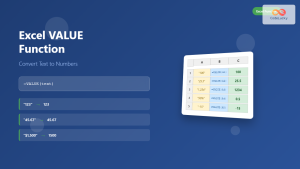
Excel VALUE Function: Complete Guide to Text-to-Number Conversion
The Excel VALUE function is a powerful data conversion tool that transforms text strings containing numeric values into actual numbers...
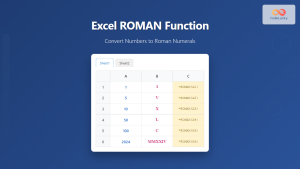
Excel ROMAN Function: Complete Guide to Converting Numbers to Roman Numerals
The Excel ROMAN function is a powerful built-in formula that converts Arabic numbers (regular integers) into their Roman numeral equivalents....

Excel ARABIC Function: Convert Roman Numerals to Arabic Numbers with Syntax Examples
The Excel ARABIC function is a powerful built-in tool that converts Roman numerals into their corresponding Arabic number format. Whether...
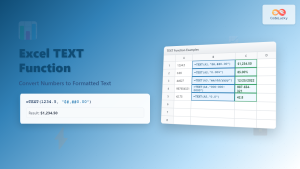
Excel TEXT Function: Complete Guide to Number-to-Text Formatting
The Excel TEXT function is one of the most powerful yet underutilized functions for converting numeric values into formatted text...

CSS Hex Color Codes: Complete Guide to 3-Digit and 6-Digit Hexadecimal Values
What Are CSS Hex Color Codes? CSS hex color codes are hexadecimal representations of colors used in web development to...





