
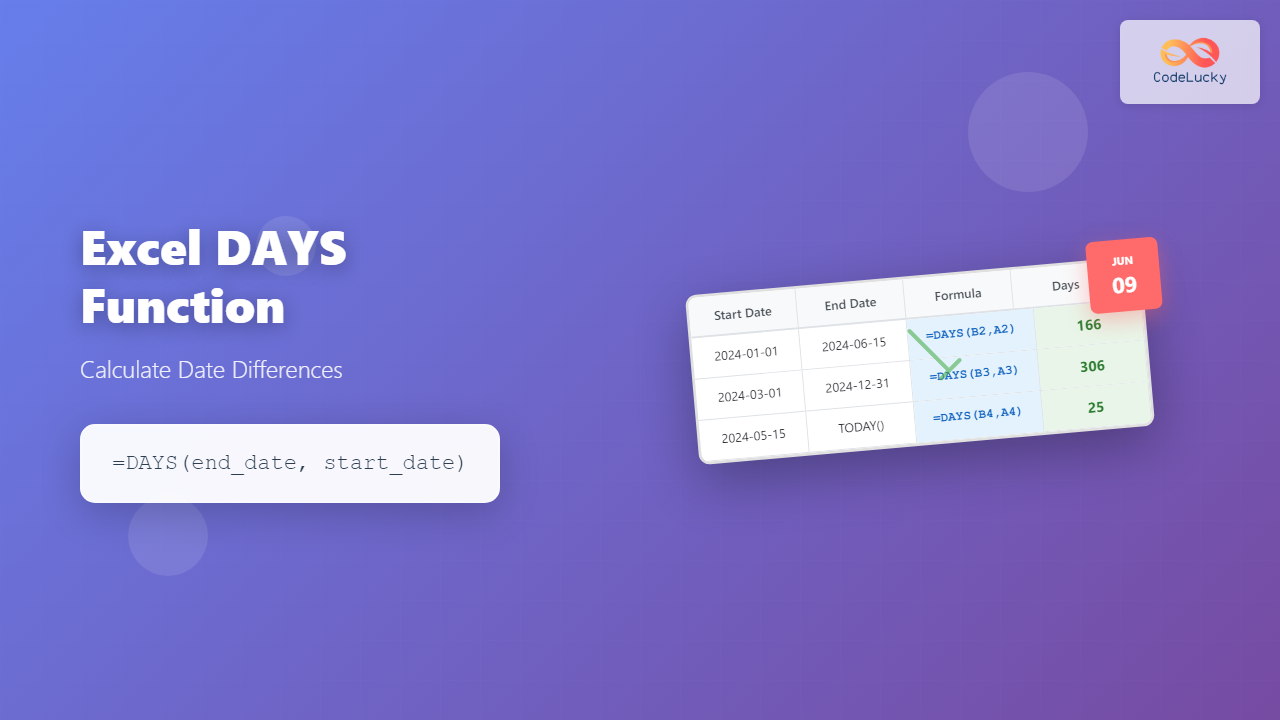
The Excel DAYS function is a powerful date calculation tool that determines the number of days between two dates. Whether you’re calculating project durations, aging reports, or time-based analyses, mastering this function is essential for efficient spreadsheet management.
What is the Excel DAYS Function?
The DAYS function calculates the difference between two dates and returns the result as a number of days. This function automatically handles leap years, different month lengths, and date formatting complexities, making it more reliable than manual calculations.
The function was introduced in Excel 2013 and is available in all subsequent versions, including Excel 365, Excel 2019, and Excel 2021. It serves as a modern alternative to simple date subtraction operations.
DAYS Function Syntax
The syntax for the DAYS function is straightforward:
=DAYS(end_date, start_date)Parameters Explained
- end_date (required): The later date in the calculation
- start_date (required): The earlier date in the calculation
Important Note: The order of parameters matters significantly. If the end_date is earlier than the start_date, the function returns a negative number, indicating the number of days in the past.
Basic DAYS Function Examples
Example 1: Simple Date Difference
=DAYS("2024-12-31", "2024-01-01")This formula calculates the days between January 1, 2024, and December 31, 2024, returning 365 days (2024 is a leap year).
Example 2: Using Cell References
=DAYS(B2, A2)Where A2 contains the start date and B2 contains the end date. This approach is more flexible and allows for easy data manipulation.
Example 3: Current Date Calculations
=DAYS(TODAY(), A2)This formula calculates the number of days from the date in cell A2 to today’s date, useful for aging reports and deadline tracking.
Advanced DAYS Function Applications
Project Duration Tracking
For project management, the DAYS function helps calculate project durations:
=DAYS(D2, C2)Where C2 is the project start date and D2 is the project end date. This provides accurate duration calculations for Gantt charts and timeline analyses.
Age Calculations
Calculate someone’s age in days:
=DAYS(TODAY(), B2)This formula determines how many days old someone is, where B2 contains their birth date.
Business Days vs. Calendar Days
While DAYS calculates calendar days, you might need business days. For business day calculations, combine DAYS with NETWORKDAYS:
=NETWORKDAYS(A2, B2)This excludes weekends from the calculation, providing a more accurate picture for business scenarios.
DAYS Function vs. Alternative Methods
DAYS vs. Simple Subtraction
Traditional date subtraction (=B2-A2) works similarly to DAYS but has limitations:
- DAYS function is more explicit and readable
- DAYS handles various date formats automatically
- Simple subtraction may cause formatting issues
DAYS vs. DATEDIF Function
The DATEDIF function offers more granular control:
=DATEDIF(A2, B2, "D")While DATEDIF can calculate years, months, or days, DAYS is simpler for day-only calculations and is officially documented by Microsoft.
Common DAYS Function Errors and Solutions
#VALUE! Error
This error occurs when:
- Invalid date formats are used
- Text values that can’t be converted to dates
- Empty cells are referenced
Solution: Ensure both parameters are valid dates or date-formatted cells.
#NUM! Error
This rare error happens when date values exceed Excel’s date range (January 1, 1900, to December 31, 9999).
Solution: Verify that dates fall within Excel’s supported range.
Unexpected Negative Results
Negative results indicate the end_date is earlier than the start_date.
Solution: Use the ABS function to get absolute values: =ABS(DAYS(A2, B2))
Real-World DAYS Function Use Cases
Financial Applications
Calculate interest accrual periods:
=DAYS(B2, A2) * C2 * D2 / 365Where A2 is the start date, B2 is the end date, C2 is the principal amount, and D2 is the annual interest rate.
Inventory Management
Track product aging:
=DAYS(TODAY(), A2)This helps identify slow-moving inventory by calculating days since the product was received (date in A2).
Employee Analytics
Calculate employment duration:
=DAYS(TODAY(), B2)Where B2 contains the employee’s hire date, providing tenure information for HR analytics.
Tips for Optimizing DAYS Function Usage
Date Format Consistency
Maintain consistent date formats throughout your spreadsheet. Excel handles various formats, but consistency prevents errors and improves readability.
Error Handling
Implement error checking with IFERROR:
=IFERROR(DAYS(B2, A2), "Invalid Date")This provides user-friendly error messages instead of Excel’s default error codes.
Performance Considerations
For large datasets, DAYS function performance is excellent. However, combining it with volatile functions like TODAY() in many cells can slow calculation speed.
DAYS Function Compatibility
The DAYS function is available in:
- Excel 2013 and later versions
- Excel for Microsoft 365
- Excel Online
- Excel for Mac (2016 and later)
For earlier Excel versions, use simple date subtraction or the DATEDIF function as alternatives.
Best Practices for DAYS Function Implementation
Data Validation
Implement data validation rules to ensure users enter valid dates:
- Set custom validation criteria
- Provide clear error messages
- Use dropdown lists for common date selections
Documentation
Always document your DAYS function usage:
- Add comments to complex formulas
- Use descriptive cell names
- Create a legend explaining calculation methods
Conclusion
The Excel DAYS function is an indispensable tool for date calculations, offering accuracy, simplicity, and reliability for various business applications. From project management to financial analysis, mastering this function enhances your spreadsheet capabilities and ensures precise date-based calculations.
By understanding its syntax, applications, and best practices, you can leverage the DAYS function to streamline your data analysis workflows and create more robust Excel solutions. Remember to handle errors gracefully, maintain consistent date formats, and document your formulas for future reference.
Related Posts
Excel DATEDIF Function: Complete Guide to Date Difference Calculations
The DATEDIF function in Microsoft Excel is a powerful yet often overlooked tool for calculating the difference between two dates....
Excel DAY Function: Complete Guide to Extract Day from Date
The Excel DAY function is one of the most fundamental date functions in Microsoft Excel, designed to extract the day...

Excel DATE Function: Complete Guide to Date Creation and Formatting
The Excel DATE function is one of the most fundamental and powerful tools for working with dates in spreadsheets. Whether...
Excel EDATE Function: Add or Subtract Months from Dates Easily
The EDATE function in Microsoft Excel is a powerful date manipulation tool that allows you to add or subtract months...
Excel WORKDAY Function: Complete Guide to Business Day Calculations
The Excel WORKDAY function is an essential tool for business professionals who need to calculate future or past business dates...
Excel NETWORKDAYS Function: Calculate Working Days Between Dates
The Excel NETWORKDAYS function is an essential tool for business professionals who need to calculate working days between two dates...

Excel TODAY Function: Complete Guide to Current Date Formulas and Real-Time Applications
The Excel TODAY function is one of the most fundamental and powerful date functions in Microsoft Excel, automatically returning the...

Excel EOMONTH Function: Complete Guide to End of Month Date Calculations
The EOMONTH function in Microsoft Excel is a powerful date function that calculates the last day of a month, either...
Excel WEEKDAY Function: Complete Guide to Day of Week Commands
The Excel WEEKDAY function is a powerful date and time function that returns a numeric value representing the day of...

Excel IF Function: Complete Guide to Conditional Logic Formulas
The Excel IF function is one of the most fundamental and powerful logical functions in Microsoft Excel, enabling users to...
Excel NOW Function: Complete Guide to Real-Time Date and Time Display
The Excel NOW function is one of the most essential date and time functions for creating dynamic spreadsheets that automatically...
MySQL DATEDIFF Function: Mastering Date Differences
The DATEDIFF function in MySQL is your go-to tool for calculating the difference between two dates. Whether you're tracking project...
- What is the Excel DAYS Function?
- DAYS Function Syntax
- Basic DAYS Function Examples
- Advanced DAYS Function Applications
- DAYS Function vs. Alternative Methods
- Common DAYS Function Errors and Solutions
- Real-World DAYS Function Use Cases
- Tips for Optimizing DAYS Function Usage
- DAYS Function Compatibility
- Best Practices for DAYS Function Implementation
- Conclusion





