
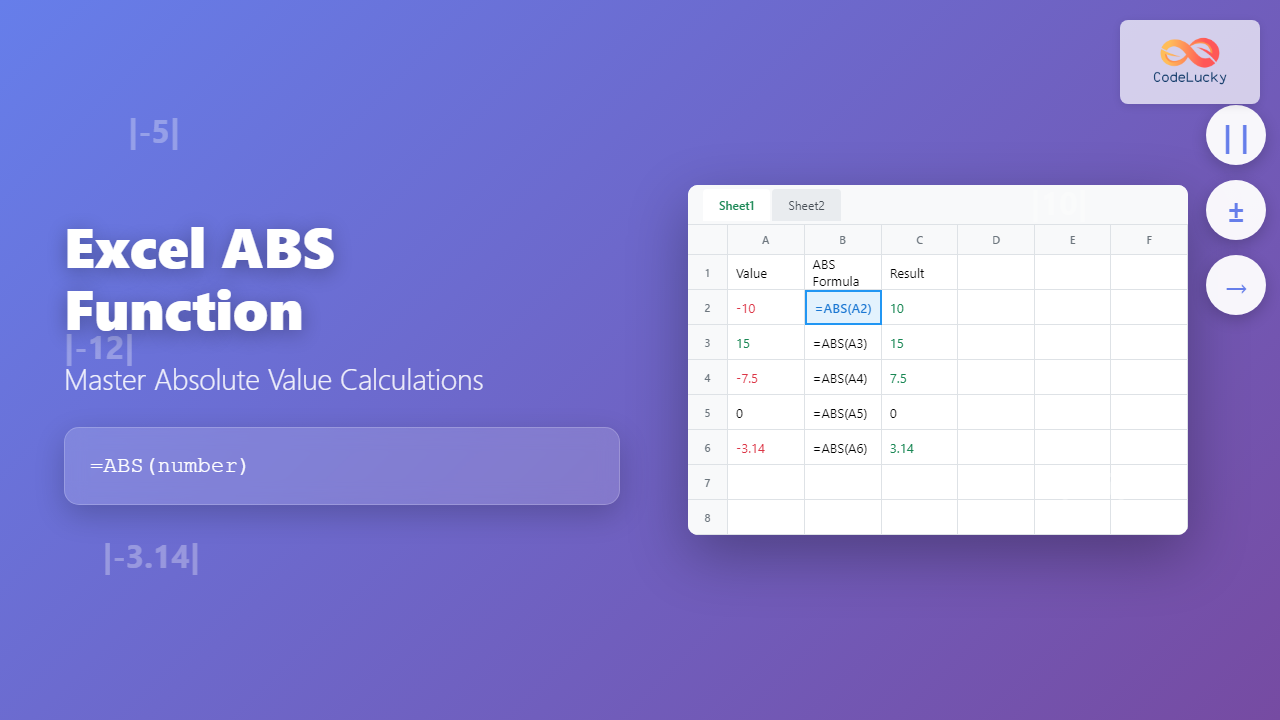
The ABS function in Microsoft Excel is one of the most fundamental mathematical functions that converts any number to its absolute value. Whether you’re working with financial data, statistical analysis, or simple calculations, understanding how to use the ABS function effectively can significantly improve your spreadsheet skills.
What is the Excel ABS Function?
The ABS function returns the absolute value of a number, which is the number’s distance from zero without regard to its sign. In mathematical terms, the absolute value of both -5 and 5 is 5. This function is particularly useful when you need to work with the magnitude of numbers regardless of whether they’re positive or negative.
Excel ABS Function Syntax
The syntax for the ABS function is remarkably simple:
=ABS(number)Parameters:
- number (required): The real number for which you want the absolute value. This can be a cell reference, a direct number, or a formula that returns a numeric value.
How the ABS Function Works
The ABS function operates on a simple principle: it removes the negative sign from negative numbers while leaving positive numbers unchanged. Here’s how it processes different types of input:
- Positive numbers remain unchanged
- Negative numbers become positive
- Zero remains zero
- Text that can be converted to numbers is processed accordingly
Basic ABS Function Examples
Let’s explore some fundamental examples to understand how the ABS function works in practice:
Simple Number Examples
=ABS(-10)    # Returns: 10
=ABS(10)     # Returns: 10
=ABS(0)      # Returns: 0
=ABS(-3.14)  # Returns: 3.14
Cell Reference Examples
When working with cell references, the ABS function becomes even more powerful:
=ABS(A1)     # Returns absolute value of the number in cell A1
=ABS(B2-C2)  # Returns absolute difference between B2 and C2
=ABS(SUM(A1:A5))  # Returns absolute value of the sum
Practical Applications of the ABS Function
1. Calculating Absolute Differences
One of the most common uses of the ABS function is calculating the absolute difference between two values. This is particularly useful in financial analysis, variance calculations, and data comparison:
=ABS(A2-B2) # Absolute difference between actual and budgeted values2. Distance Calculations
When working with coordinates or measurements, the ABS function helps calculate distances:
=ABS(A2-A1) # Distance between two points on a number line3. Error Analysis
In statistical analysis, absolute values are crucial for calculating mean absolute deviation and other error metrics:
=ABS(A2-AVERAGE($A$2:$A$10)) # Absolute deviation from meanAdvanced ABS Function Techniques
Combining ABS with Other Functions
The true power of the ABS function emerges when combined with other Excel functions:
With SUM Function
=SUM(ABS(A1:A10)) # Note: This requires array formula (Ctrl+Shift+Enter)With IF Function
=IF(ABS(A1-B1)>10,"Significant Difference","Minor Difference")With SUMPRODUCT Function
=SUMPRODUCT(ABS(A1:A10)) # Sum of absolute values in a rangeCreating Conditional Absolute Value Formulas
You can create more sophisticated formulas that apply absolute values conditionally:
=IF(A1<0,ABS(A1)*2,A1) # Double negative values, keep positive unchangedCommon Use Cases in Business
Financial Variance Analysis
Financial analysts frequently use the ABS function to calculate budget variances:
| Account | Budget | Actual | Variance | Absolute Variance |
|---|---|---|---|---|
| Sales | 100,000 | 95,000 | -5,000 | =ABS(C2-B2) |
Quality Control
Manufacturing and quality control processes often require absolute deviation calculations:
=ABS(A2-50) # Deviation from target specification of 50Performance Tracking
Track performance metrics regardless of whether they're above or below target:
=ABS((A2-B2)/B2) # Absolute percentage varianceError Handling with ABS Function
The ABS function is generally robust, but you should be aware of potential issues:
Text Values
If the input contains text that cannot be converted to a number, ABS returns a #VALUE! error:
=ABS("text") # Returns: #VALUE! errorEmpty Cells
Empty cells are treated as zero:
=ABS("") # Returns: 0Error Proofing Your Formulas
To make your formulas more robust, combine ABS with error-checking functions:
=IFERROR(ABS(A1),"Invalid Input")ABS Function Limitations and Considerations
Data Type Limitations
The ABS function only works with numeric data types. It cannot process:
- Pure text strings
- Boolean values (TRUE/FALSE) unless converted
- Date/time values (though it can process their numeric representations)
Performance Considerations
When working with large datasets, consider the performance impact of complex ABS formulas. Array formulas with ABS can slow down spreadsheet calculations.
Alternative Methods for Absolute Values
While ABS is the standard method, there are alternative approaches for specific scenarios:
Using SQRT and POWER Functions
=SQRT(A1^2) # Alternative to ABS(A1)Using MAX and MIN Functions
=MAX(A1,-A1) # Another alternative to ABS(A1)Tips for Effective ABS Function Usage
1. Combine with Conditional Formatting
Use ABS results to create dynamic conditional formatting rules that highlight significant variances regardless of direction.
2. Create Reusable Templates
Build template formulas using ABS for common calculations like variance analysis, so you can reuse them across different projects.
3. Document Your Formulas
When using complex ABS formulas, add comments to explain the business logic, especially when combining with other functions.
4. Validate Your Data
Always validate that your input data is numeric before applying ABS functions to avoid unexpected errors.
Troubleshooting Common ABS Function Issues
Formula Not Calculating
If your ABS formula isn't calculating:
- Check if Excel is in manual calculation mode
- Verify that the cell format is not set to "Text"
- Ensure there are no hidden characters in your data
Unexpected Results
If you're getting unexpected results:
- Check for leading or trailing spaces in text-based numbers
- Verify data types in referenced cells
- Look for circular references in your formulas
Conclusion
The Excel ABS function is a powerful tool for working with absolute values in your spreadsheets. Its simple syntax belies its versatility in financial analysis, statistical calculations, and data processing tasks. By understanding how to use ABS effectively, both alone and in combination with other Excel functions, you can create more robust and useful spreadsheet solutions.
Whether you're calculating variances, analyzing deviations, or simply need to work with the magnitude of numbers, the ABS function provides a reliable and efficient solution. Remember to consider data validation and error handling when building complex formulas, and don't hesitate to experiment with combining ABS with other Excel functions to create powerful analytical tools.
Start incorporating the ABS function into your Excel toolkit today, and discover how this simple yet powerful function can enhance your data analysis capabilities.
Related Posts

MySQL ABS Function: Calculate Absolute Values Efficiently
The ABS() function in MySQL is your go-to tool for calculating the absolute value of a number. It's a fundamental...
Python abs() Function: Computing Absolute Values
The abs() function in Python is a powerful tool for working with numerical data. It enables you to determine the...

JavaScript Math abs() Method: Absolute Value
JavaScript Math.abs(): Getting the Absolute Value The Math.abs() method in JavaScript is a fundamental mathematical function used to retrieve the...

Excel INT Function: Complete Guide to Integer Extraction and Rounding
The Excel INT function is a fundamental mathematical function that extracts the integer portion of a number by rounding it...

Excel SIGN Function: Master Number Sign Detection with Practical Examples
The Excel SIGN function is a powerful mathematical tool that determines whether a number is positive, negative, or zero. This...

Excel FLOOR Function: Complete Guide to Floor Rounding with Syntax Examples
The Excel FLOOR function is a powerful mathematical tool that rounds numbers down to the nearest specified multiple. Unlike standard...
Excel SQRT Function: Complete Guide to Square Root Calculations and Formulas
The Excel SQRT function is one of the most fundamental mathematical functions in Microsoft Excel, designed to calculate the square...

Excel MEDIAN Function: Complete Guide to Middle Value Calculations
The MEDIAN function in Microsoft Excel is one of the most essential statistical functions for data analysis. It calculates the...

Excel CEILING Function: Complete Guide to Rounding Up Numbers
The Excel CEILING function is a powerful mathematical tool that rounds numbers up to the nearest specified multiple. Whether you're...
Excel AVERAGE Function: Complete Guide to Mean Calculation with Syntax Examples
The Excel AVERAGE function is one of the most fundamental and widely-used statistical functions in Microsoft Excel. This powerful function...

Excel FACT Function: Complete Guide to Factorial Calculations in Spreadsheets
What is the Excel FACT Function? The Excel FACT function is a powerful mathematical function that calculates the factorial of...

Excel SIN Function: Complete Guide to Sine Calculations in Spreadsheets
The Excel SIN function is a powerful mathematical tool that calculates the sine of an angle in radians. Whether you're...





