When using pip 3 to manage Python packages, encountering the error: externally-managed-environment can halt your workflow and cause confusion. This article comprehensively explains what this error means, why it occurs, and how to solve it effectively. Clear examples and helpful mermaid diagrams will guide users from understanding the root cause to applying best practices for smooth Python package management.
What is the “error: externally-managed-environment” in pip 3?
This error message is a safeguard introduced by pip to prevent accidental modification of system-managed Python environments — for example, those controlled by Linux distributions like Ubuntu or Fedora through their package managers (APT, DNF, etc.).
When pip detects that you are trying to install or upgrade packages in such a protected environment, it raises this error to avoid breaking the integrity of the Python packages managed by the system.
Why does this error appear?
System Python installations often manage packages via OS package managers. Using pip directly to manage packages in these environments can conflict with system updates and package management, potentially leading to broken dependencies or inconsistent states.
Hence, pip disallows installation or modification without explicit user intent to acknowledge risk or use specific workarounds.
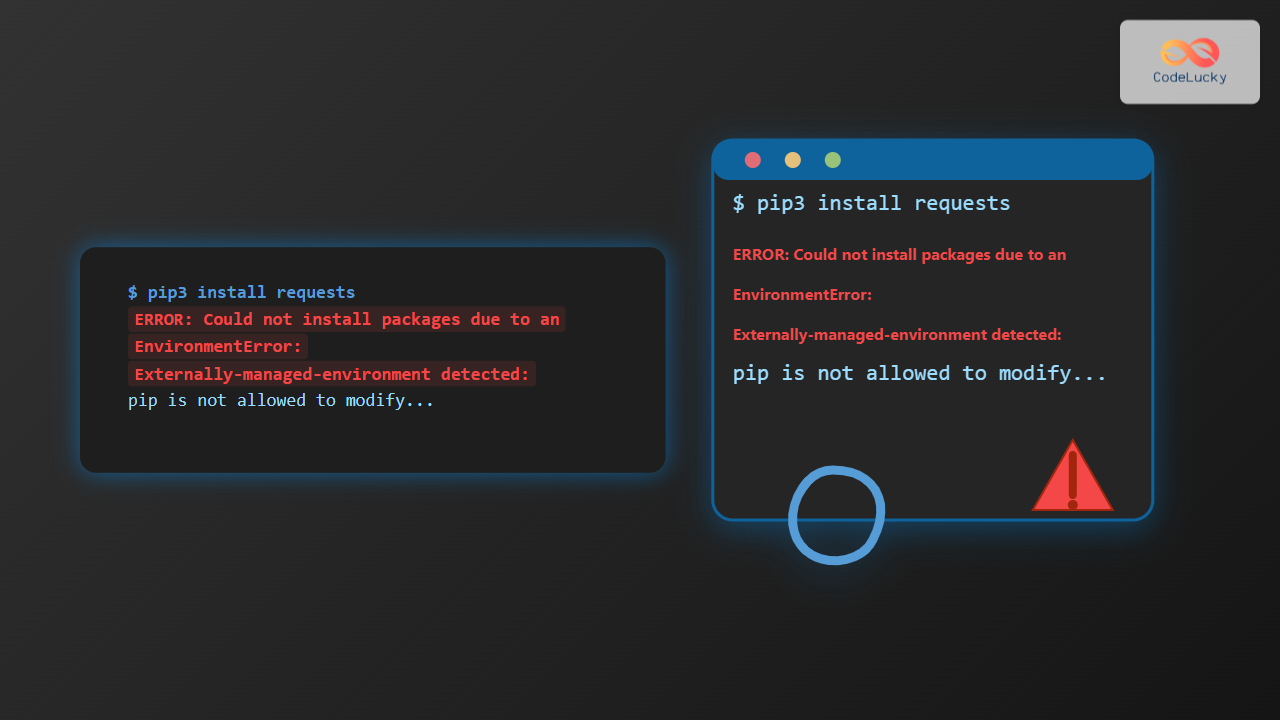
Typical error message example
$ pip3 install requests
ERROR: Could not install packages due to an EnvironmentError:
Externally-managed-environment detected: pip is not allowed to modify ...
How to fix “error: externally-managed-environment” when using pip 3?
There are a few recommended approaches, depending on your situation and environment.
1. Use the --break-system-packages flag
Newer versions of pip have an explicit flag to acknowledge risk when modifying system-managed Python packages. You can install or upgrade packages by running:
pip3 install --break-system-packages <package-name>
Example:
pip3 install --break-system-packages requests
Note: This tells pip you are aware of the risk and want to proceed anyway.

2. Use a Virtual Environment
Creating and activating a virtual environment is the safest and most recommended approach to avoid system-environment conflicts. Virtual environments isolate your package installations from the system Python environment.
Create and activate a virtual environment as follows:
python3 -m venv myenv
source myenv/bin/activate     # On Windows, use: myenv\Scripts\activate
pip install requests
This way, the “externally-managed-environment” error will never appear because you’re working in a private, user-managed environment.

3. Use pip with –user flag for local installs
If you do not want or cannot create a virtual environment, install packages for your user only, avoiding system-wide changes:
pip3 install --user requests
This installs the package to your home directory, bypassing system restrictions and avoiding the error.
4. Consider using system package manager
Sometimes installing Python packages through your system’s package manager (e.g., apt, yum, dnf) is preferred to maintain compatibility with your OS packages. For example:
sudo apt install python3-requests
This approach completely avoids pip package management in protected environments.
Summary of solutions
| Approach | Description | Use Case | Command Example |
|---|---|---|---|
| –break-system-packages flag | Bypass system protection by affirming awareness of risk | Quick fix when confident about system impact | pip3 install –break-system-packages requests |
| Virtual Environment | Isolated Python environment for independent package management | Recommended for development and clean environments | python3 -m venv myenv & source myenv/bin/activate |
| –user flag | Installs packages locally to user directory, no system modification | Good for user-specific installs without virtualenv | pip3 install –user requests |
| System package manager | Use OS package manager to manage system Python packages | Best for stable environment, system-wide consistency | sudo apt install python3-requests |
Interactive demonstration: Diagnosing and fixing the error
Try the following commands in a Linux terminal to simulate and fix the error (on systems where Python is system-managed):
# Simulate failure:
pip3 install requests

# Solution 1: Using the break flag
pip3 install --break-system-packages requests

# OR: Create and activate a virtualenv, then install
python3 -m venv myenv
source myenv/bin/activate
pip install requests
Best Practices for Avoiding This Error
- Prefer virtual environments for all development work to isolate dependencies.
- Avoid using pip directly in system Python unless necessary and with deliberate caution.
- Use your system package manager for system-wide Python modules.
- Stay updated with pip’s latest versions for bug fixes and flags.
Conclusion
The “error: externally-managed-environment” is a useful warning preventing system damage caused by unmanaged pip installs in OS-managed Python environments. Using virtual environments or pip install flags let you bypass this error intelligently. This keeps your Python development controlled and your system stable.
Adopting these methods will improve reliability and avoid conflicts in package management for all Python users.